Software Engineering for Self-Directed Learners TIC2002/TCX3221 edition - 2025 Aug-Nov
This is a printer-friendly version. It omits exercises, optional topics (i.e., four-star topics), and other extra content such as learning outcomes.
SECTION: SOFTWARE ENGINEERING
Pros and Cons
The following description of the Joys of the Programming Craft was taken (and emphasis added) from Chapter 1 of the famous book The Mythical Man-Month, by Frederick P. Brooks.
Why is programming fun? What delights may its practitioner expect as his reward?
First is the sheer joy of making things. As the child delights in his mud pie, so the adult enjoys building things, especially things of his own design. I think this delight must be an image of God's delight in making things, a delight shown in the distinctness and newness of each leaf and each snowflake.
Second is the pleasure of making things that are useful to other people. Deep within, you want others to use your work and to find it helpful. In this respect the programming system is not essentially different from the child's first clay pencil holder "for Daddy's office."
Third is the fascination of fashioning complex puzzle-like objects of interlocking moving parts and watching them work in subtle cycles, playing out the consequences of principles built in from the beginning. The programmed computer has all the fascination of the pinball machine or the jukebox mechanism, carried to the ultimate.
Fourth is the joy of always learning, which springs from the nonrepeating nature of the task. In one way or another the problem is ever new, and its solver learns something: sometimes practical, sometimes theoretical, and sometimes both.
Finally, there is the delight of working in such a tractable medium. The programmer, like the poet, works only slightly removed from pure thought-stuff. He builds his castles in the air, from air, creating by the exertion of the imagination. Few media of creation are so flexible, so easy to polish and rework, so readily capable of realizing grand conceptual structures....
Yet the program construct, unlike the poet's words, is real in the sense that it moves and works, producing visible outputs separate from the construct itself. It prints results, draws pictures, produces sounds, moves arms. The magic of myth and legend has come true in our time. One types the correct incantation on a keyboard, and a display screen comes to life, showing things that never were nor could be.
Programming then is fun because it gratifies creative longings built deep within us and delights sensibilities you have in common with all men.
Not all is delight, however, and knowing the inherent woes makes it easier to bear them when they appear.
First, one must perform perfectly. The computer resembles the magic of legend in this respect, too. If one character, one pause, of the incantation is not strictly in proper form, the magic doesn't work. Human beings are not accustomed to being perfect, and few areas of human activity demand it. Adjusting to the requirement for perfection is, I think, the most difficult part of learning to program.
Next, other people set one's objectives, provide one's resources, and furnish one's information. One rarely controls the circumstances of his work, or even its goal. In management terms, one's authority is not sufficient for his responsibility. It seems that in all fields, however, the jobs where things get done never have formal authority commensurate with responsibility. In practice, actual (as opposed to formal) authority is acquired from the very momentum of accomplishment.
The dependence upon others has a particular case that is especially painful for the system programmer. He depends upon other people's programs. These are often maldesigned, poorly implemented, incompletely delivered (no source code or test cases), and poorly documented. So he must spend hours studying and fixing things that in an ideal world would be complete, available, and usable.
The next woe is that designing grand concepts is fun; finding nitty little bugs is just work. With any creative activity come dreary hours of tedious, painstaking labor, and programming is no exception.
Next, one finds that debugging has a linear convergence, or worse, where one somehow expects a quadratic sort of approach to the end. So testing drags on and on, the last difficult bugs taking more time to find than the first.
The last woe, and sometimes the last straw, is that the product over which one has labored so long appears to be obsolete upon (or before) completion. Already colleagues and competitors are in hot pursuit of new and better ideas. Already the displacement of one's thought-child is not only conceived, but scheduled.
This always seems worse than it really is. The new and better product is generally not available when one completes his own; it is only talked about. It, too, will require months of development. The real tiger is never a match for the paper one, unless actual use is wanted. Then the virtues of reality have a satisfaction all their own.
Of course the technological base on which one builds is always advancing. As soon as one freezes a design, it becomes obsolete in terms of its concepts. But implementation of real products demands phasing and quantizing. The obsolescence of an implementation must be measured against other existing implementations, not against unrealized concepts. The challenge and the mission are to find real solutions to real problems on actual schedules with available resources.
This then is programming, both a tar pit in which many efforts have floundered and a creative activity with joys and woes all its own. For many, the joys far outweigh the woes....
SECTION: PROGRAMMING PARADIGMS
What
Object-Oriented Programming (OOP) is a programming paradigm. A programming paradigm guides programmers to analyze programming problems, and structure programming solutions, in a specific way.
Programming languages have traditionally divided the world into two parts—data and operations on data. Data is static and immutable, except as the operations may change it. The procedures and functions that operate on data have no lasting state of their own; they’re useful only in their ability to affect data.
This division is, of course, grounded in the way computers work, so it’s not one that you can easily ignore or push aside. Like the equally pervasive distinctions between matter and energy and between nouns and verbs, it forms the background against which you work. At some point, all programmers—even object-oriented programmers—must lay out the data structures that their programs will use and define the functions that will act on the data.
With a procedural programming language like C, that’s about all there is to it. The language may offer various kinds of support for organizing data and functions, but it won’t divide the world any differently. Functions and data structures are the basic elements of design.
Object-oriented programming doesn’t so much dispute this view of the world as restructure it at a higher level. It groups operations and data into modular units called objects and lets you combine objects into structured networks to form a complete program. In an object-oriented programming language, objects and object interactions are the basic elements of design.
Some other examples of programming paradigms are:
| Paradigm | Programming Languages |
|---|---|
| Procedural Programming paradigm | C |
| Functional Programming paradigm | F#, Haskell, Scala |
| Logic Programming paradigm | Prolog |
Some programming languages support multiple paradigms.
Java is primarily an OOP language but it supports limited forms of functional programming and it can be used to (although not recommended to) write procedural code. e.g., se-edu/addressbook-level1
JavaScript and Python support functional, procedural, and OOP programming.
What
An object in Object-Oriented Programming (OOP) has state and behavior, similar to objects in the real world.
Every object has both state (data) and behavior (operations on data). In that, they’re not much different from ordinary physical objects. It’s easy to see how a mechanical device, such as a pocket watch or a piano, embodies both state and behavior. But almost anything that’s designed to do a job does, too. Even simple things with no moving parts such as an ordinary bottle combine state (how full the bottle is, whether or not it’s open, how warm its contents are) with behavior (the ability to dispense its contents at various flow rates, to be opened or closed, to withstand high or low temperatures).
It’s this resemblance to real things that gives objects much of their power and appeal. They can not only model components of real systems, but equally as well fulfill assigned roles as components in software systems.
OOP views the world as a network of interacting objects.
A real world scenario viewed as a network of interacting objects:
You are asked to find out the average age of a group of people Adam, Beth, Charlie, and Daisy. You take a piece of paper and pen, go to each person, ask for their age, and note it down. After collecting the age of all four, you enter it into a calculator to find the total. And then, use the same calculator to divide the total by four, to get the average age. This can be viewed as the objects You, Pen, Paper, Calculator, Adam, Beth, Charlie, and Daisy interacting to accomplish the end result of calculating the average age of the four persons. These objects can be considered as connected in a certain network of certain structure that dictates how these objects can interact. For example, You object is connected to the Pen object, and hence You can use the Pen object to write.
OOP solutions try to create a similar object network inside the computer’s memory – a sort of virtual simulation of the corresponding real world scenario – so that a similar result can be achieved programmatically.
OOP does not demand that the virtual world object network follow the real world exactly.
Our previous example can be tweaked a bit as follows:
- Use an object called
Mainto represent your role in the scenario. - As there is no physical writing involved, you can replace the
PenandPaperwith an object calledAgeListthat is able to keep a list of ages.
Every object has both state (data) and behavior (operations on data).
The state and behavior of our running example are as follows:
| Object | Real World? | Virtual World? | Example of State (i.e., Data) | Examples of Behavior (i.e., Operations) |
|---|---|---|---|---|
| Adam | Name, Date of Birth | Calculate age based on birthday | ||
| Pen | - | Ink color, Amount of ink remaining | Write | |
| AgeList | - | Recorded ages | Give the number of entries, Accept an entry to record | |
| Calculator | Numbers already entered | Calculate the sum, divide | ||
| You/Main | Average age, Sum of ages | Use other objects to calculate |
Every object has an interface and an implementation.
Every real world object has,
- an interface through which other objects can interact with it, and,
- an implementation that supports the interface but may not be accessible to the other object.
The interface and implementation of some real-world objects in our example:
- Calculator: the buttons and the display are part of the interface; circuits are part of the implementation.
- Adam: In the context of our 'calculate average age' example,
- the interface of Adam consists of requests that Adam will respond to, e.g., "Give age to the nearest year, as at Jan 1st of this year" "State your name".
- the implementation includes the mental calculation Adam uses to calculate the age which is not visible to other objects.
Similarly, every object in the virtual world has an interface and an implementation.
The interface and implementation of some virtual-world objects in our example:
Adam: the interface might have a methodgetAge(Date asAt); the implementation of that method is not visible to other objects.
Objects interact by sending messages. Both real world and virtual world object interactions can be viewed as objects sending messages to each other. The message can result in the sender object receiving a response and/or the receiver object’s state being changed. Furthermore, the result can vary based on which object received the message, even if the message is identical (see rows 1 and 2 in the example below).
Same messages and responses from our running example:
| World | Sender | Receiver | Message | Response | State Change |
|---|---|---|---|---|---|
| Real | You | Adam | "What is your name?" | "Adam" | - |
| Real | as above | Beth | as above | "Beth" | - |
| Real | You | Pen | Put nib on paper and apply pressure | Makes a mark on your paper | Ink level goes down |
| Virtual | Main | Calculator (current total is 50) | add(int i): int i = 23 | 73 | total = total + 23 |
Objects as Abstractions
The concept of Objects in OOP is an abstraction mechanism because it allows us to abstract away the lower level details and work with bigger granularity entities i.e., ignore details of data formats and the method implementation details and work at the level of objects.
You can deal with a Person object that represents the person Adam and query the object for Adam's age instead of dealing with details such as Adam’s date of birth (DoB), in what format the DoB is stored, the algorithm used to calculate the age from the DoB, etc.
Encapsulation Of Objects
Encapsulation protects an implementation from unintended actions and from inadvertent access.
-- Object-Oriented Programming with Objective-C, Apple
An object is an encapsulation of some data and related behavior in terms of two aspects:
1. The packaging aspect: An object packages data and related behavior together into one self-contained unit.
2. The information hiding aspect: The data in an object is hidden from the outside world and are only accessible using the object's interface.
What
Writing an OOP program is essentially writing instructions that the computer will use to,
- create the virtual world of the object network, and
- provide it the inputs to produce the outcome you want.
A class contains instructions for creating a specific kind of objects. It turns out sometimes multiple objects keep the same type of data and have the same behavior because they are of the same kind. Instructions for creating a 'kind' (or ‘class’) of objects can be done once and those same instructions can be used to objects of that kind. We call such instructions a Class.
Classes and objects in an example scenario
Consider the example of writing an OOP program to calculate the average age of Adam, Beth, Charlie, and Daisy.
Instructions for creating objects Adam, Beth, Charlie, and Daisy will be very similar because they are all of the same kind: they all represent ‘persons’ with the same interface, the same kind of data (i.e., name, dateOfBirth, etc.), and the same kind of behavior (i.e., getAge(Date), getName(), etc.). Therefore, you can have a class called Person containing instructions on how to create Person objects and use that class to instantiate objects Adam, Beth, Charlie, and Daisy.
Similarly, you need classes AgeList, Calculator, and Main classes to instantiate one each of AgeList, Calculator, and Main objects.
| Class | Objects |
|---|---|
Person | objects representing Adam, Beth, Charlie, Daisy |
AgeList | an object to represent the age list |
Calculator | an object to do the calculations |
Main | an object to represent you (i.e., the one who manages the whole operation) |
Class Level Members
While all objects of a class have the same attributes, each object has its own copy of the attribute value.
All Person objects have the name attribute but the value of that attribute varies between Person objects.
However, some attributes are not suitable to be maintained by individual objects. Instead, they should be maintained centrally, shared by all objects of the class. They are like ‘global variables’ but attached to a specific class. Such variables whose value is shared by all instances of a class are called class-level attributes.
The attribute totalPersons should be maintained centrally and shared by all Person objects rather than copied at each Person object.
Similarly, when a normal method is being called, a message is being sent to the receiving object and the result may depend on the receiving object.
Sending the getName() message to the Adam object results in the response "Adam" while sending the same message to the Beth object results in the response "Beth".
However, there can be methods related to a specific class but not suitable for sending messages to a specific object of that class. Such methods that are called using the class instead of a specific instance are called class-level methods.
The method getTotalPersons() is not suitable to send to a specific Person object because a specific object of the Person class should not have to know about the total number of Person objects.
Class-level attributes and methods are collectively called class-level members (also called static members sometimes because some programming languages use the keyword static to identify class-level members). They are to be accessed using the class name rather than an instance of the class.
Enumerations
An Enumeration is a fixed set of values that can be considered as a data type. An enumeration is often useful when using a regular data type such as int or String would allow invalid values to be assigned to a variable.
Suppose you want a variable called priority to store the priority of something. There are only three priority levels: high, medium, and low. You can declare the variable priority as of type int and use only values 2, 1, and 0 to indicate the three priority levels. However, this opens the possibility of an invalid value such as 9 being assigned to it. But if you define an enumeration type called Priority that has three values HIGH, MEDIUM and LOW only, a variable of type Priority will never be assigned an invalid value because the compiler is able to catch such an error.
Priority: HIGH, MEDIUM, LOW
What
Objects in an OO solution need to be connected to each other to form a network so that they can interact with each other. Such connections between objects are called associations.
Suppose an OOP program for managing a learning management system creates an object structure to represent the related objects. In that object structure you can expect to have associations between a Course object that represents a specific course and Student objects that represent students taking that course.
Associations in an object structure can change over time.
To continue the previous example, the associations between a Course object and Student objects can change as students enroll in the course or drop the course over time.
Associations among objects can be generalized as associations between the corresponding classes too.
In our example, as some Course objects can have associations with some Student objects, you can view it as an association between the Course class and the Student class.
Implementing associations
You use instance level variables to implement associations.
In our example, the Course class can have a students variable to keeps track of students associated with a particular course.
Navigability
When two classes are linked by an association, it does not necessarily mean both objects taking part in an instance of the association knows about (i.e., has a reference to) each other. The concept of navigability tells us if an object taking part in association knows about the other. In other words, it tells us if we can 'navigate' from the one object to the other in a given direction -- because if the object 'knows' about the other, it has a reference to the other object, and we can use that reference to 'navigate to' (i.e., access) that other object.
Navigability can be unidirectional or bidirectional. Suppose there is an association between the classes Box and Rope, and the Box object b and the Rope object r is taking part in one instance of that association.
- Unidirectional: If the navigability is from
BoxtoRope,bwill have a reference torbutrwill not have a reference tob. That is, one can navigate frombtorusing theb's object reference ofr(but not in the other direction).
Similarly, if the navigability is in the other direction,rwill have a reference tobbutbwill not have a reference tor. - Bidirectional:
bwill have a reference torandrwill have a reference tobi.e., the two objects will be pointing to each other for the same single instance of the association.
Note that two in opposite directions do not add up to a single bidirectional association.
In the code below, there is a bidirectional association between the Person class and the Cat class i.e., if Person p is the owner of the Cat c, p it will result in p and c having references to each other.
class Person {
Cat pet;
//...
}
class Cat{
Person owner;
//...
}
class Person:
def __init__(self):
self.pet = None # a Cat object
class Cat:
def __init__(self):
self.owner = None # a Person object
The code below has two unidirectional associations between the Person class and the Cat class (in opposite directions). Because the breeder is not necessarily the same person keeping the cat as a pet, they are two separate associations, not a bidirectional association.
class Person {
Cat pet;
//...
}
class Cat{
Person breeder;
//...
}
class Person:
def __init__(self):
self.pet = None # a Cat object
class Cat:
def __init__(self):
self.breeder = None # a Person object
Multiplicity
Multiplicity is the aspect of an OOP solution that dictates how many objects take part in each association.
The multiplicity of the association between Course objects and Student objects tells you how many Course objects can be associated with one Student object and vice versa.
Implementing multiplicity
A normal instance-level variable gives us a 0..1 multiplicity (also called optional associations) because a variable can hold a reference to a single object or null.
In the code below, the Logic class has a variable that can hold 0..1 i.e., zero or one Minefield objects.
class Logic {
Minefield minefield;
// ...
}
class Minefield {
//...
}
class Logic:
def __init__(self):
self.minefield = None
# ...
class Minefield:
# ...
A variable can be used to implement a 1 multiplicity too (also called compulsory associations).
In the code below, the Logic class will always have a ConfigGenerator object, provided the variable is not set to null at some point.
class Logic {
ConfigGenerator cg = new ConfigGenerator();
...
}
In the Logic class, ensure there is a variable that refers to a ConfigGenerator object.
To implement other multiplicities, choose a suitable data structure such as Arrays, ArrayLists, HashMaps, Sets, etc.
This code uses a two-dimensional array to implement a 1-to-many association from the Minefield to Cell.
class Minefield {
Cell[][] cell;
//...
}
class Minefield:
def __init__(self):
self.cells = {1:[], 2:[], 3:[]}
Dependencies
In the context of OOP associations, a dependency is a need for one class to depend on another without having a direct association in the same direction. Reason for the exclusion: If there is an association from class Foo to class Bar (i.e., navigable from Foo to Bar), that means Foo is obviously dependent on Bar and hence there is no point in mentioning dependency specifically. In other words, we are specifically focusing on non-obvious dependencies here. One cause of such dependencies is interactions between objects that do not have a long-term link between them.
A Course class can have a dependency on a Registrar class because the Course class needs to refer to the Registrar class to obtain the maximum number of students it can support (e.g., Registrar.MAX_COURSE_CAPACITY).
In the code below, Foo has a dependency on Bar but it is not an association because it is only a interaction and there is no long term relationship between a Foo object and a Bar object. i.e., the Foo object does not keep the Bar object it receives as a parameter.
class Foo {
int calculate(Bar bar) {
return bar.getValue();
}
}
class Bar {
int value;
int getValue() {
return value;
}
}
class Foo:
def calculate(self, bar):
return bar.value;
class Bar:
def __init__(self, value):
self.value = value
Composition
A composition is an association that represents a strong whole-part relationship.
A Board (used for playing board games) consists of Square objects.
Composition implies,
- when the whole is destroyed, parts are destroyed too i.e., the part cannot exist without being attached to a whole.
- there cannot be cyclical links.
The ‘sub-folder’ association between Folder objects is a composition type association. Consider the case of Folder object subF is a sub-folder of Folder object F. In this case,
- if
Fis deleted,subFwill be deleted with it. Fcannot be a sub-folder ofsubF(i.e., no cyclical 'sub-folder' association between the two objects).
Whether a relationship is a composition can depend on the context.
Is the relationship between Email and EmailSubject composition? That is, is the email subject part of an email to the extent that an email subject cannot exist without an email?
- When modeling an application that sends emails, the answer is 'yes'.
- When modeling an application that gather analytics about email traffic, the answer may be 'no' (e.g., the application might collect just the email subjects for text analysis).
A common use of composition is when parts of a big class are carved out as smaller classes for the ease of managing the internal design. In such cases, the classes extracted out still act as parts of the bigger class and the outside world has no business knowing about them.
Cascading deletion alone is not sufficient for composition. Suppose there is a design in which Person objects are attached to Task objects and the former get deleted whenever the latter is deleted. This fact alone does not mean there is a composition relationship between the two classes. For it to be composition, a Person must be an integral part of a Task in the context of that association, at the concept level (not simply at implementation level).
Identifying and keeping track of composition relationships in the design has benefits such as helping to maintain the data integrity of the system. For example, when you know that a certain relationship is a composition, you can take extra care in your implementation to ensure that when the whole object is deleted, all its parts are deleted too.
Implementing composition
Composition is implemented using a normal variable. If correctly implemented, the ‘part’ object will be deleted when the ‘whole’ object is deleted. Ideally, the ‘part’ object may not even be visible to clients of the ‘whole’ object.
Here is one way to implement the composition between Email and Subject:
class Email {
private Subject subject;
...
}
class Email:
def __init__(self):
self.__subject = Subject()
In this code, the Email has a composition type relationship with the Subject class, in the sense that the subject is part of the email.
Aggregation
Aggregation represents a container-contained relationship. It is a weaker relationship than composition.
SportsClub can act as a container for Person objects who are members of the club. Person objects can survive without a SportsClub object.
Implementing aggregation
Implementation is similar to that of composition except the containee object can exist even after the container object is deleted.
In the code below, there is an aggregation association between the Team class and the Person class in that a Team contains a Person object who is the leader of the team.
class Team {
Person leader;
...
void setLeader(Person p) {
leader = p;
}
}
class Team:
def __init__(self):
self.__leader = None
def set_leader(self, person):
self.__leader = person
What
The OOP concept Inheritance allows you to define a new class based on an existing class.
For example, you can use inheritance to define an EvaluationReport class based on an existing Report class so that the EvaluationReport class does not have to duplicate data/behaviors that are already implemented in the Report class. The EvaluationReport can inherit the wordCount attribute and the print() method from the base class Report.
- Other names for Base class: Parent class, Superclass
- Other names for Derived class: Child class, Subclass, Extended class
A superclass is said to be more general than the subclass. Conversely, a subclass is said to be more specialized than the superclass.
Applying inheritance on a group of similar classes can result in the common parts among classes being extracted into more general classes.
Man and Woman behave the same way for certain things. However, the two classes cannot be simply replaced with a more general class Person because of the need to distinguish between Man and Woman for certain other things. A solution is to add the Person class as a superclass (to contain the code common to men and women) and let Man and Woman inherit from Person class.
Inheritance implies the derived class can be considered as a subtype of the base class (and the base class is a super-type of the derived class), resulting in an is a relationship.
Inheritance does not necessarily mean a subtype relationship exists. However, the two often go hand-in-hand. For simplicity, at this point let us assume inheritance implies a subtype relationship.
To continue the previous example,
Womanis aPersonManis aPerson
Inheritance relationships through a chain of classes can result in inheritance hierarchies (aka inheritance trees).
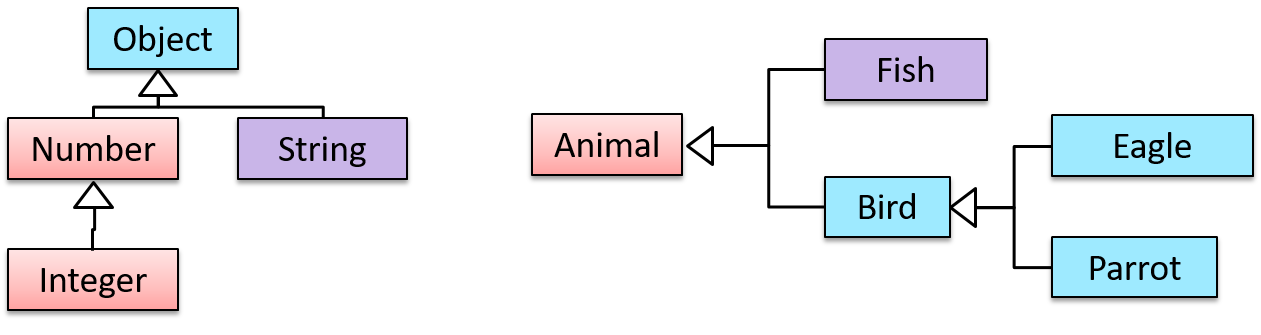
Two inheritance hierarchies/trees are given below. Note that the triangle points to the parent class. Observe how the Parrot is a Bird as well as it is an Animal.
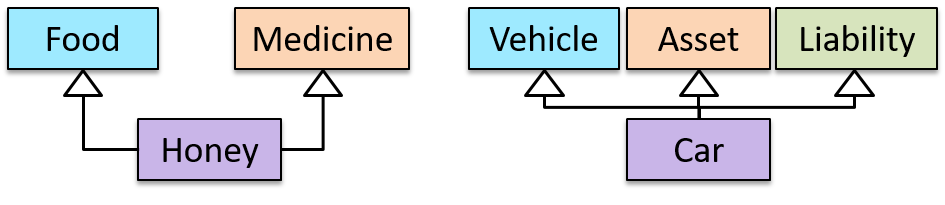
Multiple Inheritance is when a class inherits directly from multiple classes. Multiple inheritance among classes is allowed in some languages (e.g., Python, C++) but not in other languages (e.g., Java, C#).
The Honey class inherits from the Food class and the Medicine class because honey can be consumed as a food as well as a medicine (in some oriental medicine practices). Similarly, a Car is a Vehicle, an Asset and a Liability.
Overriding
Method overriding is when a subclass changes the behavior inherited from the parent class by re-implementing the method. Overridden methods have the same name, the same type signature, and the same (or a subtype of the) return type.
Consider the following case of EvaluationReport class inheriting the Report class:
Report methods | EvaluationReport methods | Overrides? |
|---|---|---|
print() | print() | Yes |
write(String) | write(String) | Yes |
read():String | read(int):String | No. Reason: the two methods have different signatures; This is a case of overloading (rather than overriding). |
Overloading
Method overloading is when there are multiple methods with the same name but different type signatures. Overloading is used to indicate that multiple operations do similar things but take different parameters.
Type signature: The type signature of an operation is the type sequence of the parameters. The return type and parameter names are not part of the type signature. However, the parameter order is significant.
Example:
| Method | Type Signature |
|---|---|
int add(int X, int Y) | (int, int) |
void add(int A, int B) | (int, int) |
void m(int X, double Y) | (int, double) |
void m(double X, int Y) | (double, int) |
In the case below, the calculate method is overloaded because the two methods have the same name but different type signatures (String) and (int).
calculate(String): voidcalculate(int): void
Interfaces
An interface is a behavior specification i.e., a collection of . If a class , it means the class is able to support the behaviors specified by the said interface.
There are a number of situations in software engineering when it is important for disparate groups of programmers to agree to a "contract" that spells out how their software interacts. Each group should be able to write their code without any knowledge of how the other group's code is written. Generally speaking, interfaces are such contracts. --Oracle Docs on Java
Suppose SalariedStaff is an interface that contains two methods setSalary(int) and getSalary(). AcademicStaff can declare itself as implementing the SalariedStaff interface, which means the AcademicStaff class must implement all the methods specified by the SalariedStaff interface i.e., setSalary(int) and getSalary().
A class implementing an interface results in an is-a relationship, just like in class inheritance.
In the example above, AcademicStaff is a SalariedStaff. An AcademicStaff object can be used anywhere a SalariedStaff object is expected e.g., SalariedStaff ss = new AcademicStaff().
Abstract Classes
Abstract class: A class declared as an abstract class cannot be instantiated, but it can be subclassed.
You can declare a class as abstract when a class is merely a representation of commonalities among its subclasses in which case it does not make sense to instantiate objects of that class.
The Animal class that exists as a generalization of its subclasses Cat, Dog, Horse, Tiger etc. can be declared as abstract because it does not make sense to instantiate an Animal object.
Abstract method: An abstract method is a method signature without a method implementation.
The move method of the Animal class is likely to be an abstract method as it is not possible to implement a move method at the Animal class level to fit all subclasses because each animal type can move in a different way.
A class that has an abstract method becomes an abstract class because the class definition is incomplete (due to the missing method body) and it is not possible to create objects using an incomplete class definition.
Substitutability
Every instance of a subclass is an instance of the superclass, but not vice versa. As a result, inheritance allows substitutability: the ability to substitute a child class object where a parent class object is expected.
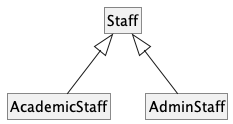
An AcademicStaff is an instance of a Staff, but a Staff is not necessarily an instance of an AcademicStaff. i.e., wherever an object of the superclass is expected, it can be substituted by an object of any of its subclasses.
The following code is valid because an AcademicStaff object is substitutable as a Staff object.
Staff staff = new AcademicStaff(); // OK
But the following code is not valid because staff is declared as a Staff type and therefore its value may or may not be of type AcademicStaff, which is the type expected by variable academicStaff.
Staff staff;
...
AcademicStaff academicStaff = staff; // Not OK
What
Polymorphism:
The ability of different objects to respond, each in its own way, to identical messages is called polymorphism. -- Object-Oriented Programming with Objective-C, Apple
Polymorphism allows you to write code targeting superclass objects, use that code on subclass objects, and achieve possibly different results based on the actual class of the object.
Assume classes Cat and Dog are both subclasses of the Animal class. You can write code targeting Animal objects and use that code on Cat and Dog objects, achieving possibly different results based on whether it is a Cat object or a Dog object. Some examples:
- Declare an array of type
Animaland still be able to storeDogandCatobjects in it. - Define a method that takes an
Animalobject as a parameter and yet be able to passDogandCatobjects to it. - Call a method on a
Dogor aCatobject as if it is anAnimalobject (i.e., without knowing whether it is aDogobject or aCatobject) and get a different response from it based on its actual class e.g., call theAnimalclass's methodspeak()on objectaand get a"Meow"as the return value ifais aCatobject and"Woof"if it is aDogobject.
Polymorphism literally means "ability to take many forms".
Miscellaneous
What is the difference between a Class, an Abstract Class, and an Interface?
- An interface is a behavior specification with no implementation.
- A class is a behavior specification + implementation.
- An abstract class is a behavior specification + a possibly incomplete implementation.
How does overriding differ from overloading?
Overloading is used to indicate that multiple operations do similar things but take different parameters. Overloaded methods have the same method name but different method signatures and possibly different return types.
Overriding is when a sub-class redefines an operation using the same method name and the same type signature. Overridden methods have the same name, same method signature, and same return type.
SECTION: REQUIREMENTS
Introduction
A software requirement specifies a need to be fulfilled by the software product.
A software project may be,
- a brownfield project i.e., develop a product to replace/update an existing software product
- a greenfield project i.e., develop a totally new system from scratch
In either case, requirements need to be gathered, analyzed, specified, and managed.
Requirements come from stakeholders.
Stakeholder: An individual or an organization that is involved or potentially affected by the software project. e.g., users, sponsors, developers, interest groups, government agencies, etc.
Identifying requirements is often not easy. For example, stakeholders may not be aware of their precise needs, may not know how to communicate their requirements correctly, may not be willing to spend effort in identifying requirements, etc.
Non-Functional Requirements
Requirements can be divided into two in the following way:
- Functional requirements specify what the system should do.
- Non-functional requirements specify the constraints under which the system is developed and operated.
Some examples of non-functional requirement categories:
- Data requirements e.g. size, , etc.,
- Environment requirements e.g. technical environment in which the system would operate in or needs to be compatible with.
- Accessibility, Capacity, Compliance with regulations, Documentation, Disaster recovery, Efficiency, Extensibility, Fault tolerance, Interoperability, Maintainability, Privacy, Portability, Quality, Reliability, Response time, Robustness, Scalability, Security, Stability, Testability, and more ...
You may have to spend an extra effort in digging NFRs out as early as possible because,
- NFRs are easier to miss e.g., stakeholders tend to think of functional requirements first
- sometimes NFRs are critical to the success of the software. E.g. A web application that is too slow or that has low security is unlikely to succeed even if it has all the right functionality.
Brainstorming
Brainstorming: A group activity designed to generate a large number of diverse and creative ideas for the solution of a problem.
In a brainstorming session there are no "bad" ideas. The aim is to generate ideas; not to validate them. Brainstorming encourages you to "think outside the box" and put "crazy" ideas on the table without fear of rejection.
User Surveys
Surveys can be used to solicit responses and opinions from a large number of stakeholders regarding a current product or a new product.
Observation
Observing users in their natural work environment can uncover product requirements. Usage data of an existing system can also be used to gather information about how an existing system is being used, which can help in building a better replacement e.g. to find the situations where the user makes mistakes when using the current system.
Interviews
Interviewing stakeholders and domain experts can produce useful information about project requirements.
Focus Groups

[source]
Focus groups are a kind of informal interview within an interactive group setting. A group of people (e.g. potential users, beta testers) are asked about their understanding of a specific issue, process, product, advertisement, etc.
Prototyping
Prototype: A prototype is a mock up, a scaled down version, or a partial system constructed
- to get users’ feedback.
- to validate a technical concept (a "proof-of-concept" prototype).
- to give a preview of what is to come, or to compare multiple alternatives on a small scale before committing fully to one alternative.
- for early field-testing under controlled conditions.
Prototyping can uncover requirements, in particular, those related to how users interact with the system. UI prototypes or mock ups are often used in brainstorming sessions, or in meetings with the users to get quick feedback from them.
A mock up (also called a wireframe diagram) of a dialog box:
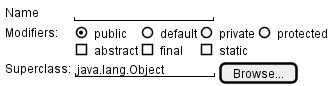
[source: plantuml.com]
Prototyping can be used for discovering as well as specifying requirements e.g. a UI prototype can serve as a specification of what to build.
Product Surveys
Studying existing products can unearth shortcomings of existing solutions that can be addressed by a new product. Product manuals and other forms of documentation of an existing system can tell us how the existing solutions work.
When developing a game for a mobile device, a look at a similar PC game can give insight into the kind of features and interactions the mobile game can offer.
What
A textual description (i.e., prose) can be used to describe requirements. Prose is especially useful when describing abstract ideas such as the vision of a product.
The product vision of the TEAMMATES Project given below is described using prose.
TEAMMATES aims to become the biggest student project in the world (biggest here refers to 'many contributors, many users, large codebase, evolving over a long period'). Furthermore, it aims to serve as a training tool for Software Engineering students who want to learn SE skills in the context of a non-trivial real software product.
Avoid using lengthy prose to describe requirements; they can be hard to follow.
What
Feature list: A list of features of a product grouped according to some criteria such as aspect, priority, order of delivery, etc.
A sample feature list from a simple Minesweeper game (only a brief description has been provided to save space):
- Basic play – Single player play.
- Difficulty levels
- Medium levels
- Advanced levels
- Versus play – Two players can play against each other.
- Timer – Additional fixed time restriction on the player.
- ...
Introduction
User story: User stories are short, simple descriptions of a feature told from the perspective of the person who desires the new capability, usually a user or customer of the system. [Mike Cohn]
A common format for writing user stories is:
User story format: As a {user type/role} I can {function} so that {benefit}
Examples (from a Learning Management System):
- As a student, I can download files uploaded by lecturers, so that I can get my own copy of the files
- As a lecturer, I can create discussion forums, so that students can discuss things online
- As a tutor, I can print attendance sheets, so that I can take attendance during the class
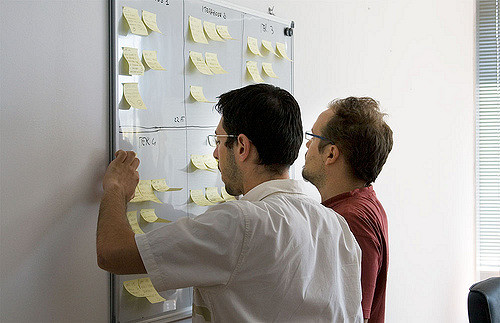
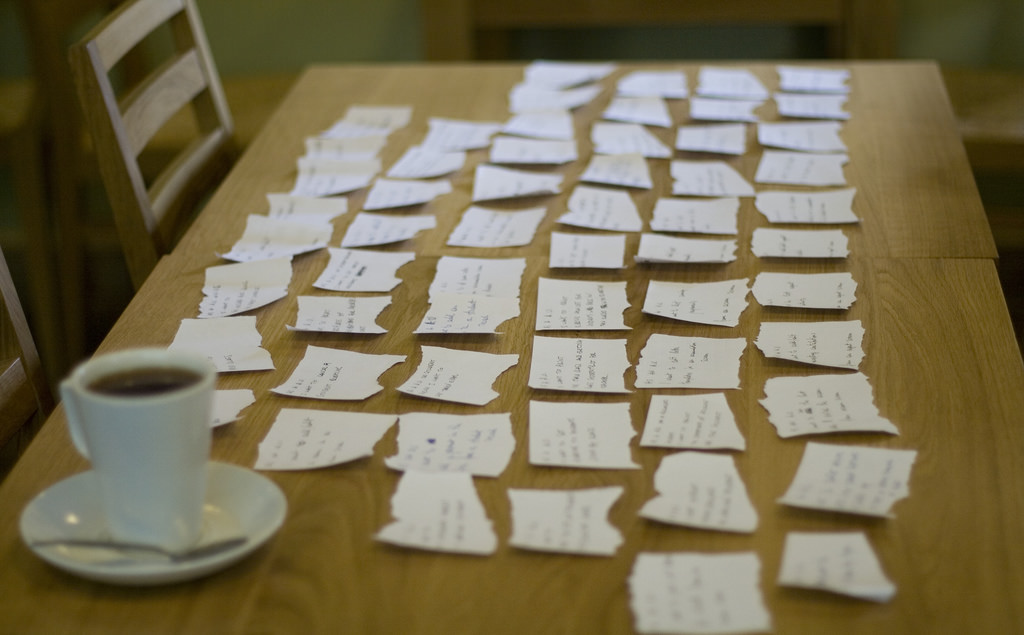
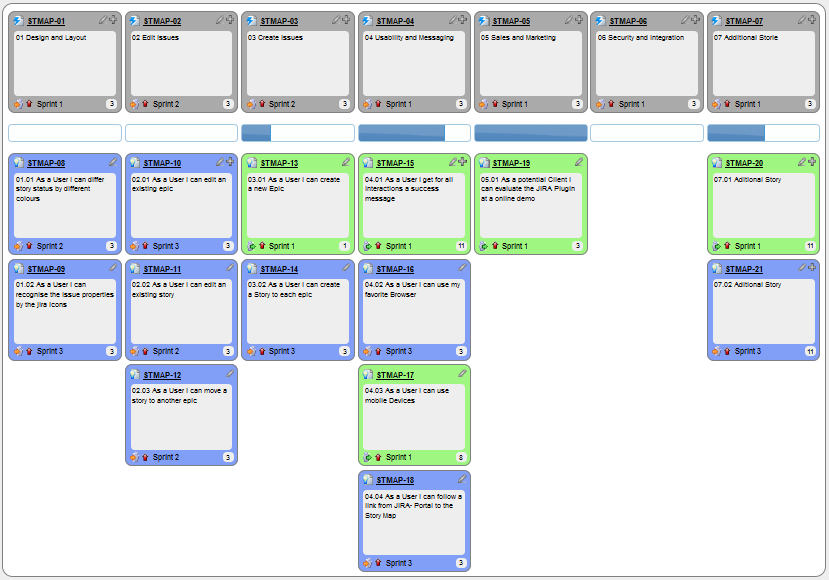
You can write user stories using a physical medium or a digital tool. For example, you can use index cards or sticky notes, and arrange them on walls or tables. Alternatively, you can use a software (e.g., GitHub Project Boards, Trello, Google Docs, ...) to manage user stories digitally.
User stories in use
With sticky notes
With paper
With software
Details
The {benefit} can be omitted if it is obvious.
As a user, I can login to the system so that I can access my data
It is recommended to confirm there is a concrete benefit even if you omit it from the user story. If not, you could end up adding features that have no real benefit.
You can add more characteristics to the {user role} to provide more context to the user story.
- As a forgetful user, I can view a password hint, so that I can recall my password.
- As an expert user, I can tweak the underlying formatting tags of the document, so that I can format the document exactly as I need.
You can write user stories at various levels. High-level user stories, called epics (or themes) cover bigger functionality. You can then break down these epics to multiple user stories of normal size.
[Epic] As a lecturer, I can monitor student participation levels
- As a lecturer, I can view the forum post count of each student
so that I can identify the activity level of students in the forum - As a lecturer, I can view webcast view records of each student
so that I can identify the students who did not view webcasts - As a lecturer, I can view file download statistics of each student
so that I can identify the students who did not download lecture materials
You can add conditions of satisfaction to a user story to specify things that need to be true for the user story implementation to be accepted as ‘done’.
As a lecturer, I can view the forum post count of each student so that I can identify the activity level of students in the forum.
Conditions:
Separate post count for each forum should be shown
Total post count of a student should be shown
The list should be sortable by student name and post count
Other useful info that can be added to a user story includes (but not limited to)
- Priority: how important the user story is
- Size: the estimated effort to implement the user story
- Urgency: how soon the feature is needed
Usage
User stories capture user requirements in a way that is convenient for , , and .
[User stories] strongly shift the focus from writing about features to discussing them. In fact, these discussions are more important than whatever text is written. [Mike Cohn, MountainGoat Software 🔗]
User stories differ from mainly in the level of detail. User stories should only provide enough details to make a reasonably low risk estimate of how long the user story will take to implement. When the time comes to implement the user story, the developers will meet with the customer face-to-face to work out a more detailed description of the requirements. [more...]
User stories can capture non-functional requirements too because even NFRs must benefit some stakeholder.
An example of an NFR captured as a user story:
| As a/an ___, | I want to ___, | so that ___. |
|---|---|---|
| impatient user | to be able to experience reasonable response time from the website while up to 1000 concurrent users are using it | I can use the app even when the traffic is at the maximum expected level |
Given their lightweight nature, user stories are quite handy for recording requirements during early stages of requirements gathering.
A recipe for brainstorming user stories
Given below is a possible recipe you can take when using user stories for early stages of requirement gathering.
Step 0: Clear your mind of preconceived product ideas
Even if you already have some idea of what your product will look/behave like in the end, clear your mind of those ideas. The product is the solution. At this point, we are still at the stage of figuring out the problem (i.e., user requirements). Let's try to get from the problem to the solution in a systematic way, one step at a time.
Step 1: Define the target user as a persona:
Decide your target user's profile (e.g. a student, office worker, programmer, salesperson) and work patterns (e.g. Does he work in groups or alone? Does he share his computer with others?). A clear understanding of the target user will help when deciding the importance of a user story. You can even narrow it down to a persona. Here is an example:
Jean is a university student studying in a non-IT field. She interacts with a lot of people due to her involvement in university clubs/societies. ...
Step 2: Define the problem scope:
Decide the exact problem you are going to solve for the target user. It is also useful to specify what related problems it will not solve so that the exact scope is clear.
ProductX helps Jean keep track of all her school contacts. It does not cover communicating with contacts.
Step 3: List scenarios to form a narrative:
Think of the various scenarios your target user is likely to go through as she uses your app. Following a chronological sequence as if you are telling a story might be helpful.
A. First use:
- Jean gets to know about ProductX. She downloads it and launches it to check out what it can do.
- After playing around with the product for a bit, Jean wants to start using it for real.
- ...
B. Second use: (Jean is still a beginner)
- Jean launches ProductX. She wants to find ...
- ...
C. 10th use: (Jean is a little bit familiar with the app)
- ...
D. 100th use: (Jean is an expert user)
- Jean launches the app and does ... and ... followed by ... as per her usual habit.
- Jean feels some of the data in the app are no longer needed. She wants to get rid of them to reduce clutter.
More examples that might apply to some products:
- Jean uses the app at the start of the day to ...
- Jean uses the app before going to sleep to ...
- Jean hasn't used the app for a while because she was on a three-month training programme. She is now back at work and wants to resume her daily use of the app.
- Jean moves to another company. Some of her clients come with her but some don't.
- Jean starts freelancing in her spare time. She wants to keep her freelancing clients separate from her other clients.
Step 4: List the user stories to support the scenarios:
Based on the scenarios, decide on the user stories you need to support. For example, based on the scenario 'A. First use', you might have user stories such as these:
- As a potential user exploring the app, I can see the app populated with sample data, so that I can easily see how the app will look like when it is in use.
- As a user ready to start using the app, I can purge all current data, so that I can get rid of sample/experimental data I used for exploring the app.
To give another example, based on the scenario 'D. 100th use', you might have user stories such as these:
- As an expert user, I can create shortcuts for tasks, so that I can save time on frequently performed tasks.
- As a long-time user, I can archive/hide unused data, so that I am not distracted by irrelevant data.
Do not 'evaluate' the value of user stories while brainstorming. Reason: an important aspect of brainstorming is not judging the ideas generated.
Other tips:
- Don't be too hasty to discard 'unusual' user stories: Those might make your product unique and stand out from the rest, at least for the target users.
- Don't go into too much detail:
For example, consider this user story:
As a user, I want to see a list of tasks that need my attention most at the present time, so that I pay attention to them first.
When discussing this user story, don't worry about what tasks should be considered 'needs my attention most at the present time'. Those details can be worked out later. - Don't be biased by preconceived product ideas: When you are at the stage of identifying user needs, clear your mind of ideas you have about what your end product will look like. That is, don't try to reverse-engineer a preconceived product idea into user stories.
- Don't discuss implementation details or whether you are actually going to implement it: When gathering requirements, your decision is whether the user's need is important enough for you to want to fulfil it. Implementation details can be discussed later. If a user story turns out to be too difficult to implement later, you can always omit it from the implementation plan.
While user stories can be recorded on in the initial stages, an online tool is more suitable for longer-term management of user stories, especially if the team is not .
Introduction
Use case: A description of a set of sequences of actions, including variants, that a system performs to yield an observable result of value to an actor [ 📖 : ].
A use case describes an interaction between the user and the system for a specific functionality of the system.
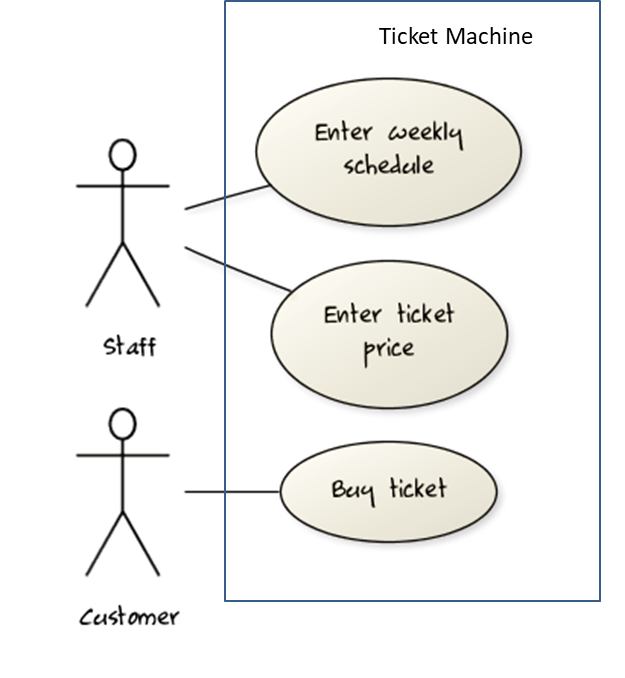
UML includes a diagram type called use case diagrams that can illustrate use cases of a system visually, providing a visual ‘table of contents’ of the use cases of a system.
In the example on the right, note how use cases are shown as ovals and user roles relevant to each use case are shown as stick figures connected to the corresponding ovals.
Use cases capture the functional requirements of a system.
What
Glossary: A glossary serves to ensure that all stakeholders have a common understanding of the noteworthy terms, abbreviations, acronyms etc.
Here is a partial glossary from a variant of the Snakes and Ladders game:
- Conditional square: A square that specifies a specific face value which a player has to throw before his/her piece can leave the square.
- Normal square: a normal square does not have any conditions, snakes, or ladders in it.
Specifying a term in the glossary is useful in the following cases:
- A domain-specific/technical term that may not be known to all stakeholders, to indicate its definition
- When a term has multiple meanings, to indicate which of them is used in the project
- When there are multiple terms used for the same concept, to indicate which of them will be used in the project
SECTION: DESIGN
What
Design is the creative process of transforming the problem into a solution; the solution is also called design. -- 📖 Software Engineering Theory and Practice, Shari Lawrence; Atlee, Joanne M. Pfleeger
Software design has two main aspects:
- Product/external design: designing the external behavior of the product to meet the users' requirements. This is usually done by product designers with input from business analysts, user experience experts, user representatives, etc.
- Implementation/internal design: designing how the product will be implemented to meet the required external behavior. This is usually done by software architects and software engineers.
What
Abstraction is a technique for dealing with complexity. It works by establishing a level of complexity we are interested in, and suppressing the more complex details below that level.
The guiding principle of abstraction is that only details that are relevant to the current perspective or the task at hand need to be considered. As most programs are written to solve complex problems involving large amounts of intricate details, it is impossible to deal with all these details at the same time. That is where abstraction can help.
Data abstraction: abstracting away the lower level data items and thinking in terms of bigger entities
Within a certain software component, you might deal with a user data type, while ignoring the details contained in the user data item such as name, and date of birth. These details have been ‘abstracted away’ as they do not affect the task of that software component.
Control abstraction: abstracting away details of the actual control flow to focus on tasks at a higher level
print(“Hello”) is an abstraction of the actual output mechanism within the computer.
Abstraction can be applied repeatedly to obtain progressively higher levels of abstraction.
An example of different levels of data abstraction: a File is a data item that is at a higher level than an array and an array is at a higher level than a bit.
An example of different levels of control abstraction: execute(Game) is at a higher level than print(Char) which is at a higher level than an Assembly language instruction MOV.
Abstraction is a general concept that is not limited to just data or control abstractions.
Some more general examples of abstraction:
- An OOP class is an abstraction over related data and behaviors.
- An architecture is a higher-level abstraction of the design of a software.
- Models (e.g., UML models) are abstractions of some aspect of reality.
What
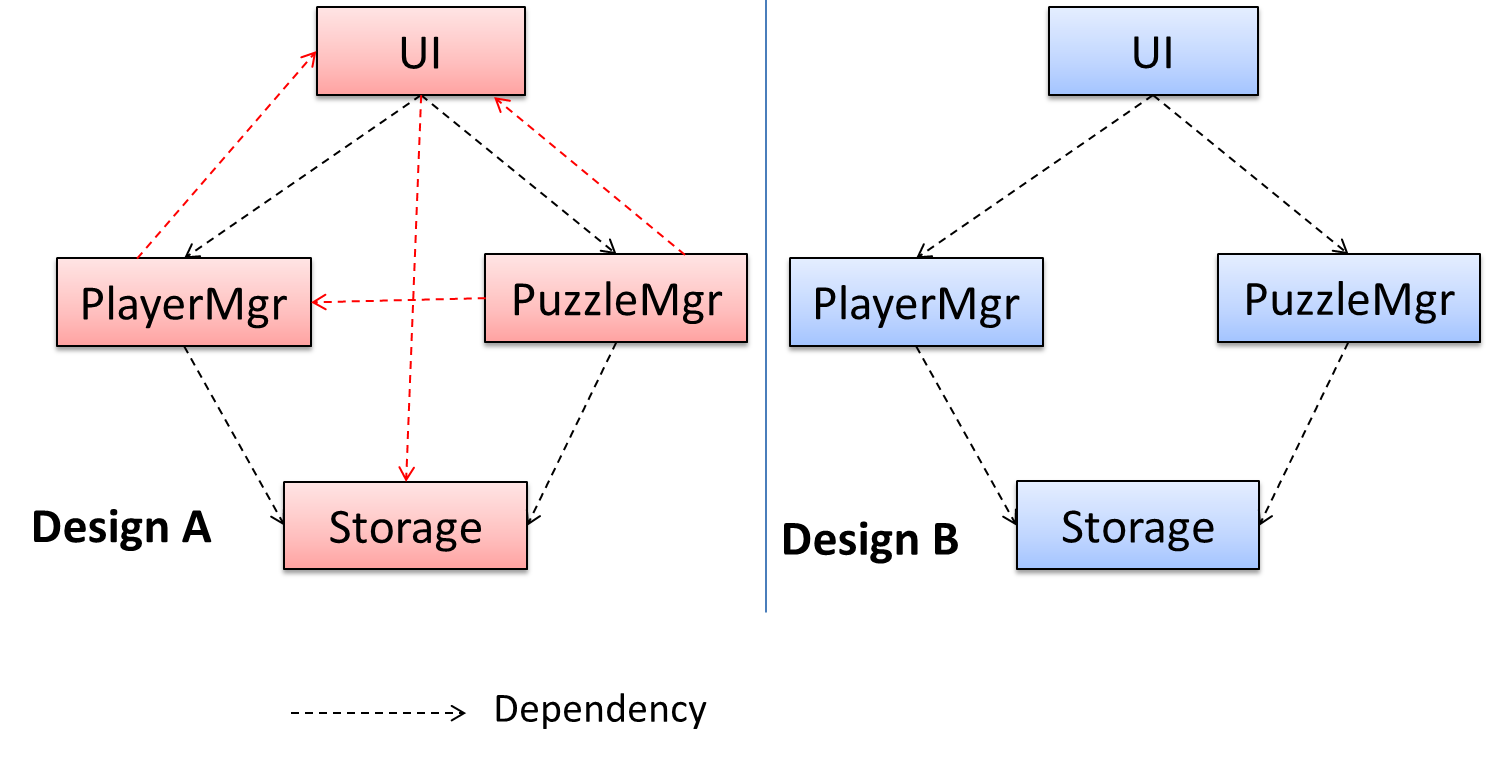
Coupling is a measure of the degree of dependence between components, classes, methods, etc. Low coupling indicates that a component is less dependent on other components. High coupling (aka tight coupling or strong coupling) is discouraged due to the following disadvantages:
- Maintenance is harder because a change in one module could cause changes in other modules coupled to it (i.e., a ripple effect).
- Integration is harder because multiple components coupled with each other have to be integrated at the same time.
- Testing and reuse of the module is harder due to its dependence on other modules.
In the example below, design A appears to have more coupling between the components than design B.
How
X is coupled to Y if a change to Y can potentially require a change in X.
If the Foo class calls the method Bar#read(), Foo is coupled to Bar because a change to Bar can potentially (but not always) require a change in the Foo class e.g. if the signature of Bar#read() is changed, Foo needs to change as well, but a change to the Bar#write() method may not require a change in the Foo class because Foo does not call Bar#write().
Some examples of coupling: A is coupled to B if,
Ahas access to the internal structure ofB(this results in a very high level of coupling)AandBdepend on the same global variableAcallsBAreceives an object ofBas a parameter or a return valueAinherits fromBAandBare required to follow the same data format or communication protocol
What
Cohesion is a measure of how strongly-related and focused the various responsibilities of a component are. A highly-cohesive component keeps related functionalities together while keeping out all other unrelated things.
Higher cohesion is better. Disadvantages of low cohesion (aka weak cohesion):
- Lowers the understandability of modules as it is difficult to express module functionalities at a higher level.
- Lowers maintainability because a module can be modified due to unrelated causes (reason: the module contains code unrelated to each other) or many modules may need to be modified to achieve a small change in behavior (reason: because the code related to that change is not localized to a single module).
- Lowers reusability of modules because they do not represent logical units of functionality.
How
Cohesion can be present in many forms. Some examples:
- Code related to a single concept is kept together, e.g. the
Studentcomponent handles everything related to students. - Code that is invoked close together in time is kept together, e.g. all code related to initializing the system is kept together.
- Code that manipulates the same data structure is kept together, e.g. the
GameArchivecomponent handles everything related to the storage and retrieval of game sessions.
Suppose a Payroll application contains a class that deals with writing data to the database. If the class includes some code to show an error dialog to the user if the database is unreachable, that class is not cohesive because it seems to be interacting with the user as well as the database.
What
A model is a representation of something else.
A class diagram is a model that represents a software design.
A model provides a simpler view of a complex entity because a model captures only a selected aspect. This omission of some aspects implies models are abstractions.
A class diagram captures the structure of the software design but not the behavior.
Multiple models of the same entity may be needed to capture it fully.
In addition to a class diagram (or even multiple class diagrams), a number of other diagrams may be needed to capture various interesting aspects of the software.
How
In software development, models are useful in several ways:
a) To analyze a complex entity related to software development.
Some examples of using models for analysis:
- Models of the can be built to aid the understanding of the problem to be solved.
- When planning a software solution, models can be created to figure out how the solution is to be built. An architecture diagram is such a model.
b) To communicate information among stakeholders. Models can be used as a visual aid in discussions and documentation.
Some examples of using models to communicate:
- You can use an architecture diagram to explain the high-level design of the software to developers.
- A business analyst can use a use case diagram to explain to the customer the functionality of the system.
- A class diagram can be reverse-engineered from code so as to help explain the design of a component to a new developer.
c) As a blueprint for creating software. Models can be used as instructions for building software.
Some examples of using models as blueprints:
- A senior developer draws a class diagram to propose a design for an OOP software and passes it to a junior programmer to implement.
- A software tool allows users to draw UML models using its interface and the tool automatically generates the code based on the model.
OO Structures
An OO solution is basically a network of objects interacting with each other. Therefore, it is useful to be able to model how the relevant objects are 'networked' together inside a software i.e., how the objects are connected together.
Given below is an illustration of some objects and how they are connected together. Note: the diagram uses an ad-hoc notation.
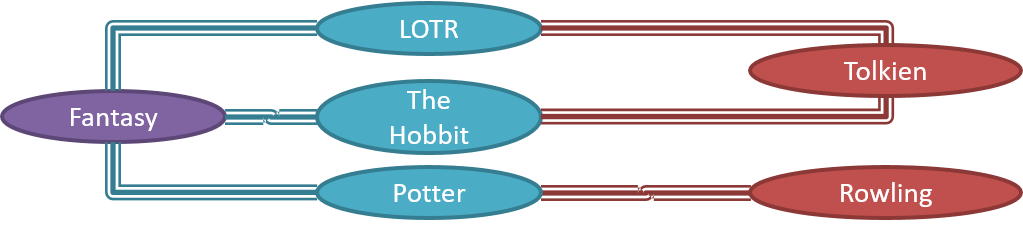
Note that these object structures within the same software can change over time.
Given below is how the object structure in the previous example could have looked like at a different time.
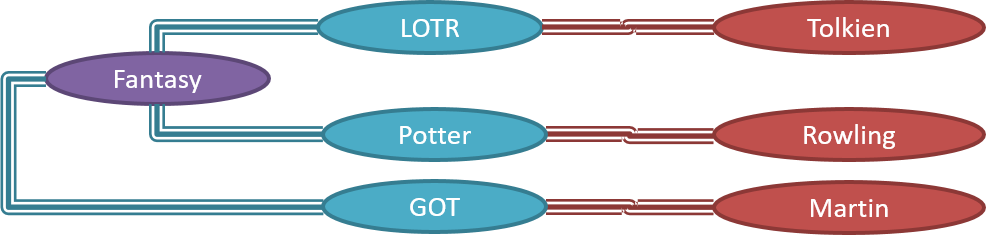
However, object structures do not change at random; they change based on a set of rules set by the designer of that software. Those rules that object structures need to follow can be illustrated as a class structure i.e., a structure that exists among the relevant classes.
Here is a class structure (drawn using an ad-hoc notation) that matches the object structures given in the previous two examples. For example, note how this class structure does not allow any connection between Genre objects and Author objects, a rule followed by the two object structures above.

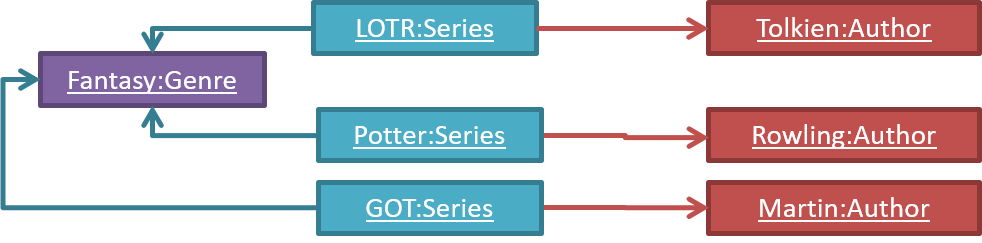
UML Object Diagrams model object structures. UML Class Diagrams model class structures.
Here is an object diagram for the above example:
And here is the class diagram for it:

Class Diagrams (Basics)
Classes form the basis of class diagrams.
Associations are the main connections among the classes in a class diagram.
The most basic class diagram is a bunch of classes with some solid lines among them to represent associations, such as this one.
An example class diagram showing associations between classes.
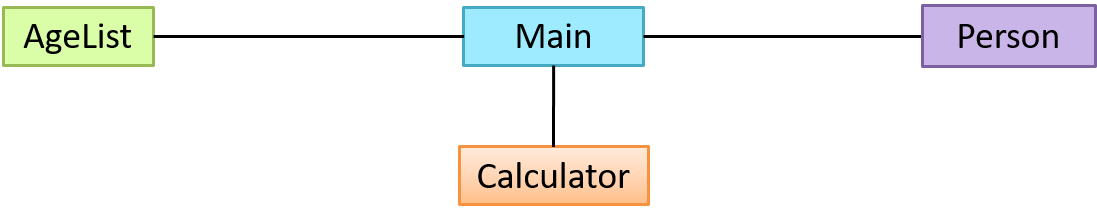
In addition, associations can show additional decorations such as association labels, association roles, multiplicity and navigability to add more information to a class diagram.
Here is the same class diagram shown earlier but with some additional information included:
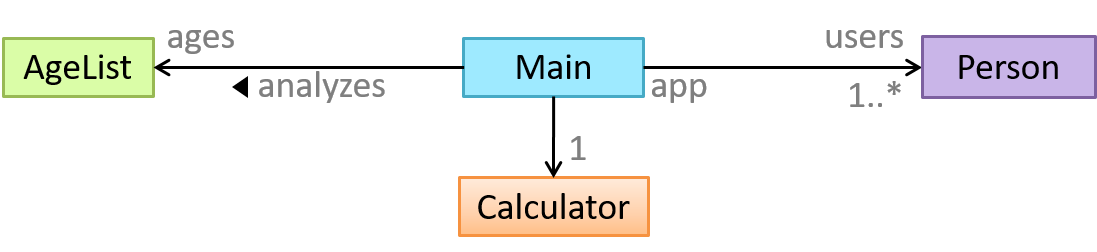
Sequence Diagrams - Basic
Sequence diagrams model the interactions between various entities in a system, in a specific scenario. Modelling such scenarios is useful, for example, to verify the design of the internal interactions is able to provide the expected outcomes.
Some examples where a sequence diagram can be used:
To model how components of a system interact with each other to respond to a user action.
To model how objects inside a component interact with each other to respond to a method call it received from another component.
SECTION: IMPLEMENTATION
What
Professional software engineers often write code using Integrated Development Environments (IDEs). IDEs support most development-related work within the same tool (hence, the term integrated).
An IDE generally consists of:
- A source code editor that includes features such as syntax coloring, auto-completion, easy code navigation, error highlighting, and code-snippet generation.
- A compiler and/or an interpreter (together with other build automation support) that facilitates the compilation/linking/running/deployment of a program.
- A debugger that allows the developer to execute the program one step at a time to observe the run-time behavior in order to locate bugs.
- Other tools that aid various aspects of coding e.g., support for automated testing, drag-and-drop construction of UI components, version management support, simulation of the target runtime platform, modeling support, AI-assisted coding help, collaborative coding with others.
Examples of popular IDEs:
- Java: Eclipse, IntelliJ IDEA, NetBeans
- C#, C++: Visual Studio
- Swift: XCode
- Python: PyCharm
- Multiple languages: VS Code
Some web-based IDEs have appeared in recent times too e.g., Amazon's Cloud9 IDE.
Some experienced developers, in particular those with a UNIX background, prefer lightweight yet powerful text editors with scripting capabilities (e.g., Emacs) over heavier IDEs.
What
Debugging is the process of discovering defects in the program. Here are some approaches to debugging:
- Bad -- By inserting temporary print statements: This is an ad-hoc approach in which print statements are inserted in the program to print information relevant to debugging, such as variable values. e.g.,
Exiting process() method, x is 5.347. This approach is not recommended due to these reasons:- Incurs extra effort when inserting and removing the print statements.
- These extraneous program modifications increase the risk of introducing errors into the program.
- These print statements, if not removed promptly after the debugging, may even appear unexpectedly in the production version.
- Bad -- By manually tracing through the code: Otherwise known as ‘eye-balling’, this approach doesn't have the cons of the previous approach, but it too is not recommended (other than as a 'quick try') due to these reasons:
- It is a difficult, time consuming, and error-prone technique.
- If you didn't spot the error while writing the code, you might not spot the error when reading the code either.
- Good -- Using a debugger: A debugger tool allows you to pause the execution, then step through the code one statement at a time while examining the internal state if necessary. Most IDEs come with an inbuilt debugger. This is the recommended approach for debugging.
Basic
Always code as if the person who ends up maintaining your code will be a violent psychopath who knows where you live. -- Martin Golding
Production code needs to be of high quality. Given how the world is becoming increasingly dependent on software, poor quality code is something no one can afford to tolerate.
Introduction
Programs should be written and polished until they acquire publication quality. --Niklaus Wirth
Among various dimensions of code quality, such as run-time efficiency, security, and robustness, one of the most important is readability (aka understandability). This is because in any non-trivial software project, code needs to be read, understood, and modified by other developers later on. Even if you do not intend to pass the code to someone else, code quality is still important because you will become a 'stranger' to your own code someday.
Avoid Long Methods
Avoid long methods as they often contain more information than what the reader can process at a time. Consider if shortening is possible when a method goes beyond 30 . The bigger the haystack, the harder it is to find a needle.
Avoid Deep Nesting
If you need more than 3 levels of indentation, you're screwed anyway, and should fix your program. --Linux 1.3.53 Coding Style
Avoid deep nesting -- the deeper the nesting, the harder it is for the reader to keep track of the logic.
In particular, avoid arrowhead style code.
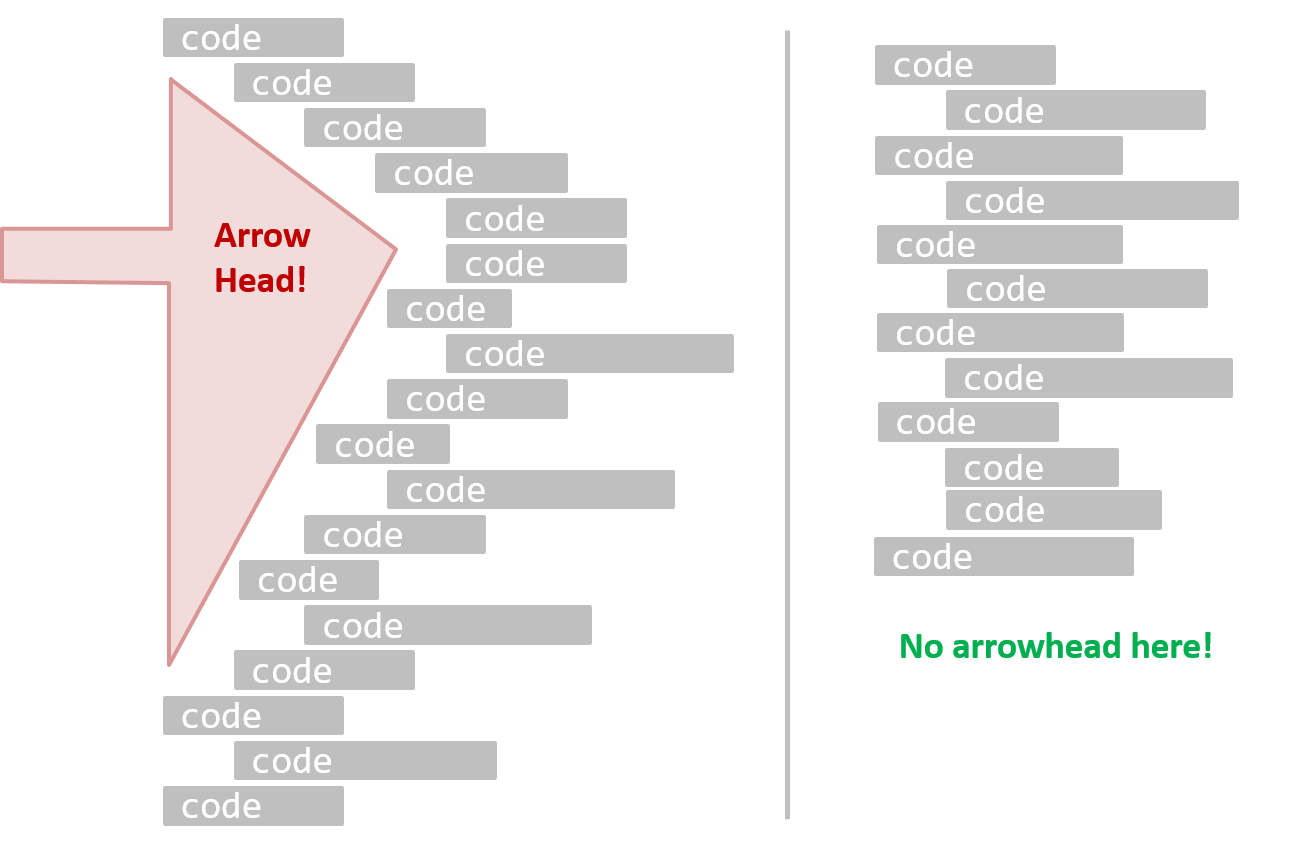
A real code example:
Bad | |
Good | |
Bad | | Good |
Avoid Complicated Expressions
Avoid complicated expressions, especially those having many negations and nested parentheses. If you must evaluate complicated expressions, have it done in steps (i.e., calculate some intermediate values first and use them to calculate the final value).
Bad
return ((length < MAX_LENGTH) || (previousSize != length))
&& (typeCode == URGENT);
Good
boolean isWithinSizeLimit = length < MAX_LENGTH;
boolean isSameSize = previousSize != length;
boolean isValidCode = isWithinSizeLimit || isSameSize;
boolean isUrgent = typeCode == URGENT;
return isValidCode && isUrgent;
Bad
return ((length < MAX_LENGTH) or (previous_size != length)) and (type_code == URGENT)
Good
is_within_size_limit = length < MAX_LENGTH
is_same_size = previous_size != length
is_valid_code = is_within_size_limit or is_same_size
is_urgent = type_code == URGENT
return is_valid_code and is_urgent
The competent programmer is fully aware of the strictly limited size of his own skull; therefore he approaches the programming task in full humility, and among other things he avoids clever tricks like the plague. -- Edsger Dijkstra
Avoid Magic Numbers
Avoid magic numbers in your code. When the code has a number that does not explain the meaning of the number, it is called a "magic number" (as in "the number appears as if by magic"). Using a makes the code easier to understand because the name tells us more about the meaning of the number.
Bad | | Good |
Note: Python does not have a way to make a variable a constant. However, you can use a normal variable with an ALL_CAPS name to simulate a constant.
Bad | | Good |
Similarly, you can have ‘magic’ values of other data types.
Bad
return "Error 1432"; // A magic string!
return "Error 1432" # A magic string!
Avoid any magic literals in general, not just magic numbers.
Make the Code Obvious
Make the code as explicit as possible, even if the language syntax allows them to be implicit. Here are some examples:
- [
Java] Use explicit type conversion instead of implicit type conversion. - [
Java,Python] Use parentheses/braces to show groupings even when they can be skipped. - [
Java,Python] Use enumerations when a certain variable can take only a small number of finite values. For example, instead of declaring the variable 'state' as an integer and using values 0, 1, 2 to denote the states 'starting', 'enabled', and 'disabled' respectively, declare 'state' as typeSystemStateand define an enumerationSystemStatethat has values'STARTING','ENABLED', and'DISABLED'.
Structure Code Logically
Lay out the code so that it adheres to the logical structure. The code should read like a story. Just like how you use section breaks, chapters and paragraphs to organize a story, use classes, methods, indentation and line spacing in your code to group related segments of the code. For example, you can use blank lines to separate groups of related statements.
Sometimes, the correctness of your code does not depend on the order in which you perform certain intermediary steps. Nevertheless, this order may affect the clarity of the story you are trying to tell. Choose the order that makes the story most readable.
Bad | | Good |
Introduction
One essential way to improve code quality is to follow a consistent style. That is why software engineers usually follow a strict coding standard (aka style guide).
The aim of a coding standard is to make the entire codebase look like it was written by one person. A coding standard is usually specific to a programming language and specifies guidelines such as the locations of opening and closing braces, indentation styles and naming styles (e.g., whether to use Hungarian style, Pascal casing, Camel casing, etc.). It is important that the whole team/company uses the same coding standard and that the standard is generally not inconsistent with typical industry practices. If a company's coding standard is very different from what is typically used in the industry, new recruits will take longer to get used to the company's coding style.
IDEs can help to enforce some parts of a coding standard e.g., indentation rules.
Basic
Go through the Java coding standard at @SE-EDU and learn the basic style rules.
Sample coding standard: PEP 8 Python Style Guide -- by Python.org
Use Nouns for Things and Verbs for Actions
Every system is built from a domain-specific language designed by the programmers to describe that system. Functions are the verbs of that language, and classes are the nouns.
-- Robert C. Martin, Clean Code: A Handbook of Agile Software Craftsmanship
Use nouns for classes/variables and verbs for methods/functions.
| Name for a | Bad | Good |
|---|---|---|
| Class | CheckLimit | LimitChecker |
| Method | result() | calculate() |
Distinguish clearly between single-valued and multi-valued variables.
Good
Person student;
ArrayList<Person> students;
Good
name = 'Jim'
names = ['Jim', 'Alice']
Introduction
Good code is its own best documentation. As you’re about to add a comment, ask yourself, ‘How can I improve the code so that this comment isn’t needed?’ Improve the code and then document it to make it even clearer. -- Steve McConnell, Author of Clean Code
Some think commenting heavily increases the 'code quality'. That is not so. Avoid writing comments to explain bad code. Improve the code to make it self-explanatory.
Do Not Repeat the Obvious
Do not repeat in comments information that is already obvious from the code. If the code is self-explanatory, a comment may not be needed.
Bad
//increment x
x++;
//trim the input
trimInput();
Bad
# increment x
x = x + 1
# trim the input
trim_input()
Write to the Reader
Write comments targeting other programmers reading the code. Do not write comments as if they are private notes to yourself. Instead, One type of comment that is almost always useful is the header comment that you write for a class or an operation to explain its purpose.
Bad Reason: this comment will only make sense to the person who wrote it
// a quick trim function used to fix bug I detected overnight
void trimInput() {
....
}
Good
/** Trims the input of leading and trailing spaces */
void trimInput() {
....
}
Bad Reason: this comment will only make sense to the person who wrote it
def trim_input():
"""a quick trim function used to fix bug I detected overnight"""
...
Good
def trim_input():
"""Trim the input of leading and trailing spaces"""
...
What
The process of restructuring code in small steps without modifying its external behavior is called refactoring. Refactoring is needed because the first version of the code you write may not be of production quality. It is OK to first concentrate on making the code work, rather than worry over the quality of the code, as long as you improve the quality later.
- Refactoring is not rewriting: Discarding poorly-written code entirely and re-writing it from scratch is not refactoring because refactoring needs to be done in small steps.
- Refactoring is not bug fixing: By definition, refactoring is different from bug fixing or any other modifications that alter the external behavior (e.g. adding a feature) of the component in concern.
Refactoring code can have many secondary benefits e.g.
- hidden bugs become easier to spot
- improve performance (sometimes, simpler code runs faster than complex code because simpler code is easier for the compiler to optimize).
Given below are two common refactorings (more).
Refactoring Name: Consolidate Duplicate Conditional Fragments
Situation: The same fragment of code is in all branches of a conditional expression.
Method: Move it outside of the expression.
Example:
| → | |
| → | |
Refactoring Name: Extract Method
Situation: You have a code fragment that can be grouped together.
Method: Turn the fragment into a method whose name explains the purpose of the method.
Example:
void printOwing() {
printBanner();
// print details
System.out.println("name: " + name);
System.out.println("amount " + getOutstanding());
}
void printOwing() {
printBanner();
printDetails(getOutstanding());
}
void printDetails(double outstanding) {
System.out.println("name: " + name);
System.out.println("amount " + outstanding);
}
def print_owing():
print_banner()
# print details
print("name: " + name)
print("amount " + get_outstanding())
def print_owing():
print_banner()
print_details(get_outstanding())
def print_details(amount):
print("name: " + name)
print("amount " + amount)
Some IDEs have builtin support for basic refactorings such as automatically renaming a variable/method/class in all places it has been used.
Refactoring, even if done with the aid of an IDE, may still result in regressions. Therefore, each small refactoring should be followed by regression testing.
What
JavaDoc is a tool for generating API documentation in HTML format from comments in the source code. In addition, modern IDEs use JavaDoc comments to generate explanatory tooltips.
An example method header comment in JavaDoc format:
/**
* Returns an Image object that can then be painted on the screen.
* The url argument must specify an absolute {@link URL}. The name
* argument is a specifier that is relative to the url argument.
* <p>
* This method always returns immediately, whether or not the
* image exists. When this applet attempts to draw the image on
* the screen, the data will be loaded. The graphics primitives
* that draw the image will incrementally paint on the screen.
*
* @param url An absolute URL giving the base location of the image.
* @param name The location of the image, relative to the url argument.
* @return The Image at the specified URL.
* @see Image
*/
public Image getImage(URL url, String name) {
try {
return getImage(new URL(url, name));
} catch (MalformedURLException e) {
return null;
}
}
Generated HTML documentation:
Tooltip generated by IntelliJ IDE:
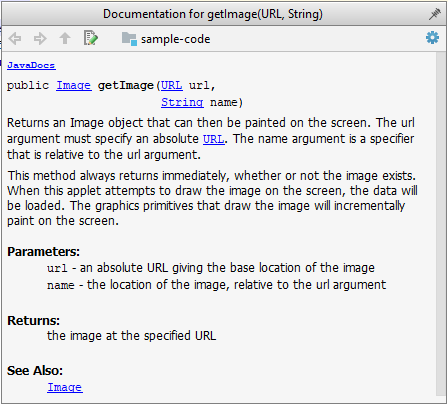
How
In the absence of more extensive guidelines (e.g., given in a coding standard adopted by your project), you can follow the two examples below in your code.
A minimal JavaDoc comment example for methods:
/**
* Returns lateral location of the specified position.
* If the position is unset, NaN is returned.
*
* @param x X coordinate of position.
* @param y Y coordinate of position.
* @param zone Zone of position.
* @return Lateral location.
* @throws IllegalArgumentException If zone is <= 0.
*/
public double computeLocation(double x, double y, int zone)
throws IllegalArgumentException {
// ...
}
A minimal JavaDoc comment example for classes:
package ...
import ...
/**
* Represents a location in a 2D space. A <code>Point</code> object corresponds to
* a coordinate represented by two integers e.g., <code>3,6</code>
*/
public class Point {
// ...
}
What
Well-written applications include error-handling code that allows them to recover gracefully from unexpected errors. When an error occurs, the application may need to request user intervention, or it may be able to recover on its own. In extreme cases, the application may log the user off or shut down the system. -- Microsoft
What
Exceptions are used to deal with 'unusual' but not entirely unexpected situations that the program might encounter at runtime.
Exception:
The term exception is shorthand for the phrase "exceptional event." An exception is an event, which occurs during the execution of a program, that disrupts the normal flow of the program's instructions. –- Java Tutorial (Oracle Inc.)
Examples:
- A network connection encounters a timeout due to a slow server.
- The code tries to read a file from the hard disk but the file is corrupted and cannot be read.
How
Most languages allow code that encountered an "exceptional" situation to encapsulate details of the situation in an Exception object and throw/raise that object so that another piece of code can catch it and deal with it. This is especially useful when the code that encountered the unusual situation does not know how to deal with it.
The extract below from the -- Java Tutorial (with slight adaptations) explains how exceptions are typically handled.
When an error occurs at some point in the execution, the code being executed creates an exception object and hands it off to the runtime system. The exception object contains information about the error, including its type and the state of the program when the error occurred. Creating an exception object and handing it to the runtime system is called throwing an exception.
After a method throws an exception, the runtime system attempts to find something to handle it in the . The runtime system searches the call stack for a method that contains a block of code that can handle the exception. This block of code is called an exception handler. The search begins with the method in which the error occurred and proceeds through the call stack in the reverse order in which the methods were called. When an appropriate handler is found, the runtime system passes the exception to the handler. An exception handler is considered appropriate if the type of the exception object thrown matches the type that can be handled by the handler.
The exception handler chosen is said to catch the exception. If the runtime system exhaustively searches all the methods on the call stack without finding an appropriate exception handler, the program terminates.
Advantages of exception handling in this way:
- The ability to propagate error information through the call stack.
- The separation of code that deals with 'unusual' situations from the code that does the 'usual' work.
What
Assertions are used to define assumptions about the program state so that the runtime can verify them. An assertion failure indicates a possible bug in the code because the code has resulted in a program state that violates an assumption about how the code should behave.
An assertion can be used to express something like when the execution comes to this point, the variable v cannot be null.
If the runtime detects an assertion failure, it typically takes some drastic action such as terminating the execution with an error message. This is because an assertion failure indicates a possible bug and the sooner the execution stops, the safer it is.
In the Java code below, suppose you set an assertion that timeout returned by Config.getTimeout() is greater than 0. Now, if Config.getTimeout() returns -1 in a specific execution of this line, the runtime can detect it as an assertion failure -- i.e., an assumption about the expected behavior of the code turned out to be wrong which could potentially be the result of a bug -- and take some drastic action such as terminating the execution.
int timeout = Config.getTimeout();
// set assertion here ...
How
Use the assert keyword to define assertions.
This assertion will fail with the message x should be 0 if x is not 0 at this point.
x = getX();
assert x == 0 : "x should be 0";
...
Assertions can be disabled without modifying the code.
java -enableassertions HelloWorld (or java -ea HelloWorld) will run HelloWorld with assertions enabled while java -disableassertions HelloWorld will run it without verifying assertions.
Java disables assertions by default. This could create a situation where you think all assertions are being verified as true while in fact they are not being verified at all. Therefore, remember to enable assertions when you run the program if you want them to be in effect.
Enable assertions in IntelliJ (how?) and get an assertion to fail temporarily (e.g. insert an assert false into the code temporarily) to confirm assertions are being verified.
Java assert vs JUnit assertions: Both check for a given condition but JUnit assertions are more powerful and customized for testing. In addition, JUnit assertions are not disabled by default. Use JUnit assertions in test code and Java assert in functional code.
When
It is recommended that assertions be used liberally in the code. Their impact on performance is low, and worth the additional safety they provide.
Do not use assertions to do work because assertions can be disabled. If not, your program will stop working when assertions are not enabled.
The code below will not invoke the writeFile() method when assertions are disabled. If that method is performing some work that is necessary for your program, your program will not work correctly when assertions are disabled.
...
assert writeFile() : "File writing is supposed to return true";
Assertions are suitable for verifying assumptions about Internal Invariants, Control-Flow Invariants, Preconditions, Postconditions, and Class Invariants. Refer to Programming with Assertions (second half) to learn more.
Exceptions and assertions are two complementary ways of handling errors in software but they serve different purposes. Therefore, both assertions and exceptions should be used in code.
- The raising of an exception indicates an unusual condition created by the user (e.g. user inputs an unacceptable input) or the environment (e.g., a file needed for the program is missing).
- An assertion failure indicates the programmer made a mistake in the code (e.g., a null value is returned from a method that is not supposed to return null under any circumstances).
What
Logging is the deliberate recording of certain information during a program execution for future reference. Logs are typically written to a log file but it is also possible to log information in other ways e.g. into a database or a remote server.
Logging can be useful for troubleshooting problems. A good logging system records some system information regularly. When bad things happen to a system e.g. an unanticipated failure, their associated log files may provide indications of what went wrong and actions can then be taken to prevent it from happening again.
A log file is like the of an airplane; they don't prevent problems but they can be helpful in understanding what went wrong after the fact.

source: https://commons.wikimedia.org
What
Build automation tools automate the steps of the build process, usually by means of build scripts.
In a non-trivial project, building a product from its source code can be a complex multistep process. For example, it can include steps such as: pull code from the revision control system, compile, link, run automated tests, automatically update release documents (e.g., build number), package into a distributable, push to repo, deploy to a server, delete temporary files created during building/testing, email developers of the new build, and so on. Furthermore, this build process can be done ‘on demand’, it can be scheduled (e.g., every day at midnight) or it can be triggered by various events (e.g., triggered by a code push to the revision control system).
Some of these build steps such as compiling, linking and packaging, are already automated in most modern IDEs. For example, several steps happen automatically when the ‘build’ button of the IDE is clicked. Some IDEs even allow customization of this build process to some extent.
However, most big projects use specialized build tools to automate complex build processes.
Some popular build tools relevant to Java developers: Gradle, Maven, Apache Ant, GNU Make
Some other build tools: Grunt (JavaScript), Rake (Ruby)
Some build tools also serve as dependency management tools. Modern software projects often depend on third party libraries that evolve constantly. That means developers need to download the correct version of the required libraries and update them regularly. Therefore, dependency management is an important part of build automation. Dependency management tools can automate that aspect of a project.
Maven and Gradle, in addition to managing the build process, can play the role of dependency management tools too.
What
Reuse is a major theme in software engineering practices. By reusing tried-and-tested components, the robustness of a new software system can be enhanced while reducing the manpower and time requirement. Reusable components come in many forms; it can be reusing a piece of code, a subsystem, or a whole software.
When
While you may be tempted to use many libraries/frameworks/platforms that seem to crop up on a regular basis and promise to bring great benefits, note that there are costs associated with reuse. Here are some:
- The reused code may be an overkill (think using a sledgehammer to crack a nut), increasing the size of, and/or degrading the performance of, your software.
- The reused software may not be mature/stable enough to be used in an important product. That means the software can change drastically and rapidly, possibly in ways that break your software.
- Non-mature software has the risk of dying off as fast as they emerged, leaving you with a dependency that is no longer maintained.
- The license of the reused software (or its dependencies) restrict how you can use/develop your software.
- The reused software might have bugs, missing features, or security vulnerabilities that are important to your product, but not so important to the maintainers of that software, which means those flaws will not get fixed as fast as you need them to.
- Malicious code can sneak into your product via compromised dependencies.
What
An Application Programming Interface (API) specifies the interface through which other programs can interact with a software component. It is a contract between the component and its clients.
A class has an API (e.g., API of the Java String class, API of the Python str class) which is a collection of public methods that you can invoke to make use of the class.
The GitHub API is a collection of web request formats that the GitHub server accepts and their corresponding responses. You can write a program that interacts with GitHub through that API.
When developing large systems, if you define the API of each component early, the development team can develop the components in parallel because the future behavior of the other components are now more predictable.
What
A library is a collection of modular code that is general and can be used by other programs.
Java classes you get with the JDK (such as String, ArrayList, HashMap, etc.) are library classes that are provided in the default Java distribution.
Natty is a Java library that can be used for parsing strings that represent dates e.g., The 31st of April in the year 2008
built-in modules you get with Python (such as csv, random, sys, etc.) are libraries that are provided in the default Python distribution. Classes such as list, str, dict are built-in library classes that you get with Python.
Colorama is a Python library that can be used for colorizing text in a CLI.
How
These are the typical steps required to use a library:
- Read the documentation to confirm that its functionality fits your needs.
- Check the license to confirm that it allows reuse in the way you plan to reuse it. For example, some libraries might allow non-commercial use only.
- Download the library and make it accessible to your project. Alternatively, you can configure your to do it for you.
- Call the library API from your code where you need to use the library's functionality.
What
The overall structure and execution flow of a specific category of software systems can be very similar. The similarity is an opportunity to reuse at a high scale.
Running example:
IDEs for different programming languages are similar in how they support editing code, organizing project files, debugging, etc.
A software framework is a reusable implementation of a software (or part thereof) providing generic functionality that can be selectively customized to produce a specific application.
Running example:
Eclipse is an IDE framework that can be used to create IDEs for different programming languages.
Some frameworks provide a complete implementation of a default behavior which makes them immediately usable.
Running example:
Eclipse is a fully functional Java IDE out-of-the-box.
A framework facilitates the adaptation and customization of some desired functionality.
Running example:
The Eclipse plugin system can be used to create an IDE for different programming languages while reusing most of the existing IDE features of Eclipse.
e.g., https://marketplace.eclipse.org/content/pydev-python-ide-eclipse
Some frameworks cover only a specific component or an aspect.
JavaFX is a framework for creating Java GUIs. Tkinter is a GUI framework for Python.
More examples of frameworks
- Frameworks for web-based applications: Drupal (PHP), Django (Python), Ruby on Rails (Ruby), Spring (Java)
- Frameworks for testing: JUnit (Java), unittest (Python), Jest (JavaScript)
Frameworks vs Libraries
Although both frameworks and libraries are reuse mechanisms, there are notable differences:
Libraries are meant to be used ‘as is’ while frameworks are meant to be customized/extended. e.g., writing plugins for Eclipse so that it can be used as an IDE for different languages (C++, PHP, etc.), adding modules and themes to Drupal, and adding test cases to JUnit.
Your code calls the library code while the framework code calls your code. Frameworks use a technique called inversion of control, aka the “Hollywood principle” (i.e., don’t call us, we’ll call you!). That is, you write code that will be called by the framework, e.g., writing test methods that will be called by the JUnit framework. In the case of libraries, your code calls libraries.
What
A platform provides a runtime environment for applications. A platform is often bundled with various libraries, tools, frameworks, and technologies in addition to a runtime environment but the defining characteristic of a software platform is the presence of a runtime environment.
Technically, an operating system can be called a platform. For example, Windows PC is a platform for desktop applications while iOS is a platform for mobile applications.
Two well-known examples of platforms are JavaEE and .NET, both of which sit above the operating systems layer, and are used to develop enterprise applications. Infrastructure services such as connection pooling, load balancing, remote code execution, transaction management, authentication, security, messaging etc. are done similarly in most enterprise applications. Both JavaEE and .NET provide these services to applications in a customizable way without developers having to implement them from scratch every time.
- JavaEE (Java Enterprise Edition) is both a framework and a platform for writing enterprise applications. The runtime used by JavaEE applications is the JVM (Java Virtual Machine) that can run on different Operating Systems.
- .NET is a similar platform and framework. Its runtime is called CLR (Common Language Runtime) and it is usually used on Windows machines.
SECTION: QUALITY ASSURANCE
What
Software Quality Assurance (QA) is the process of ensuring that the software being built has the required levels of quality.
While testing is the most common activity used in QA, there are other complementary techniques such as static analysis, code reviews, and formal verification.
Validation vs Verification
Quality Assurance = Validation + Verification
QA involves checking two aspects:
- Validation: are you building the right system i.e., are the requirements correct?
- Verification: are you building the system right i.e., are the requirements implemented correctly?
Whether something belongs under validation or verification is not that important. What is more important is that both are done, instead of limiting to only verification (i.e., remember that the requirements can be wrong too).
What
Code review is the systematic examination of code with the intention of finding where the code can be improved.
Reviews can be done in various forms. Some examples below:
Pull Request reviews
- Project Management Platforms such as GitHub and BitBucket allow the new code to be proposed as Pull Requests and provide the ability for others to review the code in the PR.
In pair programming
- As pair programming involves two programmers working on the same code at the same time, there is an implicit review of the code by the other member of the pair.
Formal inspections
Inspections involve a group of people systematically examining project artifacts to discover defects. Members of the inspection team play various roles during the process, such as:
- the author - the creator of the artifact
- the moderator - the planner and executor of the inspection meeting
- the secretary - the recorder of the findings of the inspection
- the inspector/reviewer - the one who inspects/reviews the artifact
Advantages of code review over testing:
- It can detect functionality defects as well as other problems such as coding standard violations.
- It can verify non-code artifacts and incomplete code.
- It does not require test drivers or stubs.
Disadvantages:
- It is a manual process and therefore, error prone.
What
Static analysis: Static analysis is the analysis of code without actually executing the code.
Static analysis of code can find useful information such as unused variables, unhandled exceptions, style errors, and statistics. Most modern IDEs come with some inbuilt static analysis capabilities. For example, an IDE can highlight unused variables as you type the code into the editor.
The term static in static analysis refers to the fact that the code is analyzed without executing the code. In contrast, dynamic analysis requires the code to be executed to gather additional information about the code e.g., performance characteristics.
Higher-end static analysis tools (static analyzers) can perform more complex analysis such as locating potential bugs, memory leaks, inefficient code structures, etc.
Some example static analyzers for Java: CheckStyle, PMD, FindBugs
Linters are a subset of static analyzers that specifically aim to locate areas where the code can be made 'cleaner'.
What
Formal verification uses mathematical techniques to prove the correctness of a program.
Advantages:
- Formal verification can be used to prove the absence of errors. In contrast, testing can only prove the presence of errors, not their absence.
Disadvantages:
- It only proves the compliance with the specification, but not the actual utility of the software.
- It requires highly specialized notations and knowledge which makes it an expensive technique to administer. Therefore, formal verifications are more commonly used in safety-critical software such as flight control systems.
What
Testing: Operating a system or component under specified conditions, observing or recording the results, and making an evaluation of some aspect of the system or component. –- source: IEEE
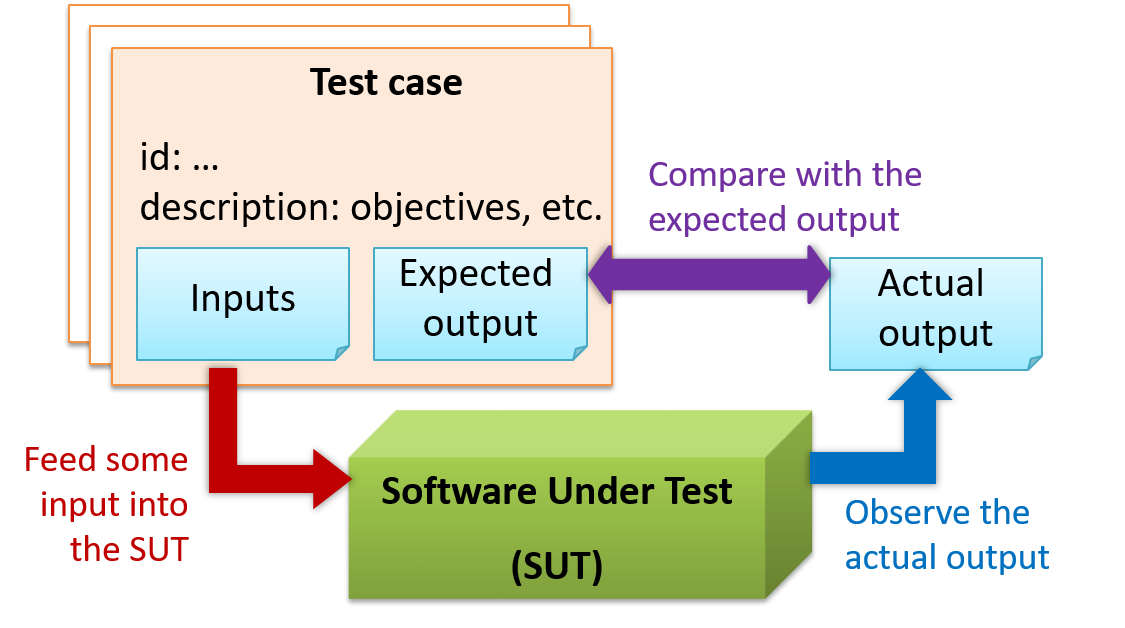
When testing, you execute a set of test cases. A test case specifies how to perform a test. At a minimum, it specifies the input to the software under test (SUT) and the expected behavior.
Example: A minimal test case for testing a browser:
- Input – Start the browser using a blank page (vertical scrollbar disabled). Then, load
longfile.htmllocated in thetest datafolder. - Expected behavior – The scrollbar should be automatically enabled upon loading
longfile.html.
Test cases can be determined based on the specification, reviewing similar existing systems, or comparing to the past behavior of the SUT.
For each test case you should do the following:
- Feed the input to the SUT
- Observe the actual output
- Compare actual output with the expected output
A test case failure is a mismatch between the expected behavior and the actual behavior. A failure indicates a potential defect (or a bug) -- we say 'potential' because the error could be in the test case itself.
Example: In the browser example above, a test case failure is implied if the scrollbar remains disabled after loading longfile.html. The defect/bug causing that failure could be an uninitialized variable.
What
Unit testing: testing individual units (methods, classes, subsystems, ...) to ensure each piece works correctly.
In OOP code, it is common to write one or more unit tests for each public method of a class.
Here are the code skeletons for a Foo class containing two methods and a FooTest class that contains unit tests for those two methods.
class Foo {
String read() {
// ...
}
void write(String input) {
// ...
}
}
class FooTest {
@Test
void read() {
// a unit test for Foo#read() method
}
@Test
void write_emptyInput_exceptionThrown() {
// a unit tests for Foo#write(String) method
}
@Test
void write_normalInput_writtenCorrectly() {
// another unit tests for Foo#write(String) method
}
}
import unittest
class Foo:
def read(self):
# ...
def write(self, input):
# ...
class FooTest(unittest.TestCase):
def test_read(self):
# a unit test for read() method
def test_write_emptyIntput_ignored(self):
# a unit test for write(string) method
def test_write_normalInput_writtenCorrectly(self):
# another unit test for write(string) method
What
Integration testing: testing whether different parts of the software work together (i.e., integrates) as expected. Integration tests aim to discover bugs in the 'glue code' related to how components interact with each other. These bugs are often the result of misunderstanding what the parts are supposed to do vs what the parts are actually doing.
Suppose a class Car uses classes Engine and Wheel. If the Car class assumed a Wheel can support a speed of up to 200 mph but the actual Wheel can only support a speed of up to 150 mph, it is the integration test that is supposed to uncover this discrepancy.
What
System testing: take the whole system and test it against the system specification.
System testing is typically done by a testing team (also called a QA team).
System test cases are based on the specified external behavior of the system. Sometimes, system tests go beyond the bounds defined in the specification. This is useful when testing that the system fails 'gracefully' when pushed beyond its limits.
Suppose the SUT is a browser that is supposedly capable of handling web pages containing up to 5000 characters. Given below is a test case to test if the SUT fails gracefully if pushed beyond its limits.
Test case: load a web page that is too big
* Input: loads a web page containing more than 5000 characters.
* Expected behavior: aborts the loading of the page
and shows a meaningful error message.
This test case would fail if the browser attempted to load the large file anyway and crashed.
System testing includes testing against non-functional requirements too. Here are some examples:
- Performance testing – to ensure the system responds quickly.
- Load testing (also called stress testing or scalability testing) – to ensure the system can work under heavy load.
- Security testing – to test how secure the system is.
- Compatibility testing, interoperability testing – to check whether the system can work with other systems.
- Usability testing – to test how easy it is to use the system.
- Portability testing – to test whether the system works on different platforms.
What
Alpha testing is performed by the users, under controlled conditions set by the software development team.
Beta testing is performed by a selected subset of target users of the system in their natural work setting.
An open beta release is the release of not-yet-production-quality-but-almost-there software to the general population. For example, Google’s Gmail was in 'beta' for many years before the label was finally removed.
What
Developer testing is the testing done by the developers themselves as opposed to dedicated testers or end-users.
Why
Delaying testing until the full product is complete has a number of disadvantages:
- Locating the cause of a test case failure is difficult due to the larger search space; in a large system, the search space could be millions of lines of code, written by hundreds of developers! The failure may also be due to multiple inter-related bugs.
- Fixing a bug found during such testing could result in major rework, especially if the bug originated from the design or during requirements specification i.e., a faulty design or faulty requirements.
- One bug might 'hide' other bugs, which could emerge only after the first bug is fixed.
- The delivery may have to be delayed if too many bugs are found during testing.
Therefore, it is better to do early testing, as hinted by the popular rule of thumb given below, also illustrated by the graph below it.
The earlier a bug is found, the easier and cheaper to have it fixed.
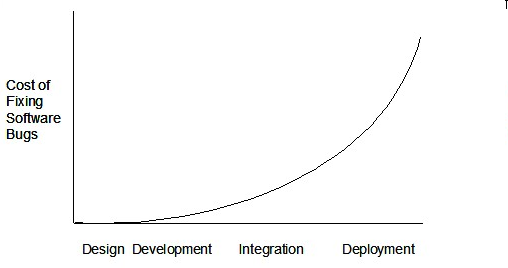
Such early testing software is usually, and often by necessity, done by the developers themselves i.e., developer testing.
What
Here are two alternative approaches to testing a software: Scripted testing and Exploratory testing.
Scripted testing: First write a set of test cases based on the expected behavior of the SUT, and then perform testing based on that set of test cases.
Exploratory testing: Devise test cases on-the-fly, creating new test cases based on the results of the past test cases.
Exploratory testing is ‘the simultaneous learning, test design, and test execution’ [source: bach-et-explained] whereby the nature of the follow-up test case is decided based on the behavior of the previous test cases. In other words, running the system and trying out various operations. It is called exploratory testing because testing is driven by observations during testing. Exploratory testing usually starts with areas identified as error-prone, based on the tester’s past experience with similar systems. One tends to conduct more tests for those operations where more faults are found.
Here is an example thought process behind a segment of an exploratory testing session:
“Hmm... looks like feature x is broken. This usually means feature n and k could be broken too; you need to look at them soon. But before that, you should give a good test run to feature y because users can still use the product if feature y works, even if x doesn’t work. Now, if feature y doesn’t work 100%, you have a major problem and this has to be made known to the development team sooner rather than later...”
Exploratory testing is also known as reactive testing, error guessing technique, attack-based testing, and bug hunting.
When
Which approach is better – scripted or exploratory? A mix is better.
The success of exploratory testing depends on the tester’s prior experience and intuition. Exploratory testing should be done by experienced testers, using a clear strategy/plan/framework. Ad-hoc exploratory testing by unskilled or inexperienced testers without a clear strategy is not recommended for real-world non-trivial systems. While exploratory testing may allow us to detect some problems in a relatively short time, it is not prudent to use exploratory testing as the sole means of testing a critical system.
Scripted testing is more systematic, and hence, likely to discover more bugs given sufficient time, while exploratory testing would aid in quick error discovery, especially if the tester has a lot of experience in testing similar systems.
In some contexts, you will achieve your testing mission better through a more scripted approach; in other contexts, your mission will benefit more from the ability to create and improve tests as you execute them. I find that most situations benefit from a mix of scripted and exploratory approaches. --[source: bach-et-explained]
What
Acceptance testing (aka User Acceptance Testing (UAT): test the system to ensure it meets the user requirements.
Acceptance tests give an assurance to the customer that the system does what it is intended to do. Acceptance test cases are often defined at the beginning of the project, usually based on the use case specification. Successful completion of UAT is often a prerequisite to the project sign-off.
Acceptance vs System Testing
Acceptance testing comes after system testing. Similar to system testing, acceptance testing involves testing the whole system.
Some differences between system testing and acceptance testing:
| System Testing | Acceptance Testing |
|---|---|
| Done against the system specification | Done against the requirements specification |
| Done by testers of the project team | Done by a team that represents the customer |
| Done on the development environment or a test bed | Done on the deployment site or on a close simulation of the deployment site |
| Both negative and positive test cases | More focus on positive test cases |
Note: negative test cases: cases where the SUT is not expected to work normally e.g., incorrect inputs; positive test cases: cases where the SUT is expected to work normally
Requirement specification versus system specification
The requirement specification need not be the same as the system specification. Some example differences:
| Requirements specification | System specification |
|---|---|
| limited to how the system behaves in normal working conditions | can also include details on how it will fail gracefully when pushed beyond limits, how to recover, etc. specification |
| written in terms of problems that need to be solved (e.g., provide a method to locate an email quickly) | written in terms of how the system solves those problems (e.g., explain the email search feature) |
| specifies the interface available for intended end-users | could contain additional APIs not available for end-users (for the use of developers/testers) |
However, in many cases one document serves as both a requirement specification and a system specification.
Passing system tests does not necessarily mean passing acceptance testing. Some examples:
- The system might work on the testbed environments but might not work the same way in the deployment environment, due to subtle differences between the two environments.
- The system might conform to the system specification but could fail to solve the problem it was supposed to solve for the user, due to flaws in the system design.
What
When you modify a system, the modification may result in some unintended and undesirable effects on the system. Such an effect is called a regression.
Regression testing is the re-testing of the software to detect regressions. The typical way to detect regressions is retesting all related components, even if they had been tested before.
Regression testing is more effective when it is done frequently, after each small change. However, doing so can be prohibitively expensive if testing is done manually. Hence, regression testing is more practical when it is automated.
What
An automated test case can be run programmatically and the result of the test case (pass or fail) is determined programmatically. Compared to manual testing, automated testing reduces the effort required to run tests repeatedly and increases precision of testing (because manual testing is susceptible to human errors).
Automated Testing of CLI Apps
A simple way to semi-automate testing of a CLI (Command Line Interface) app is by using input/output re-direction. Here are the high-level steps:
- First, you feed the app with a sequence of test inputs that is stored in a file while redirecting the output to another file.
- Next, you compare the actual output file with another file containing the expected output.
Let's assume you are testing a CLI app called AddressBook. Here are the detailed steps:
Store the test input in the text file
input.txt.Store the output you expect from the SUT in another text file
expected.txt.Run the program as given below, which will redirect the text in
input.txtas the input toAddressBookand similarly, will redirect the output ofAddressBookto a text fileoutput.txt. Note that this does not require any changes inAddressBookcode.java AddressBook < input.txt > output.txtThe way to run a CLI program differs based on the language.
e.g., In Python, assuming the code is inAddressBook.pyfile, use the command
python AddressBook.py < input.txt > output.txtIf you are using Windows, use a normal MS-DOS terminal (i.e.,
cmd.exe) to run the app, not a PowerShell window.
Next, you compare
output.txtwith theexpected.txt. This can be done using a utility such as Windows'FC(i.e., File Compare) command, Unix'sdiffcommand, or a GUI tool such as WinMerge.FC output.txt expected.txt
Note that the above technique is only suitable when testing CLI apps, and only if the exact output can be predetermined. If the output varies from one run to the other (e.g., it contains a time stamp), this technique will not work. In those cases, you need more sophisticated ways of automating tests.
Test Automation Using Test Drivers
A test driver is the code that ‘drives’ the for the purpose of testing i.e., invoking the SUT with test inputs and verifying if the behavior is as expected.
PayrollTest ‘drives’ the Payroll class by sending it test inputs and verifies if the output is as expected.
public class PayrollTest {
public static void main(String[] args) throws Exception {
// test setup
Payroll p = new Payroll();
// test case 1
p.setEmployees(new String[]{"E001", "E002"});
// automatically verify the response
if (p.totalSalary() != 6400) {
throw new Error("case 1 failed ");
}
// test case 2
p.setEmployees(new String[]{"E001"});
if (p.totalSalary() != 2300) {
throw new Error("case 2 failed ");
}
// more tests...
System.out.println("All tests passed");
}
}
Test Automation Tools
JUnit is a tool for automated testing of Java programs. Similar tools are available for other languages and for automating different types of testing.
This is an automated test for a Payroll class, written using JUnit libraries.
// other test methods
@Test
public void testTotalSalary() {
Payroll p = new Payroll();
// test case 1
p.setEmployees(new String[]{"E001", "E002"});
assertEquals(6400, p.totalSalary());
// test case 2
p.setEmployees(new String[]{"E001"});
assertEquals(2300, p.totalSalary());
// more tests...
}
Most modern IDEs have integrated support for testing tools. The figure below shows the JUnit output when running some JUnit tests using the Eclipse IDE.
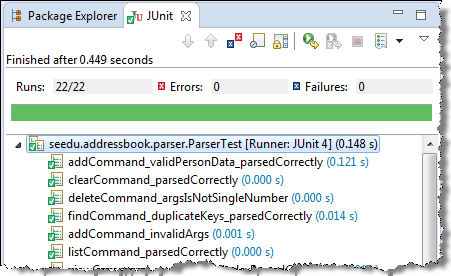
SECTION: PROJECT MANAGEMENT
Introduction to Revision Control
Before learning about Git, let us first understand what revision control is.
Given below is a general introduction to revision control, adapted from bryan-mercurial-guide:
Revision control is the process of managing multiple versions of a piece of information. In its simplest form, this is something that many people do by hand: every time you modify a file, save it under a new name that contains a number, each one higher than the number of the preceding version.
Manually managing multiple versions of even a single file is an error-prone task, though, so software tools to help automate this process have long been available. The earliest automated revision control tools were intended to help a single user to manage revisions of a single file. Over the past few decades, the scope of revision control tools has expanded greatly; they now manage multiple files, and help multiple people to work together. The best modern revision control tools have no problem coping with thousands of people working together on projects that consist of hundreds of thousands of files.
There are a number of reasons why you or your team might want to use an automated revision control tool for a project.
- It will track the history and evolution of your project, so you don't have to. For every change, you'll have a log of who made it; why they made it; when they made it; and what the change was.
- It makes it easier for you to collaborate when you're working with other people. For example, when people more or less simultaneously make potentially incompatible changes, the software will help you to identify and resolve those conflicts.
- It can help you to recover from mistakes. If you make a change that later turns out to be an error, you can revert to an earlier version of one or more files. In fact, a good revision control tool will even help you to efficiently figure out exactly when a problem was introduced.
- It will help you to work simultaneously on, and manage the drift between, multiple versions of your project.
Most of these reasons are equally valid, at least in theory, whether you're working on a project by yourself, or with a hundred other people.
A revision is the state of a piece of information at a specific point in time, resulting from changes made to it e.g., if you modify the code and save the file, you have a new revision (or a new version) of that file. Some seem to use this term interchangeably with version while others seem to distinguish the two -- here, let us treat them as the same, for simplicity.
Revision Control Software (RCS) are the software tools that automate the process of Revision Control i.e., managing revisions of software . RCS are also known as Version Control Software (VCS), and by a few other names.
Git is the most widely used RCS today. Other RCS tools include Mercurial, Subversion (SVN), Perforce, CVS (Concurrent Versions System), Bazaar, TFS (Team Foundation Server), and Clearcase.
Github is a web-based project hosting platform for projects using Git for revision control. Other similar services include GitLab, BitBucket, and SourceForge.
Putting a Folder Under Git's Control
To be able to save snapshots of a folder using Git, you must first put the folder under Git's control by initialising a Git repository in that folder.
Normally, we use Git to manage a revision history of a specific folder, which gives us the ability to revision-control any file in that folder and its subfolders.
To put a folder under the control of Git, we initialise a repository (short name: repo) in that folder. This way, we can initialise repos in different folders, to revision-control different clusters of files independently of each other e.g., files belonging to different projects.
You can follow the hands-on practical below to learn how to initialise a repo in a folder.
What is this? HANDS-ON panels contain hands-on activities you can do as you learn Git. If you are new to Git, we strongly recommend that you do them yourself (even if they appear straightforward), as hands-on usage will help you internalise the concepts and operations better.
Preparation Choose a folder to put under Git's control. The folder may or may not contain any files. For this practical, let us create a folder named things for this purpose.
You can get the Git-Mastery app to for doing this practical, or create the sandbox manually. Instructions for the both options are given below.
To prepare the sandbox for this practical:
- Navigate inside the
gitmastery-exercisesfolder. - Run
gitmastery download hp-init-repocommand.
The sandbox will be set up inside the gitmastery-exercises/hp-init-repo folder.
Assuming you have a folder named git-practicals that you wish to use for doing Git hands-on practicals in, you can run the following commands.
cd git-practicals
mkdir things
Avoid putting Git repos inside cloud-synced (e.g., OneDrive, Dropbox) folders. Reason: Multiple tools trying to detect/sync changes in the same folder can cause conflicts and unexpected behaviors.
If you want to access project files from multiple computers, use Git to do that (rather than cloud syncing tools).
1 Then cd into it.
cd things
2 Run the git status command to check the status of the folder.
git status
fatal: not a git repository (or any of the parent directories): .git
Don't panic. The error message is expected. It confirms that the folder currently does not have a Git repo.
3 Now, initialise a repository in that folder.
Use the command git init which should initialise the repo.
git init
Initialized empty Git repository in things/.git/
The output might also contain a hint about a name for an initial branch (e.g., hint: Using 'master' as the name for the initial branch ...). You can ignore that for now.
Note how the output mentions the repo being created in things/.git/ (not things/). More on that later.
Windows: Click
File→Clone/New…→ Click on+ Createbutton on the top menu bar.
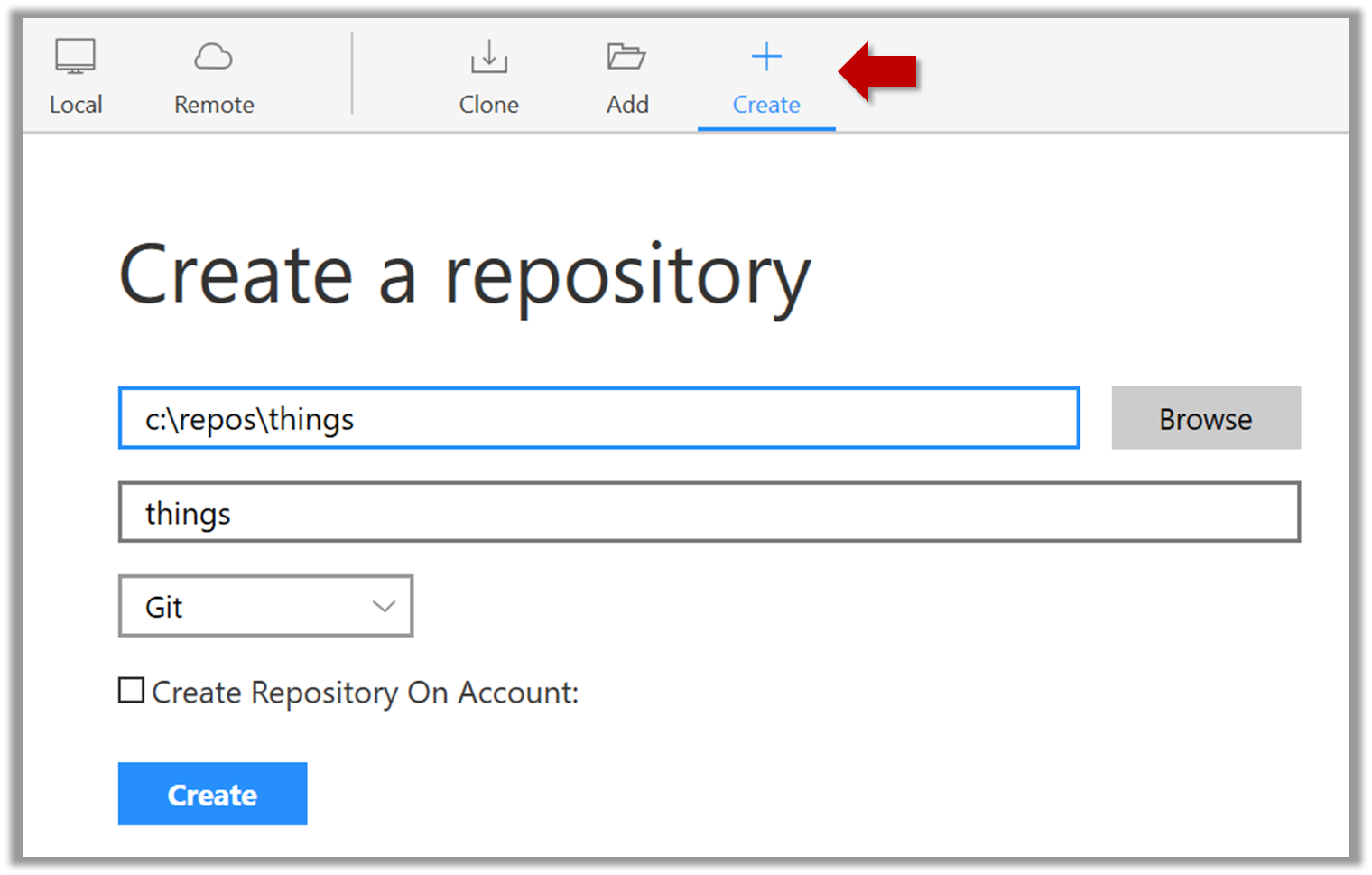
Enter the location of the directory and clickCreate.Mac:
New...→Create Local Repository(orCreate New Repository) → Click...button to select the folder location for the repository → click theCreatebutton.
done!
Initialising a repo results in two things:
- First, Git now recognises this folder as a Git repository, which means it can now help you track the version history of files inside this folder.
To confirm, you can run the git status command. It should respond with something like the following:
git status
On branch master
No commits yet
nothing to commit (create/copy files and use "git add" to track)
Don't worry if you don't understand the output (we will learn about them later); what matters is that it no longer gives an error message as it did before.
done!
- Second, Git created a hidden subfolder named
.gitinside thethingsfolder. This folder will be used by Git to store metadata about this repository.
A Git-controlled folder is divided into two main parts:
- The repository – stored in the hidden
.gitsubfolder, which contains all the metadata and history. - The working directory – everything else in that folder, where you create and edit files.
Specifying What to include in a Snapshot
To save a snapshot, you start by specifying what to include in it, also called staging.
Git considers new files that you add to the working directory as 'untracked' i.e., Git is aware of them, but they are not yet under Git's control. The same applies to files that existed in the working folder at the time you initialised the repo.
A Git repo has an internal space called the staging area which it uses to build the next snapshot. Another name for the staging area is the index.
We can stage an untracked file to tell Git that we want its current version to be included in the next snapshot (in Git terminology, such a snapshot is called a commit). Once you stage an untracked file, it becomes 'tracked' (i.e., under Git's control). A staged file can be unstaged to indicate that we no longer want it to be included in the next snapshot.
In the example below, you can see how staging files change the status of the repo as you go from (a) to (c).
staging area
[empty]
other metadata ...
├─ fruits.txt (untracked!)
└─ colours.txt (untracked!)
(a) State of the repo, just after initialisation, and creating two files. Both are untracked.
staging area
└─ fruits.txt
other metadata ...
├─ fruits.txt (tracked)
└─ colours.txt (untracked!)
(b) State after staging
fruits.txt.staging area
├─ fruits.txt
└─ colours.txt
other metadata ...
├─ fruits.txt (tracked)
└─ colours.txt (tracked)
(c) State after staging
colours.txt.preparation
You can continue using the sandbox created in the previous hands-on practical, or,
1 Add a file (e.g., fruits.txt) to the things repo folder.
Here is an easy way to do that with a single terminal command.
echo -e "apples\nbananas\ncherries" > fruits.txt
apples
bananas
cherries
Windows users: Use the git-bash terminal to run the above command (and all commands given in these lessons). Some of them might not work in other terminals such as the PowerShell.
To see the content of the file, you can use the cat command:
cat fruits.txt
2 Stage the new file.
2.1 Check the status of the folder using the git status command.
git status
On branch master
No commits yet
Untracked files:
(use "git add <file>..." to include in what will be committed)
fruits.txt
nothing added to commit but untracked files present (use "git add" to track)
2.2 Use the git add <file> command to stage the file.
git add fruits.txt
You can replace the add with stage (e.g., git stage fruits.txt) and the result is the same (they are synonyms).
Windows users: When using the echo command to write to text files from Git Bash, you might see a warning LF will be replaced by CRLF the next time Git touches it when Git interacts with such a file. This warning is caused by the way line endings are handled differently by Git and Windows. You can simply ignore it, or suppress it in future by running the following command:
git config --global core.safecrlf false
2.3 Check the status again. You can see the file is no longer 'untracked'.
git status
On branch master
No commits yet
Changes to be committed:
(use "git rm --cached <file>..." to unstage)
new file: fruits.txt
As before, don't worry if you don't understand the content of the output (we'll unpack it in a later lesson). The point to note is that the file is no longer listed as 'untracked'.
2.1 Note how the file is shown as ‘unstaged’. The question mark icon indicates the file is untracked.
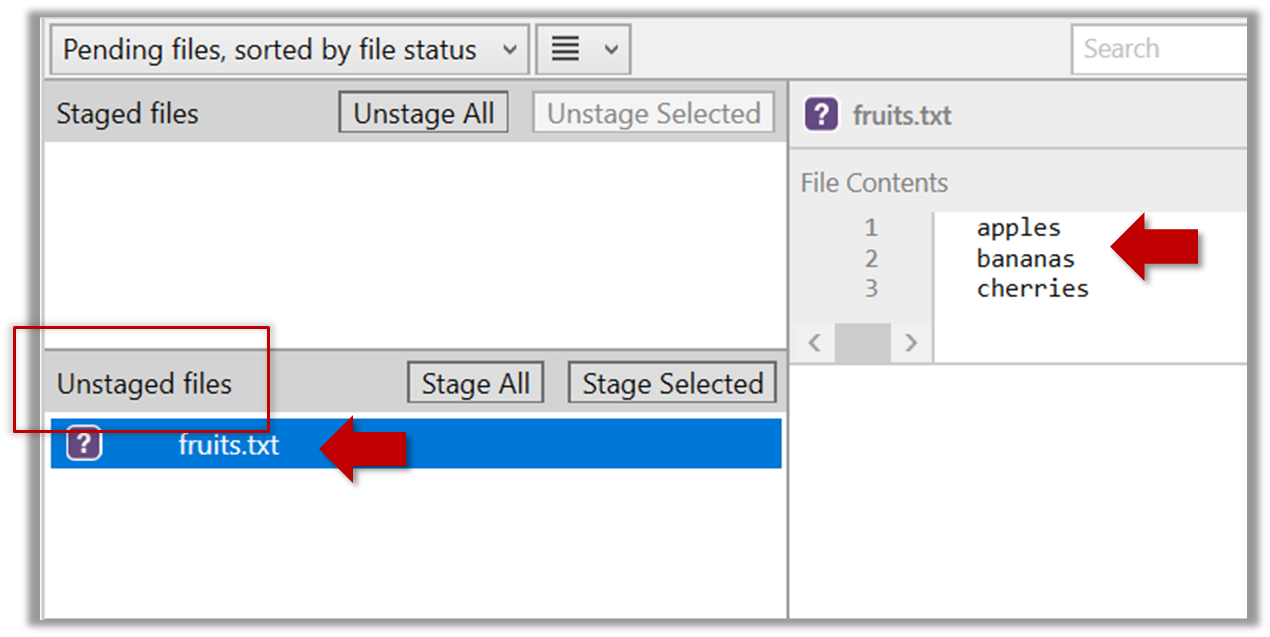
If the newly-added file does not show up in Sourcetree UI, refresh the UI (: F5
| ⌥+R)
Sourcetree screenshots/instructions: vs
Note that Sourcetree UI can vary slightly between Windows and Mac versions. Some of the screenshots given in our lessons are from the Windows version while some are from the Mac version.
In som cases, we have specified how they differ.
In other cases, you may need to adapt if the given screenshots/instructions are slightly different from what you are seeing in your Sourcetree.
2.2 Stage the file:
Select the fruits.txt and click on the Stage Selected button.
Staging can be done using tick boxes or the ... menu in front of the file.
2.3 Note how the file is staged now i.e., fruits.txt appears in the Staged files panel now.
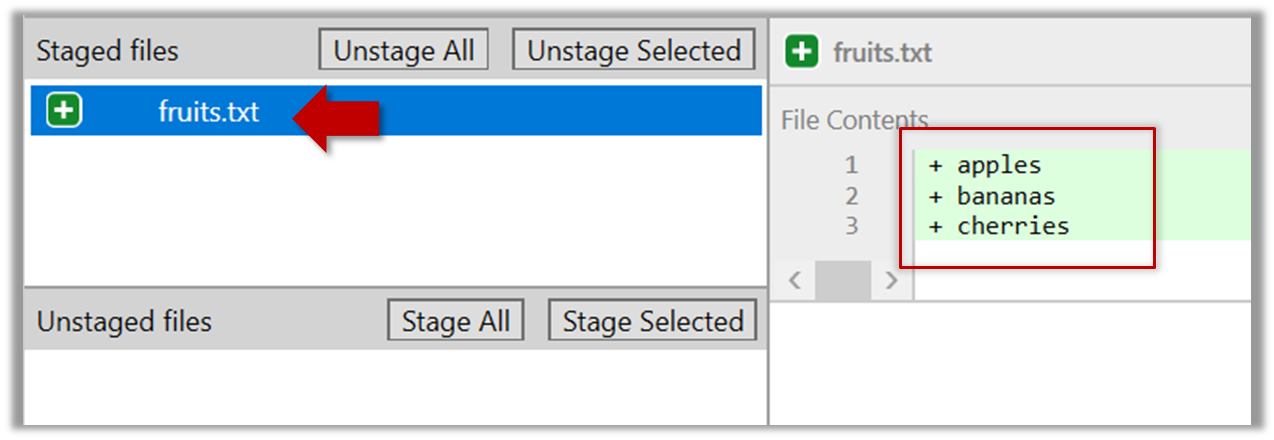
If Sourcetree shows a \ No newline at the end of the file message below the staged lines (i.e., below the cherries line in the above screenshot), that is because you did not hit enter after entering the last line of the file (hence, Git is not sure if that line is complete). To rectify, move the cursor to the end of the last line in that file and hit enter (like you are adding a blank line below it). This new change will now appear as an 'unstaged' change. Stage it as well.
done!
If you modify a staged file, it goes into the 'modified' state i.e., the file contains modifications that are not present in the copy that is waiting (in the staging area) to be included in the next snapshot. If you wish to include these new changes in the next snapshot, you need to stage the file again, which will overwrite the copy of the file that was previously in the staging area.
The example below shows how the status of a file changes when it is modified after it was staged.
staging area
Alice
other metadata ...
Alice
(a) The file names.txt is staged. The copy in the staging area is an exact match to the one in the working directory.
staging area
Alice
other metadata ...
Alice
Bob
(b) State after adding a line to the file. Git indicates it as 'modified' because it now differs from the version in the staged area.
staging area
Alice
Bob
other metadata ...
Alice
Bob
(c) After staging the file again, the staging area is updated with the latest copy of the file, and it is no longer marked as 'modified'.
preparation
You can continue using the sandbox created in the previous hands-on practical, or,
1 First, add another line to fruits.txt, to make it 'modified'.
Here is a way to do that with a single terminal command.
echo "dragon fruits" >> fruits.txt
apples
bananas
cherries
dragon fruits
2 Now, verify that Git sees that file as 'modified'.
Use the git status command to check the status of the working directory.
$ git status
On branch master
No commits yet
Changes to be committed:
(use "git rm --cached <file>..." to unstage)
new file: fruits.txt
Changes not staged for commit:
(use "git add <file>..." to update what will be committed)
(use "git restore <file>..." to discard changes in working directory)
modified: fruits.txt
Note how fruits.txt now appears twice, once as new file: ... (representing the version of the file we staged earlier, which had only three lines) and once as modified: ... (representing the latest version of the file which now has a fourth line).
Note how fruits.txt appears in the Staged files panel as well as 'Unstaged files'.
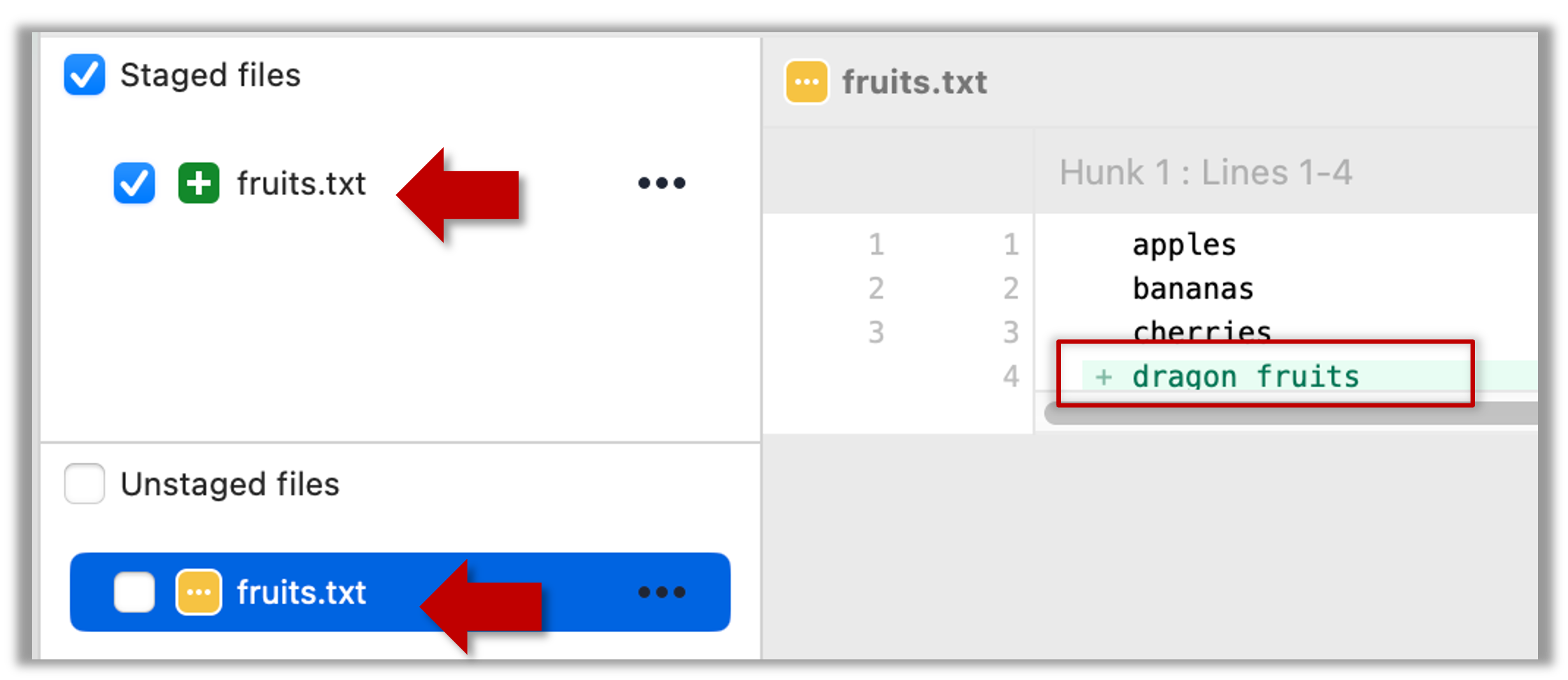
3 Stage the file again, the same way you added/staged it earlier.
4 Verify that Git no longer sees it as 'modified', similar to step 2.
done!
Staging applies regardless of whether a file is currently tracked.
- Staging an untracked file will both begin tracking the file and include it in the next snapshot.
- Staging an already tracked file will simply mark its current changes for inclusion in the next commit.
Git also supports fine-grained selective staging i.e., staging only specific changes within a file while leaving other changes to the same file unstaged. This will be covered in a later lesson.
Git does not track empty folders. It tracks only folders that contain tracked files.
You can test this by adding an empty subfolder inside the things folder (e.g., things/more-things) and checking if it shows up as 'untracked' (it will not). If you add a file to that folder (e.g., things/more-things/food.txt) and then staged that file (e.g., git add more-things/food.txt), the folder will now be included in the next snapshot.
PRO-TIP: Applying a Git command to multiple files in one go
When a Git command expects a list of files or paths as a parameter (as the git add command does), these parameters are known as pathspecs — patterns that tell Git which files or directories to operate on. Pathspecs can be simple file names, directory names, or more complex patterns.
Here are some common ways to write them, shown with examples using the git add <pathspec> command:
Specify multiple files, separated by spaces:
git add f1.txt f2.txt data/lists/f3.txt # stages the specified three filesUse a glob pattern:
git add '*.txt' # stages all .txt files in the current directoryQuoting the glob pattern is recommended so your shell doesn’t expand it before Git sees it.
Use
.to indicate 'all in the current directory and subdirectories':git add . # stages all files in current directory and its subdirectoriesSpecific directory, to indicate 'this directory and its subdirectories':
git add path/to/dir # stages all files in path/to/dir and its subdirectoriesNegated pathspecs, to indicate 'except these':
git add . ':!*.log' # stage everything except .log files
Git supports combining these features — for example, you could add all .txt files except those in a certain folder using:
git add '*.txt' ':!docs/*.txt'
Saving a Snapshot
After staging, you can now proceed to save the snapshot, aka creating a commit.
Saving a snapshot is called committing and a saved snapshot is called a commit.
A Git commit is a full snapshot of your working directory based on the files you have staged, more precisely, a record of the exact state of all files in the staging area (index) at that moment -- even the files that have not changed since the last commit. This is in contrast to other revision control software that only store the in a commit. Consequently, a Git commit has all the information it needs to recreate the snapshot of the working directory at the time the commit was created.
A commit also includes metadata such as the author, date, and an optional commit message describing the change.
A Git commit is a snapshot of all tracked files, not simply a delta of what changed since the last commit.
Assuming you have previously staged changes to the fruits.txt, go ahead and create a commit.
1 First, let us do a sanity check using the git status command.
git status
On branch master
No commits yet
Changes to be committed:
(use "git rm --cached <file>..." to unstage)
new file: fruits.txt
2 Now, create a commit using the commit command. The -m switch is used to specify the commit message.
git commit -m "Add fruits.txt"
[master (root-commit) d5f91de] Add fruits.txt
1 file changed, 5 insertions(+)
create mode 100644 fruits.txt
3 Verify the staging area is empty using the git status command again.
git status
On branch master
nothing to commit, working tree clean
Note how the output says nothing to commit which means the staging area is now empty.
Click the Commit button, enter a commit message (e.g. add fruits.txt) into the text box, and click Commit.
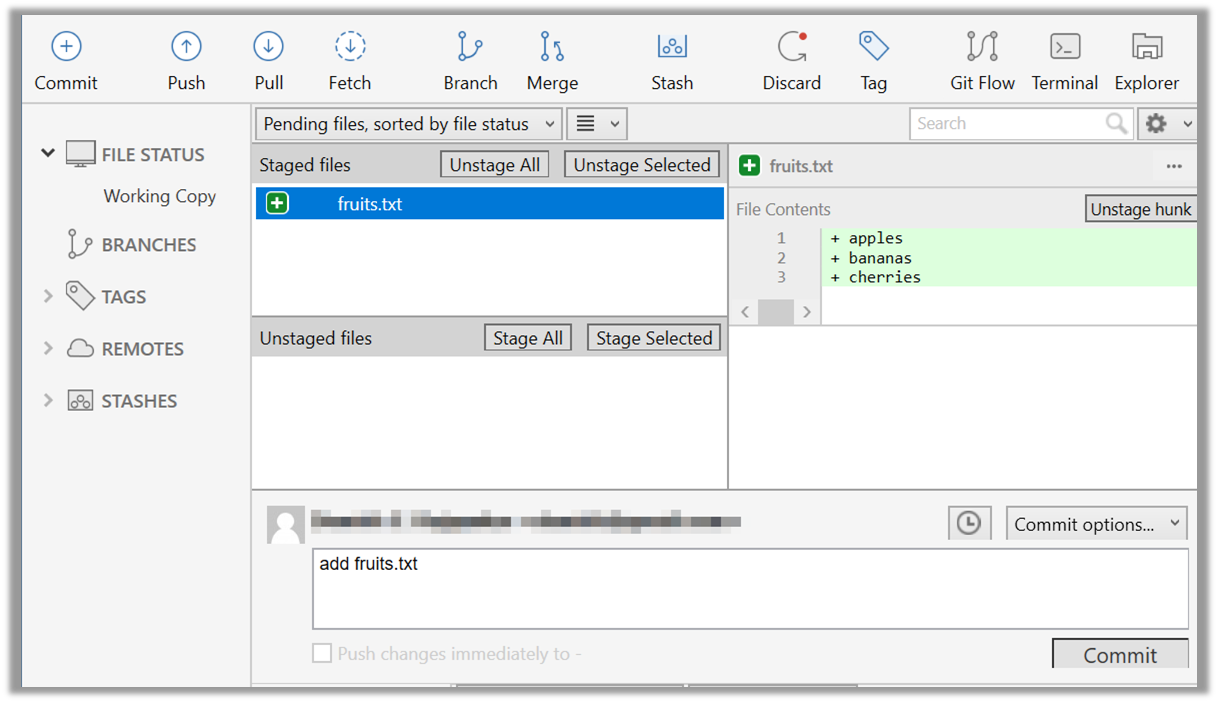
done!
Examining the Revision History
It is useful to be able to visualise the commits timeline, aka the revision graph.
Git commits form a timeline, as each corresponds to a point in time when you asked Git to take a snapshot of your working directory. Each commit links to at least one previous commit, forming a structure that we can traverse.
A timeline of commits is called a branch. By default, Git names the initial branch master -- though many now use main instead. You'll learn more about branches in future lessons. For now, just be aware that the commits you create in a new repo will be on a branch called master (or main) by default.
gitGraph
    %%{init: { 'theme': 'default', 'gitGraph': {'mainBranchName': 'master (or main)'}} }%%
    commit id: "Add fruits.txt"
    commit id: "Update fruits.txt"
    commit id: "Add colours.txt"
    commit id: "..."
Git can show you the list of commits in the Git history.
Preparation Use the things repo you created in a previous lesson. Alternatively, you can use the commands given below to create such a repo from scratch.
mkdir things # create a folder for the repo
cd things
git init
echo -e "apples\nbananas\ncherries\ndragon fruits" > fruits.txt
git add fruits.txt
git commit -m "Add fruits.txt"
You can copy-paste a list of commands (such as commands given above), including any comments, to the terminal. After that, hit enter to run them in sequence.
1 View the list of commits, which should show just the one commit you created just now.
You can use the git log command to see the commit history.
git log
commit ... (HEAD -> master)
Author: ... <...@...>
Date: ...
Add fruits.txt
Use the Q key to exit the output screen of the git log command.
Note how the output has some details about the commit you just created. You can ignore most of it for now, but notice it also shows the commit message you provided.
Expand the BRANCHES menu and click on the master to view the history graph, which contains only one node at the moment, representing the commit you just added. For now, ignore the label master attached to the commit.
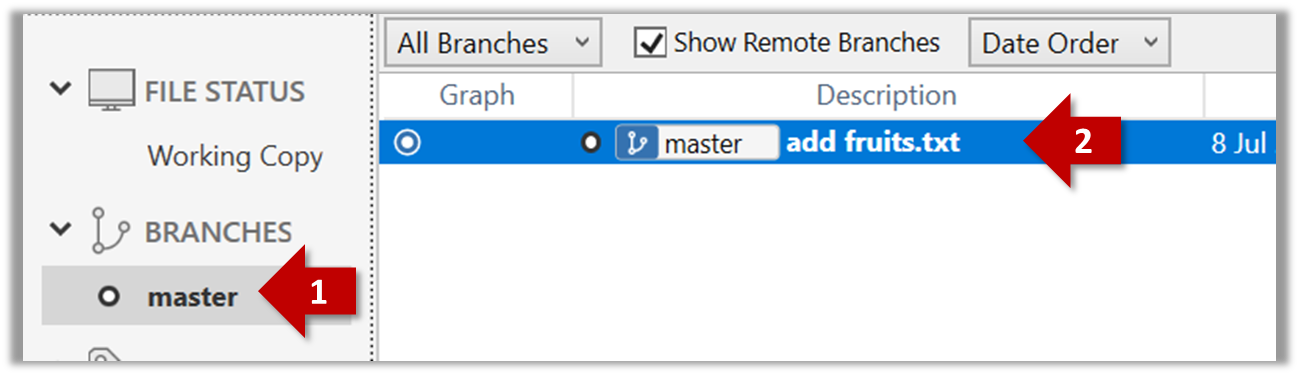
2 Create a few more commits (i.e., a few rounds of add/edit files → stage → commit), and observe how the list of commits grows.
Here is an example list of bash commands to add two commits while observing the list of commits
echo "figs" >> fruits.txt # add another line to fruits.txt
git add fruits.txt # stage the updated file
git commit -m "Insert figs into fruits.txt" # commit the changes
git log # check commits list
echo "a file for colours" >> colours.txt # add a colours.txt file
echo "a file for shapes" >> shapes.txt # add a shapes.txt file
git add colours.txt shapes.txt # stage both files in one go
git commit -m "Add colours.txt, shapes.txt" # commit the changes
git log # check commits list
The output of the final git log should be something like this:
commit ... (HEAD -> master)
Author: ... <...@...>
Date: ...
Add colours.txt, shapes.txt
commit ...
Author: ... <...@...>
Date: ...
Insert figs into fruits.txt
commit ...
Author: ... <...@...>
Date: ...
Add fruits.txt
SIDEBAR: Working with the 'less' pager
Some Git commands — such as git log— may show their output through a pager. A pager is a program that lets you view long text one screen at a time, so you don’t miss anything that scrolls off the top. For example, the output of git log command will temporarily hide the current content of the terminal, and enter the pager view that shows output one screen at a time. When you exit the pager, the git log output will disappear from view, and the previous content of the terminal will reappear.
command 1
output 1
git log
→
commit f761ea63738a...
Author: ... <...@...>
Date: Sat ...
Add colours.txt
By default, Git uses a pager called less. Given below are some useful commands you can use inside the less pager.
| Command | Description |
|---|---|
q | Quit less and return to the terminal |
↓ or j | Move down one line |
↑ or k | Move up one line |
Space | Move down one screen |
b | Move up one screen |
G | Go to the end of the content |
g | Go to the beginning of the content |
/pattern | Search forward for pattern (e.g., /fix) |
n | Repeat the last search (forward) |
N | Repeat the last search (backward) |
h | Show help screen with all less commands |
If you’d rather see the output directly, without using a pager, you can add the --no-pager flag to the command e.g.,
git --no-pager log
It is possible to ask Git to not use less at all, use a different pager, or fine-tune how less is used. For example, you can reduce Git's use of the pager (recommended), using the following command:
git config --global core.pager "less -FRX"
Explanation:
-F: Quit if the output fits on one screen (don’t show pager unnecessarily)-R: Show raw control characters (for coloured Git output)-X: Keep content visible after quitting the pager (so output stays on the terminal)
To see the list of commits, click on the History item (listed under the WORKSPACE section) on the menu on the right edge of Sourcetree.
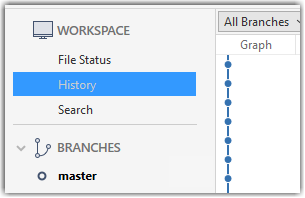
After adding two more commits, the list of commits should look something like this:
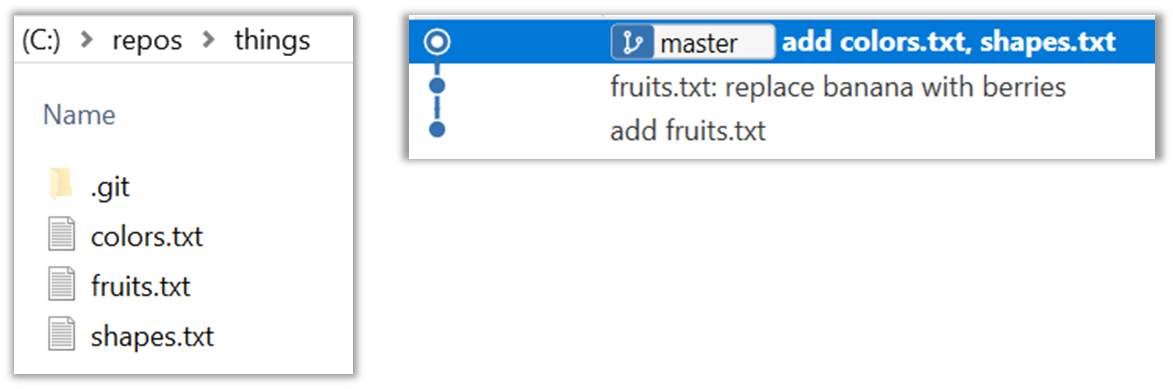
done!
The Git data model consists of two types of entities: objects and refs (short for references). In this lesson, you will encounter examples of both.
A Git revision graph is a visualisation of a repo's revision history, consisting of one or more branches. First, let us learn to work with simpler revision graphs consisting of one branch, such as the one given below.
- Nodes in the revision graph represent commits. A commit is one of four main types of Git objects. For completeness, the other three are:
- blob (short for binary large object): stores the contents of a file
- tree: represents a directory and records the hierarchy of its contents by referencing blobs and other trees
- tag (specifically, annotated tag): a label-like object that can store additional metadata and point to a specific commit
- A commit is identified by its SHA value. A SHA (Secure Hash Algorithm) value is a unique identifier generated by Git to represent each commit. It is produced by using SHA-1 (i.e., one of the algorithms in the SHA family of cryptographic hash functions) on the entire content of the commit. It's a 40-character hexadecimal string (e.g.,
f761ea63738a67258628e9e54095b88ea67d95e2) that acts like a fingerprint, ensuring that every commit can be referenced unambiguously. That is, every commit has a unique SHA-1 hash value. - A commit is a full snapshot of the working directory, constructed based on the previous commit, and the changes staged. That means each commit (except the initial commit) is based on a another 'parent' commit. Some commits can have multiple parent commits -- we’ll cover that later.
Given every commit has a unique hash, the commit hash values you see in our examples will be different from the hash values of your own commits, for example, when following our hands-on practicals.
Edges in the revision graph represent links between a commit and its parent commit(s). In some revision graph visualisations, you might see arrows (instead of lines) showing how each commit points to its parent commit.
Git uses refs to name and keep track of various points in a repository’s history. These refs are essentially 'named-pointers' that can serve as bookmarks to reach a certain point in the revision graph using the ref name.
In the revision graph above, there are two refs master and ←HEAD.
- master is a branch ref. A branch ref points to the latest commit on a branch. In this visualisation, the commit shown alongside the ref is the one it points to i.e.,
C3.
When you create a new commit, the branch ref of the branch moves to the new commit. - ←HEAD is a special ref that typically points to the current branch and moves along with that branch ref. In this example, it is pointing to the
masterbranch.
In certain cases, theHEADmay point directly to a specific commit instead of a branch. This situation is called a "detachedHEAD", which will be covered in a later lesson.
Target Use Git features to examine the revision graph of a simple repo.
Preparation Use a repo with just a few commits and only one branch.
1 First, use a simple git log to view the list of commits.
git log
commit f761ea63738a... (HEAD -> master)
Author: ... <...@...>
Date: Sat ...
Add colours.txt, shapes.txt
commit 2bedace69990...
Author: ... <...@...>
Date: Sat ...
Add figs to fruits.txt
commit d5f91de5f0b5...
Author: ... <...@...>
Date: Fri ...
Add fruits.txt
Given below the visual representation of the same revision graph. As you can see, the log output shows the refs slightly differently, but it is not hard to see what they mean.
2 Use the --oneline flag to get a more concise view. Note how the commit SHA has been truncated to first seven characters (first seven characters of a commit SHA is enough for Git to identify a commit).
git log --oneline
f761ea6 (HEAD -> master, origin/master) Add colours.txt, shapes.txt
2bedace Add figs to fruits.txt
d5f91de Add fruits.txt
3 The --graph flag makes the result closer to a graphical revision graph. Note the * that indicates a node in a revision graph.
git log --oneline --graph
* f761ea6 (HEAD -> master, origin/master) Add colours.txt, shapes.txt
* 2bedace Add figs to fruits.txt
* d5f91de Add fruits.txt
The --graph option is more useful when examining a more complicated revision graph consisting of multiple parallel branches.
Click the History to see the revision graph.
- In some versions of Sourcetree, the
HEADref may not be shown -- it is implied that theHEADref is pointing to the same commit the currently active branch ref is pointing.
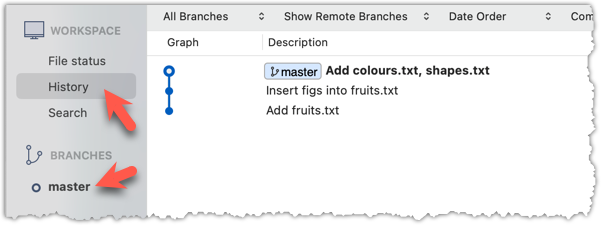
done!
Remote Repositories
To back up your Git repo on the cloud, you’ll need to use a remote repository service, such as GitHub.
A repo you have on your computer is called a local repo. A remote repo is a repo hosted on a remote computer and allows remote access. Some use cases for remote repositories:
- as a backup of your local repo
- as an intermediary repo to work on the same files from multiple computers
- for sharing the revision history of a codebase among team members of a multi-person project
It is possible to set up a Git remote repo on your own server, but an easier option is to use a remote repo hosting service such as GitHub.
Creating a Repo on GitHub
The first step of backing up a local repo on GitHub: create an empty repository on GitHub.
You can create a remote repository based on an existing local repository, to serve as a remote copy of your local repo. For example, suppose you created a local repo and worked with it for a while, but now you want to upload it onto GitHub. The first step is to create an empty repository on GitHub.
1 Login to your GitHub account and choose to create a new repo.
2 In the next screen, provide a name for your repo. Refer the screenshot below on some guidance on how to provide the required information.
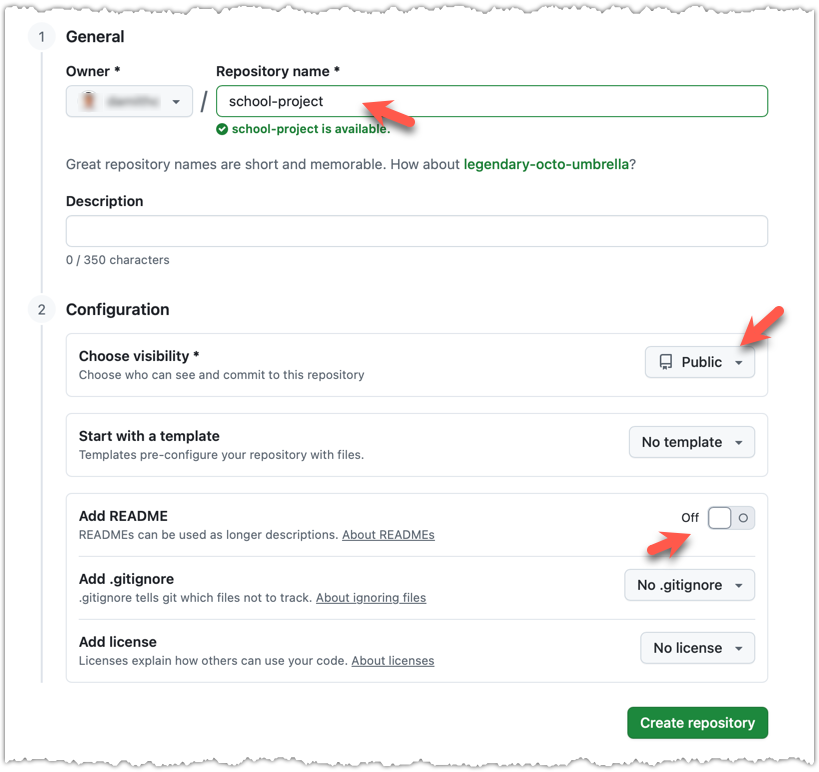
Click Create repository button to create the new repository.
If you enable any of the three Add _____ options shown above, GitHub will not only create a repo, but will also initialise it with some initial content. That is not what we want here. To create an empty remote repo, keep those options disabled.
3 Note the URL of the repo. It will be of the form
https://github.com/{your_user_name}/{repo_name}.git.
e.g., https://github.com/johndoe/foobar.git (note the .git at the end)
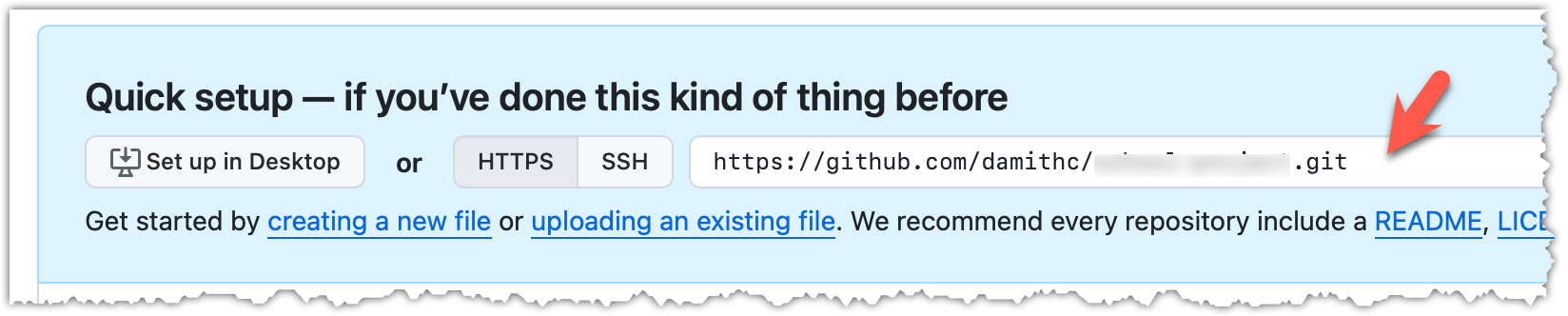
done!
Linking a Local Repo With a Remote Repo
The second step of backing up a local repo on GitHub: link the local repo with the remote repo on GitHub.
A Git remote is a reference to a repository hosted elsewhere, usually on a server like GitHub, GitLab, or Bitbucket. It allows your local Git repo to communicate with another remote copy — for example, to upload locally-created commits that are missing in the remote copy.
By adding a remote, you are informing the local repo details of a remote repo it can communicate with, for example, where the repo exists and what name to use to refer to the remote.
The URL you use to connect to a remote repo depends on the protocol — HTTPS or SSH:
- HTTPS URLs use the standard web protocol and start with
https://github.com/(for GitHub users). e.g.,https://github.com/username/repo-name.git - SSH URLs use the secure shell protocol and start with
git@github.com:. e.g.,git@github.com:username/repo-name.git
A Git repo can have multiple remotes. You simply need to specify different names for each remote (e.g., upstream, central, production, other-backup ...).
Add the empty remote repo you created on GitHub as a remote of a local repo you have.
1 In a terminal, navigate to the folder containing the local repo things you created earlier.
2 List the current list of remotes using the git remote -v command, for a sanity check. No output is expected if there are no remotes yet.
3 Add a new remote repo using the git remote add <remote-name> <remote-url> command.
Format of the <remote-url>:
https://github.com/<owner>/<repo>.git # using HTTPS
git@github.com:<owner>/<repo>.git # using SSH
The full command:
git remote add origin https://github.com/JohnDoe/things.git # using HTTPS
git remote add origin git@github.com:JohnDoe/things.git # using SSH
4 List the remotes again to verify the new remote was added.
git remote -v
origin https://github.com/johndoe/things.git (fetch)
origin https://github.com/johndoe/things.git (push)
The same remote will be listed twice, to show that you can do two operations (fetch and push) using this remote. You can ignore that for now. The important thing is the remote you added is being listed.
1 Open the local repo in Sourcetree.
2 Open the dialog for adding a remote, as follows:
Choose Repository → Repository Settings menu option.
Choose Repository → Repository Settings... → Choose Remotes tab.
3 Add a new remote to the repo with the following values.
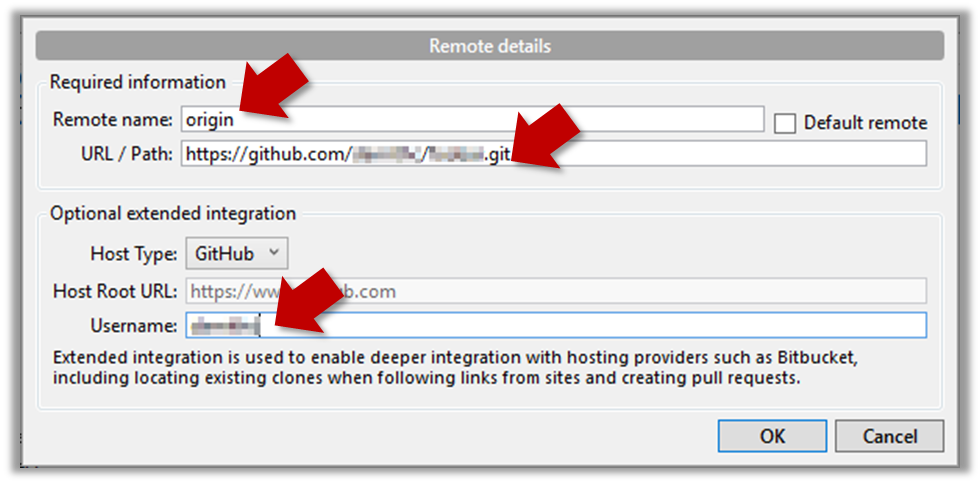
Remote name: the name you want to assign to the remote repo i.e.,originURL/path: the URL of your remote repohttps://github.com/<owner>/<repo>.git # using HTTPS git@github.com:<owner>/<repo>.git # using SSHe.g.,
https://github.com/JohnDoe/things.git # using HTTPS git@github.com:JohnDoe/things.git # using SSHUsername: your GitHub username
4 Verify the remote was added by going to Repository → Repository Settings again.
5 Add another remote, to verify that a repo can have multiple remotes. You can use any name (e.g., backup and any URL for this).
done!
To find the URL of a repo on GitHub, you can click on the Code button:
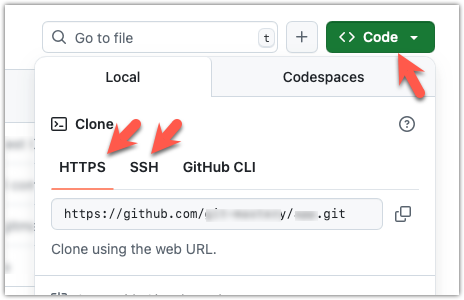
Updating the Remote Repo
The third step of backing up a local repo on GitHub: push a copy of the local repo to the remote repo.
You can push content of one repository to another, usually from your local repo to a remote repo. Pushing transfers recorded Git history (such as past commits), but it does not transfer unstaged changes or untracked files.
- To push, you need to have to the remote repo.
- Pushing is performed one branch at a time; you must specify which branch you want to push.
You can configure Git to track a pairing between a local branch and a remote branch, so in future you can push from the same local branch to the corresponding remote branch without needing to specify them again. For example, you can set your local master branch to track the master branch on the remote repo origin i.e., local master branch will track the branch origin/master.
In the revision graph above, you see a new type of ref ( origin/master). This is a remote-tracking branch ref that represents the state of a corresponding branch in a remote repository (if you previously set up the branch to 'track' a remote branch). In this example, the master branch in the remote origin is also at the commit C3 (which means you have not created new commits after you pushed to the remote).
If you now create a new commit C4, the state of the revision graph will be as follows:
Explanation: When you create C4, the current branch master moves to C4, and HEAD moves along with it. However, the master branch in the remote origin remains at C3 (because you have not pushed C4 yet). That is, the remote-tracking branch origin/master is one commit behind the local branch master (or, the local branch is one commit ahead). The origin/master ref will move to C4 only after you push your local branch to the remote again.
Preparation Use a local repo that is connected to an empty remote repo e.g., the things repo from previous hands-on practicals:
1 Push the master branch to the remote. Also instruct Git to track this branch pair.
Use the git push -u <remote-repo-name> <local-branch-name> to push the commits to a remote repository.
git push -u origin master
Explanation:
push: the Git sub-command that pushes the current local repo content to a remote repoorigin: name of the remotemaster: branch to push-u(or--set-upstream): the flag that tells Git to track that this localmasteris trackingorigin/masterbranch
Click the Push button on the buttons ribbon at the top.

In the next dialog, ensure the settings are as follows, ensure the Track option is selected, and click the Push button on the dialog.
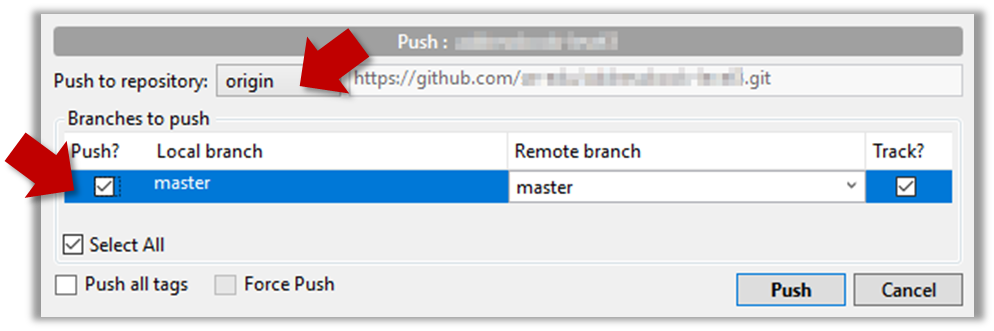
2 Observe the remote-tracking branch origin/master is now pointing at the same commit as the master branch.
Use the git log --oneline --graph to see the revision graph.
* f761ea6 (HEAD -> master, origin/master) Add colours.txt, shapes.txt
* 2bedace Add figs to fruits.txt
* d5f91de Add fruits.txt
Click the History to see the revision graph.
- In some versions of Sourcetree, the
HEADref may not be shown -- it is implied that theHEADref is pointing to the same commit the currently active branch ref is pointing. - If the remote-tracking branch ref (e.g.,
origin/master) is not showing up, you may need to enable theShow Remote Branchesoption.
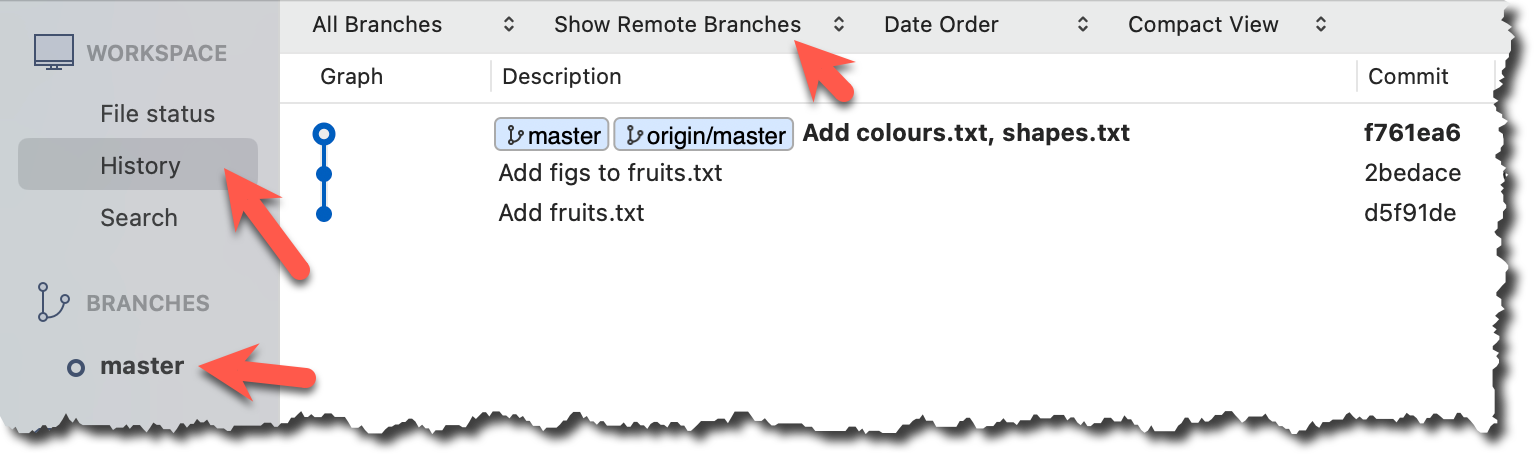
done!
The push command can be used repeatedly to send further updates to another repo e.g., to update the remote with commits you created since you pushed the first time.
Target Add a commit to the same local repo, and push it to the remote repo.
1 Commit some changes in your local repo. Example:
echo "Elderberries" >> fruits.txt
git commit -am "Update fruits list"
Use the git commit command to create commits, as you did before.
Optionally, you can run the git status command, which should confirm that your local branch is 'ahead' by one commit (i.e., the local branch has commits that are not present in the corresponding branch in the remote repo).
git status
On branch master
Your branch is ahead of 'origin/master' by 1 commit.
(use "git push" to publish your local commits)
nothing to commit, working tree clean
You can also use the git log --oneline --graph command to see where the branch refs are. Note how the remote-tracking branch origin/master is one commit behind the local master.
e60deae (HEAD -> master) Update fruits list
f761ea6 (origin/master) Add colours.txt, shapes.txt
2bedace Add figs to fruits.txt
d5f91de Add fruits.txt
Create commits as you did before.
Before pushing the new commit, Sourcetree will indicate that your local branch is 'ahead' by one commit (i.e., the local branch has one new commit that is not in the corresponding branch in the remote repo).
2 Push the new commits to your fork on GitHub.
To push the newer commit(s) in the current branch master to the remote origin, you can use any of the following commands:
git push origin mastergit push origin
→ Git will assume you are pushing the current branch (e.g.,master) even if you don't specify it.git push
→ Git will assume you are pushing the current branch (e.g.,master). Due to tracking you've set up earlier, Git will assume that you want to push it to the matching branch onorigin.
After pushing, the revision graph should look something like the following (note how both local and remote-tracking branch refs are pointing to the same commit again).
e60deae (HEAD -> master, origin/master) Update fruits list
f761ea6 Add colours.txt, shapes.txt
2bedace Add figs to fruits.txt
d5f91de Add fruits.txt
To push, click the Push button on the top buttons ribbon, ensure the settings are as follows in the next dialog, and click the Push button on the dialog.
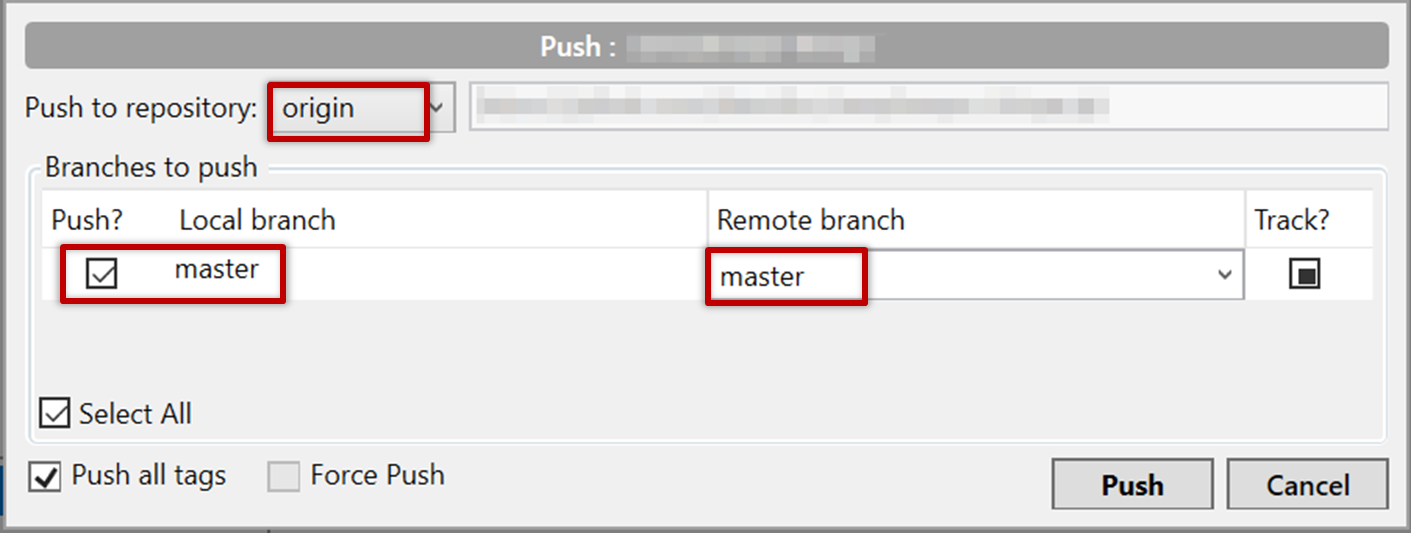
After pushing the new commit to the remote, the remote-tracking branch ref should move to the new commit:
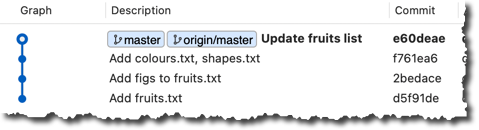
done!
Note that you can push between two repos only if those repos have a shared history among them (i.e., one should have been created by copying the other).
Omitting Files from Revision Control
Git allows you to specify which files should be omitted from revision control.
You can specify which files Git should ignore from revision control. While you can always omit files from revision control simply by not staging them, having an 'ignore-list' is more convenient, especially if there are files inside the working folder that are not suitable for revision control (e.g., temporary log files) or files you want to prevent from accidentally including in a commit (files containing confidential information).
A repo-specific ignore-list of files can be specified in a .gitignore file, stored in the root of the repo folder.
The .gitignore file itself can be either revision controlled or ignored.
- To version control it (the more common choice – which allows you to track how the
.gitignorefile changes over time), simply commit it as you would commit any other file. - To ignore it, simply add its name to the
.gitignorefile itself.
The .gitignore file supports file patterns e.g., adding temp/*.tmp to the .gitignore file prevents Git from tracking any .tmp files in the temp directory.
SIDEBAR: .gitignore File Syntax
Blank lines: Ignored and can be used for spacing.
Comments: Begin with
#(lines starting with # are ignored).# This is a commentWrite the name or pattern of files/directories to ignore.
log.txt # Ignores a file named log.txtWildcards:
*matches any number of characters, except/(i.e., for matching a string within a single directory level):abc/*.tmp # Ignores all .tmp files in abc directory**matches any number of characters (including/)**/foo.tmp # Ignores all foo.tmp files in any directory?matches a single characterconfig?.yml # Ignores config1.yml, configA.yml, etc.[abc]matches a single character (a, b, or c)file[123].txt # Ignores file1.txt, file2.txt, file3.txt
Directories:
- Add a trailing
/to match directories.logs/ # Ignores the logs directory - Patterns without
/match files/folders recursively.*.bak # Ignores all .bak files anywhere - Patterns with
/are relative to the.gitignorelocation./secret.txt # Only ignores secret.txt in the root directory
- Add a trailing
Negation: Use
!at the start of a line to not ignore something.*.log # Ignores all .log files !important.log # Except important.log
Example:
# Ignore all log files
*.log
# Ignore node_modules folder
node_modules/
# Don’t ignore main.log
!main.log
1 Add a file into your repo's working folder that you presumably do not want to revision-control e.g., a file named temp.txt. Observe how Git has detected the new file.
Add a few other files with .tmp extension.
2 Configure Git to ignore those files:
Create a file named .gitignore in the working directory root and add the text temp.txt into it.
echo "temp.txt" >> .gitignore
temp.txt
Observe how temp.txt is no longer detected as 'untracked' by running the git status command (but now it will detect the .gitignore file as 'untracked'.
Update the .gitignore file as follows:
temp.txt
*.tmp
Observe how .tmp files are no longer detected as 'untracked' by running the git status command.
The file should be currently listed under Unstaged files. Right-click it and choose Ignore.... Choose Ignore exact filename(s) and click OK.
Also take note of other options available e.g., Ignore all files with this extension etc. They may be useful in future.
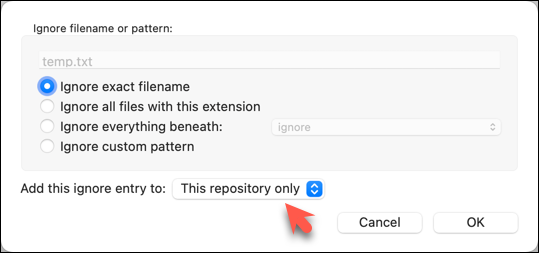
Note how the temp.text is no longer listed under Unstaged files. Observe that a file named .gitignore has been created in the working directory root and has the following line in it. This new file is now listed under Unstaged files.
temp.txt
Right-click on any of the .tmp files you added, and choose Ignore... as you did previously. This time, choose the option Ignore files with this extension.
Note how .temp files are no longer shown as unstaged files, and the .gitignore file has been updated as given below:
temp.txt
*.tmp
3 Optionally, stage and commit the .gitignore file.
done!
Files recommended to be omitted from version control
- Binary files generated when building your project e.g.,
*.class,*.jar,*.exe
Reasons:- no need to version control these files as they can be generated again from the source code
- Revision control systems are optimized for tracking text-based files, not binary files.
- Temporary files e.g., log files generated while testing the product
- Local files i.e., files specific to your own computer e.g., local settings of your IDE (
.idea/) - Sensitive content i.e., files containing sensitive/personal information e.g., credential files, personal identification data (especially if there is a possibility of those files getting leaked via the revision control system).
Duplicating a Remote Repo on the Cloud
GitHub allows you to create a remote copy of another remote repo, called forking.
A fork is a copy of a remote repository created on the same hosting service such as GitHub, GitLab, or Bitbucket. On GitHub, you can fork a repository from another user or organisation into your own space (i.e., your user account or an organisation you have sufficient access to). Forking is particularly useful if you want to experiment with a repo but don’t have write permissions to the original -- you can fork it and work on your own remote copy without affecting the original repository.
Preparation Create a GitHub account if you don't have one yet.
1 Go to the GitHub repo you want to fork e.g., samplerepo-things
2 Click on the  button in the top-right corner. In the next step,
- choose to fork to your own account or to another GitHub organization that you are an admin of.
- un-tick the
[ ] Copy the master branch onlyoption, so that you get copies of other branches (if any) in the repo.
done!
Forking is not a Git feature, but a feature provided by hosted Git services like GitHub, GitLab, or Bitbucket.
GitHub does not allow you to fork the same repo more than once to the same destination. If you want to re-fork, you need to delete the previous fork.
Creating a Local Copy of a Repo
The next step is to create a local copy of the remote repo, by cloning the remote repo.
You can clone a repository to create a full copy of it on your computer. This copy includes the entire revision history, branches, and files of the original, so it behaves just like the original repository. For example, you can clone a repository from a hosting service like GitHub to your computer, giving you a complete local version to work with.
Cloning a repo automatically creates a remote named origin which points to the repo you cloned from.
The repo you cloned from is often referred to as the upstream repo.
1 Clone the remote repo to your computer. For example, you can clone the samplerepo-things repo, or the fork you created from it in a previous lesson.
Note that the URL of the GitHub project is different from the URL you need to clone a repo in that GitHub project. e.g.
https://github.com/se-edu/samplerepo-things # GitHub project URL
https://github.com/se-edu/samplerepo-things.git # the repo URL
You can use the git clone <repository-url> [directory-name] command to clone a repo.
<repository-url>: The URL of the remote repository you want to copy.[directory-name](optional): The name of the folder where you want the repository to be cloned. If you omit this, Git will create a folder with the same name as the repository.
git clone https://github.com/se-edu/samplerepo-things.git # if using HTTPS
git clone git@github.com:se-edu/samplerepo-things.git # if using SSH
git clone https://github.com/foo/bar.git my-bar-copy # also specifies a dir to use
For exact steps for cloning a repo from GitHub, refer to this GitHub document.
File → Clone / New ... and provide the URL of the repo and the destination directory.
File → New ... → Choose as shown below → Provide the URL of the repo and the destination directory in the next dialog.
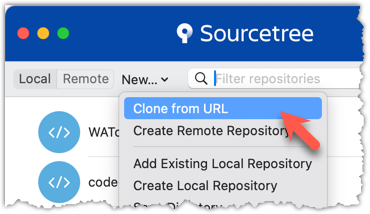
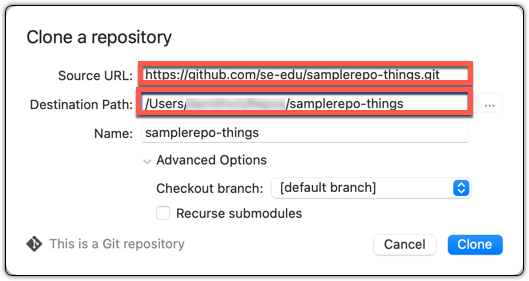
2 Verify the clone has a remote named origin pointing to the upstream repo.
Use the git remote -v command that you learned earlier.
Choose Repository → Repository Settings menu option.
done!
Downloading Data Into a Local Repo
When there are new changes in the remote, you need to pull those changes down to your local repo.
There are two steps to bringing over changes from a remote repository into a local repository: fetch and merge.
- Fetch is the act of downloading the latest changes from the remote repository, but without applying them to your current branch yet. It updates metadata in your repo so that it knows what has changed in the remote repo, but your own local branch remains untouched.
- Merge is what you do after fetching, to actually incorporate the fetched changes into your local branch. It combines your local branch with the changes from the corresponding branch from the remote repo.
1 Clone the repo se-edu/samplerepo-finances. It has 3 commits. Your clone now has a remote origin pointing to the remote repo you cloned from.
2 Change the remote origin to point to samplerepo-finances-2. This remote repo is a copy of the one you cloned, but it has two extra commits.
git remote set-url origin https://github.com/se-edu/samplerepo-finances-2.git
Go to Repository → Repository settings ... to update remotes.
3 Verify the local repo is unaware of the extra commits in the remote.
git status
On branch master
Your branch is up to date with 'origin/master'.
nothing to commit, working tree clean
The revision graph should look like the below:
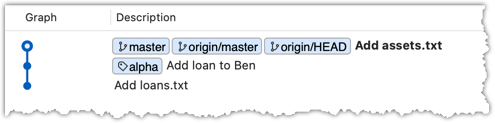
If it looks like the below, it is possible that Sourcetree is auto-fetching data from the repo periodically.
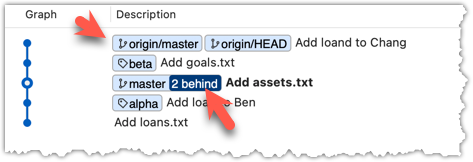
4 Fetch from the new remote.
Use the git fetch <remote> command to fetch changes from a remote. If the <remote> is not specified, the default remote origin will be used.
git fetch origin
remote: Enumerating objects: 8, done.
... # more output ...
afbe966..cc6a151 master -> origin/master
* [new tag] beta -> beta
Click on the Fetch button on the top menu:
5 Verify the fetch worked i.e., the local repo is now aware of the two missing commits. Also observe how the local branch ref of the master branch, the staging area, and the working directory remain unchanged after the fetch.
Use the git status command to confirm the repo now knows that it is behind the remote repo.
git status
On branch master
Your branch is behind 'origin/master' by 2 commits, and can be fast-forwarded.
(use "git pull" to update your local branch)
nothing to commit, working tree clean
Now, the revision graph should look something like the below. Note how the origin/master ref is now two commits ahead of the master ref.
6 Merge the fetched changes.
Use the git merge <remote-tracking-branch> command to merge the fetched changes. Check the status and the revision graph to verify that the branch tip has now moved by two more commits.
git merge origin/master
git status
git log --oneline --decorate
To merge the fetched changes, right-click on the latest commit on origin/remote branch and choose Merge.
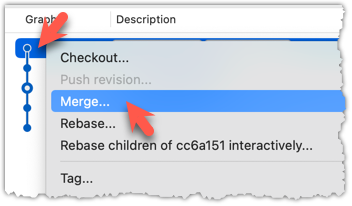
In the next dialog, choose as follows:
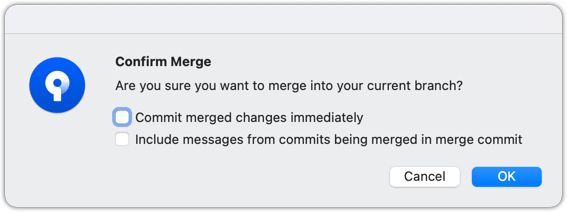
The final result should be something like the below (same as the repo state before we started this hands-on practical):
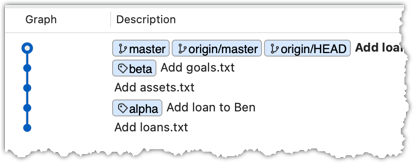
Note that merging the fetched changes can get complicated if there are multiple branches or the commits in the local repo conflict with commits in the remote repo. We will address them when we learn more about Git branches, in a later lesson.
done!
Pull is a shortcut that combines fetch and merge — it fetches the latest changes from the remote and immediately merges them into your current branch. In practice, Git users typically use the pull instead of the fetch-then-merge.
pull = fetch + merge
1 Similar to the previous hands-on practical, clone the repo se-edu/samplerepo-finances (to a new location).
Change the remote origin to point to samplerepo-finances-2.
2 Pull the newer commits from the remote, instead of a fetch-then-merge.
Use the git pull <remote> <branch> command to pull changes.
git pull origin master
The following works too. If the <remote> and <branch> are not specified, Git will pull to the current branch from the remote branch it is tracking.
git pull
Click on the Pull button on the top menu:
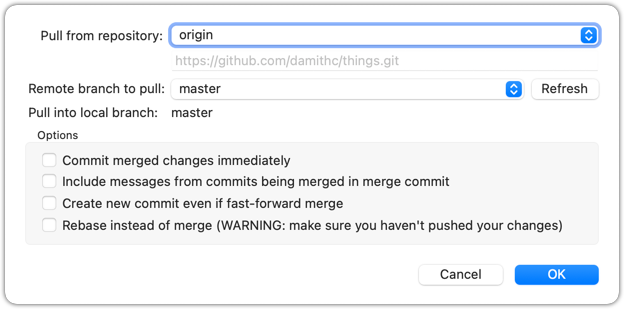
3 Verify the outcome is same as the fetch + merge steps you did in the previous hands-on practical.
done!
You can pull from any number of remote repos, provided the repos involved have a shared history. This can be useful when the upstream repo you forked from has some new commits that you wish to bring over to your copies of the repo (i.e., your fork and your local repo).
Preparation Fork se-edu/samplerepo-finances to your GitHub account.
Clone your fork to your computer.
Now, let's pretend that there are some new commits in upstream repo that you would like to bring over to your fork, and your local repo. Here are the steps:
1 Add the upstream repo se-edu/samplerepo-finances as remote named upstream in your local repo.
Adding remotes was covered in Lesson T2L4. Linking a Local Repo With a Remote Repo
2 Pull from the upstream repo. If there are new commits (in this case, there will be none), those will come over to your local repo. For example:
git pull upstream master
3 Push to your fork. Any new commits you pulled from the upstream repo will now appear in your fork as well. For example:
git push origin master
The method given above is the more 'standard' method of synchronising a fork with the upstream repo. In addition, platforms such as GitHub can provide other ways (example: GitHub's Sync fork feature).
4 For good measure, let's pull from another repo.
- Add the upstream repo se-edu/samplerepo-finances-2 as remote named
other-upstreamin your local repo. - Pull from it to your local repo; this will bring some new commits.
- Now, you can push those new commits to your fork.
git remote add other-upstream https://github.com/se-edu/samplerepo-finances-2.git
git pull other-upstream master
git push origin master
done!
Examining a Commit
It is useful to be able to see what changes were included in a specific commit.
When you examine a commit, normally what you see is the 'changes made since the previous commit'. This does not mean that a Git commit contains only the changes made since the previous commit. As you recall, a Git commit contains a full snapshot of the working directory. However, tools used to examine commits typically show only the changes, as that is the more informative part.
Git shows changes included in a commit by dynamically calculating the difference between the snapshots stored in the target commit and the parent commit. This is because Git commits store snapshots of the working directory, not changes themselves.
Although each commit represents a copy of the entire working directory, Git uses space efficiently in two main ways:
- Reuse of unchanged data: If a file hasn’t changed since a previous commit, the commit simply points to the already stored version of that file instead of making another copy. This means only new or changed files take up extra space, while unchanged files are reused.
- Compression: Git also compresses all the files and data it stores using an algorithm (zlib). So, even the objects that are stored (whether reused or new) take up less disk space because they are saved in a compressed format.
To address a specific commit, you can use its SHA (e.g., e60deaeb2964bf2ebc907b7416efc890c9d4914b). In fact, just the first few characters of the SHA is enough to uniquely address a commit (e.g., e60deae), provided the partial SHA is long enough to uniquely identify the commit (i.e., only one commit has that partial SHA).
Naturally, a commit can be addressed using any ref pointing to it too (e.g., HEAD, master).
Another related technique is to use the <ref>~<n> notation (e.g., HEAD~1) to address the commit that is n commits prior to the commit pointed by <ref> i.e., "start with the commit pointed by <ref> and go back n commits".
A related alternative notation is HEAD~, HEAD~~, HEAD~~~, ... to mean HEAD~1, HEAD~2, HEAD~3 etc.
HEAD or masterHEAD~1 or master~1 or HEAD~ or master~HEAD~2 or master~2Git uses the diff format to show file changes in a commit. The diff format was originally developed for Unix. It was later extended with headers and metadata to show changes between file versions and commits. Here is an example diff showing the changes to a file.
diff --git a/fruits.txt b/fruits.txt
index 7d0a594..f84d1c9 100644
--- a/fruits.txt
+++ b/fruits.txt
@@ -1,6 +1,6 @@
-apples
+apples, apricots
bananas
cherries
dragon fruits
-elderberries
figs
@@ -20,2 +20,3 @@
oranges
+pears
raisins
diff --git a/colours.txt b/colours.txt
new file mode 100644
index 0000000..55c8449
--- /dev/null
+++ b/colours.txt
@@ -0,0 +1 @@
+a file for colours
A Git diff can consist of multiple file diffs, one for each changed file. Each file diff can contain one or more hunk i.e., a localised group of changes within the file — including lines added, removed, or left unchanged (included for context).
Given below is how the above diff is divided into its components:
File diff for fruits.txt:
diff --git a/fruits.txt b/fruits.txt
index 7d0a594..f84d1c9 100644
--- a/fruits.txt
+++ b/fruits.txt
Hunk 1:
@@ -1,6 +1,6 @@
-apples
+apples, apricots
bananas
cherries
dragon fruits
-elderberries
figs
Hunk 2:
@@ -20,2 +20,3 @@
oranges
+pears
raisins
File diff for colours.txt:
diff --git a/colours.txt b/colours.txt
new file mode 100644
index 0000000..55c8449
--- /dev/null
+++ b/colours.txt
Hunk 1:
@@ -0,0 +1 @@
+a file for colours
Here is an explanation of the diff:
| Part of Diff | Explanation |
|---|---|
diff --git a/fruits.txt b/fruits.txt | The diff header, indicating that it is comparing the file fruits.txt between two versions: the old (a/) and new (b/). |
index 7d0a594..f84d1c9 100644 | Shows the before and after the change, and the file mode (100 means a regular file, 644 are file permission indicators). |
--- a/fruits.txt+++ b/fruits.txt | Marks the old version of the file (a/fruits.txt) and the new version of the file (b/fruits.txt). |
| This hunk header shows that lines 1-6 (i.e., starting at line 1, showing 6 lines) in the old file were compared with lines 1–6 in the new file. |
-apples+apples, apricots | Removed line apples and added line apples, apricots. |
bananascherriesdragon fruits | Unchanged lines, shown for context. |
-elderberries | Removed line: elderberries. |
figs | Unchanged line, shown for context. |
| Hunk header showing that lines 20-21 in the old file were compared with lines 20–22 in the new file. |
oranges+pearsraisins | Unchanged line. Added line: pears.Unchanged line. |
diff --git a/colours.txt b/colours.txt | The usual diff header, indicates that Git is comparing two versions of the file colours.txt: one before and one after the change. |
new file mode 100644 | This is a new file being added. 100644 means it’s a normal, non-executable file with standard read/write permissions. |
index 0000000..55c8449 | The usual SHA hashes for the two versions of the file. 0000000 indicates the file did not exist before. |
--- /dev/null+++ b/colours.txt | Refers to the "old" version of the file (/dev/null means it didn’t exist before), and the new version. |
@@ -0,0 +1 @@ | Hunk header, saying: “0 lines in the old file were replaced with 1 line in the new file, starting at line 1.” |
+a file for colours | Added line |
Points to note:
+indicates a line being added.
-indicates a line being deleted.- Editing a line is seen as deleting the original line and adding the new line.
TargetView contents of specific commits in a repo.
Preparation You can use any repo that has commits e.g., the things repo.
1 Locate the commits to view, using the revision graph.
git log --oneline --decorate
e60deae (HEAD -> master, origin/master) Update fruits list
f761ea6 Add colours.txt, shapes.txt
2bedace Add figs to fruits.txt
d5f91de Add fruits.txt
2 Use the git show command to view specific commits.
git show # shows the latest commit
commit e60deaeb2964bf2ebc907b7416efc890c9d4914b (HEAD -> master, origin/master)
Author: damithc <...@...>
Date: Sat Jun ...
Update fruits list
diff --git a/fruits.txt b/fruits.txt
index 7d0a594..6d502c3 100644
--- a/fruits.txt
+++ b/fruits.txt
@@ -1,6 +1,6 @@
-apples
+apples, apricots
bananas
+blueberries
cherries
dragon fruits
-elderberries
figs
To view the parent commit of the latest commit, you can use any of these commands:
git show HEAD~1
git show master~1
git show e60deae # first few characters of the SHA
git show e60deae..... # run git log to find the full SHA and specify the full SHA
To view the commit that is two commits before the latest commit, you can use git show HEAD~2 etc.
Click on the commit. The remaining panels (indicated in the image below) will be populated with the details of the commit.
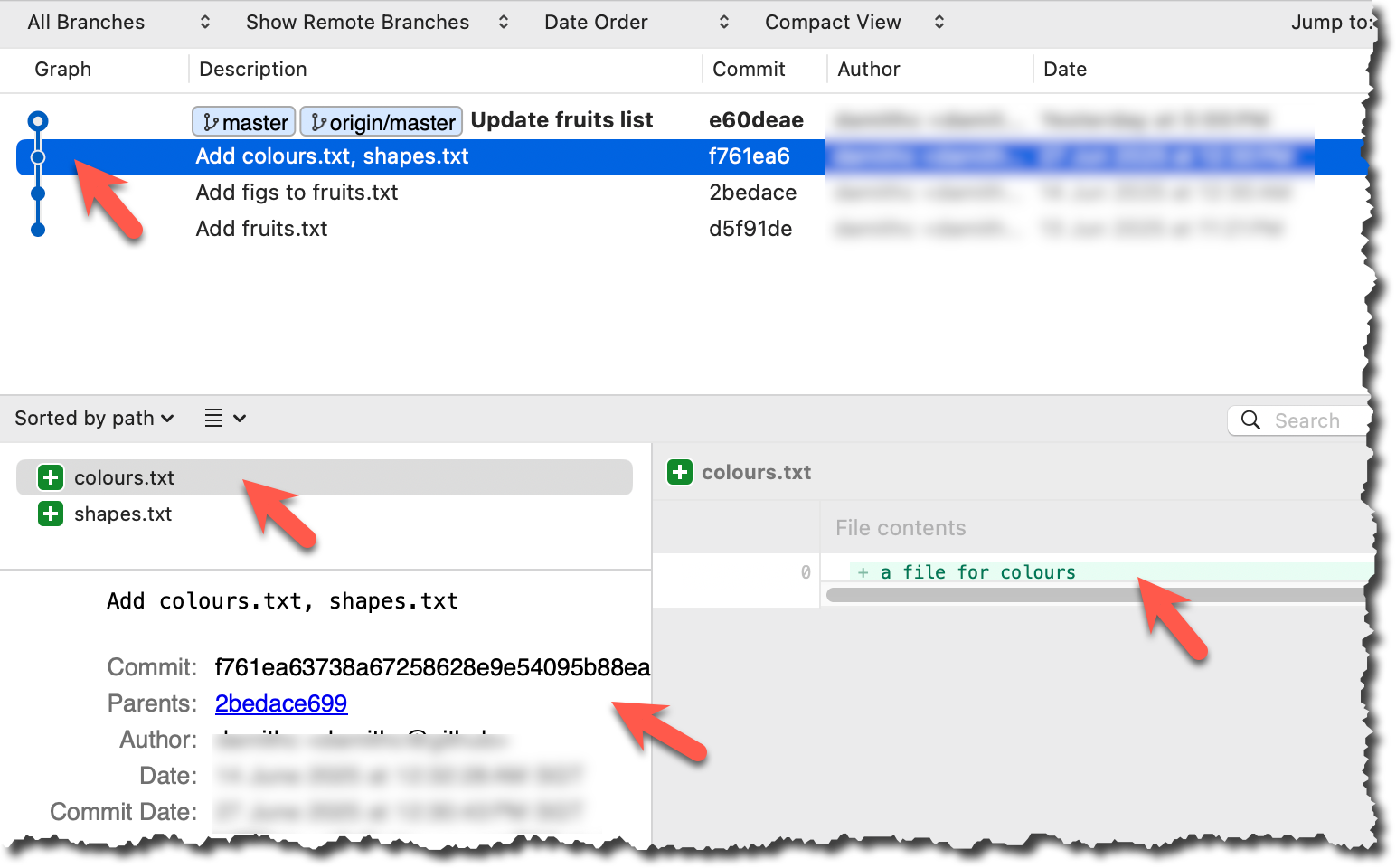
done!
PRO-TIP: Use Git Aliases to Work Faster
The Git alias feature allows you to create custom shortcuts for frequently used Git commands. This saves time and reduces typing, especially for long or complex commands. Once an alias is defined, you can use the alias just like any other Git command e.g., use git lodg as an alias for git log --oneline --decorate --graph.
To define a global git alias, you can use the git config --global alias.<alias> "<command>" command. e.g.,
git config --global alias.lodg "log --oneline --graph --decorate"
You can also create shell-level aliases using your shell configuration (e.g., .bashrc, .zshrc) to make even shorter aliases. This lets you create shortcuts for any command, including Git commands, and even combine them with other tools. e.g., instead of the Git alias git lodg, you can define a shorter shell-level alias glodg.
1. Locate your .bash_profile file (likely to be in : C:\Users\<YourName>\.bash_profile -- if it doesn’t exist, create it.)
1. Locate your shell's config file e.g., .bashrc or .zshrc (likely to be in your ~ folder)
1. Locate your shell's config file e.g., .bashrc or .zshrc (likely to be in your ~ folder)
Oh-My-Zsh for Zsh terminal supports a Git plugin that adds a wide array of Git command aliases to your terminal.
2. Add aliases to that file:
alias gs='git status'
alias glod='git log --oneline --graph --decorate'
3. Apply changes by running the command source ~/.zshrc or source ~/.bash_profile or source ~/.bashrc, depending on which file you put the aliases in.
Tagging Commits
When working with many commits, it helps to tag specific commits with custom names so they’re easier to refer to later.
Git lets you tag commits with names, making them easy to reference later. This is useful when you want to mark specific commits -- such as releases or key milestones (e.g., v1.0 or v2.1). Using tags to refer to commits is much more convenient than using SHA hashes. In the diagram below, v1.0 and interim are tags.
A tag stays fixed to the commit. Unlike branch refs or HEAD, tags do not move automatically as new commits are made. As you see below, after adding a new commit, tags stay in the previous commits while master←HEAD has moved to the new commit.
Git supports two kinds of tags:
- A lightweight tag is just a ref that points directly to a commit, like a branch that doesn’t move.
- An annotated tag is a full Git object that stores a reference to a commit along with metadata such as the tagger’s name, date, and a message.
Annotated tags are generally preferred for versioning and public releases, while lightweight tags are often used for less formal purposes, such as marking a commit for your own reference.
Target Add a few tags to a repository.
Preparation Fork and clone the samplerepo-preferences. Use the cloned repo on your computer for the following steps.
1 Add a lightweight tag to the current commit as v1.0:
git tag v1.0
2 Verify the tag was added. To view tags:
git tag
v1.0
To view tags in the context of the revision graph:
git log --oneline --decorate
507bb74 (HEAD -> master, tag: v1.0, origin/master, origin/HEAD) Add donuts
de97f08 Add cake
5e6733a Add bananas
3398df7 Add food.txt
3 Use the tag to refer to the commit e.g., git show v1.0 should show the changes in the tagged commit.
4 Add an annotated tag to an earlier commit. The example below adds a tag v0.9 to the commit HEAD~2 with the message First beta release. The -a switch tells Git this is an annotated tag.
git tag -a v0.9 HEAD~2 -m "First beta release"
5 Check the new annotated tag. While both types of tags appear similarly in the revision graph, the show command on an annotated tag will show the details of the tag and the details of the commit it points to.
git show v0.9
tag v0.9
Tagger: ... <...@...>
Date: Sun Jun ...
First beta release
commit ....999087124af... (tag: v0.9)
Author: ... <...@...>
Date: Sat Jun ...
Add figs to fruits.txt
diff --git a/fruits.txt b/fruits.txt
index a8a0a01..7d0a594 100644
# rest of the diff goes here
Right-click on the commit (in the graphical revision graph) you want to tag and choose Tag….
Specify the tag name e.g., v1.0 and click Add Tag.
Configure tag properties in the next dialog and press Add. For example, you can choose whether to make it a lightweight tag or an annotated tag (default).
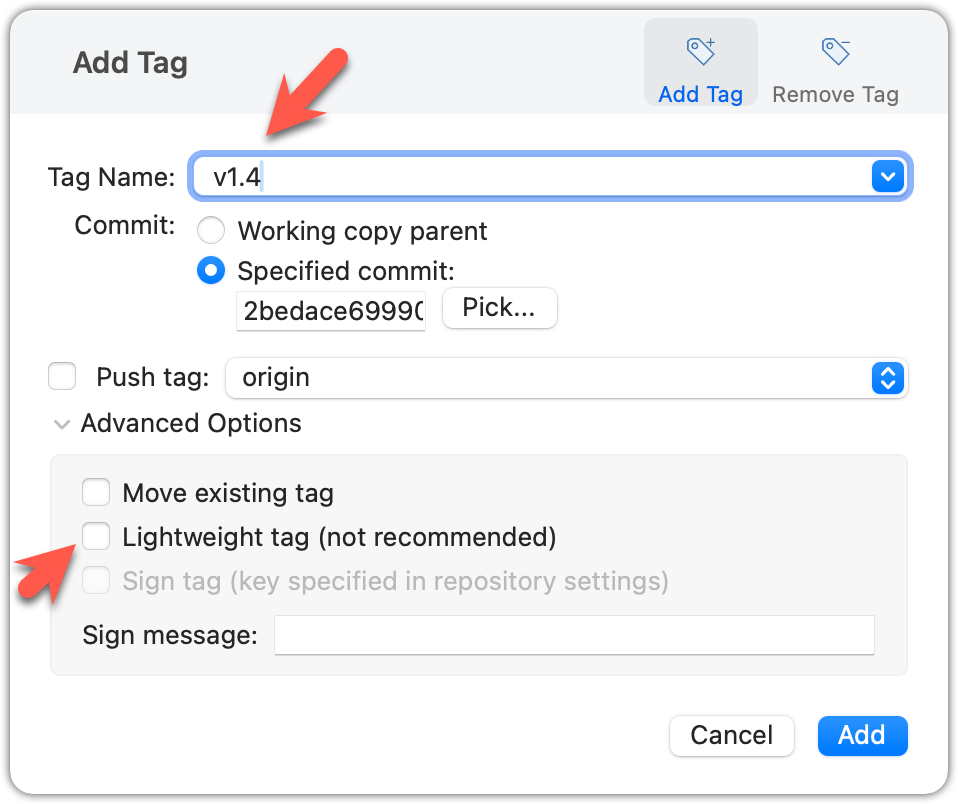
Tags will appear as labels in the revision graph, as seen below. To see the details of an annotated tag, you need to use the menu indicated in the screenshot.
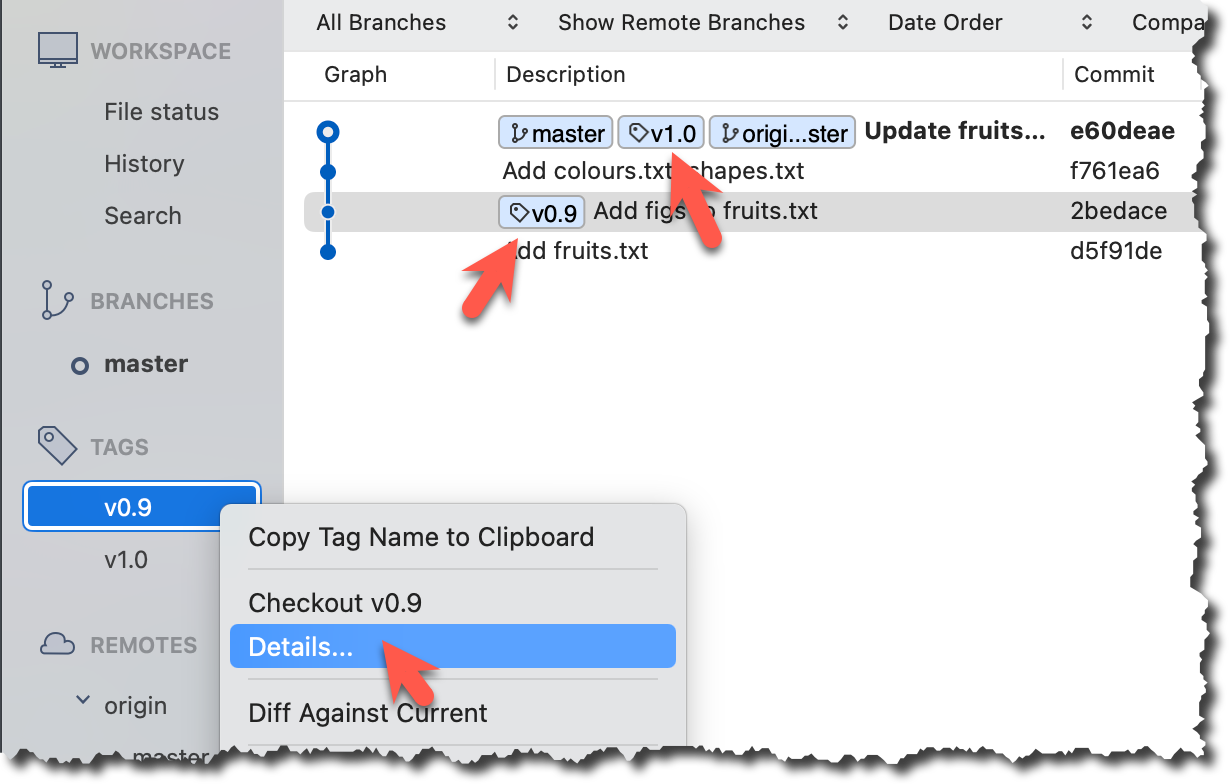
done!
If you need to change what a tag points to, you must delete the old one and create a new tag with the same name. This is because tags are designed to be fixed references to a specific commit, and there is no built-in mechanism to 'move' a tag.
Preparation Continue with the same repo you used for the previous hands-on practical.
Move the v1.0 tag to the commit HEAD~1, by deleting it first and creating it again at the destination commit.
Delete the previous v1.0 tag by using the -d . Add it again to the other commit, as before.
git tag -d v1.0
git tag v1.0 HEAD~1
The same dialog used to add a tag can be used to delete and even move a tag. Note that the 'moving' here translates to deleting and re-adding behind the scene.
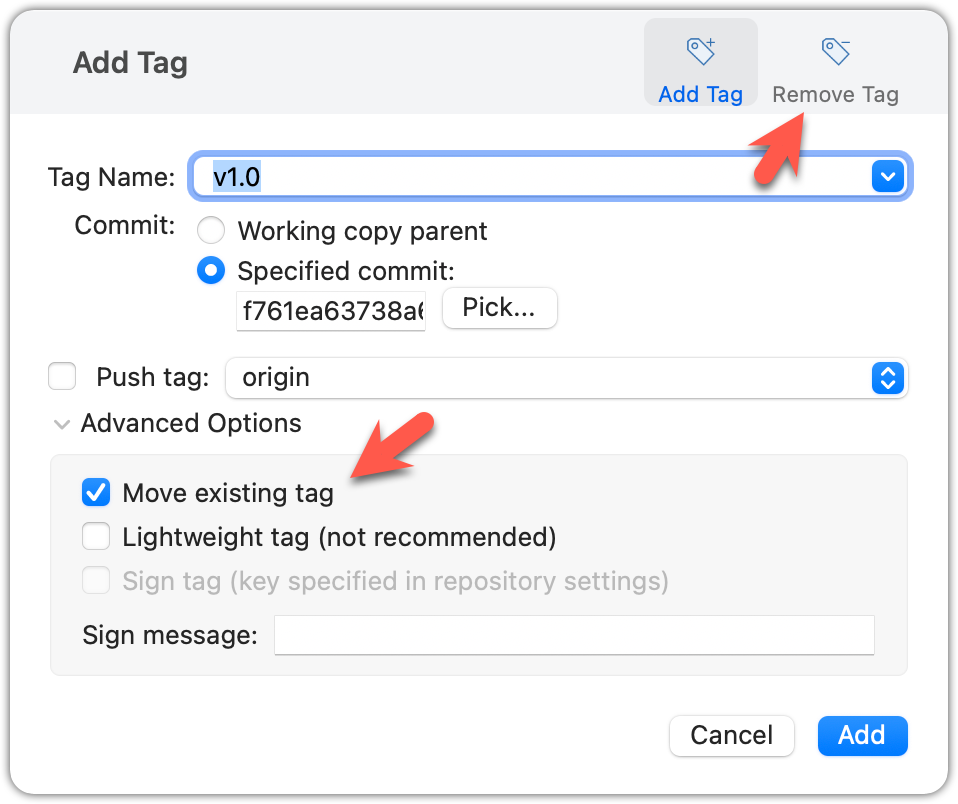
done!
Tags are different from commit messages, in purpose and in form. A commit message is a description of the commit that is part of the commit itself. A tag is a short name for a commit, which you can use to address a commit.
Pushing commits to a remote does not push tags automatically. You need to push tags specifically.
Target Push tags you created earlier to the remote.
Preparation Continue with the same repo you used for the previous hands-on practical.
You can go to your remote on GitHub link https://github.com/{USER}/{REPO}/tags (e.g., https://github.com/johndoe/samplerepo-preferences/tags) to verify the tag is present there.
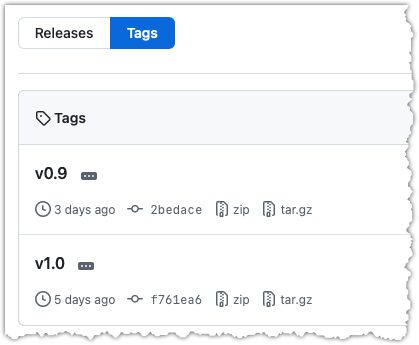
Note how GitHub assumes these tags are meant as releases, and automatically provides zip and tar.gz archives of the repo (as at that tag).
1 Push a specific tag in the local repo to the remote (e.g., v1.0) using the git push <remote> <tag-name> command.
git push origin v1.0
In addition to verifying the tag's presence via GitHub, you can also use the following command to list the tags presently in the remote.
git ls-remote --tags origin
2 Delete a tag in the remote, using the git push --delete <remote> <tag-name> command.
git push --delete origin v1.0
3 Push all tags to the remote repo, using the git push <remote> --tags command.
git push origin --tags
To push a specific tag, use the following menu:
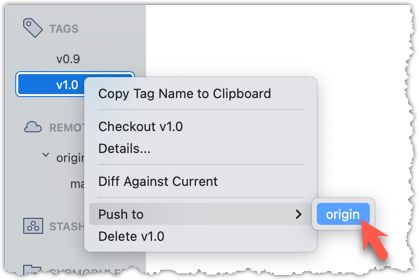
To push all tags, you can tick the Push all tags option when pushing commits:
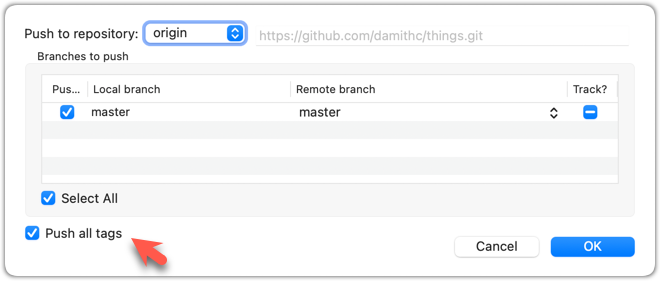
done!
Comparing Points of History
Git can tell you the net effect of changes between two points of history.
Git's diff feature can show you what changed between two points in the revision history. Given below are some use cases.
Usage 1: Examining changes in the working directory
Example use case: To verify the next commit will include exactly what you intend it to include.
Preparation For this, you can use the things repo you created earlier. If you don't have it, you can clone a copy of a similar repo given here.
1 Do some changes to the working directory. Stage some (but not all) changes. For example, you can run the following commands.
echo -e "blue\nred\ngreen" >> colours.txt
git add . # a shortcut to stage all changes
echo "no shapes added yet" >> shapes.txt
2 Examine the staged and unstaged changes.
The git diff command shows unstaged changes in the working directory (tracked files only). The output of the diff command, is a diff view (introduced in this lesson).
git diff
diff --git a/shapes.txt b/shapes.txt
index 5c2644b..949c676 100644
--- a/shapes.txt
+++ b/shapes.txt
@@ -1 +1,2 @@
a file for shapes
+no shapes added yet!
The git diff --staged command shows the staged changes (same as git diff --cached).
git diff --staged
Select the two commits: Click on one commit, and Ctrl-Click (or Cmd-Click) on the second commit. The changes between the two selected commits will appear in the other panels, as shown below:
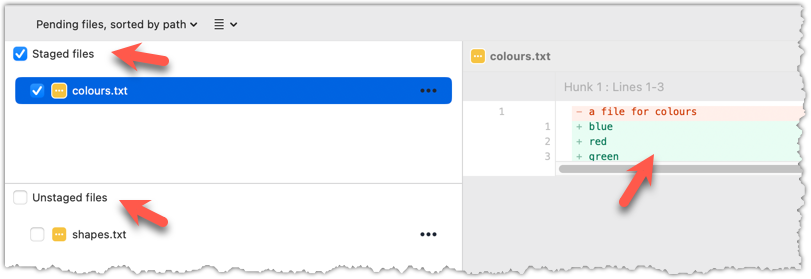
done!
Usage 2: Comparing two commits at different points of the revision graph
Example use case: Suppose you’re trying to improve the performance of a piece of software by experimenting with different code tweaks. You commit after each change (as you should). After several commits, you now want to review the overall effect of all those changes on the code.
Target Compare two commits in a repo.
Preparation You can use any repo with multiple commits e.g., the things repo.
You can use the git diff <commit1> <commit2> command for this.
- You may use any valid way to refer to commits (e.g., SHA, tag, HEAD~n etc.).
- You may also use the
..notation to specify the commit range too e.g.,0023cdd..fcd6199,HEAD~2..HEAD
git diff v0.9 HEAD
diff --git a/colours.txt b/colours.txt
new file mode 100644
index 0000000..55c8449
--- /dev/null
+++ b/colours.txt
@@ -0,0 +1 @@
+a file for colours
# rest of the diff ...
Swap the commit order in the command and see what happens.
git diff HEAD v0.9
diff --git a/colours.txt b/colours.txt
deleted file mode 100644
index 55c8449..0000000
--- a/colours.txt
+++ /dev/null
@@ -1 +0,0 @@
-a file for colours
# rest of the diff ...
As you can see, the diff is directional i.e., diff <commit1> <commit2> shows what changes you need to do to go from the <commit1> to <commit2>. If you swap <commit1> and <commit2>, the output will change accordingly e.g., lines previously shown as 'added' will now be shown as 'deleted'.
Select the two commits: Click on one commit, and Ctrl-Click (or Cmd-Click) on the second commit. The changes between the two selected commits will appear in the other panels, as shown below:
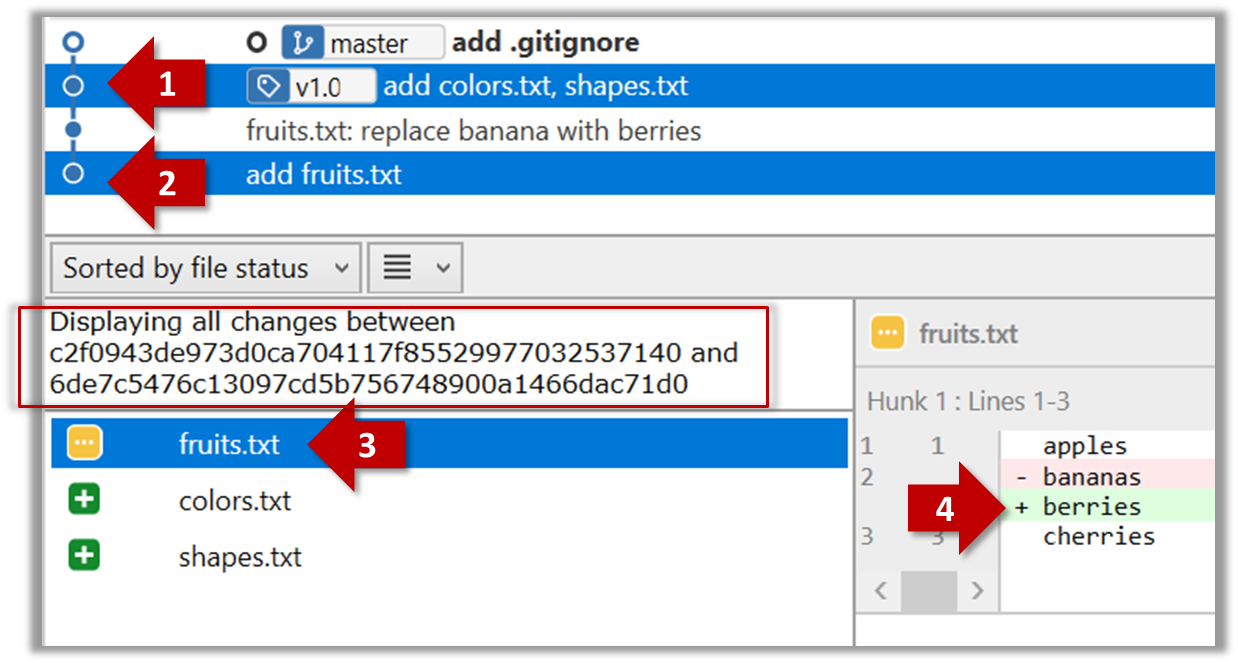
The same method can be used to compare the current state of the working directory (which might have uncommitted changes) to a point in the history.
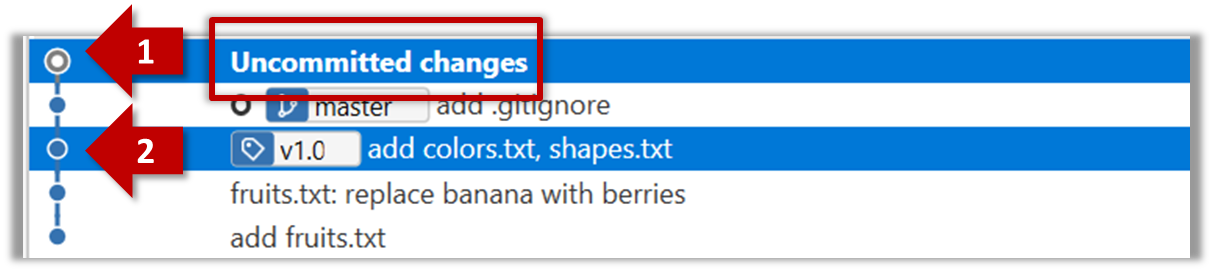
done!
Usage 3: Examining changes to a specific file
Example use case: Similar to other use cases but when you are interested in a specific file only.
Target Examine the changes done to a file between two different points in the version history (including the working directory).
Preparation Use any repo with multiple commits e.g. the things repo.
Add the -- path/to/file to a previous diff command to narrow the output to a specific file. Some examples:
git diff -- fruits.txt # unstaged changes to fruits.txt
git diff --staged -- src/main.java # staged changes to src/main.java
git diff HEAD~2..HEAD -- fruits.txt # changes to fruits.txt between commits
Sourcetree UI shows changes to one file at a time by default; just click on the file to view changes to that file. To view changes to multiple files, Ctrl-Click (or Cmd-Click) on multiple files to select them.
done!
Traversing to a Specific Commit
Another useful feature of revision control is to be able to view the working directory as it was at a specific point in history, by checking out a commit created at that point.
Suppose you added a new feature to a software product, and while testing it, you noticed that another feature added two commits ago doesn’t handle a certain edge case correctly. Now you’re wondering: did the new feature break the old one, or was it already broken? Can you go back to the moment you committed the old feature and test it in isolation, and come back to the present after you found the answer? With Git, you can.
To view the working directory at a specific point in history, you can check out a commit created at that point.
When you check out a commit, Git:
- Updates your working directory to match the snapshot in that commit, overwriting current files as needed.
- Moves the
HEADref to that commit, marking it as the current state you’re viewing.
→
[check out commit C2...]
Checking out a specific commit puts you in a "detached HEAD" state: i.e., the HEAD no longer points to a branch, but directly to a commit (see the above diagram for an example). This isn't a problem by itself, but any commits you make in this state can be lost, unless certain follow-up actions are taken. It is perfectly fine to be in a detached state if you are only examining the state of the working directory at that commit.
To get out of a "detached HEAD" state, you can simply check out a branch, which "re-attaches" HEAD to the branch you checked out.
→
[check out master...]
Target Checkout a few commits in a local repo, while examining the working directory to verify that it matches the state when you created the corresponding commit
Preparation Use any repo with commits e.g., the things repo
1 Examine the revision tree, to get your bearing first.
git log --oneline --decorate
Reminder: You can use aliases to reduce typing Git commands.
e60deae (HEAD -> master, origin/master) Update fruits list
f761ea6 (tag: v1.0) Add colours.txt, shapes.txt
2bedace (tag: v0.9) Add figs to fruits.txt
d5f91de Add fruits.txt
2 Use the checkout <commit-identifier> command to check out a commit other than the one currently pointed by HEAD. You can use any of the following methods:
git checkout v1.0: checks out the commit taggedv1.0git checkout 0023cdd: checks out the commit with the hash0023cddgit checkout HEAD~2: checks out the commit 2 commits behind the most recent commit.
git checkout HEAD~2
Note: switching to 'HEAD~2'.
You are in 'detached HEAD' state.
# rest of the warning about the detached head ...
HEAD is now at 2bedace Add figs to fruits.txt
3 Verify HEAD and the working directory have updated as expected.
HEADshould now be pointing at the target commit- The working directory should match the state it was in at that commit (e.g., files added after that commit -- such as
shapes.txtshould not be in the folder).
git log --oneline --decorate
2bedace (HEAD, tag: v0.9) Add figs to fruits.txt
d5f91de Add fruits.txt
HEAD is indeed pointing at the target commit.
But note how the output does not show commits you added after the checked-out commit.
The --all switch tells git log to show commits from all refs, not just those reachable from the current HEAD. This includes commits from other branches, tags, and remotes.
git log --oneline --decorate --all
e60deae (origin/master, master) Update fruits list
f761ea6 (tag: v1.0) Add colours.txt, shapes.txt
2bedace (HEAD, tag: v0.9) Add figs to fruits.txt
d5f91de Add fruits.txt
4 Go back to the latest commit by checking out the master branch again.
git checkout master
In the revision graph, double-click the commit you want to check out, or right-click on that commit and choose Checkout....
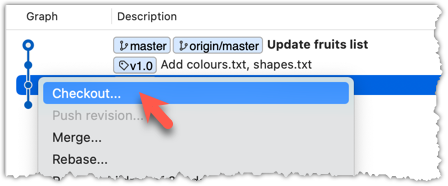
Click OK to the warning about ‘detached HEAD’ (similar to below).
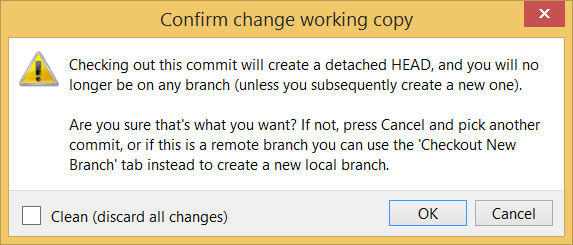
The specified commit is now loaded onto the working folder, as indicated by the HEAD label.
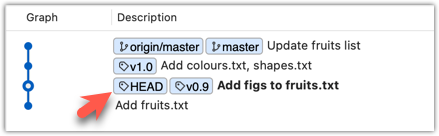
To go back to the latest commit on the master branch, double-click the master branch.
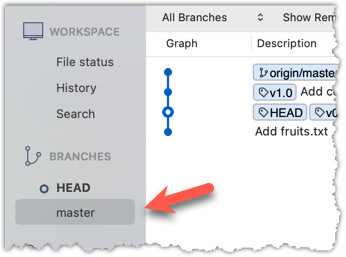
If you check out a commit that comes before the commit in which you added a certain file (e.g., temp.txt) to the .gitignore file, and if the .gitignore file is version controlled as well, Git will now show it under ‘unstaged modifications’ because at Git hasn’t been told to ignore that file yet.
done!
If there are uncommitted changes in the working directory, Git proceeds with a checkout only if it can preserve those changes.
- Example 1: There is a new file in the working directory that is not committed yet.
→ Git will proceed with the checkout and will keep the uncommitted file as well. - Example 2: There is an uncommitted change to a file that conflicts with the version of that file in the commit you wish to check out.
→ Git will abort the checkout, and the repo will remain in the current commit.
The Git stash feature temporarily sets aside uncommitted changes you’ve made (in your working directory and staging area), without committing them. This is useful when you’re in the middle of some work, but need to switch to another state (e.g., checkout a previous commit), and your current changes are not yet ready to be committed or discarded. You can later reapply the stashed changes when you’re ready to resume that work.
Rewriting History to Start Over
Git can also reset the revision history to a specific point so that you can start over from that point.
Suppose you realise your last few commits have gone in the wrong direction, and you want to go back to an earlier commit and continue from there — as if the “bad” commits never happened. Git’s reset feature can help you do that.
Git reset moves the tip of the current branch to a specific commit, optionally adjusting your staged and unstaged changes to match. This effectively rewrites the branch's history by discarding any commits that came after that point.
Resetting is different from the checkout feature:
- Reset: Lets you start over from a past state. It rewrites history by moving the branch ref to a new location.
- Checkout: Lets you explore a past state without rewriting history. It just moves the
HEADref.
→
[reset to C2...]
master branch!There are three types of resets: soft, mixed, hard. All three move the branch pointer to a new commit, but they vary based on what happens to the staging area and the working directory.
- soft reset: Moves the cumulative changes from the discarded commits into the staging area, waiting to be committed again. Any staged and unstaged changes that existed before the reset will remain untouched.
- mixed reset: Cumulative changes from the discarded commits, and any existing staged changes, are moved into the working directory.
- hard reset: All staged and unstaged changes are discarded. Both the working directory and the staging area are aligned with the target commit (as if no changes were done after that commit).
Preparation First, set the stage as follows (e.g., in the things repo):
i) Add four commits that are supposedly 'bad' commits.
ii) Do a 'bad' change to one file and stage it.
iii) Do a 'bad' change to another file, but don't stage it.
The following commands can be used to add commits B1-B4:
echo "bad colour" >> colours.txt
git add colours.txt
git commit -m "Incorrectly update colours.txt"
echo "bad shape" >> shapes.txt
git add shapes.txt
git commit -m "Incorrectly update shapes.txt"
echo "bad fruit" >> fruits.txt
git add fruits.txt
git commit -m "Incorrectly update fruits.txt"
echo "bad line" >> incorrect.txt
git add incorrect.txt
git commit -m "Add incorrect.txt"
echo "another bad colour" >> colours.txt
git add colours.txt
echo "another bad shape" >> shapes.txt
Now we have some 'bad' commits and some 'bad' changes in both the staging area and the working directory. Let's use the reset feature to get rid of all of them, but do it in three steps so that you can learn all three types of resets.
1 Do a soft reset to B2 (i.e., discard last two commits). Verify,
- the
masterbranch is now pointing atB2, and, - the changes that were in the discarded commits (i.e.,
B3andB4) are now in the staging area.
Use the git reset --soft <commit> command to do a soft reset.
git reset --soft HEAD~2
You can run the following commands to verify the current status of the repo is as expected.
git status # check overall status
git log --oneline --decorate # check the branch tip
git diff # check unstaged changes
git diff --staged # check staged changes
Right-click on the commit that you want to reset to, and choose Reset <branch-name> to this commit option.
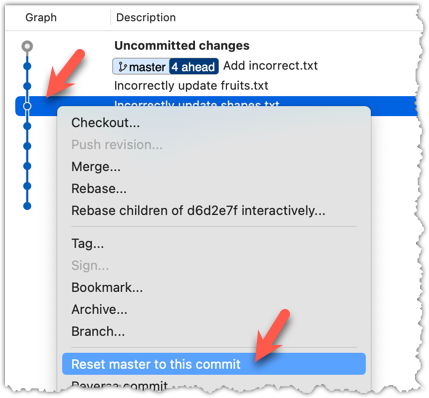
In the next dialog, choose Soft - keep all local changes.
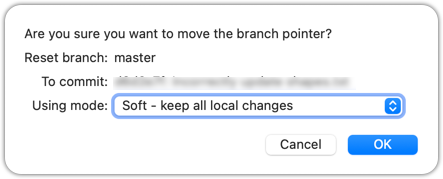
2 Do a mixed reset to commit B1. Verify,
- the
masterbranch is now pointing atB1. - the staging area is empty.
- the accumulated changes from all three discarded commits (including those from the previous soft reset) are now appearing as unstaged changes in the working directory.
Note howincorrect.txtappears as an 'untracked' file -- this is because unstaging a change of type 'add file' results in an untracked file.
Use the git reset --mixed <commit> command to do a mixed reset. The --mixed flag is the default, and can be omitted.
git reset HEAD~1
Verify the repo status, as before.
Similar to the previous reset, but choose the Mixed - keep working copy but reset index option in the reset dialog.
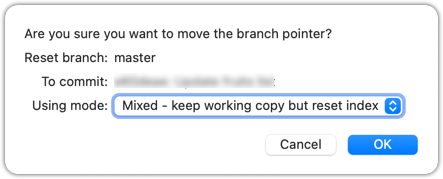
3 Do a hard reset to commit C4. Verify,
- the
masterbranch is now pointing atC4i.e., all 'bad' commits are gone. - the staging area is empty.
- there are no unstaged changes (except for the untracked files
incorrect.txt-- Git leaves untracked files alone, as untracked files are not meant to be under Git's control).
Use the git reset --hard <commit> command.
git reset --hard HEAD~1
Verify the repo status, as before.
Similar to the previous reset, but choose the Hard - discard all working copy changes option.
done!
Rewriting history can cause your local repo to diverge from its remote counterpart. For example, if you discard earlier commits and create new ones in their place, and you’ve already pushed the original commits to a remote repository, your local branch history will no longer match the corresponding remote branch. Git refers to this as a diverged history.
To protect the integrity of the remote, Git will reject attempts to push a diverged branch using a normal push. If you want to overwrite the remote history with your local version, you must perform a force push.
Preparation Choose a local-remote repo pair under your control e.g., the things repo from Tour 2: Backing up a Repo on the Cloud.
1 Rewrite the last commit: Reset the current branch back by one commit, and add a new commit.
For example, you can use the following commands.
git reset --hard HEAD~1
echo "water" >> drinks.txt
git add .
git commit -m "Add drinks.txt"
2 Observe how the local branch is diverged.
git log --oneline --graph --all
* fc1d04e (HEAD -> master) Add drinks.txt
| * e60deae (upstream/master, origin/master) Update fruits list
|/
* f761ea6 (tag: v1.0) Add colours.txt, shapes.txt
* 2bedace (tag: v0.9) Add figs to fruits.txt
* d5f91de Add fruits.txt
3 Attempt to push to the remote. Observe Git rejects the push.
git push origin master
To https://github.com/.../things.git
! [rejected] master -> master (non-fast-forward)
error: failed to push some refs to 'https://github.com/.../things.git'
hint: Updates were rejected because the tip of your current branch is behind
hint: its remote counterpart. If you want to integrate the remote changes,
hint: ...
4 Do a force-push.
You can use the --force (or -f) flag to force push.
git push -f origin master
A safer alternative to --force is --force-with-lease which overwrites the remote branch only if it hasn’t changed since you last fetched it (i.e., only if remote doesn't have recent changes that you are unaware of):
git push --force-with-lease origin master
done!
Controlling What Goes Into a Commit
To create well-crafted commits, you need to know how to control which precise changes go into a commit.
Crafting a commit involves two aspects:
- What changes to include in it: deciding what changes belong together in a single commit — this is about commit granularity, ensuring each commit represents a meaningful, self-contained change.
- How to include those changes: carefully staging just those changes — this is about using Git’s tools to precisely control what ends up in the commit.
SIDEBAR: Guidelines on what to include in a commit
A good commit represents a single, logical unit of change — something that can be described clearly in one sentence. For example, fixing a specific bug, adding a specific feature, or refactoring a specific function. If each commit tells a clear story about why the change was made and what it achieves, your repository history becomes a valuable narrative of the project’s development. Here are some (non-exhaustive) guidelines:
- No more than one change per commit: Avoid lumping unrelated changes into one commit, as this makes the history harder to understand, review, or revert (if each commit contains one standalone change, to reverse that change can be done by deleting or reverting that specific commit entirely, without affecting any other changes).
- Make the commit standalone: Don’t split a single logical change across multiple commits unnecessarily, as this can clutter the history and make it harder to follow the evolution of an idea or feature.
- Small enough to review easily, but large enough to stand on its own: For example, fixing the same typo in five files can be one commit — splitting it into five separate commits is excessive. Conversely, implementing a big feature may be too much for one commit — instead, break it down into a series of commits, each containing a meaningful yet standalone step towards the final goal.
Git can let you choose not just which files, but which specific changes within those files, to include in a commit. Most Git tools — including the command line and many GUIs — let you interactively select which "hunks" or even individual lines of a file to stage. This allows you to separate unrelated changes and avoid committing unnecessary edits. If you make multiple changes in the same file, you can selectively stage only the parts that belong to the current logical change.
This level of control is particularly useful when:
- You noticed and fixed a small, unrelated issue while working on something else.
- You experimented with multiple approaches in the same file and now want to commit only the final, clean solution.
- You want your commit history to clearly separate concerns, even when the edits touch the same files.
Preparation You can use any repo for this.
1 Do several changes to some tracked files. Change multiple files. Also change multiple locations in the same file.
2 Stage some changes in some files while keeping other changes in the same files unstaged.
As you know, you can use git add <filename> to stage changes to an entire file.
To select which hunks to stage, you can use the git add -p command instead (-p stands for 'by patch'):
git add -p
This command will take you to an interactive mode in which you can go through each hunk and decide if you want to stage it. The video below contains a demonstration of how this feature works:
To stage a hunk, you can click the Stage button above the hunk in question:
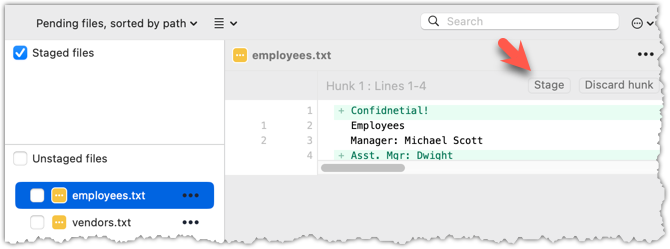
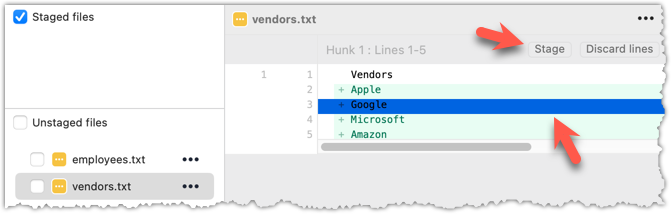 Unstaging can be done similarly:
Most git operations can be done faster through the CLI than equivalent Git GUI clients, once you are familiar enough with the CLI commands.
However, selective staging is one exception where a good GUI can do better than the CLI, if you need to do many fine-grained staging operations (e.g., frequently staging only parts of hunks).
done!
Writing Good Commit Messages
Detailed and well-written commit messages can increase the value of Git revision history.
Every commit you make in Git also includes a commit message that explains the change. While one-line messages are fine for small or obvious changes, as your revision history grows, good commit messages become an important source of information — for example, to understand the rationale behind a specific change made in the past.
A commit message is meant to explain the intent behind the changes, not just what was changed. The code (or diff) already shows what changed. Well-written commit messages make collaboration, code reviews, debugging, and future maintenance easier by helping you and others quickly understand the project’s history without digging into the code of every commit.
A complete commit message can include a short summary line (the subject) followed by a more detailed body if needed. The subject line should be a concise description of the change, while the body can elaborate on the context, rationale, side effects, or other details if the change is more complex.
A commit message has the following structure (note how the subject and the body are separated by a blank line):
Subject line
<blank line>
Body
# lines starting with '#' are ignored (they will not be included in the commit message)
Here is an example commit message:
Find command: make matching case-insensitive
Find command is case-sensitive.
A case-insensitive find is more user-friendly because users cannot be
expected to remember the exact case of the keywords.
Let's,
* update the search algorithm to use case-insensitive matching
* add a script to migrate stress tests to the new format
Do some changes to a repo you have.
Commit the changes while writing a full commit message (i.e., subject + body).
When you are ready to commit, use the git commit command (without specifying a commit message).
git commit
This will open your default text editor (like Vim, Nano, or VS Code). Write the commit message inside the editor.
Save and close the editor to create the commit.
You can write your full commit message in the textbox you have been using to write commit messages already.
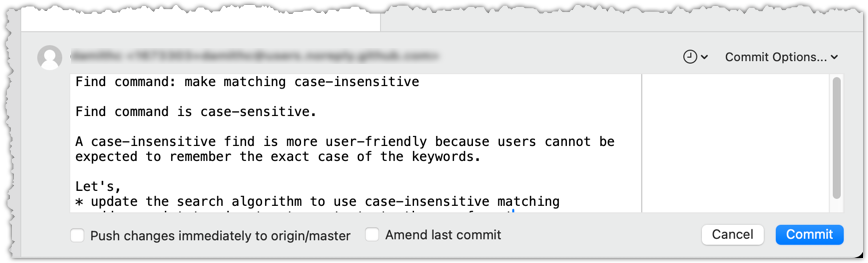
done!
Following a style guide makes your commit messages more consistent and fit-for-purpose. Many teams adopt established guidelines. These style guides typically contain common conventions that Git users follow when writing commit messages. For example:
- Keep the subject line (the first line) under 50–72 characters.
- Write the subject in the imperative mood (e.g.,
Fix typo in READMErather thanFixed typoorFixes typo). - Leave a blank line between the subject and the body, if you include a body.
- Wrap the body at around 72 characters per line for readability.
PRO-TIP: Configure Git to use your preferred text editor
Git will use the default text editor when it needs you to write a commit message. However, Git can be configured to use a different text editor of your choice.
You can use the following command to set the Git's default text editor:
git config --global core.editor "<editor command>"
Some examples for <editor command>
| Editor | Command to use |
|---|---|
| Vim (default) | vim |
| Nano | nano |
| VS Code | code --wait e.g., git config --global core.editor "code --wait"For this to work, your computer should already be configured to launch VS Code using the code command. See here to find how (refer the 'Launching from command line' section). |
| Sublime Text | subl -n -w |
| Atom | atom --wait |
| Notepad++ | notepad++.exe (Windows only) |
| Notepad | notepad (Windows built-in) |
Why use --wait or -w? Graphical editors (like VS Code or Sublime) start a separate process, which can take a few seconds. Without --wait, Git may think editing is done before you actually write the message. --wait makes Git pause until the editor window is closed.
Creating Branches
To work in parallel timelines, you can use Git branches.
Git branches let you develop multiple versions of your work in parallel — effectively creating diverged timelines of your repository’s history. For example, one team member can create a new branch to experiment with a change, while the rest of the team continues working on another branch. Branches can have meaningful names, such as master, release, or draft.
A Git branch is simply a ref (a named label) that points to a commit and automatically moves forward as you add new commits to that branch. As you’ve seen before, the HEAD ref indicates which branch you’re currently working on, by pointing to the corresponding branch ref.
When you add a commit, it goes into the branch you are currently on, and the branch ref (together with the HEAD ref) moves to the new commit.
Git creates a branch named master by default (Git can be configured to use a different name e.g., main).
Given below is an illustration of how branch refs move as branches evolve. Refer to the text below it for explanations of each stage.
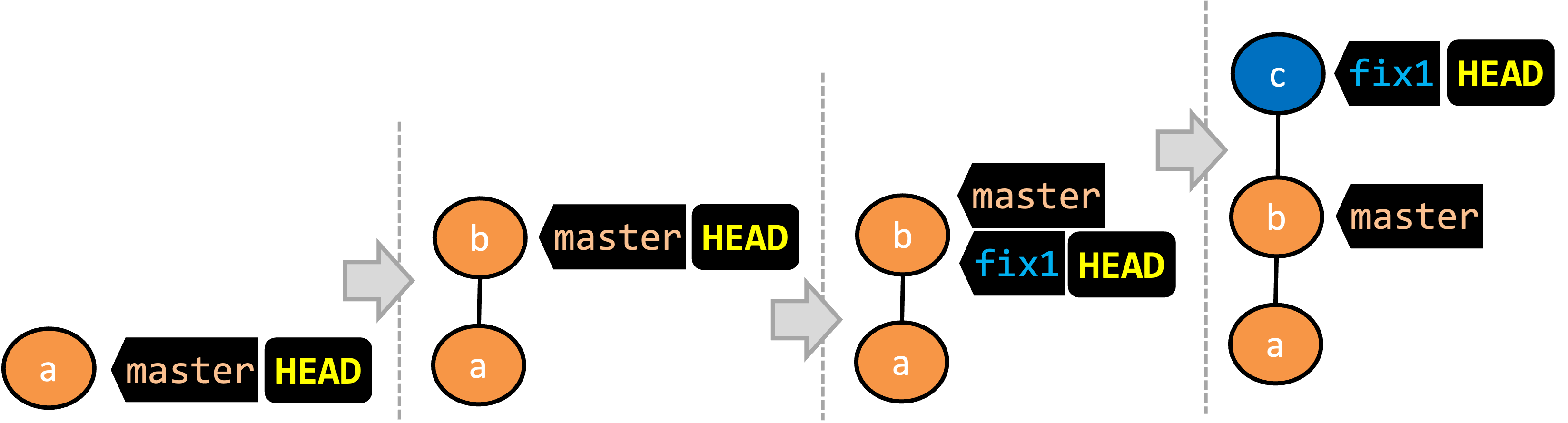
- There is only one branch (i.e.,
master) and there is only one commit on it. TheHEADref is pointing to themasterbranch (as we are currently on that branch). - A new commit has been added. The
masterand theHEADrefs have moved to the new commit. - A new branch
fix1has been added. The repo has switched to the new branch too (hence, theHEADref is attached to thefix1branch). - A new commit (
c) has been added. The current branch reffix1moves to the new commit, together with theHEADref. At this point, the repo's working directory reflects the code at commitb(notc).
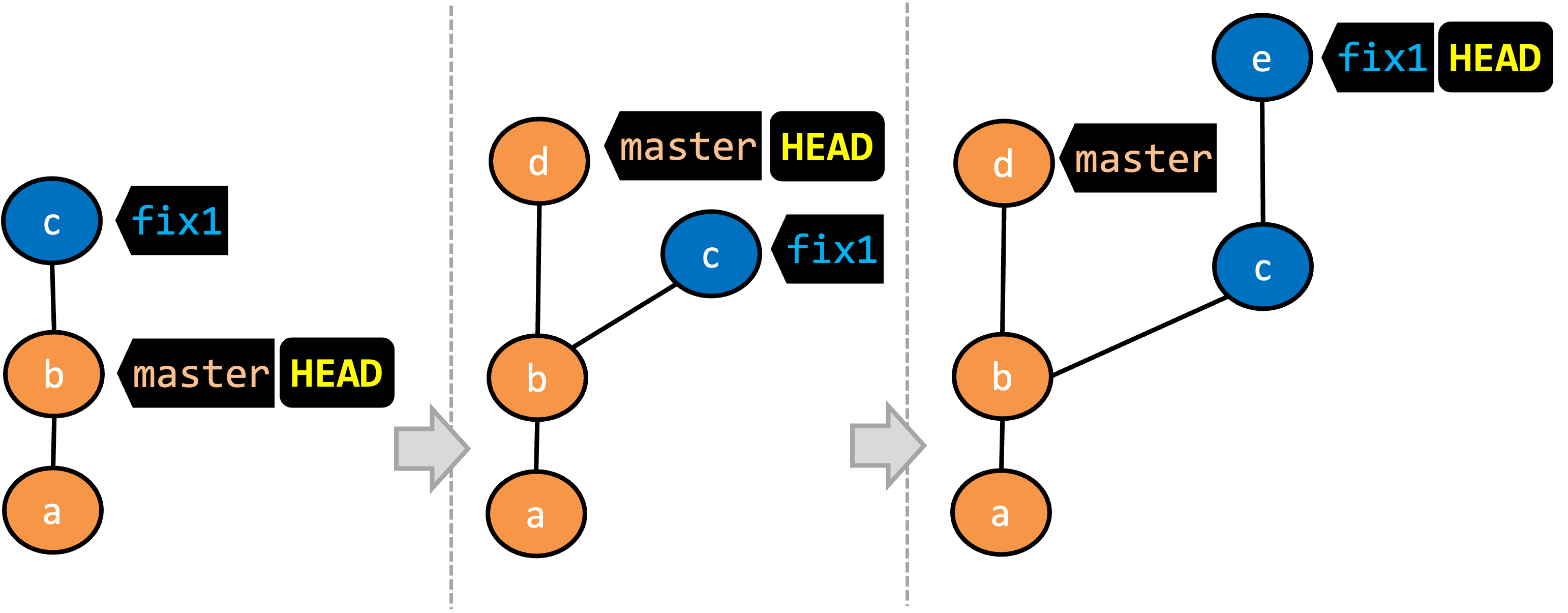
- A new commit (
d) has been added. Themasterand theHEADrefs have moved to that commit. - The repo has switched back to the
fix1branch and added a new commiteto it. Note how the branch reffix1(together withHEAD) has moved to the new commitewhile the branch refmasterstill points tod. - The repo has switched back to the
masterbranch. Hence, theHEADhas moved back tomasterbranch's .
Note that appearance of the revision graph (colors, positioning, orientation etc.) varies based on the Git client you use, and might not match the exact diagrams given above.
Preparation Fork the samplerepo-things repo, and clone it onto your computer.
1 Observe that you are on the branch called master.
$ git status
on branch master
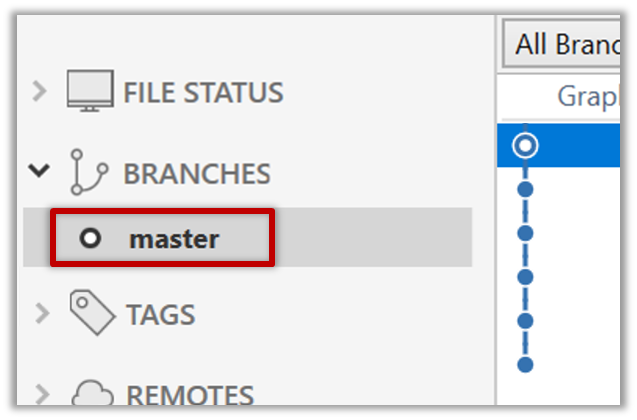
2 Start a branch named feature1 and switch to the new branch.
You can use the branch command to create a new branch and the checkout command to switch to a specific branch.
$ git branch feature1
$ git checkout feature1
One-step shortcut to create a branch and switch to it at the same time:
$ git checkout –b feature1
The new switch command
Git recently introduced a switch command that you can use instead of the checkout command given above.
To create a new branch and switch to it:
$ git branch feature1
$ git switch feature1
One-step shortcut (by using -c or --create flag):
$ git switch –c feature1
Click on the Branch button on the main menu. In the next dialog, enter the branch name and click Create Branch.
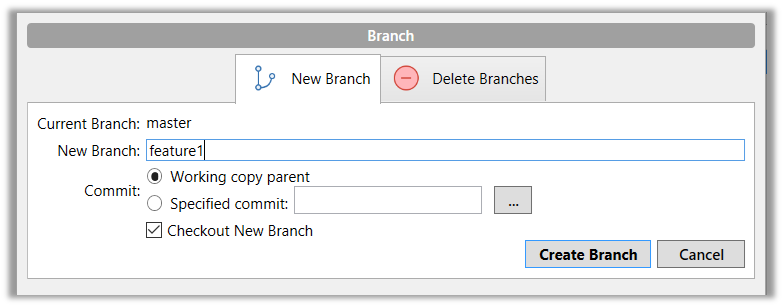
Note how the feature1 is indicated as the current branch (reason: Sourcetree automatically switches to the new branch when you create a new branch, if the Checkout New Branch was selected in the previous dialog).
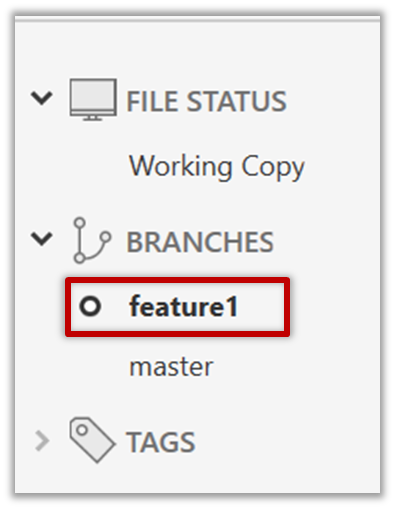
3 Create some commits in the new branch, as follows.
- Add a file named
numbers.txt, stage it, commit it. - Observe how commits you add while on
feature1branch will becomes part of that branch.
Observe how themasterref and theHEADref move to the new commit.
As before, you can use the git log --oneline --decorate command for this.
At times, the
HEADref of the local repo is represented as in Sourcetree, as illustrated in the screenshot below .
.The
HEADref is not shown in the UI if it is already pointing at the active branch.
- Add some texts to
numbers.txt, stage the changes, and commit it. This commit too will be added to thefeature1branch.
4 Switch to the master branch. Note how the changes you made in the feature1 branch are no longer in the working directory.
$ git switch master
Double-click the master branch.
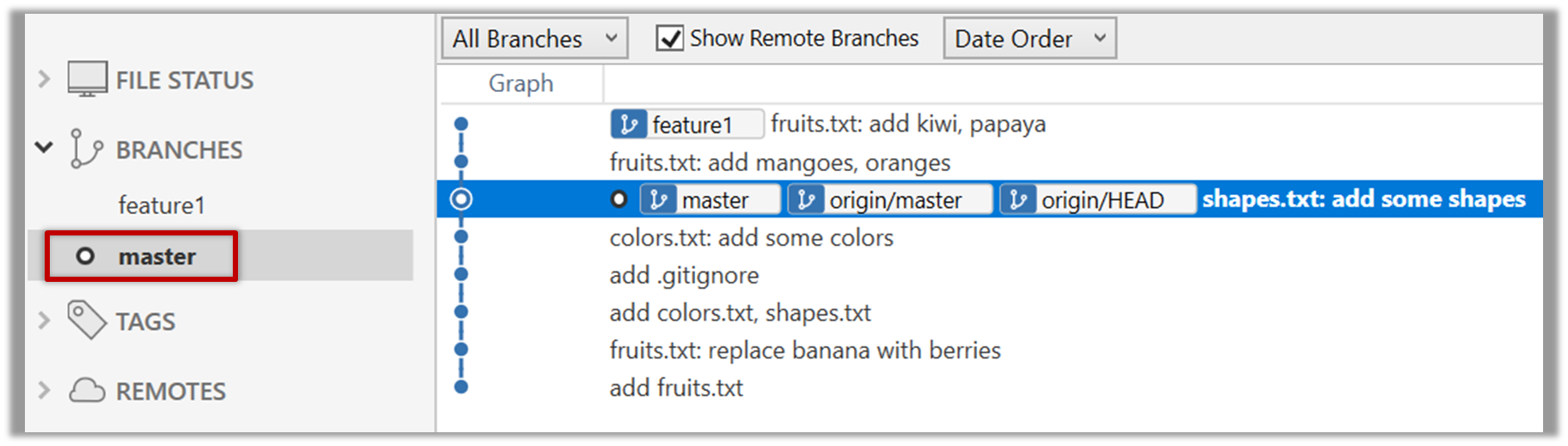
Revisiting master vs origin/master
In the screenshot above, you see a master ref and a origin/master ref for the same commit. The former identifies the of the local master branch while the latter identifies the tip of the master branch at the remote repo named origin. The fact that both refs point to the same commit means the local master branch and its remote counterpart are with each other.
Similarly, origin/HEAD ref appearing against the same commit indicates that of the remote repo is pointing to this commit as well.
5 Add a commit to the master branch. Let’s imagine it’s a bug fix.
To keep things simple for the time being, this commit should not involve the numbers.txt file that you changed in the feature1 branch. Of course, this is easily done, as the numbers.txt file you added in the feature1 branch is not even visible when you are in the master branch.
gitGraph BT:
%%{init: { 'theme': 'default', 'gitGraph': {'mainBranchName': 'master'}} }%%
commit id: "m1"
commit id: "m2"
branch feature1
commit id: "f1"
commit id: "[feature1] f2"
checkout master
commit id: "[HEAD → master] m3"
checkout feature1
6 Switch between the two branches and see how the working directory changes accordingly. That is, now you have two parallel timelines that you can freely switch between.
done!
You can also start a branch from an earlier commit, instead of the latest commit in the current branch. For that, simply check out the commit you wish to start from.
In the samplerepo-things repo that you used above, let's create a new branch that starts from the same commit the feature1 branch started from. Let's pretend this branch will contain an alternative version of the content we added in the feature1 branch.
gitGraph BT:
%%{init: { 'theme': 'default', 'gitGraph': {'mainBranchName': 'master'}} }%%
commit id: "m1"
commit id: "m2"
branch feature1
branch feature1-alt
checkout feature1
commit id: "f1"
commit id: "[feature1] f2"
checkout master
commit id: "[HEAD → master] m3"
checkout feature1-alt
commit id: "[HEAD → feature1-alt] a1"
Avoid this rookie mistake!
Always remember to switch back to the master branch before creating a new branch. If not, your new branch will be created on top of the current branch.
- Switch to the
masterbranch. - Checkout the commit that is at which the
feature1branch diverged from themasterbranch (e.g.git checkout HEAD~1). This will create a detachedHEAD. - Create a new branch called
feature1-alt. TheHEADwill now point to this new branch (i.e., no longer 'detached'). - Add a commit on the new branch.
PRO-TIP: Creating a branch based on another branch in one shot
Suppose you are currently on branch b2 and you want to create a new branch b3 that starts from b1. Normally, you can do that in two steps:
git switch b1 # switch to the intended base branch first
git switch -c b3 # create the new branch and switch to it
This can be done in one shot using the git switch -c <new-branch> <base-branch> command:
git switch -c b3 b1
done!
Merging Branches
Most work done in branches eventually gets merged together.
Merging combines the changes from one branch into another, bringing their diverged timelines back together.
When you merge, Git looks at the two branches and figures out how their histories have diverged since their merge base (i.e., the most recent common ancestor commit of two branches). It then applies the changes from the other branch onto your current branch, creating a new commit. The new commit created when merging is called a merge commit — it records the result of combining both sets of changes.
Given below is an illustration of how such a merge looks like in the revision graph:
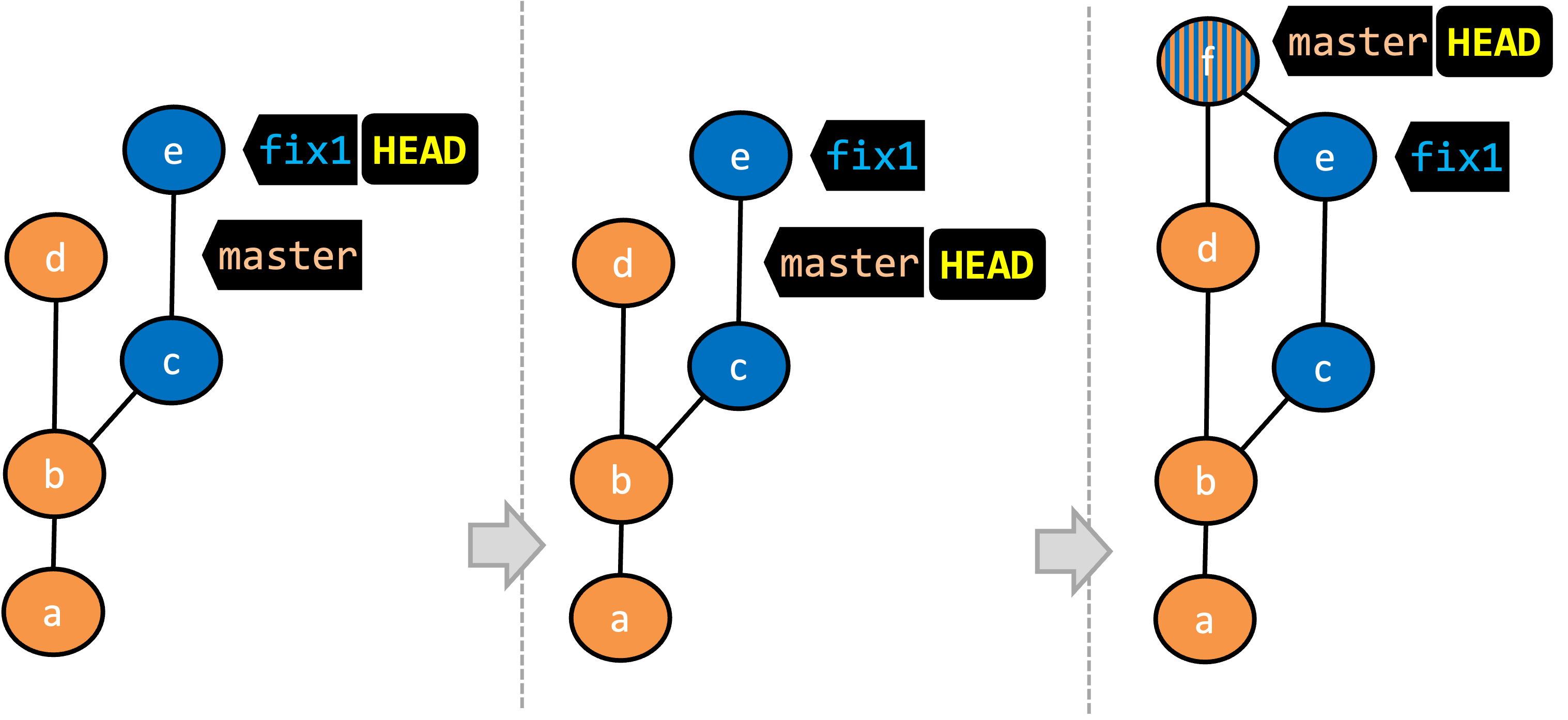
- We are on the
fix1branch (as indicated byHEAD). - We have switched to the
masterbranch (thus,HEADis now pointing tomasterref). - The
fix1branch has been merged into themasterbranch, creating a merge commitf. The repo is still on themasterbranch.
The branch you are merging into called the destination branch (other terms: receiving branch, target branch)
The branch you are merging is referred to as the source branch (other terms: incoming branch, merge branch).
In the above example, master is the destination branch and fix1 is the source branch.
A merge commit has two parent commits e.g., in the above example, the merge commit f has both d and e as parent commits. The parent commit on the destination branch is considered the first parent and the parent commit on the source branch is considered the second parent e.g., in the example above, fix1 branch is the source branch that is being merged into the destination branch master -- accordingly, d is the first parent and e is the second parent.
Preparation We continue with the samplerepo-things repo from earlier, which should look like the following. Note that we are ignoring the feature1-alt branch, for simplicity.
gitGraph BT:
%%{init: { 'theme': 'default', 'gitGraph': {'mainBranchName': 'master'}} }%%
commit id: "m1"
commit id: "m2"
branch feature1
commit id: "f1"
commit id: "[feature1] f2"
checkout master
commit id: "[HEAD → master] m3"
checkout feature1
1 Switch back to the feature1 branch.
gitGraph BT:
%%{init: { 'theme': 'default', 'gitGraph': {'mainBranchName': 'master'}} }%%
commit id: "m1"
commit id: "m2"
branch feature1
commit id: "f1"
commit id: "[HEAD → feature1] f2"
checkout master
commit id: "[master] m3"
checkout feature1
2 Merge the master branch to the feature1 branch, giving an end-result like the following. Also note how Git has created a merge commit (shown as mc1 in the diagram below).
gitGraph BT:
%%{init: { 'theme': 'default', 'gitGraph': {'mainBranchName': 'master'}} }%%
commit id: "m1"
commit id: "m2"
branch feature1
commit id: "f1"
commit id: "f2"
checkout master
commit id: "[master] m3"
checkout feature1
merge master id: "[HEAD → feature1] mc1"
$ git merge master
Right-click on the master branch and choose merge master into the current branch. Click OK in the next dialog.
The revision graph should look like this now (colours and line alignment might vary but the graph structure should be the same):
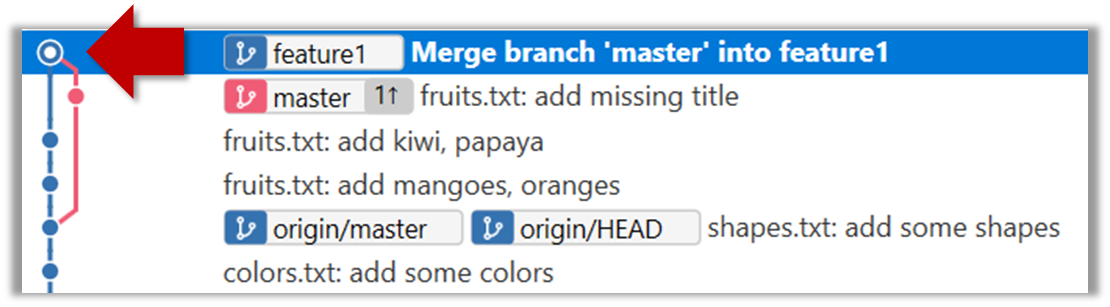
Observe how the changes you made in the master branch (i.e., the imaginary bug fix in m3) is now available even when you are in the feature1 branch.
Furthermore, observe (e.g., git show HEAD) how the merge commit contains the sum of changes done in commits m3, f1, and f2.
3 Add another commit to the feature1 branch, in which you do some further changes to the numbers.txt.
Switch to the master branch and add one more commit.
gitGraph BT:
%%{init: { 'theme': 'default', 'gitGraph': {'mainBranchName': 'master'}} }%%
commit id: "m1"
commit id: "m2"
branch feature1
commit id: "f1"
commit id: "f2"
checkout master
commit id: "m3"
checkout feature1
merge master id: "mc1"
commit id: "[feature1] f3"
checkout master
commit id: "[HEAD → master] m4"
4 Merge feature1 to the master branch, giving an end-result like this:
gitGraph BT:
%%{init: { 'theme': 'default', 'gitGraph': {'mainBranchName': 'master'}} }%%
commit id: "m1"
commit id: "m2"
branch feature1
commit id: "f1"
commit id: "f2"
checkout master
commit id: "m3"
checkout feature1
merge master id: "mc1"
commit id: "[feature1] f3"
checkout master
commit id: "m4"
merge feature1 id: "[HEAD → master] mc2"
git merge feature1
Right-click on the feature1 branch and choose Merge.... The resulting revision graph should look like this:
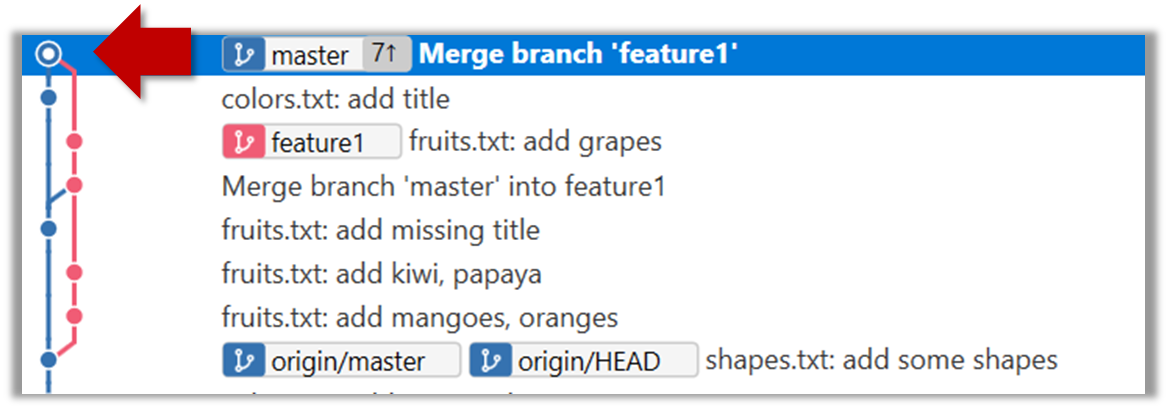
Now, any changes you made in feature1 branch are available in the master branch.
done!
When the destination branch hasn't diverged — meaning it hasn't had any new commits since the merge base — Git simply moves the branch pointer forward to include all the new commits in the source branch, keeping the history clean and linear. This is called a fast-forward merge because Git simply "fast-forwards" the branch pointer to the tip of the other branch. The result looks as if all the changes had been made directly on one branch, without any branching at all.
gitGraph BT:
%%{init: { 'theme': 'default', 'gitGraph': {'mainBranchName': 'master'}} }%%
commit id: "m1"
commit id: "[HEAD → master] m2"
branch bug-fix
commit id: "b1"
commit id: "[bug-fix] b2"
checkout master
→
[merge bug-fix]
gitGraph BT:
%%{init: { 'theme': 'default', 'gitGraph': {'mainBranchName': 'master'}} }%%
commit id: "m1"
commit id: "m2"
commit id: "b1"
commit id: "[HEAD → master][bug-fix] b2"
checkout master
In the example above, the master branch has not changed since the merge base (i.e., m2). Hence, merging the branch bug-fix onto master can be done by fast-forwarding the master branch ref to the tip of the bug-fix branch (i.e., b2).
Preparation Let's continue with the same samplerepo-things repo we used above, and do a fast-forward merge this time.
1 Create a new branch called add-countries, and some commits to it as follows:
Switch to the new branch, add a file named countries.txt, stage it, and commit it.
Do some changes to countries.txt, and commit those changes.
You should have something like this now:
gitGraph BT:
%%{init: { 'theme': 'default', 'gitGraph': {'mainBranchName': 'master'}} }%%
commit id: "[master] mc2"
branch add-countries
commit id: "a1"
commit id: "[HEAD → add-countries] a2"
2 Go back to the master branch.
gitGraph BT:
%%{init: { 'theme': 'default', 'gitGraph': {'mainBranchName': 'master'}} }%%
commit id: "[HEAD → master] mc2"
branch add-countries
commit id: "a1"
commit id: "add-countries] a2"
3 Merge the add-countries branch onto the master branch. Observe that there is no merge commit. The master branch ref (and the HEAD ref along with it) moved to the tip of the add-countries branch (i.e., a2) and both branches now point to a2.
gitGraph BT:
%%{init: { 'theme': 'default', 'gitGraph': {'mainBranchName': 'master (and add-countries)'}} }%%
commit id: "mc2"
commit id: "a1"
commit id: "[HEAD → master][add-countries] a2"
done!
It is possible to force Git to create a merge commit even if fast forwarding is possible. This is useful if you prefer the revision graph to visually show when each branch was merged to the main timeline.
To prevent Git from fast-forwarding, use the --no-ff switch when merging. Example:
git merge --no-ff add-countries
Windows: Tick the box shown below when you merge a branch:
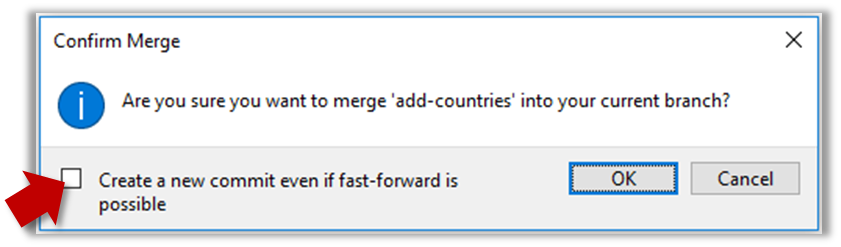
Mac:
Trigger the branch operation using the following menu button:
In the next dialog, tick the following option:
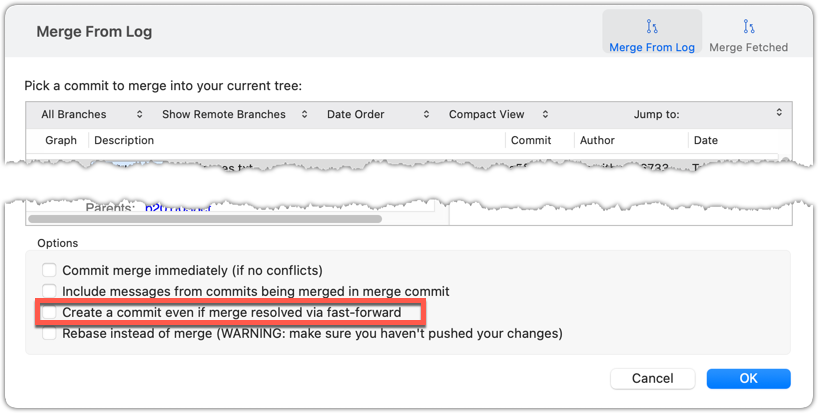
To permanently prevent fast-forwarding:
- Go to Sourcetree
Settings. - Navigate to the
Gitsection. - Tick the box
Do not fast-forward when merging, always create commit.
A squash merge takes all the changes from the source branch and combines them into a single commit on the destination branch. It is especially useful when the source branch has many small or experimental commits that would otherwise clutter history.
gitGraph BT:
%%{init: { 'theme': 'default', 'gitGraph': {'mainBranchName': 'master'}} }%%
commit id: "[HEAD → master] m1"
branch feature
checkout feature
commit id: "f1"
commit id: "[feature] f2"
→
[squash merge...]
gitGraph BT:
%%{init: { 'theme': 'default', 'gitGraph': {'mainBranchName': 'master'}} }%%
commit id: "m1"
branch feature
checkout feature
commit id: "f1"
commit id: "[feature] f2"
checkout master
commit id: "[HEAD → master] s1 (same as f1+f2)"
In the example above, the branch feature has been squash merged onto the master branch, creating a single 'squashed' commit s1 that combines all the commits in feature branch.
After a squash merge, you typically delete the source branch, so its individual commits are no longer kept. The destination branch's history stays linear, as the work done in the source branch is replaced by one commit on the destination branch. As a result, a squash merge commit is just a normal commit, and does not have a 'parent' reference to the source branch.
gitGraph BT:
%%{init: { 'theme': 'default', 'gitGraph': {'mainBranchName': 'master'}} }%%
commit id: "[HEAD → master] m1"
branch feature
checkout feature
commit id: "f1"
commit id: "[feature] f2"
checkout master
merge feature
with a merge commit]
gitGraph BT:
%%{init: { 'theme': 'default', 'gitGraph': {'mainBranchName': 'master'}} }%%
commit id: "m1"
commit id: "f1"
commit id: "[HEAD → master][feature] f2"
gitGraph BT:
%%{init: { 'theme': 'default', 'gitGraph': {'mainBranchName': 'master'}} }%%
commit id: "m1"
commit id: "[HEAD → master] s1 (same as f1+f2)"
deleting the source branch thereafter]
The mechanics of doing a squash merge is covered in a separate detour.
Resolving Merge Conflicts
When merging branches, you need to guide Git on how to resolve conflicting changes in different branches.
A merge conflict happens when Git can't automatically combine changes from two branches because the same parts of a file were modified differently in each branch. When this happens, Git pauses the merge and marks the conflicting sections in the affected files so you can resolve them yourself. Once you've reviewed and fixed the conflicts, you can tell Git they're resolved and complete the merge.
More generally, a conflict occurs when Git cannot automatically reconcile different changes made to the same part of a file -- branch merge conflicts is just one example.
Target To simulate a merge conflict and use it to learn how to resolve merge conflicts.
Preparation You can use any repo with at least one commit in the master branch.
1 Start a branch named fix1 in the repo. Create a commit that adds a line with some text to one of the files.
2 Switch back to master branch. Create a commit with a conflicting change i.e., it adds a line with some different text in the exact location the previous line was added.
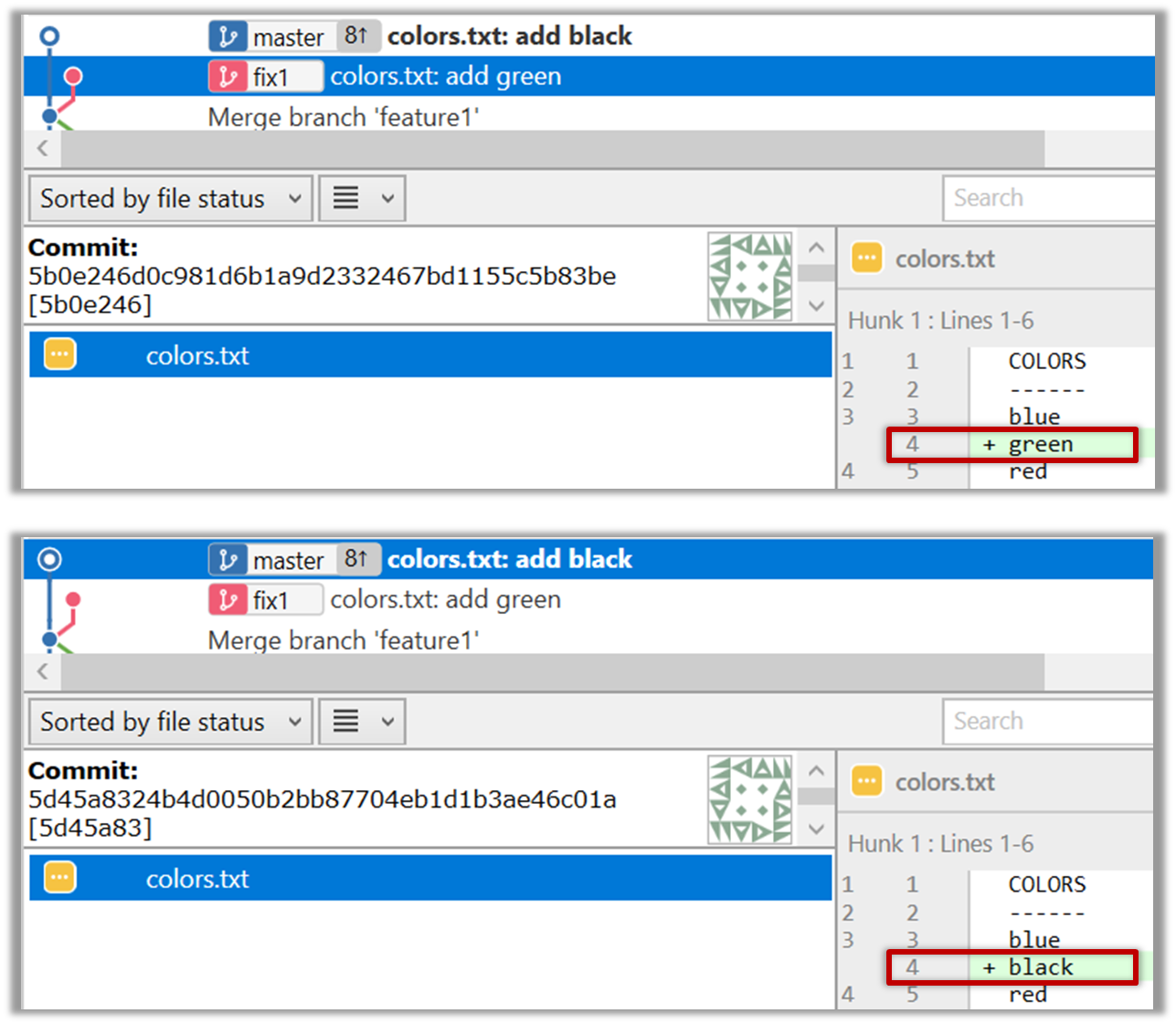
3 Try to merge the fix1 branch onto the master branch. Git will pause mid-way during the merge and report a merge conflict. If you open the conflicted file, you will see something like this:
COLORS
------
blue
<<<<<< HEAD
black
=======
green
>>>>>> fix1
red
white
4 Observe how the conflicted part is marked between a line starting with <<<<<< and a line starting with >>>>>>, separated by another line starting with =======.
Highlighted below is the conflicting part that is coming from the master branch:
blue
<<<<<< HEAD
black
=======
green
>>>>>> fix1
red
This is the conflicting part that is coming from the fix1 branch:
blue
<<<<<< HEAD
black
=======
green
>>>>>> fix1
red
5 Resolve the conflict by editing the file. Let us assume you want to keep both lines in the merged version. You can modify the file to be like this:
COLORS
------
blue
black
green
red
white
6 Stage the changes, and commit. You have now successfully resolved the merge conflict.
done!
Renaming Branches
Branches can be renamed, for example, to fix a mistake in the branch name.
Local branches can be renamed easily. Renaming a branch simply changes the branch reference (i.e., the name used to identify the branch) — it is just a cosmetic change.
Preparation First, create the repo samplerepo-books for this hands-on practical, by running the following commands in your terminal.
mkdir samplerepo-books
cd samplerepo-books
git init
echo "Horror Stories" >> horror.txt
git add .
git commit -m "Add horror.txt"
git switch -c textbooks
echo "Textbooks" >> textbooks.txt
git add .
git commit -m "Add textbooks.txt"
git switch master
git switch -c fantasy
echo "Fantasy Books" >> fantasy.txt
git add .
git commit -m "Add fantasy.txt"
git switch master
git merge --no-ff -m "Merge branch textbooks" textbooks
The above should give you a repo similar to the revision graph given below, on the left.
gitGraph BT:
%%{init: { 'theme': 'default', 'gitGraph': {'mainBranchName': 'master'}} }%%
commit id: "m1"
branch textbooks
checkout textbooks
commit id: "[textbooks] t1"
checkout master
branch fantasy
checkout fantasy
commit id: "[fantasy] f1"
checkout master
merge textbooks id: "[HEAD → master] mc1"
→
[rename branches]
gitGraph BT:
%%{init: { 'theme': 'default', 'gitGraph': {'mainBranchName': 'master'}} }%%
commit id: "m1"
branch study-books
checkout study-books
commit id: "[study-books] t1"
checkout master
branch fantasy-books
checkout fantasy-books
commit id: "[fantasy-books] f1"
checkout master
merge study-books id: "[HEAD → master] mc1"
Target Rename the fantasy branch to fantasy-books. Similarly, rename textbooks branch to study-books. The outcome should be similar to the revision graph above, on the right.
steps:
To rename a branch, use the git branch -m <current-name> <new-name> command (-m stands for 'move'):
git branch -m fantasy fantasy-books
git branch -m textbooks study-books
git log --oneline --decorate --graph --all # verify the changes
* 443132a (HEAD -> master) Merge branch textbooks
|\
| * 4969163 (study-books) Add textbooks.txt
|/
| * 0586ee1 (fantasy-books) Add fantasy.txt
|/
* 7f28f0e Add horror.txt
Note these additional switches to the log command:
--all: Shows all branches, not just the current branch.--graph: Shows a graph-like visualisation (notice how*is used to indicate a commit, and branches are indicated using vertical lines).
Right-click on the branch name and choose Rename.... Provide the new branch name in the next dialog.
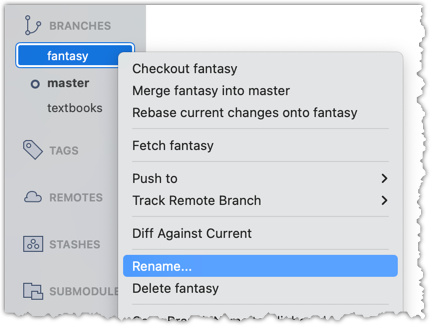
done!
SIDEBAR: Branch naming conventions
Branch names can contain lowercase letters, numbers, /, dashes (-), underscores (_), and dots (.).
You can use uppercase letters too, but many teams avoid them for consistency.
A common branch naming convention is to prefix it with <category>/. Some examples:
feature/login-form— for new features (origin/feature/login-formcould be the matching remote-tracking branch)bugfix/profile-photo— for fixing bugshotfix/payment-crash— for urgent production fixesrelease/2.0— for prepping a releaseexperiment/ai-chatbot— for “just trying stuff”
Although forward-slash (/) in the prefix doesn't mean folders, some tools treat it kind of like a path so you can group related branches when you run git branch. Shown below is an example of how Sourcetree groups branches with the same prefix.
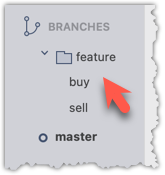
Deleting Branches
Branches can be deleted to get rid of them when they are no longer needed.
Deleting a branch deletes the corresponding branch ref from the revision history (it does not delete any commits). The impact of the loss of the branch ref depends on whether the branch has been merged.
When you delete a branch that has been merged, the commits of the branch will still exist in the history and will be safe. Only the branch ref is lost.
gitGraph BT:
%%{init: { 'theme': 'default', 'gitGraph': {'mainBranchName': 'master'}} }%%
commit id: "m1"
branch bug-fix
checkout bug-fix
commit id: "[bug-fix] b1"
checkout master
merge bug-fix id: "[HEAD → master] mc1"
→
[delete branch bug-fix]
gitGraph BT:
%%{init: { 'theme': 'default', 'gitGraph': {'mainBranchName': 'master'}} }%%
commit id: "m1"
branch _
checkout _
commit id: "b1"
checkout master
merge _ id: "[HEAD → master] mc1"
In the above example, the only impact of the deletion is the loss of the branch ref bug-fix. All commits remain reachable (via the master branch), and there is no other impact on the revision history.
In fact, some prefer to delete the branch soon after merging it, to reduce branch references cluttering up the revision history.
When you delete a branch that has not been merged, the loss of the branch ref can render some commits unreachable (unless you know their commit IDs or they are reachable through other refs), putting them at risk of being lost eventually.
gitGraph BT:
%%{init: { 'theme': 'default', 'gitGraph': {'mainBranchName': 'master'}} }%%
commit id: "[HEAD → master] m1"
branch bug-fix
checkout bug-fix
commit id: "[bug-fix] b1"
checkout master
→
[delete branch bug-fix]
gitGraph BT:
%%{init: { 'theme': 'default', 'gitGraph': {'mainBranchName': 'master'}} }%%
commit id: "[HEAD → master] m1"
branch _
checkout _
commit id: "b1"
checkout master
In the above example, the commit b1 is no longer reachable, unless we know its commit ID (i.e., the SHA).
SIDEBAR: What makes a commit 'unreachable'?
Recall that a commit only has a pointer to its parent commit (not its descendent commits).
A commit is considered reachable if you can get to it by starting at a branch, tag, or other ref and walking backward through its parent commits. This is the normal state for commits — they are part of the visible history of a branch or tag.
When no branch, tag, or ref points to a commit (directly or indirectly), it becomes unreachable. This often happens when you delete a branch or rewrite history (e.g., with reset or rebase), leaving some commits "orphaned" (or "dangling") without a ref pointing to them.
In the example below, C4 is unreachable (i.e., cannot be reached by starting at any of the three refs: v1.0 or master or ←HEAD), but the other three are all reachable.
Unreachable commits are not deleted immediately — Git keeps them for a while before cleaning them up. By default, Git retains unreachable commits for at least 30 days, during which they can still be recovered if you know their SHA. After that, they will be garbage-collected, and will be lost for good.
Preparation First, create the repo samplerepo-books-2 for this hands-on practical, by running the following commands in your terminal.
mkdir samplerepo-books-2
cd samplerepo-books-2
git init
echo "Horror Stories" >> horror.txt
git add .
git commit -m "Add horror.txt"
git switch -c textbooks
echo "Textbooks" >> textbooks.txt
git add .
git commit -m "Add textbooks.txt"
git switch master
git switch -c fantasy
echo "Fantasy Books" >> fantasy.txt
git add .
git commit -m "Add fantasy.txt"
git switch master
git merge --no-ff -m "Merge branch textbooks" textbooks
The result should be something like this:
gitGraph BT:
%%{init: { 'theme': 'default', 'gitGraph': {'mainBranchName': 'master'}} }%%
commit id: "m1"
branch textbooks
checkout textbooks
commit id: "[textbooks] t1"
checkout master
branch fantasy
checkout fantasy
commit id: "[fantasy] f1"
checkout master
merge textbooks id: "[HEAD → master] mc1"
1 Delete the (the merged) textbooks branch.
Use the git branch -d <branch> command to delete a local branch 'safely' -- this command will fail if the branch has unmerged changes.
git branch -d textbooks
git log --oneline --decorate --graph --all # check the current revision graph
* 443132a (HEAD -> master) Merge branch textbooks
|\
| * 4969163 Add textbooks.txt
|/
| * 0586ee1 (fantasy) Add fantasy.txt
|/
* 7f28f0e Add horror.txt
Right-click on the branch name and choose Delete <branch>:
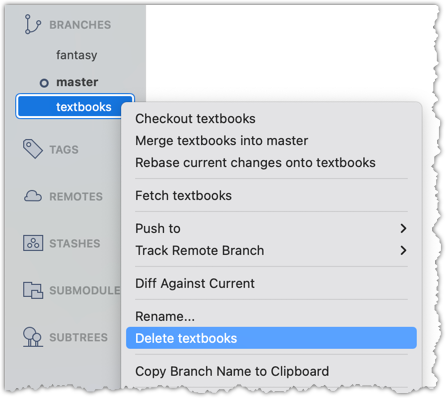
In the next dialog, click OK:
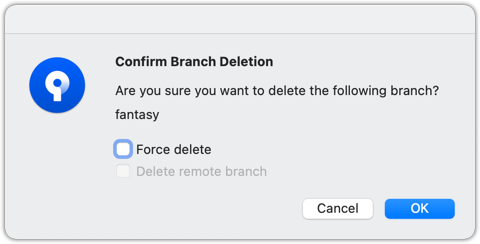
Observe that all commits remain. The only missing thing is the textbook ref.
2 Make a copy of the SHA of the tip of the (unmerged) fantasy branch.
3 Delete the fantasy branch.
Attempt to delete the branch. It should fail, as shown below:
git branch -d fantasy
error: the branch 'fantasy' is not fully merged
hint: If you are sure you want to delete it, run 'git branch -D fantasy'
As also hinted by the error message, you can replace the -d with -D to 'force' the deletion.
git branch -D fantasy
Now, check the revision graph:
git log --oneline --decorate --graph --all
* 443132a (HEAD -> master) Merge branch textbooks
|\
| * 4969163 Add textbooks.txt
|/
* 7f28f0e Add horror.txt
Attempt to delete the branch as you did before. It will fail because the branch has unmerged commits.
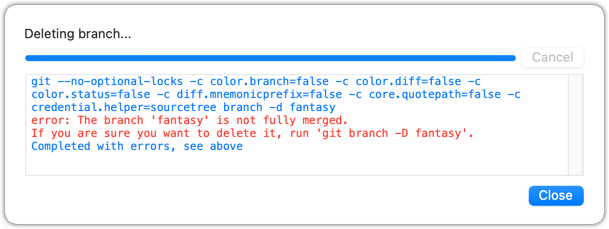
Try again but this time, tick the Force delete option, which will force Git to delete the unmerged branch:
Observe how the branch ref fantasy is gone, together with any unmerged commits on it.
4 Attempt to view the 'unreachable' commit whose SHA you noted in step 2.
e.g., git show 32b34fb (use the SHA you copied earlier)
Observe how the commit still exists and still is reachable using the commit ID, although it is not reachable by other means, and not visible in the revision graph.
done!
Merging to Sync Branches
Merging is one way to keep one branch synchronised with another.
When working in parallel branches, you’ll often need to sync (short for synchronise) one branch with another. For example, while developing a feature in one branch, you might want to bring in a recent bug fix from another branch that your branch doesn’t yet have.
The simplest way to sync branches is to merge — that is, to sync a branch b1 with changes from another branch b2, you merge b2 into b1. In fact, you can merge them periodically to keep one branch up to date with the other.
gitGraph
%%{init: { 'theme': 'default', 'gitGraph': {'mainBranchName': 'master'}} }%%
commit id: "m1"
branch bug-fix
branch feature
commit id: "f1"
checkout master
checkout bug-fix
commit id: "b1"
checkout master
merge bug-fix
checkout feature
merge master id: "mc1"
commit id: "f2"
checkout master
commit id: "m2"
checkout feature
merge master id: "mc2"
checkout master
commit id: "m3"
checkout feature
commit id: "[feature] f3"
checkout master
commit id: "[HEAD → master] m4"
In the example above, you can see how the feature branch is merging the master branch periodically to keep itself in sync with the changes being introduced to the master branch.
Rebasing to Sync Branches
Rebasing is another way to synchronise one branch with another.
Rebasing is another way to synchronise one branch with another, while keeping the history cleaner and more linear. Instead of creating a merge commit to combine the branches, rebasing moves the entire sequence of commits from your branch and "replays" them on top of another branch. This effectively moves the base of your branch to the tip of the other branch (i.e., it 're-bases' it — hence the name), as if you had started your work from there in the first place.
Rebasing is especially useful when you want to update your branch with the latest changes from a main branch, but you prefer an uncluttered history with fewer merge commits.
Suppose we have the following revision graph, and we want to sync the feature branch with master, so that changes in commit m2 become visible to the feature branch.
gitGraph
%%{init: { 'theme': 'default', 'gitGraph': {'mainBranchName': 'master'}} }%%
commit id: "m1"
branch feature
checkout feature
commit id: "f1"
checkout master
commit id: "[master] m2"
checkout feature
commit id: "[HEAD → feature] f2"
If we merge the master branch to the feature branch as given below, m2 becomes visible to the feature branch. However, it creates a merge commit.
gitGraph
%%{init: { 'theme': 'default', 'gitGraph': {'mainBranchName': 'master'}} }%%
commit id: "m1"
branch feature
checkout feature
commit id: "f1"
checkout master
commit id: "[master] m2"
checkout feature
commit id: "f2"
merge master id: "[HEAD → feature] mc1"
Instead of merging, if we rebased the feature branch on the master branch, we would get the following.
gitGraph
%%{init: { 'theme': 'default', 'gitGraph': {'mainBranchName': 'master'}} }%%
commit id: "m1"
checkout master
commit id: "[branch: master] m2"
branch feature
checkout feature
commit id: "f1a"
commit id: "[HEAD → feature] f2a"
Note how the rebasing changed the base of the feature branch from m1 to m2. As a result, changes done in m2 are now visible to the feature branch. But there is no merge commit, and the revision graph is simpler.
Also note how the first commit in the feature branch, previously shown as f1, is now shown as f1a after the rebase. Although both commits contain the same changes, other details -- such as the parent commit -- are different, making them two distinct Git objects with different SHA values. Similarly, f2 and f2a are also different. Thus, the history of the entire feature branch has changed after the rebase.
Because rebasing rewrites the commit history of your branch, you should avoid rebasing branches that you’ve already published, and are potentially used by others -- rewriting published history can cause confusion and conflicts for those using the previous version of the commits.
Copying Specific Commits
Cherry-picking is a Git operation that copies over a specific commit from one branch to another.
Cherry-picking is another way to synchronise branches, by applying specific commits from one branch onto another.
Unlike merging or rebasing — which bring over all changes since the branches diverged — cherry-picking lets you choose individual commits and apply just those, one at a time, to your current branch. This is useful when you want to bring over a bug fix or a small feature from another branch without merging the entire branch history.
Because cherry-picking copies only the chosen commits, it creates new commits on your branch with the same changes but different SHA values.
Suppose we have the following revision graph, and we want to bring over the changes introduced in m3 (in the master branch) onto the feature branch.
gitGraph
%%{init: { 'theme': 'default', 'gitGraph': {'mainBranchName': 'master'}} }%%
commit id: "m1"
branch feature
checkout feature
commit id: "f1"
checkout master
commit id: "m2"
commit id: "m3" type: HIGHLIGHT
commit id: "[master] m4"
checkout feature
commit id: "[HEAD → feature] f2"
After cherry-picking m3 onto the feature branch, the revision graph should look like the following:
gitGraph
%%{init: { 'theme': 'default', 'gitGraph': {'mainBranchName': 'master'}} }%%
commit id: "m1"
branch feature
checkout feature
commit id: "f1"
checkout master
commit id: "m2"
commit id: "m3" type: HIGHLIGHT
commit id: "[master] m4"
checkout feature
commit id: "f3"
commit id: "[HEAD → feature] m3a" type: HIGHLIGHT
Note how it makes the changes done in m3 available (from now on) in the feature branch, with minimal changes to the revision graph. Also note that the new commit m3a contains the same changes as m3, but it will be a different Git object with a different SHA value.
Cherry-picking is another Git operation that can result in conflicts i.e., if the changes in the cherry-picked commit conflict with the changes in the receiving branch.
Pushing Branches to a Remote
Local branches can be replicated in a remote.
Pushing a copy of local branches to the corresponding remote repo makes those branches available remotely.
In a previous lesson, we saw how to push the default branch to a remote repository and have Git set up tracking between the local and remote branches using a remote-tracking reference. Pushing any other local branch to a remote works the same way as pushing the default branch — you simply specify the target branch instead of the default branch. Pushing any new commits in any local branch to a corresponding remote branch is done similarly as well.
gitGraph BT:
%%{init: { 'theme': 'default', 'gitGraph': {'mainBranchName': 'master'}} }%%
commit id: "m1"
branch bug-fix
checkout master
commit id: "[origin/master][HEAD → master] m2"
checkout bug-fix
commit id: "[bug-fix] b1"
checkout master
[bug-fix branch does not exist in the remote origin]
→
gitGraph BT:
%%{init: { 'theme': 'default', 'gitGraph': {'mainBranchName': 'master'}} }%%
commit id: "m1"
branch bug-fix
checkout master
commit id: "[origin/master][HEAD → master] m2"
checkout bug-fix
commit id: "[origin/bug-fix][bug-fix] b1"
checkout master
[after pushing bug-fix branch to origin,
and setting up a remote-tracking branch]
Preparation Fork the samplerepo-company to your GitHub account. When doing so, un-tick the Copy the master branch only option.
After forking, go to the fork and ensure both branches (master, and track-sales) are in there.
Clone the fork to your computer. It should look something like this:
gitGraph BT:
%%{init: { 'theme': 'default', 'gitGraph': {'mainBranchName': 'master'}} }%%
commit id: "m1"
commit id: "m2"
branch track-sales
checkout track-sales
commit id: "[origin/track-sales] s1"
checkout master
commit id: "[origin/master][origin/HEAD][HEAD → master] m3"
The origin/HEAD remote-tracking ref indicates where the HEAD ref is in the remote origin.
1 Create a new branch called hiring, and add a commit to that branch. The commit can contain any changes you want.
Here are the commands you can run in the terminal to do this step in one shot:
git switch -c hiring
echo "Receptionist: Pam" >> employees.txt
git commit -am "Add Pam to employees.txt"
gitGraph BT:
%%{init: { 'theme': 'default', 'gitGraph': {'mainBranchName': 'master'}} }%%
commit id: "m1"
commit id: "m2"
branch track-sales
checkout track-sales
commit id: "[origin/track-sales] s1"
checkout master
commit id: "[origin/master][origin/HEAD][master] m3"
branch hiring
checkout hiring
commit id: "[HEAD → hiring] h1"
The resulting revision graph should look like the one above.
2 Push the hiring branch to the remote.
You can use the usual git push <remote> -u <branch> command to push the branch to the remote, and set up a remote-tracking branch at the same time.
git push origin -u hiring
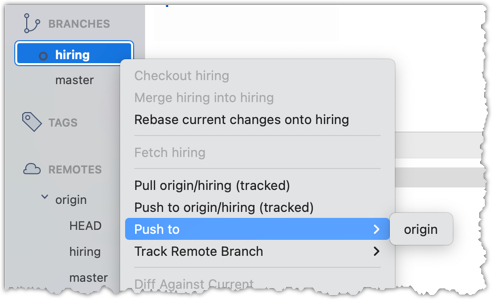
3 Verify that the branch has been pushed to the remote by visiting the fork on GitHub, and looking for the origin/hiring remote-tracking ref in the local repo.
done!
Pulling Branches from a Remote
Branches in a remote can be replicated in the local repo, and maintained in sync with each other.
Sometimes we need to create a local copy of a branch from a remote repository, make further changes to it, and keep it synchronised with the remote branch. Let's explore how to handle this in a few common use cases:
Use case 1: Working with branches that already existed in the remote repo when you cloned it to your computer.
When you clone a repository,
- Git checks out the default branch. You can start working on this branch immediately. This branch is tracking the default branch in the remote, which means you can easily synchronise changes in this branch with the remote by pulling and pushing.
- Git also fetches all the other branches from the remote. These other branches are not immediately available as local branches, but they are visible as remote-tracking branches.
You can think of remote-tracking branches as read-only references to the state of those branches in the remote repository at the time of cloning. They allow you to see what work has been done on those branches without yet making local copies of them.
To work on one of these branches, you can create a new local branch based on the remote-tracking branch. Once you do this, your local branch will usually be configured to track the corresponding branch on the remote, so you can easily synchronise your work later.
Preparation Use the same samplerepo-company repo you used in Lesson T8L1. Pushing Branches to a Remote. Fork and clone it if you haven't done that already.
1 Verify that the remote-tracking branch origin/track-sales exists in the local repo, but there is no local copy of it.
You can use the git branch -a command to list all local and tracking branches.
git branch -a
* hiring
master
remotes/origin/HEAD -> origin/master
remotes/origin/hiring
remotes/origin/master
remotes/origin/track-sales
The * in the output above indicates the currently active branch.
Note how there is no track-sales in the list of branches (i.e., no local branch named track-sales), but there is a remotes/origin/track-sales (i.e., the remote-tracking branch)
Observe how the branch track-sales appear under REMOTES → origin but not under BRANCHES.
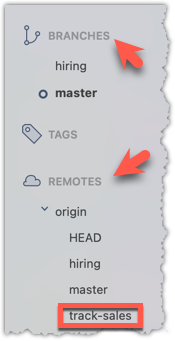
2 Create a local copy of the remote branch origin/track-sales.
You can use the git switch -c <branch> <remote-branch> command for this e.g.,
git switch -c track-sales origin/track-sales
Locate the track-sales remote-tracking branch (look under REMOTES → origin), right-click, and choose Checkout....
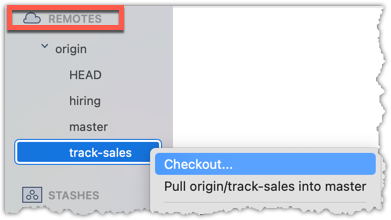
In the next dialog, choose as follows:
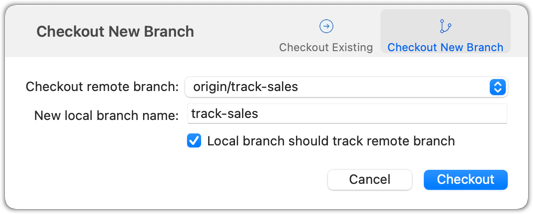
The above command/action does several things:
- Creates a new branch
track-sales. - Sets the new branch to track the remote branch
origin/track-sales, which means the local branch reftrack-saleswill also move to where theorigin/track-salesis. - Switch to the newly-created branch i.e., makes it the current branch.
3 Add a commit to the track-sales branch and push to the remote, to verify that the local branch is tracking the remote branch.
Commands to perform this step in one shot:
echo "5 reams of paper" >> sales.txt
git commit -am "Update sales.txt"
git push origin track-sales
done!
Use case 2: Working with branches that were added to the remote repository after you cloned it e.g., a branch someone else pushed to the remote after you cloned.
Simply fetch to update your local repository with information about the new branch. After that, you can create a local copy of it and work with it just as you did in Use Case 1.
Fetching was covered in Lesson T3L3. Downloading Data Into a Local Repo.
Deleting Branches from a Remote
Often, you'll need to delete a branch in a remote repo after it has served its purpose.
To delete a branch in a remote repository, you simply tell Git to remove the reference to that branch from the remote. This does not delete the branch from your local repository — it only removes it from the remote, so others won’t see it anymore. This is useful for cleaning up clutter in the remote repo e.g., delete old or merged branches that are no longer needed on the remote.
Preparation Fork the samplerepo-books to your GitHub account. When doing so, un-tick the Copy the master branch only option.
After forking, go to the fork and ensure all three branches are in there.
Clone the fork to your computer.
1 Create a local copy of the fantasy branch in your clone.
Follow instructions in Lesson T8L2. Pulling Branches from a Remote.
2 Delete the remote branch fantasy.
You can use the git push <remote> --delete <branch> command to delete a branch in a remote. This is like pushing changes in a branch to a remote, except we request the branch to be deleted instead, by adding the --delete switch.
git push origin --delete fantasy
Locate the remote branch under REMOTES → origin, right-click on the branch name, and choose Delete...:
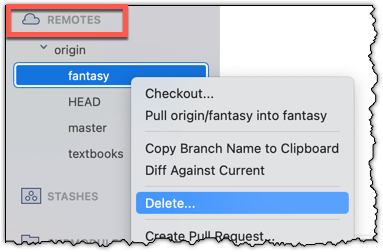
3 Verify that the branch was deleted from the remote, by going to the fork on GitHub and checking the branches page https://github.com/{YOUR_USERNAME}/samplerepo-books/branches
e.g., https://github.com/johndoe/samplerepo-books/branches.
Also verify that the local copy has not been deleted.
4 Restore the remote branch from the local copy.
Push the local branch to the remote, while enabling the tracking option (as if pushing the branch to the remote for the first time), as covered in Lesson T8L1. Pushing Branches to a Remote.
In the above steps, we first created a local copy of the branch before deleting it in the remote repo. Doing so is optional. You can delete a remote branch without ever checking it out locally — you just need to know its name on the remote. Deleting the remote branch directly without creating a local copy is recommended if you simply want to clean up a remote branch you no longer need.
done!
Renaming Branches in a Remote
Occasionally, you might need to rename a branch in a remote repo.
Git does not have a way to rename remote branches in place. Instead, you create a new branch with the desired name and delete the old one. This involves renaming your local branch to the new name, pushing it to the remote (which effectively creates a new remote branch), and then removing the old branch from the remote. This ensures the remote reflects the updated name while preserving the commit history and any work already done on the branch.
While Git cannot rename a remote branch in place, GitHub allows you to rename a branch in a remote repo. If you use this approach, the local repo still needs to be updated to reflect the change.
Preparation You can use the fork and the clone of the samplerepo-books that you created in Lesson T8L3. Deleting Branches from a Remote.
Target Rename the branch fantasy in the remote (i.e., your fork) to fantasy-books.
Steps
- Ensure you are in the
masterbranch. - Create a local copy of the remote-tracking branch
origin/fantasy. - Rename the local copy of the branch to
fantasy-books. - Push the renamed local branch to the remote, while setting up tracking for the branch as well.
- Delete the remote branch.
git switch master # ensure you are on the master branch
git switch -c fantasy origin/fantasy # create a local copy, tracking the remote branch
git branch -m fantasy fantasy-books # rename local branch
git push -u origin fantasy-books # push the new branch to remote, and set it to track
git push origin --delete fantasy # delete the old branch
You can run the git log --oneline --decorate --graph --all to check the revision graph after each step. The final outcome should be something like the below:
* 355915c (HEAD -> fantasy-books, origin/fantasy-books) Add fantasy.txt
| * 027b2b0 (origin/master, origin/HEAD, master) Merge branch textbooks
|/|
| * a6ebaec (origin/textbooks) Add textbooks.txt
|/
* d462638 Add horror.txt
Perform the above steps (each step was covered in a previous lesson).
done!
Creating PRs
A pull request (PR for short) is a mechanism for contributing code to a remote repo i.e., "I'm requesting you to pull my proposed changes to your repo". It's feature provided by RCS platforms such as GitHub. For this to work, the two repos must have a shared history. The most common case is sending PRs from a fork to its repo.
Suppose you want to propose some changes to a GitHub repo (e.g., samplerepo-pr-practice) as a pull request (PR).
master branch preparation samplerepo-pr-practice is an unmonitored repo that we have created for you to practice working with PRs.
- Fork that repo onto your GitHub account.
- Clone it onto your computer.
- Commit some changes (e.g., add a new file with some contents) onto the
masterbranch. - Push the branch you updated (i.e.,
masterbranch or the new branch) to your fork, as explained here.
1 Go to your fork on GitHub.
2 Click on the Pull requests tab followed by the New pull request button. This will bring you to the Compare changes page.
3 Specify the target repo and the branch that should receive your PR, using the base repository and base dropdowns. e.g.,
base repository: se-edu/samplerepo-pr-practice base: master
Normally, the default value shown in the dropdown is what you want but in case your fork has , the default may not be what you want.
4 Indicate which repo:branch contains your proposed code, using the head repository and compare dropdowns. e.g.,
head repository: myrepo/samplerepo-pr-practice compare: master
5 Verify the proposed code: Verify that the diff view in the page shows the exact change you intend to propose. If it doesn't, as necessary.
6 Submit the PR:
- Click the Create pull request button.
- Fill in the PR name and description e.g.,
Name:Add an introduction to the README.md
Description:Add some paragraph to the README.md to explain ... Also add a heading ... - If you want to indicate that the PR you are about to create is 'still work in progress, not yet ready', click on the dropdown arrow in the Create pull request button and choose
Create draft pull requestoption. - Click the Create pull request button to create the PR.
- Go to the receiving repo to verify that your PR appears there in the
Pull requeststab.
done!
The next step of the PR lifecycle is the PR review. The members of the repo that received your PR can now review your proposed changes.
- If they like the changes, they can merge the changes to their repo, which also closes the PR automatically.
- If they don't like it at all, they can simply close the PR too i.e., they reject your proposed change.
- In most cases, they will add comments to the PR to suggest further changes. When that happens, GitHub will notify you.
You can update the PR along the way too. Suppose PR reviewers suggested a certain improvement to your proposed code. To update your PR as per the suggestion, you can simply modify the code in your local repo, commit the updated code to the same branch as before, and push to your fork as you did earlier. The PR will auto-update accordingly.
Sending PRs using the master branch is less common than sending PRs using separate branches. For example, suppose you wanted to propose two bug fixes that are not related to each other. In that case, it is more appropriate to send two separate PRs so that each fix can be reviewed, refined, and merged independently. But if you send PRs using the master branch only, both fixes (and any other change you do in the master branch) will appear in the PRs you create from it.
It is possible to create PRs within the same repo too e.g., you can create a PR from branch feature-x to the master branch, within the same repo. Doing so will allow the code to be reviewed by other developers (using PR review mechanism) before it is merged.
Reviewing PRs
PR reviews are a collaborative process in which project members examine and provide feedback on PRs submitted to a remote repo. After an initial review, the reviewer may suggest improvements or identify issues, prompting the submitter to refine and update their code in the PR. This review-refine-update cycle can repeat several times, with reviewers reassessing each new iteration until all feedback is addressed and the code meets the team’s expectations. Once approved, the PR can be merged, making the changes an official part of the codebase.
Preparation If you do not have access to a PR that you can review, you can create one for yourself as follows:
- Create a branch in a repo that you have forked and cloned (e.g., samplerepo-pr-practice).
- Do some changes in the branch.
- Push the branch to the remote repo.
- Create a PR within your fork, from the new branch to the
masterbranch.
1 Locate the PR:
- Go to the GitHub page of the repo.
- Click on the Pull requests tab.
- Click on the PR you want to review.
2Read the PR description. It might contain information relevant to reviewing the PR.
3Click on the Files changed tab to see the diff view.
You can use the following setting to try the two different views available and pick the one you like.
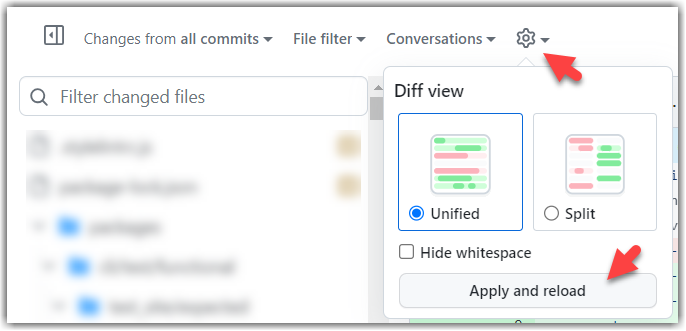
4Add review comments:
- Hover over the line you want to comment on and click on the icon that appears on the left margin. That should create a text box for you to enter your comment.
- To give a comment related to multiple lines, click-and-drag the icon. The result will look like this:
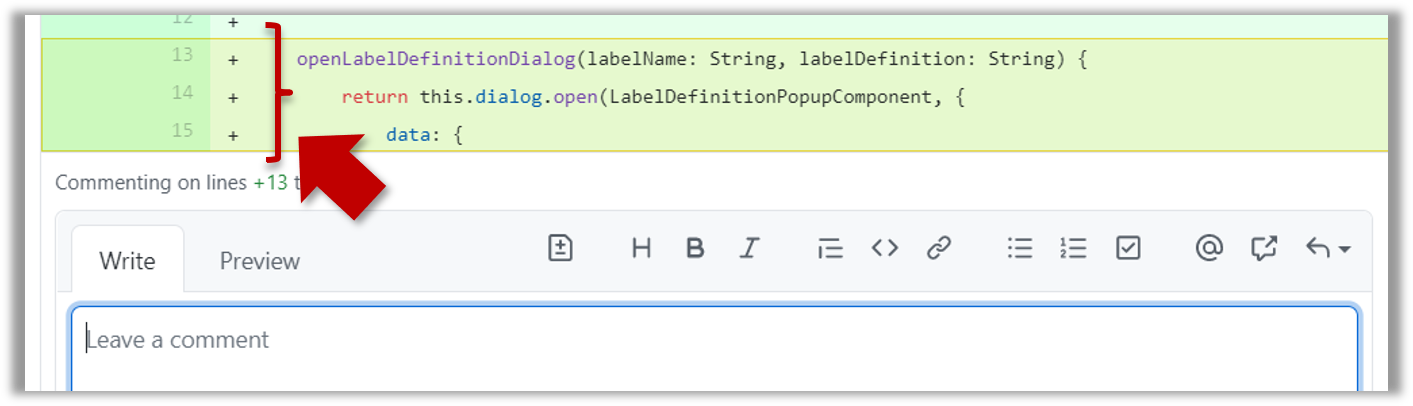
- To give a comment related to multiple lines, click-and-drag the icon. The result will look like this:
- Enter your comment.
- This page @SE-EDU/guides has some best practices PR reviewers can follow.
- To suggest an in-line code change, click on this icon:
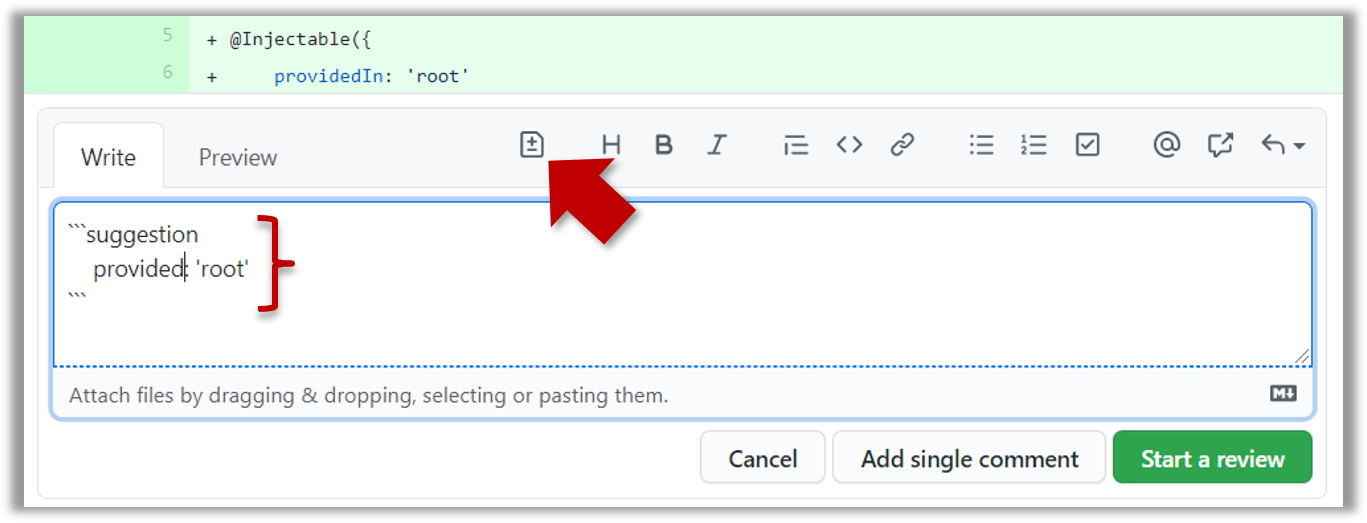
After that, you can proceed to edit thesuggestioncode block generated by GitHub (as seen in the screenshot above).
The comment will look like this to the viewers:
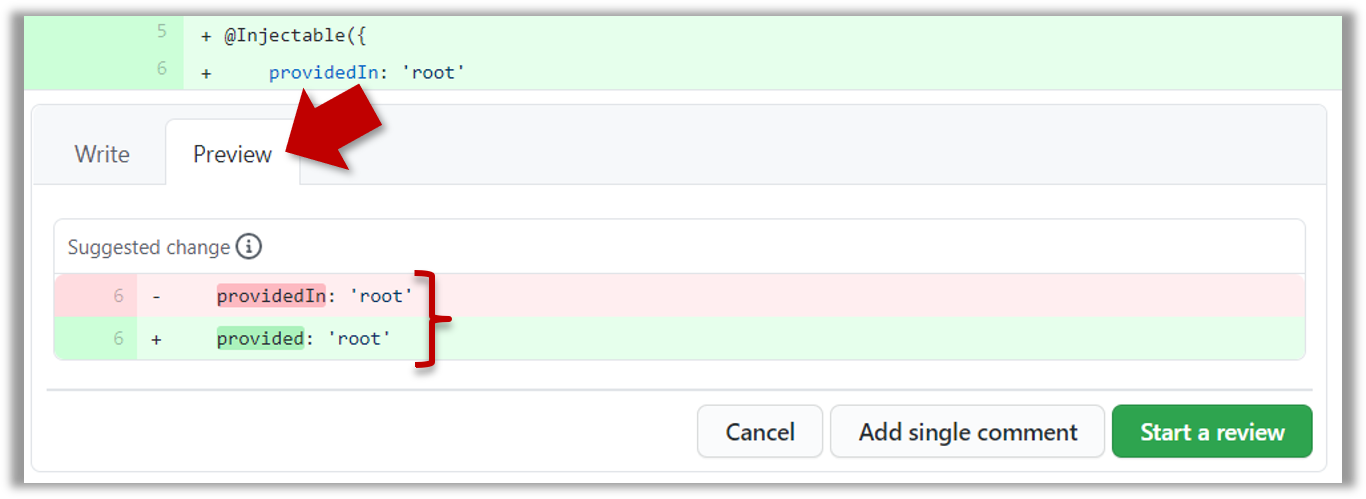
- After typing in the comment, click on the Start a review button (not the Add single comment button. This way, your comment is saved but not visible to others yet. It will be visible to others only when you have finished the entire review.
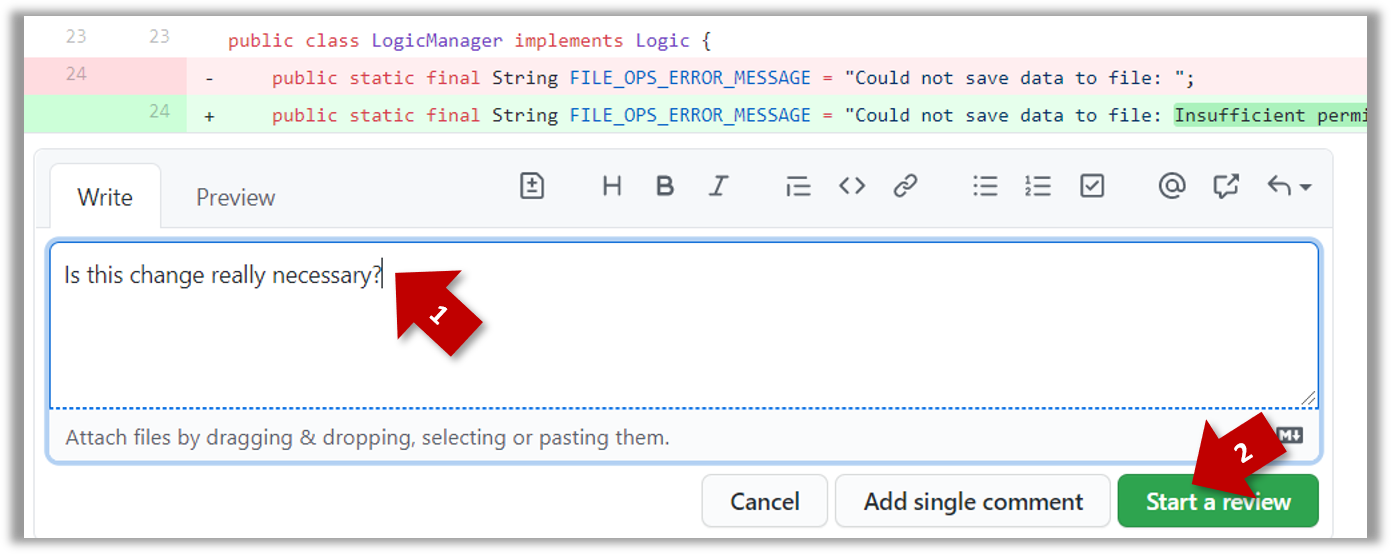
- Repeat the above steps to add more comments.
5Submit the review:
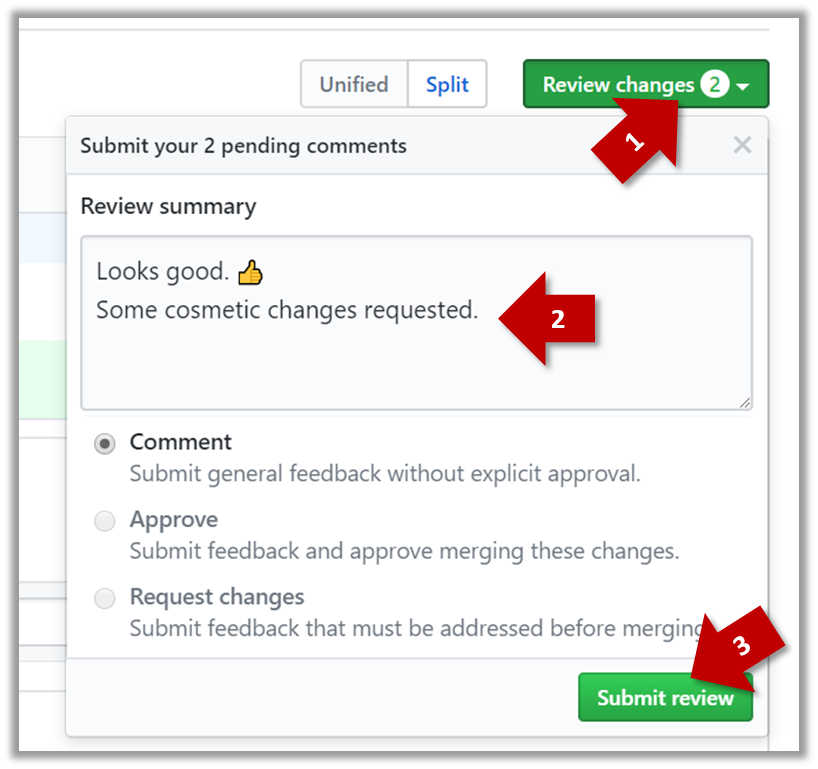
- When there are no more comments to add, click on the Review changes button (on the top right of the diff page).
- Type in an overall comment about the PR, if any. e.g.,
Overall, I found your code easy to read for the most part except a few places where the nesting was too deep. I noted a few minor coding standard violations too. Some of the classes are getting quite long. Consider splitting into smaller classes if that makes sense.LGTMis often used in such overall comments, to indicateLooks good to me(orLooks good to merge).
nit(as in nit-picking) is another such term, used to indicate minor flaws e.g.,LGTM. Just a few nits to fix.. - Choose
Approve,Comment, orRequest changesoption as appropriate and click on the Submit review button.
done!
Merging PRs
A project member with sufficient access to the remote repo can merge a PR, incorporating proposed changes into the main codebase. Merging a PR is similar to performing a Git merge in a local repo, except that it occurs in the remote repository.
Preparation If you would like to try merging a PR yourself, you can create a dummy PR in the following manner.
- Create a branch in a repo that you have forked and cloned (e.g., samplerepo-pr-practice).
- Do some changes in the branch.
- Push the branch to the remote repo.
- Create a PR within your fork, from the new branch to the
masterbranch.
1 Locate the PR to be merged in your repo's GitHub page.
2 Click on the Conversation tab and scroll to the bottom. You'll see a panel containing the PR status summary.
3 If the PR is not merge-able in the current state, the Merge pull request will not be green. Here are the possible reasons and remedies:
- Problem: The PR code is out-of-date, indicated by the message This branch is out-of-date with the base branch. That means the repo's
masterbranch has been updated since the PR code was last updated.- If the PR author has allowed you to update the PR and you have sufficient permissions, GitHub will allow you to update the PR simply by clicking the Update branch on the right side of the 'out-of-date' error message. If that option is not available, post a message in the PR requesting the PR author to update the PR.
- Problem: There are merge conflicts, indicated by the message This branch has conflicts that must be resolved. That means the repo's
masterbranch has been updated since the PR code was last updated, in a way that the PR code conflicts with the currentmasterbranch. Those conflicts must be resolved before the PR can be merged.- If the conflicts are simple, GitHub might allow you to resolve them using the Web interface.
- If that option is not available, post a message in the PR requesting the PR author to update the PR.
4 Merge the PR by clicking on the Merge pull request button, followed by the Confirm merge button. You should see a Pull request successfully merged and closed message after the PR is merged.
- You can choose between three merging options by clicking on the down-arrow in the Merge pull request button. If you are new to Git and GitHub, the
Create merge commitoption is recommended.
done!
After a PR is merged, you need to sync other related repos. Merging a PR simply merges the code in the upstream remote repository in which it was merged. The PR author (and other members of the repo) needs to pull the merged code from the upstream repo to their local repos and push the new code to their respective forks to sync the fork with the upstream repo.
What
Software development goes through different stages such as requirements, analysis, design, implementation and testing. These stages are collectively known as the software development lifecycle (SDLC). There are several approaches, known as software development lifecycle models (also called software process models), that describe different ways to go through the SDLC. Each process model prescribes a 'roadmap' for the software developers to manage the development effort. The roadmap describes the aims of the development stages, the outcome of each stage, and the workflow i.e., the relationship between stages.
Sequential Models
The sequential model, also called the waterfall model, views software development as a linear process, in which the project is seen as progressing through the development stages. The name waterfall stems from how the model is drawn to look like a waterfall (see below).
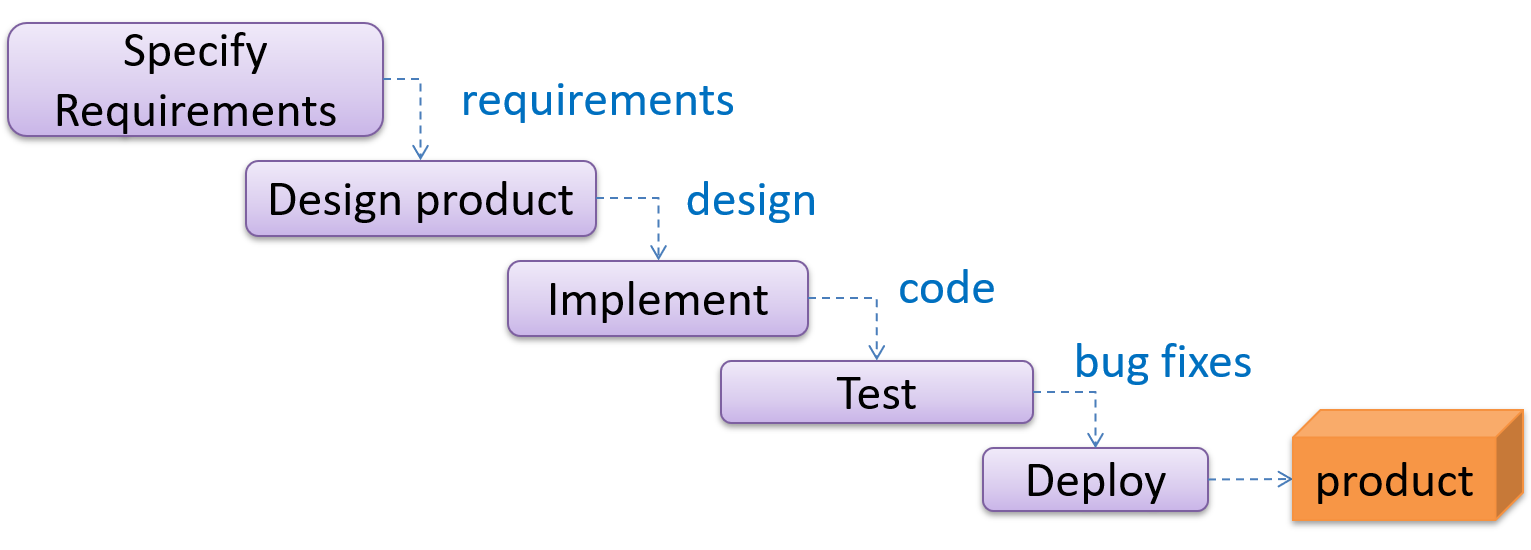
When one stage of the process is completed, it produces some artifacts to be used in the next stage. For example, the requirements stage produces a comprehensive list of requirements, to be used in the design phase.
A strict sequential model project moves only in the forward direction i.e., each stage is completed before starting the next. For example, once the requirements stage is over, there is no provision for revising the requirements later.
This model can work well for a project that produces software to solve a well-understood problem, in which case the requirements can remain stable and the effort can be estimated accurately. Furthermore, as each stage has a well-defined outcome, it is easy to track the progress of the project because one can gauge the project progress by monitoring which stage the project is in.
However, real-world projects often tackle problems that are not well-understood at the beginning, making them unsuitable for this model. For example, target users of a software product may not be able to state their requirements accurately at the start of the project, if they have not used a similar product before.
Iterative Models
The iterative model advocates producing the software by going through several iterations. Each of the iterations could potentially go through all the stages of the SDLC, from requirements gathering to deployment.
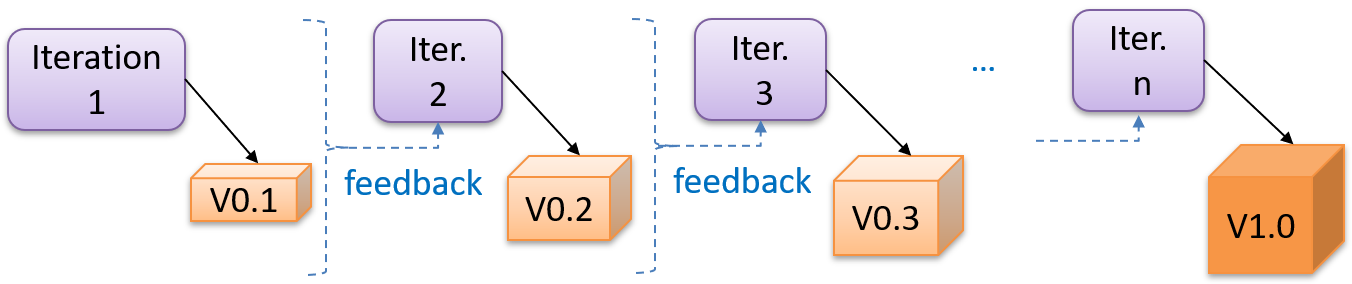
Each iteration produces a new version of the product, building upon the version produced in the previous iteration. Feedback from each iteration is factored into the subsequent iterations. For example, if an implementation task took longer than expected, the effort estimate for a similar tasks in future iterations can be adjusted accordingly. Similarly, if a feature introduced in the current iteration was not well-received by target users, it can be removed or tweaked in the next iteration.
The iterative model can be done in breadth-first or depth-first approach.
- In the breadth-first approach, an iteration evolves all major components and all functionality areas in parallel i.e., most features and most will be updated in each iteration, producing a working product at the end of each iteration.
- In the depth-first approach, an iteration focuses on fleshing out only some components or some functionality area. Accordingly, early depth-first iterations might not produce a working product.
Taking a Minesweeper game as an example,
- breadth-first iterations will deliver a fully playable version early. These early versions may have primitive functionality, for example, a rudimentary text based UI, fixed board size, limited minefield layouts, etc. These functionalities (and corresponding components) will then be improved in later releases.
- an early depth-first iteration could deliver the full user interface (UI) but with no game logic at all. Alternatively, an early iteration could focus on just the logic for generating initial layouts of the minefield. Neither will be a playable version of the game but both can be used to collect early feedback (about the UI, and the initial minefield layouts, respectively) which can then be used to guide later iterations.
A project can be done as a mixture of breadth-first and depth-first iterations i.e., an iteration can contain some breadth-first work as well as some depth-first work, or, some iterations can be breadth-first while others are depth-first.
Agile Models
In 2001, a group of prominent software engineering practitioners met and brainstormed for an alternative to documentation-driven, heavyweight software development processes that were used in most large projects at the time. This resulted in something called the agile manifesto (a vision statement of what they were looking to do).
You are uncovering better ways of developing software by doing it and helping others do it.
Through this work you have come to value:
- Individuals and interactions over processes and tools
- Working software over comprehensive documentation
- Customer collaboration over contract negotiation
- Responding to change over following a plan
That is, while there is value in the items on the right, you value the items on the left more.
-- Extract from the Agile Manifesto
Subsequently, some of the signatories of the manifesto went on to create process models that try to follow it. These processes are collectively called agile processes. Some of the key features of agile approaches are:
- Requirements are prioritized based on the needs of the user, are clarified regularly (at times almost on a daily basis) with the entire project team, and are factored into the development schedule as appropriate.
- Instead of doing a very elaborate and detailed design and a project plan for the whole project, the team works based on a rough project plan and a high level design that evolves as the project goes on.
- There is a strong emphasis on complete transparency and responsibility sharing among the team members. The team is responsible together for the delivery of the product. Team members are accountable, and regularly and openly share progress with each other and with the user.
There are a number of agile processes in the development world today. eXtreme Programming (XP) and Scrum are two of the well-known ones.
Work Breakdown Structure
A Work Breakdown Structure (WBS) depicts information about tasks and their details in terms of subtasks. When managing projects, it is useful to divide the total work into smaller, well-defined units. Relatively complex tasks can be further split into subtasks. In complex projects, a WBS can also include prerequisite tasks and effort estimates for each task.
The high level tasks for a single iteration of a small project could look like the following:
| Task ID | Task | Estimated Effort | Prerequisite Task |
|---|---|---|---|
| A | Analysis | 1 man day | - |
| B | Design | 2 man day | A |
| C | Implementation | 4.5 man day | B |
| D | Testing | 1 man day | C |
| E | Planning for next version | 1 man day | D |
The effort is traditionally measured in man hour/day/month i.e., work that can be done by one person in one hour/day/month. The Task ID is a label for easy reference to a task. Simple labeling is suitable for a small project, while a more informative labeling system can be adopted for bigger projects.
An example WBS for a game development project.
| Task ID | Task | Estimated Effort | Prerequisite Task |
|---|---|---|---|
| A | High level design | 1 man day | - |
| B |
Detail design
|
2 man day
| A |
| C |
Implementation
|
4.5 man day
|
|
| D | System Testing | 1 man day | C |
| E | Planning for next version | 1 man day | D |
All tasks should be well-defined. In particular, it should be clear as to when the task will be considered done.
Some examples of ill-defined tasks and their better-defined counterparts:
| Bad | Better |
|---|---|
| more coding | implement component X |
| do research on UI testing | find a suitable tool for testing the UI |
Milestones
A milestone is the end of a stage which indicates significant progress. You should take into account dependencies and priorities when deciding on the features to be delivered at a certain milestone.
Each intermediate product release is a milestone.
In some projects, it is not practical to have a very detailed plan for the whole project due to the uncertainty and unavailability of required information. In such cases, you can use a high-level plan for the whole project and a detailed plan for the next few milestones.
Milestones for the Minesweeper project, iteration 1
| Day | Milestones |
|---|---|
| Day 1 | Architecture skeleton completed |
| Day 3 | ‘new game’ feature implemented |
| Day 4 | ‘new game’ feature tested |
Buffers
A buffer is time set aside to absorb any unforeseen delays. It is very important to include buffers in a software project schedule because effort/time estimations for software development are notoriously hard. However, do not inflate task estimates to create hidden buffers; have explicit buffers instead. Reason: With explicit buffers, it is easier to detect incorrect effort estimates which can serve as feedback to improve future effort estimates.
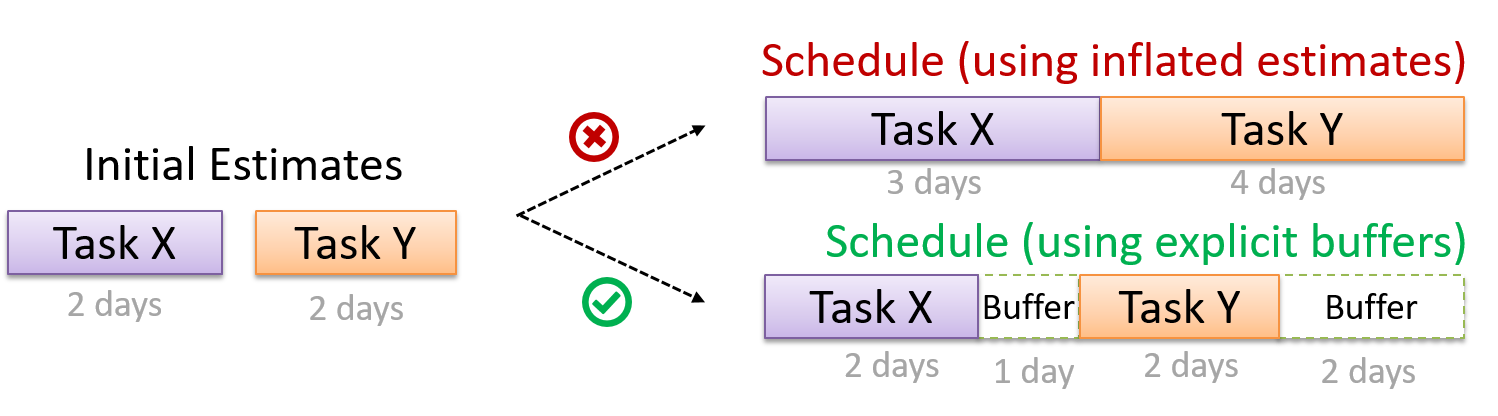
Issue Trackers
Keeping track of project tasks (who is doing what, which tasks are ongoing, which tasks are done etc.) is an essential part of project management. In small projects, it may be possible to keep track of tasks using simple tools such as online spreadsheets or general-purpose/light-weight task tracking tools such as Trello. Bigger projects need more sophisticated task tracking tools.
Issue trackers (sometimes called bug trackers) are commonly used to track task assignment and progress. Most online project management software such as GitHub, SourceForge, and BitBucket come with an integrated issue tracker.
A screenshot from the Jira Issue tracker software (Jira is part of the BitBucket project management tool suite):
SECTION: PRINCIPLES
Single Responsibility Principle
Single responsibility principle (SRP): A class should have one, and only one, reason to change. -- Robert C. Martin
If a class has only one responsibility, it needs to change only when there is a change to that responsibility.
Consider a TextUi class that does parsing of the user commands as well as interacting with the user. That class needs to change when the formatting of the UI changes as well as when the syntax of the user command changes. Hence, such a class does not follow the SRP.
Gather together the things that change for the same reasons. Separate those things that change for different reasons. ―- Agile Software Development, Principles, Patterns, and Practices by Robert C. Martin
Separation of Concerns Principle
Separation of concerns principle (SoC): To achieve better modularity, separate the code into distinct sections, such that each section addresses a separate concern. -- Proposed by Edsger W. Dijkstra
A concern in this context is a set of information that affects the code of a computer program.
Examples for concerns:
- A specific feature, such as the code related to the
add employeefeature - A specific aspect, such as the code related to
persistenceorsecurity - A specific entity, such as the code related to the
Employeeentity
Applying reduces functional overlaps among code sections and also limits the ripple effect when changes are introduced to a specific part of the system.
If the code related to persistence is separated from the code related to security, a change to how the data are persisted will not need changes to how the security is implemented.
This principle can be applied at the class level, as well as at higher levels.
The n-tier architecture utilizes this principle. Each layer in the architecture has a well-defined functionality that has no functional overlap with each other.
This principle should lead to higher cohesion and lower coupling.
SECTION: TOOLS
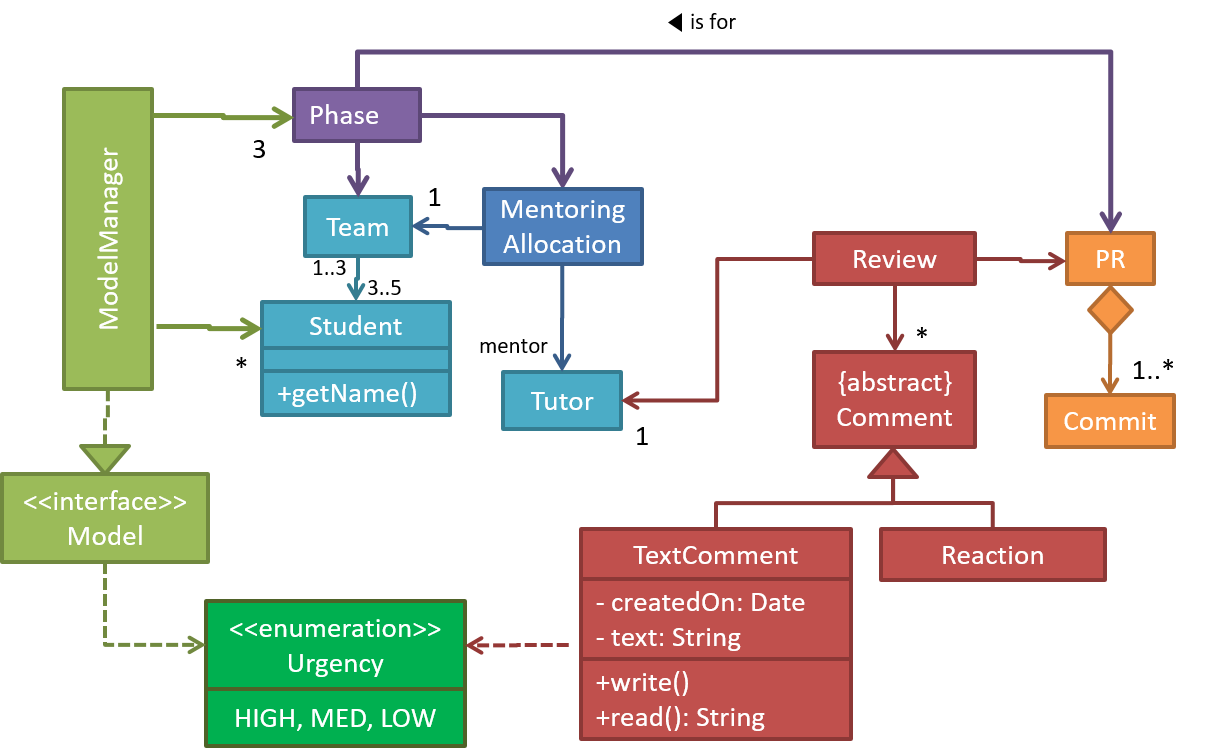
What
The basic UML notations used to represent a class:
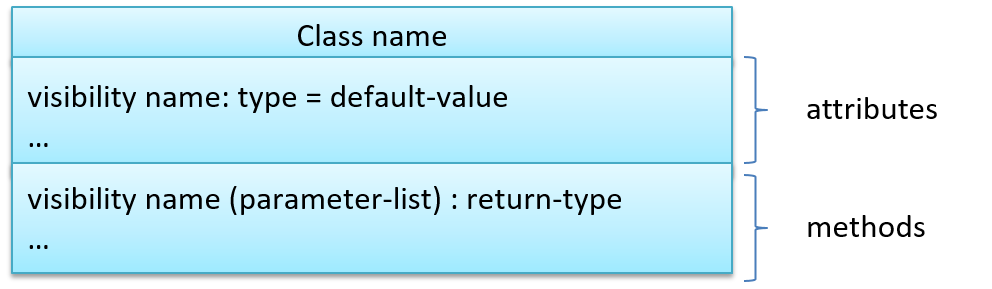
A Table class shown in UML notation:
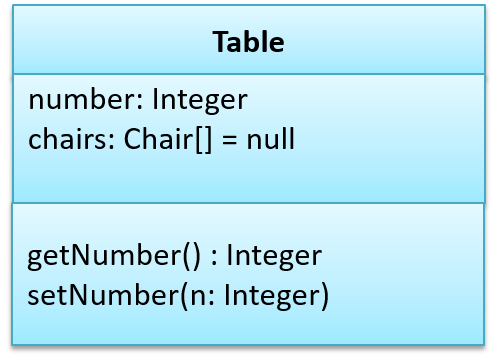
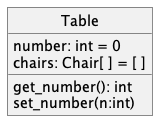
The 'Operations' compartment and/or the 'Attributes' compartment may be omitted if such details are not important for the task at hand. Similarly, some attributes/operations can be omitted if not relevant to the purpose of the diagram. 'Attributes' always appear above the 'Operations' compartment. All operations should be in one compartment rather than each operation in a separate compartment. Same goes for attributes.

The visibility of attributes and operations is used to indicate the level of access allowed for each attribute or operation. The types of visibility and their exact meanings depend on the programming language used. Here are some common visibilities and how they are indicated in a class diagram:
+: public-: private#: protected~: package private
Table class with visibilities shown:
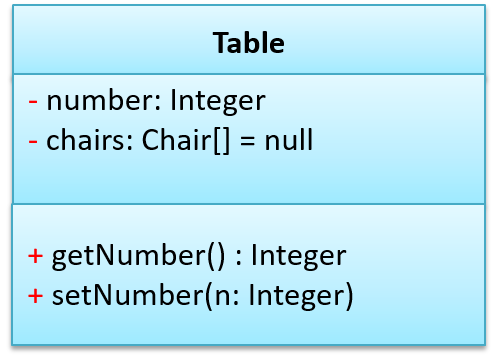
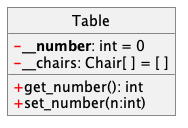
There is no default visibility in UML. If a class diagram does not show the visibility of a , it simply means the visibility is unspecified (for reasons such as the visibility not being decided yet or it being not important to the purpose of the diagram).
Generic classes can be shown as given below. The notation format is shown on the left, followed by two examples.
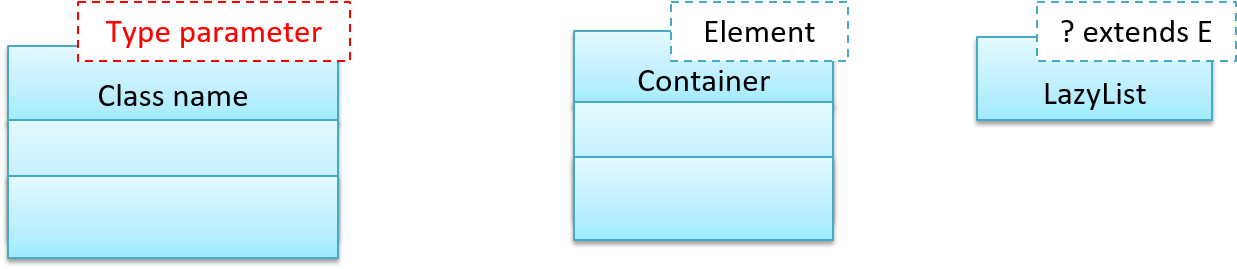
What
You should use a solid line to show an association between two classes.

This example shows an association between the Admin class and the Student class:
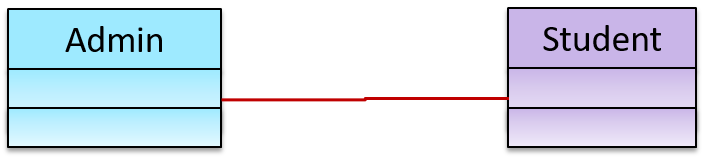
Navigability
Use arrowheads to indicate the navigability of an association.
In this example, the navigability is unidirectional, and is from the Logic class to the Minefield class. That means if a Logic object L is associated with a Minefield object M, L has a reference to M but M doesn't have a reference to L.

class Logic {
Minefield minefield;
// ...
}
class Minefield {
//...
}
class Logic:
def __init__(self):
self.minefield = None
# ...
class Minefield:
# ...
Here is an example of a bidirectional navigability; i.e., if a Dog object d is associated with a Man object m, d has a reference to m and m has a reference to d.

class Dog {
Man man;
// ...
}
class Man {
Dog dog;
// ...
}
class Dog:
def __init__(self):
self.man = None
# ...
class Man:
def __init__(self):
self.dog = None
# ...
The arrowhead (not the entire arrow) denotes the navigability. The line denotes the association, as before. So, the navigability (i.e., the arrowhead) is an extra annotation added to an association line.
For example, both diagrams below show an association between Foo and Bar. But the one on the right shows the navigability as well.

Navigability can be shown in class diagrams as well as object diagrams.
According to this object diagram, the given Logic object is associated with and aware of two MineField objects.
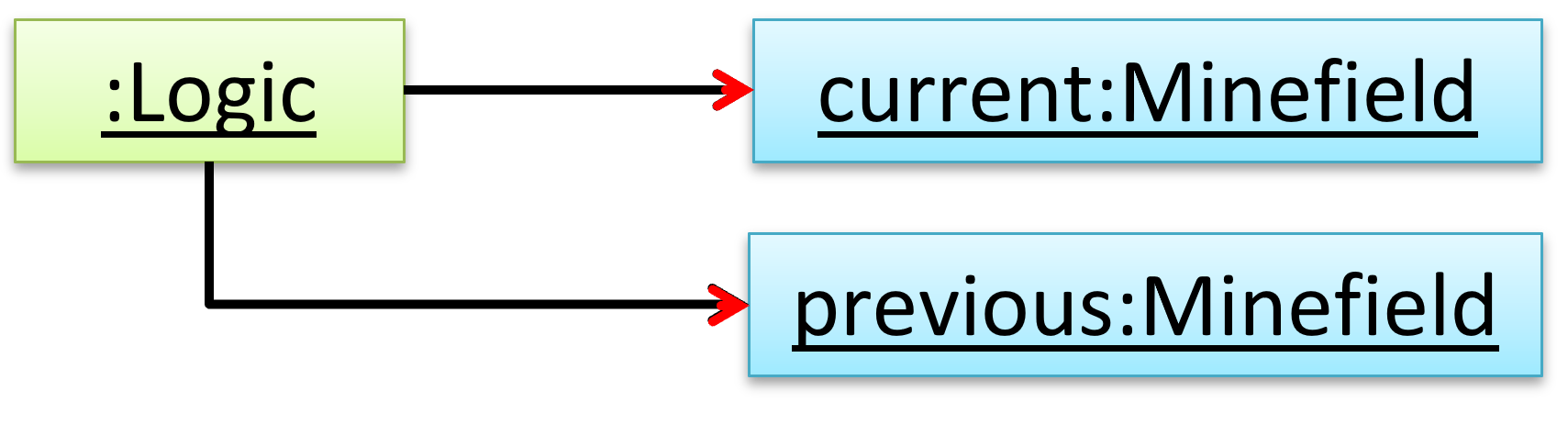
Roles
Association Role are used to indicate the role played by the classes in the association.

This association represents a marriage between a Man object and a Woman object. The respective roles played by objects of these two classes are husband and wife.
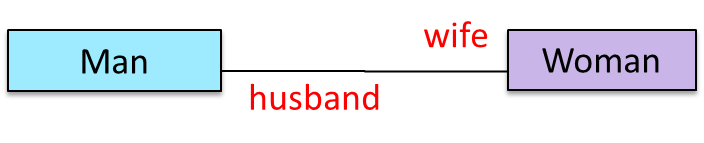
Note how the variable names match closely with the association roles.
class Man {
Woman wife;
}
class Woman {
Man husband;
}
class Man:
def __init__(self):
self.wife = None # a Woman object
class Woman:
def __init__(self):
self.husband = None # a Man object
The role of Student objects in this association is charges (i.e., Admin is in charge of students)
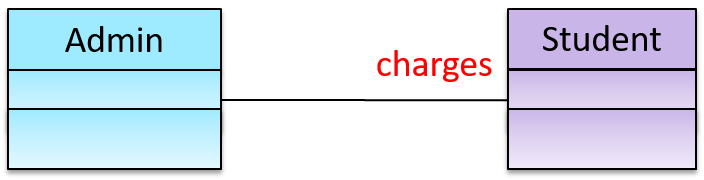
class Admin {
List<Student> charges;
}
class Admin:
def __init__(self):
self.charges = [] # list of Student objects
Association roles are optional to show. They are particularly useful for differentiating among multiple associations between the same two classes.
In each the three associations between the Flight class and the Airport class given below, the Airport class plays a different role.
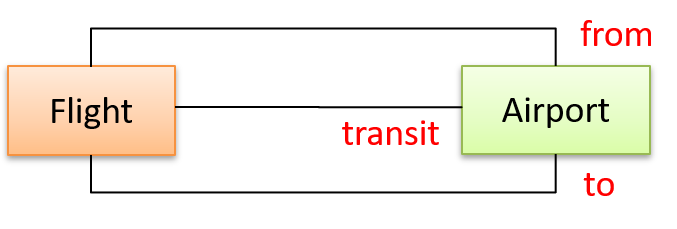
Labels
Association labels describe the meaning of the association. The arrow head indicates the direction in which the label is to be read.

In this example, the same association is described using two different labels.

- Diagram on the left:
Adminclass is associated withStudentclass because anAdminobject uses aStudentobject. - Diagram on the right:
Adminclass is associated withStudentclass because aStudentobject is used by anAdminobject.
Multiplicity
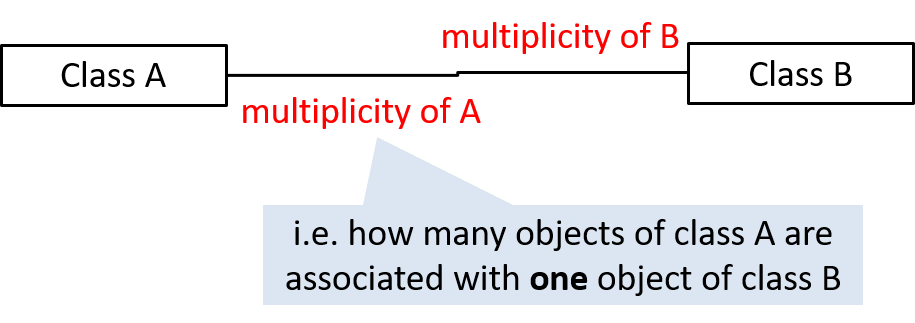
Commonly used multiplicities:
0..1: optional, can be linked to 0 or 1 objects.1: compulsory, must be linked to one object at all times.*: can be linked to 0 or more objects.n..m: the number of linked objects must be withinntominclusive e.g.,2..5,1..*(one or more),*..5(up to five)
In the diagram below, an Admin object administers (is in charge of) any number of students but a Student object must always be under the charge of exactly one Admin object.

In the diagram below,
- Each student must be supervised by exactly one professor. i.e., There cannot be a student who doesn't have a supervisor or has multiple supervisors.
- A professor cannot supervise more than 5 students but can have no students to supervise.
- An admin can handle any number of professors and any number of students, including none.
- A professor/student can be handled by any number of admins, including none.

There is no default multiplicity in UML. If a class diagram does not show the multiplicity of an association, it simply means the multiplicity is unspecified.
What
UML uses a dashed arrow to show dependencies.

Two examples of dependencies:
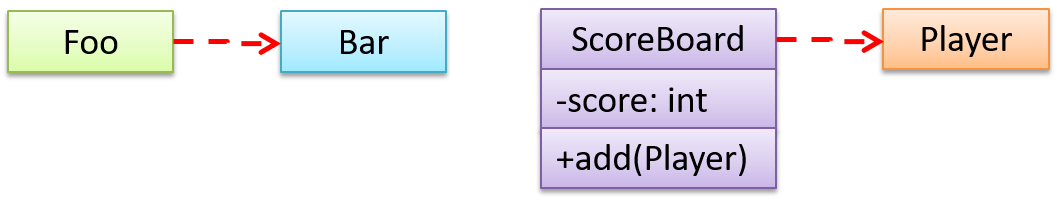
Dependencies vs associations:
- An association is a relationship resulting from one object keeping a reference to another object (i.e., storing an object in an instance variable). While such a relationship forms a dependency, we need not show that as a dependency arrow in the class diagram if the association is already indicated in the diagram. That is, showing a dependency arrow does not add any value to the diagram.
Similarly, an inheritance results in a dependency from the child class to the parent class but we don't show it as a dependency arrow either, for the same reason as above. - Use a dependency arrow to indicate a dependency only if that dependency is not already captured by the diagram in another way (for instance, as an association or an inheritance) e.g., class
Fooaccessing a constant inBarbut there is no association/inheritance fromFootoBar.
What
An association can be shown as an attribute instead of a line.
Association multiplicities and the default value can be shown as part of the attribute using the following notation. Both are optional.
name: type [multiplicity] = default value
The diagram below depicts a multi-player Square Game being played on a board comprising of 100 squares. Each of the squares may be occupied with any number of pieces, each belonging to a certain player.
A Piece may or may not be on a Square. Note how that association can be replaced by an isOn attribute of the Piece class. The isOn attribute can either be null or hold a reference to a Square object, matching the 0..1 multiplicity of the association it replaces. The default value is null.
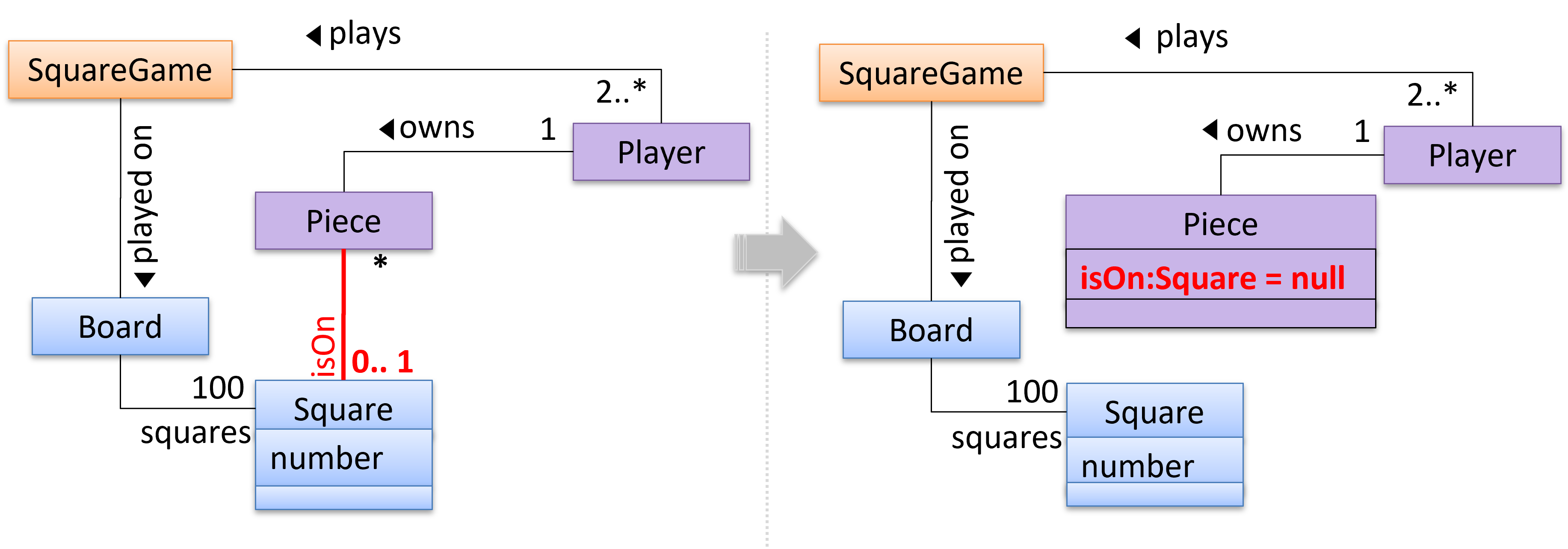
The association that a Board has 100 Squares can be shown in either of these two ways:

Show each association as either an attribute or a line but not both. A line is preferred as it is easier to spot.
Diagram (a) given below shows the 'author' association between the Book class and the Person class as a line while (b) shows the same association as an attribute in the Book class. Both are correct and the two are equivalent. But (c) is not correct as it uses both a line and an attribute to show the same association.
(a) 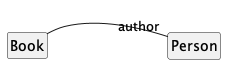
(b) 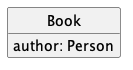
(c) 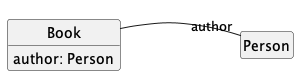
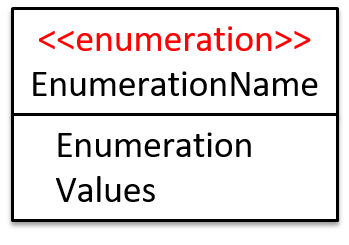
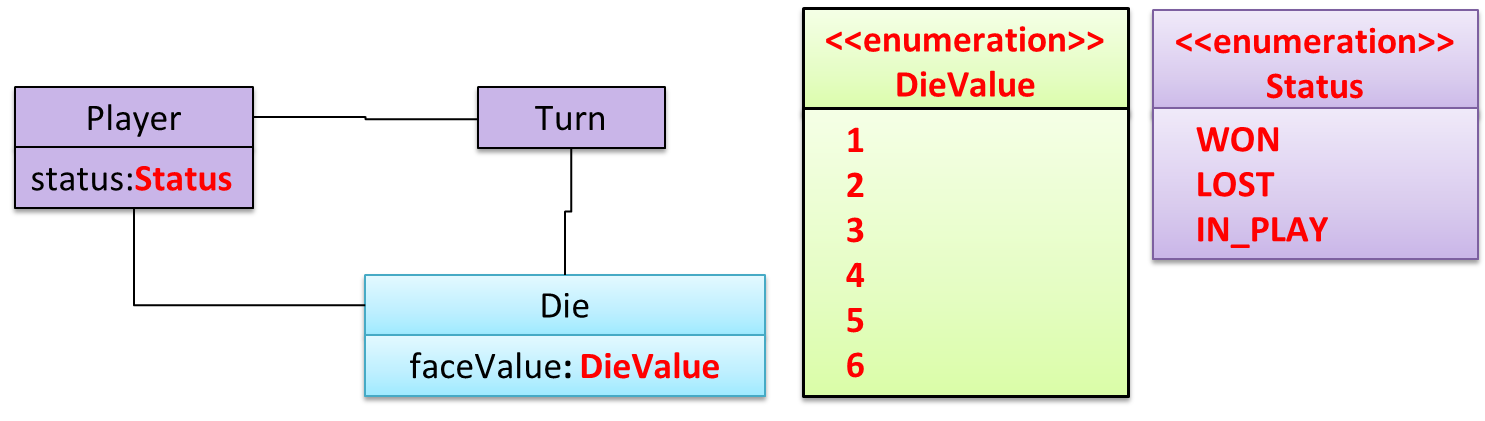
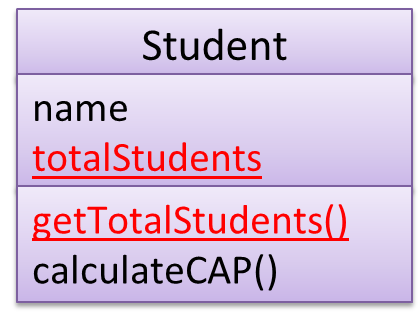
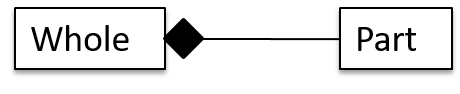

What
UML uses a hollow diamond to indicate an aggregation.
Notation:

Example:
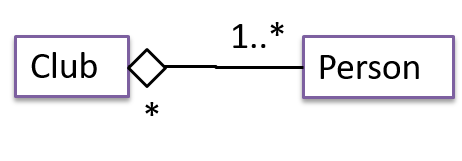
Aggregation vs Composition
The distinction between composition (◆) and aggregation (◇) is rather blurred. Martin Fowler’s famous book UML Distilled advocates omitting the aggregation symbol altogether because using it adds more confusion than clarity.
What
You can use a triangle and a solid line (not to be confused with an arrow) to indicate class inheritance.
Notation:
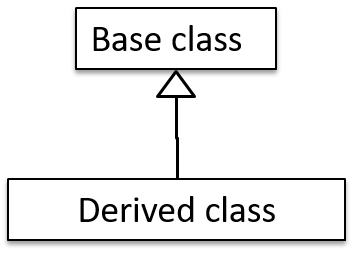
Examples: The Car class inherits from the Vehicle class. The Cat and Dog classes inherit from the Pet class.
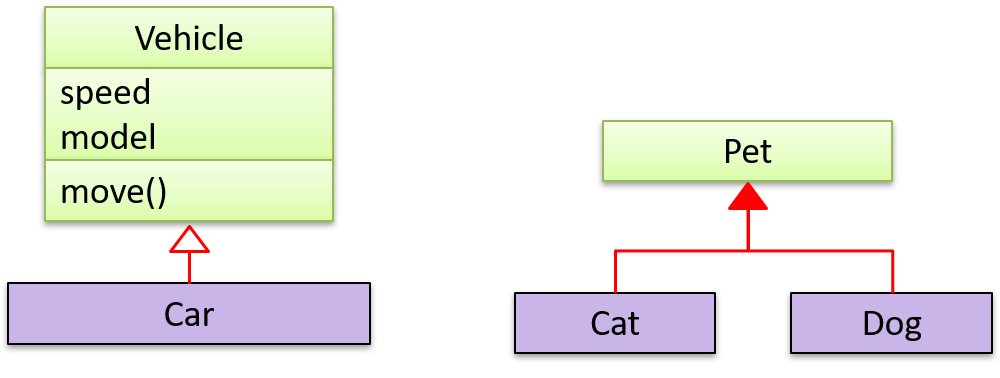
It does not matter whether the triangle is filled or empty.
Here's an example that combines inheritance with generics:
class Foo<T> {
}
class Bar<T> extends Foo<T> {
}
class Goo extends Foo<String> {
}
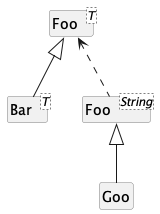
What
An interface is shown similar to a class with an additional keyword <<interface>>. When a class implements an interface, it is shown similar to class inheritance except a dashed line is used instead of a solid line.
The AcademicStaff and the AdminStaff classes implement the SalariedStaff interface.
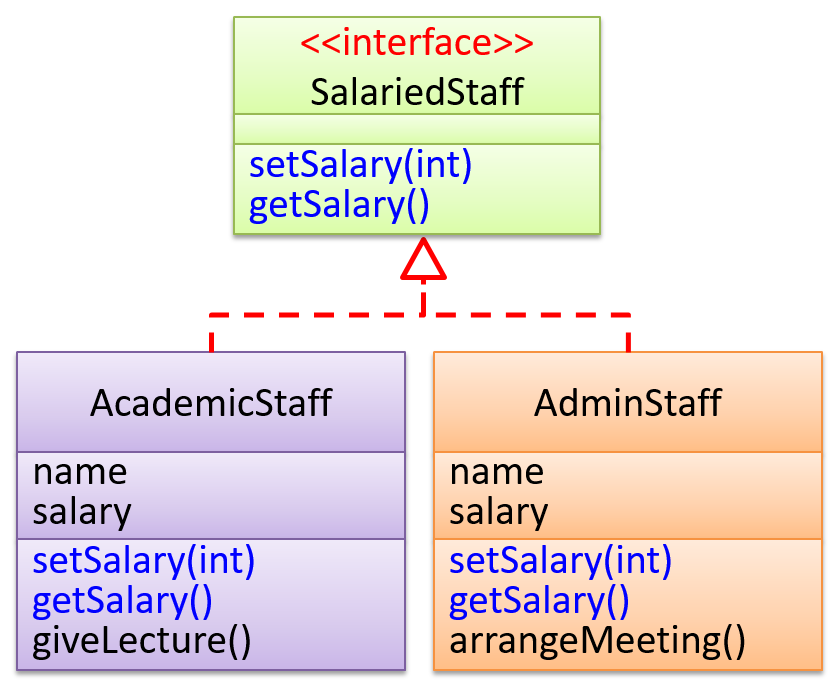
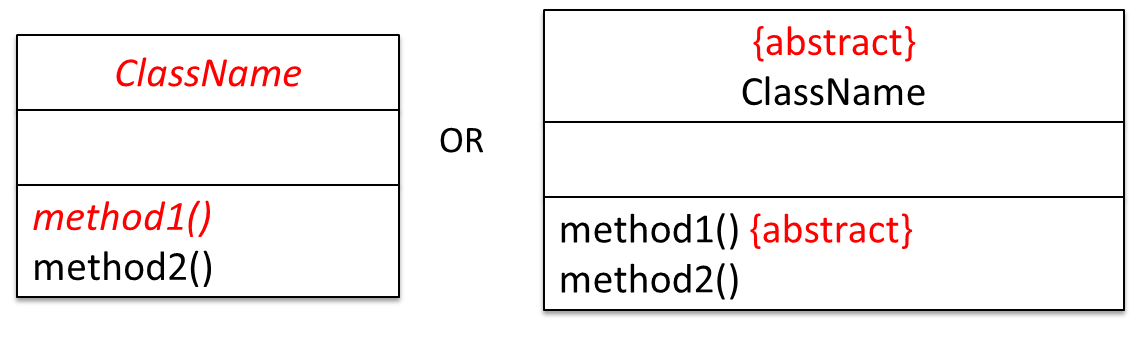
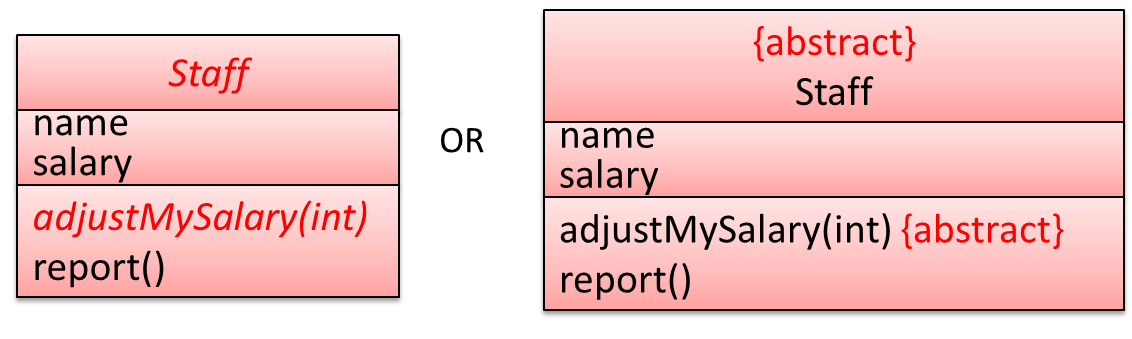
Introduction
A UML sequence diagram captures the interactions between multiple entities for a given scenario.
Consider the code below.
class Machine {
Unit producePrototype() {
Unit prototype = new Unit();
for (int i = 0; i < 5; i++) {
prototype.stressTest();
}
return prototype;
}
}
class Unit {
public void stressTest() {
}
}
Here is the sequence diagram to model the interactions for the method call producePrototype() on a Machine object.
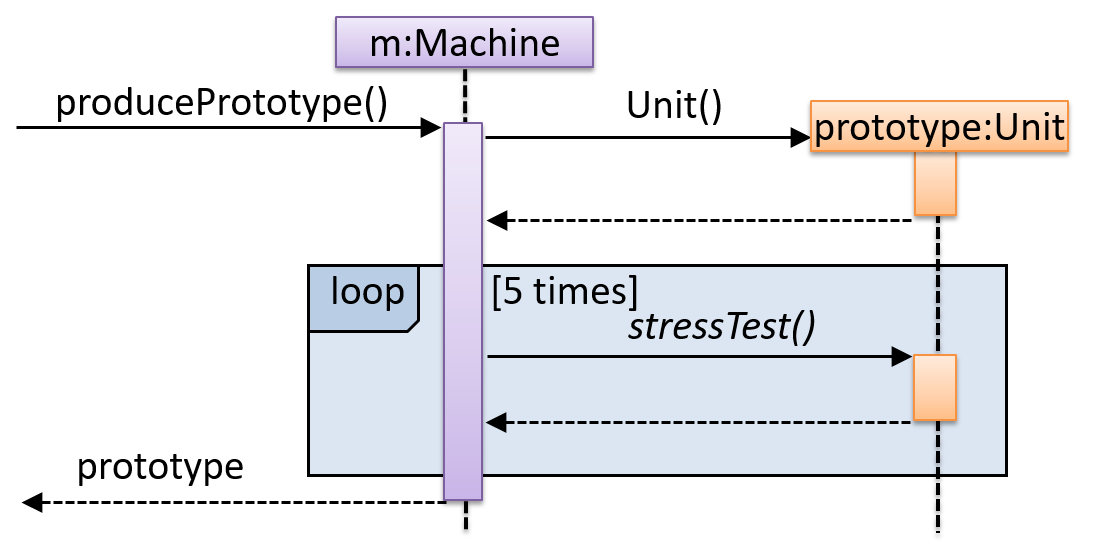
Basic
Notation:
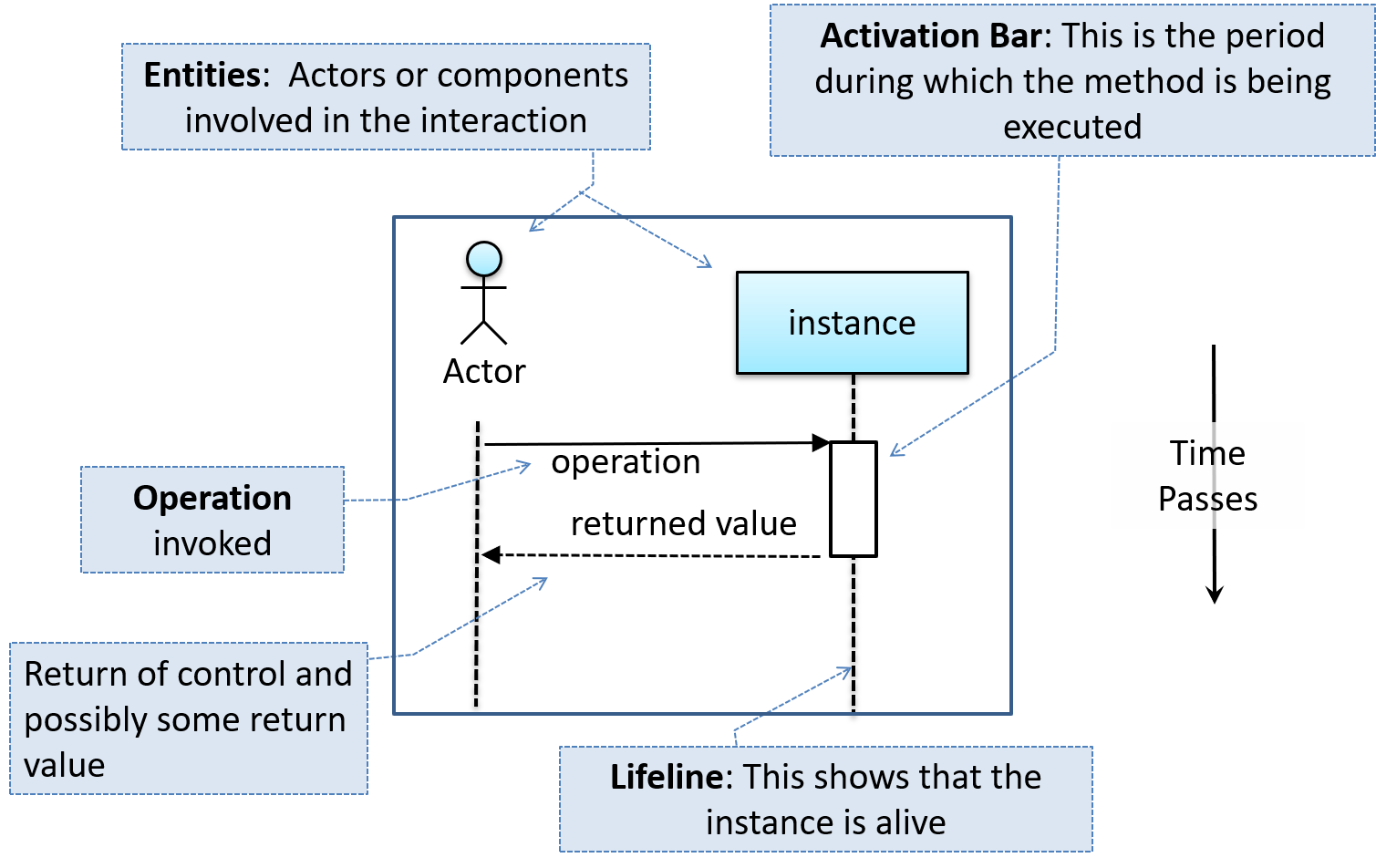
This sequence diagram shows some interactions between a human user and the Text UI of a Minesweeper game.
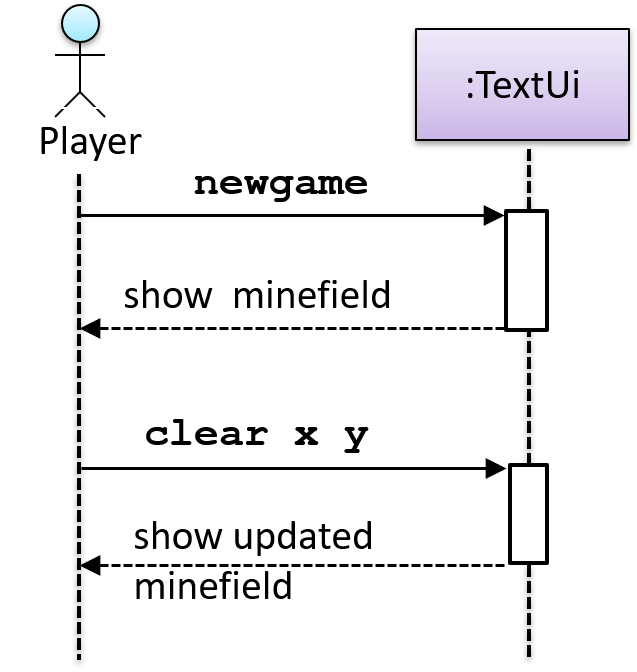
The player runs the newgame action on the TextUi object which results in the TextUi showing the minefield to the player. Then, the player runs the clear x y command; in response, the TextUi object shows the updated minefield.
The :TextUi in the above example denotes an unnamed instance of the class TextUi. If there were two instances of TextUi in the diagram, they can be distinguished by naming them e.g., TextUi1:TextUi and TextUi2:TextUi.
Arrows representing method calls should be solid arrows while those representing method returns should be dashed arrows.
Note that unlike in object diagrams, the class/object name is not underlined in sequence diagrams.
The arrowhead style depends on the type of method call. Arrows showing synchronous (i.e., the caller method is blocked from doing anything else until the called method returns) should use filled arrowheads (e.g.,  ). Most method calls (e.g., normal Java method calls) are synchronous. Asynchronous method calls (i.e., the caller method does not have to wait till the called method returns) are shown using lined arrowheads (e.g.,
  ). As the latter is out of scope for this textbook, all sequence diagram arrow heads you encounter in this textbook will be of the first type.
[Common notation error] Activation bar too long: The activation bar of a method cannot start before the method call arrives and a method cannot keep executing after the method has returned. In the two sequence diagrams below, the one on the left commits this error because the activation bar starts before the method Foo#xyz() is called and keeps executing even after the method returns.
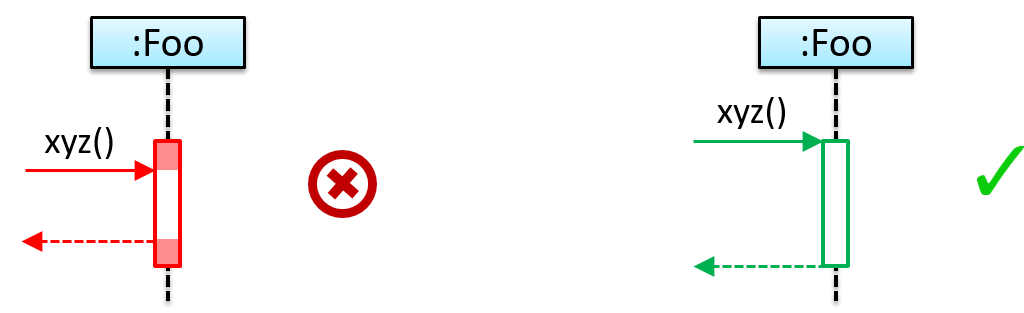
[Common notation error] Broken activation bar: The activation bar should remain unbroken while the method is being executed, from the point the method is called until the method returns. In the two sequence diagrams below, the one on the left commits this error because the activation bar for the method Foo#abc() is broken in the middle.
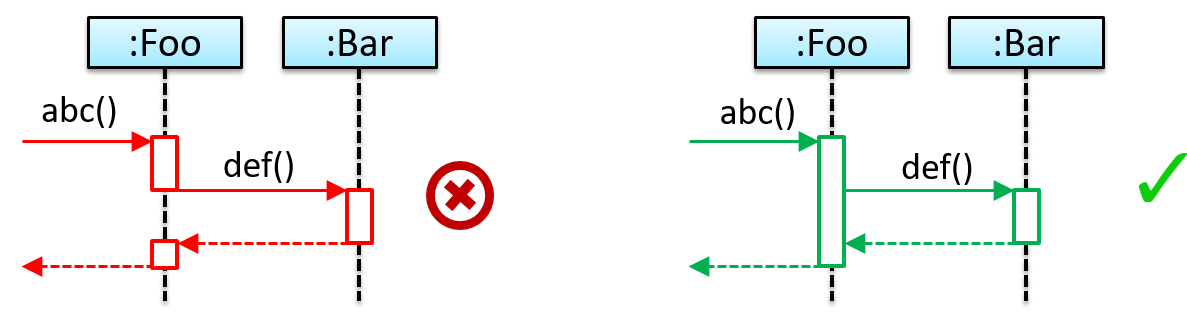
Object Creation
Notation:
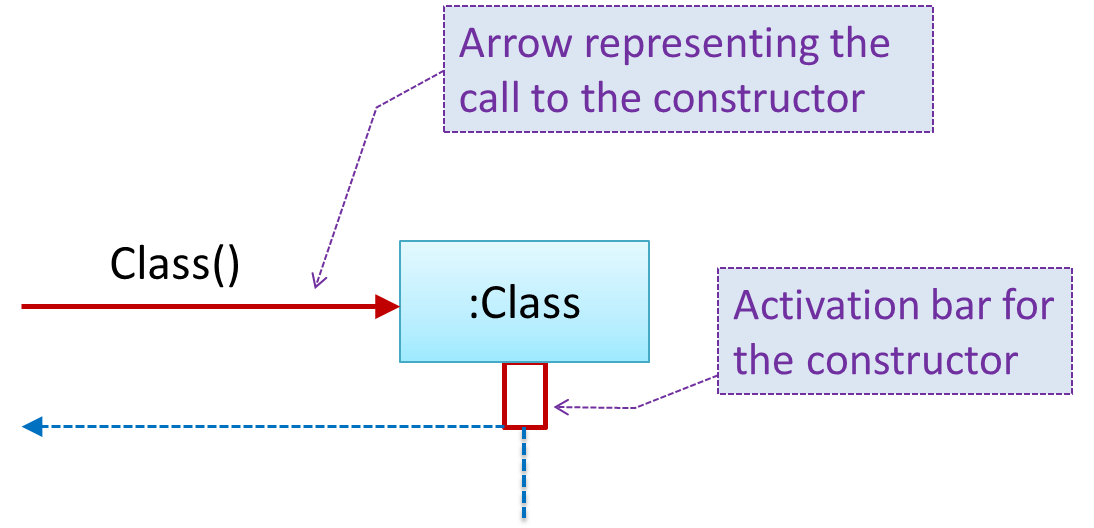
- The arrow that represents the constructor arrives at the side of the box representing the instance.
- The activation bar represents the period the constructor is being executed.
The Logic object creates a Minefield object.
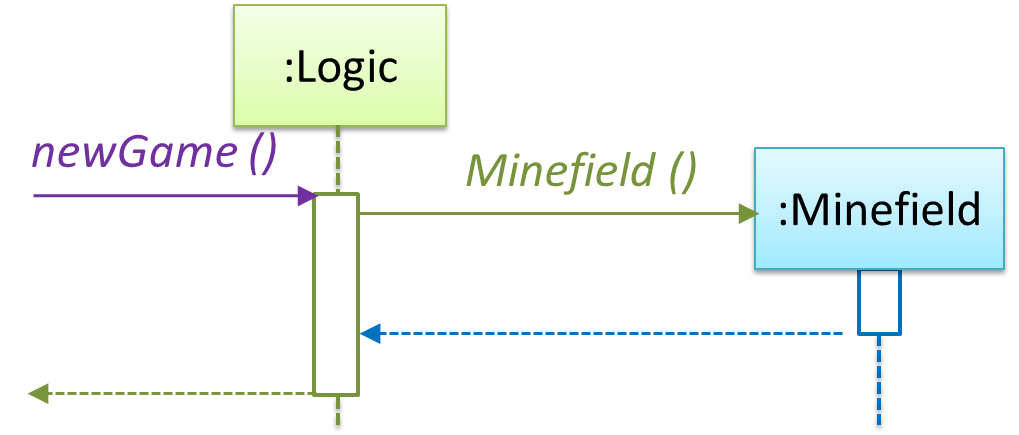
Object Deletion
UML uses an X at the end of the lifeline of an object to show its deletion.
Notation:
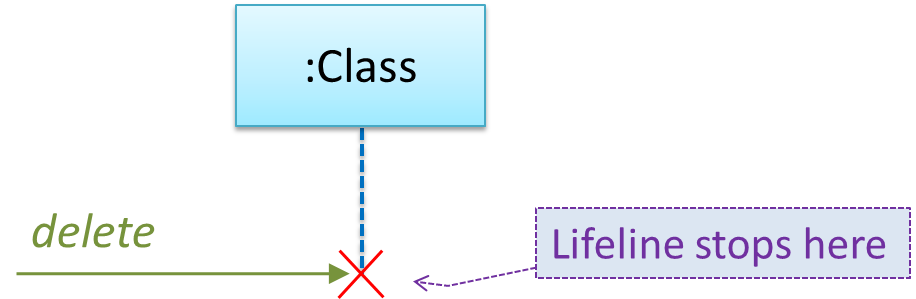
Note how the below diagram shows the deletion of the Minefield object.
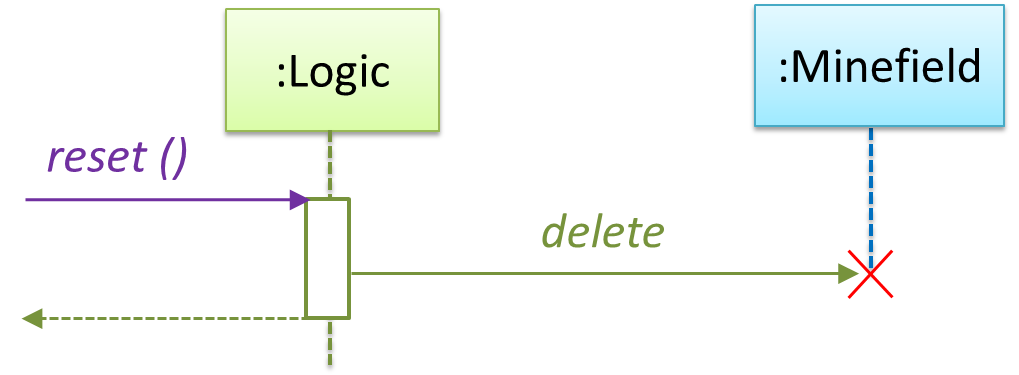
Although languages such as Java do not support a delete operation (because they use automatic memory management), you can use the object deletion notation to indicate the point at which the object becomes ready to be garbage-collected (i.e., the point at which it ceases to be referenced).
Note how d lifeline ends with an X to show that it is 'deleted' (i.e., ready to be garbage collected) after the cook() method returns.
class Chef {
void cook() {
Dish d = new Dish();
}
}
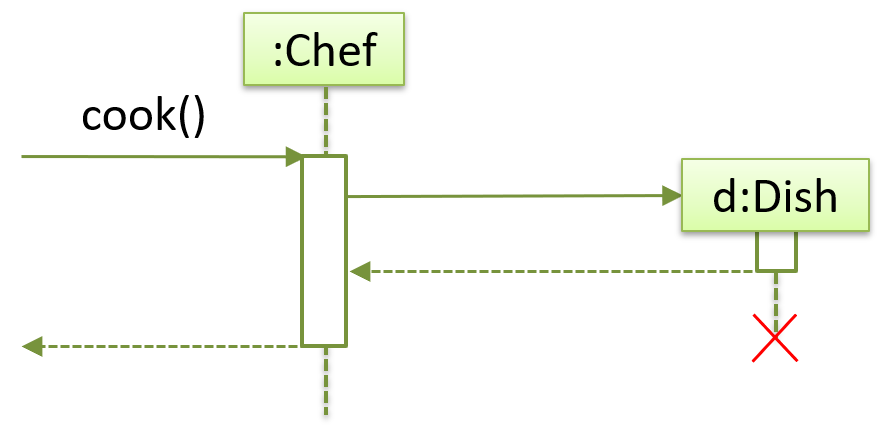
Loops
Notation:
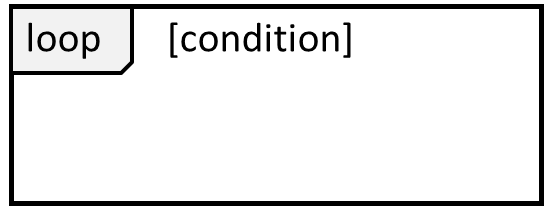
The Player calls the mark x,y command or clear x y command repeatedly until the game is won or lost.
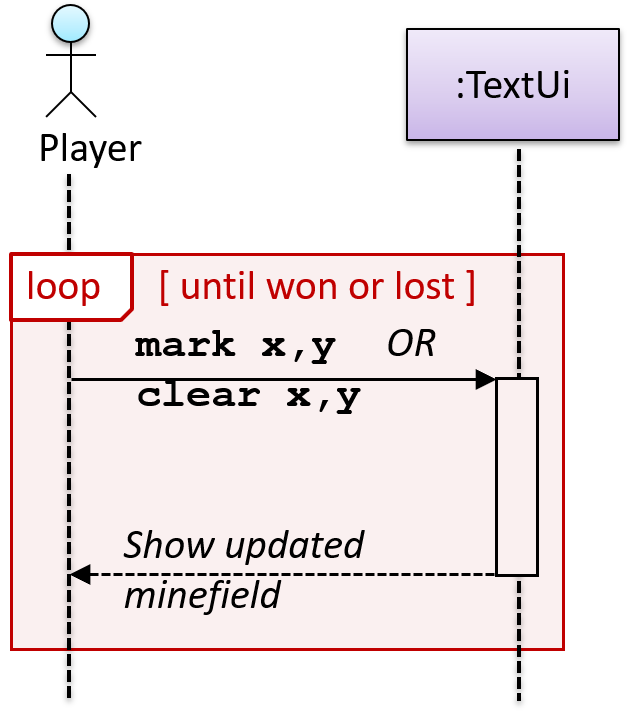
Self Invocation
UML can show a method of an object calling another of its own methods.
Notation:
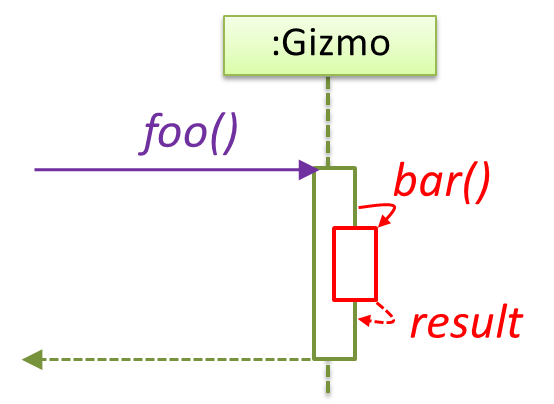
The markCellAt(...) method of a Logic object is calling its own updateState(...) method.
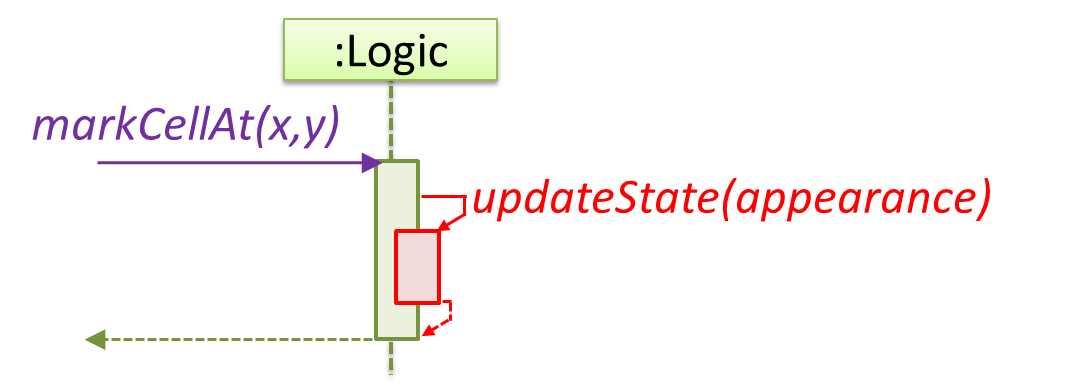
In this variation, the Book#write() method is calling the Chapter#getText() method which in turn does a call back by calling the getAuthor() method of the calling object.
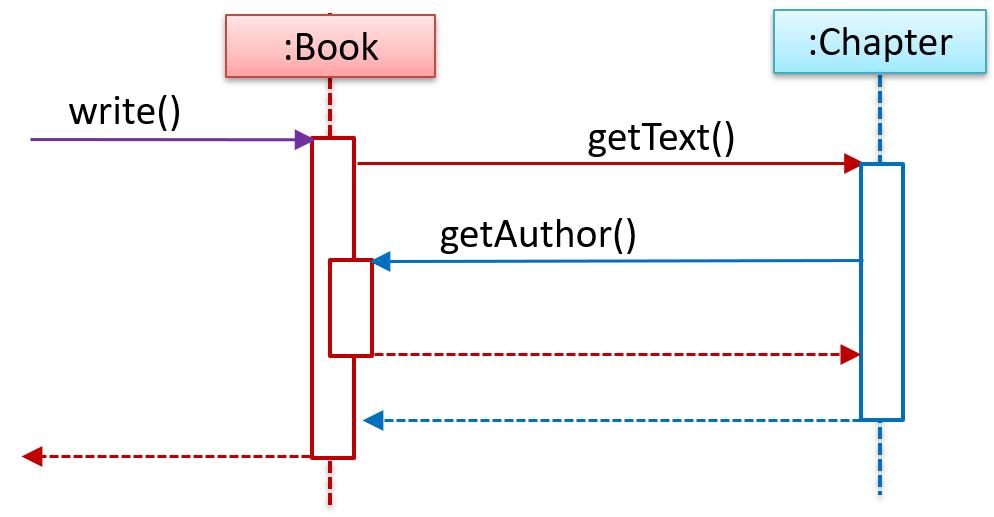
'Unroll' chained/compound method calls before drawing sequence diagram. Consider the Java statement new Book().add(new Chapter());. How do we show it as a sequence diagram? First, 'unroll' it into a simpler series of statements, which can then be drawn as a sequence diagram easily. For example, that statement is equivalent to the following:
Book b = new Book();
Chapter c = new Chapter();
b.add(c);
Alternative Paths
UML uses alt frames to indicate alternative paths.
Notation:
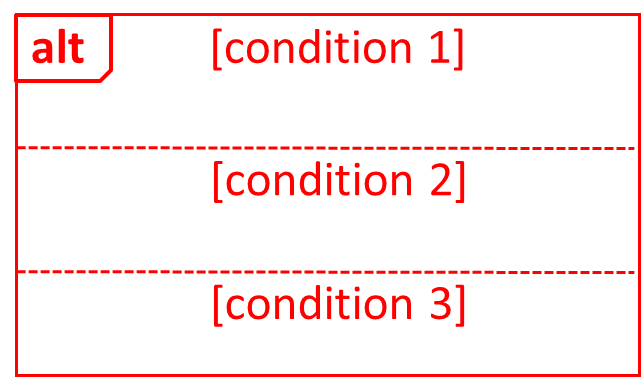
Minefield calls the Cell#setMine method if the cell is supposed to be a mined cell, and calls the Cell:setMineCount(...) method otherwise.
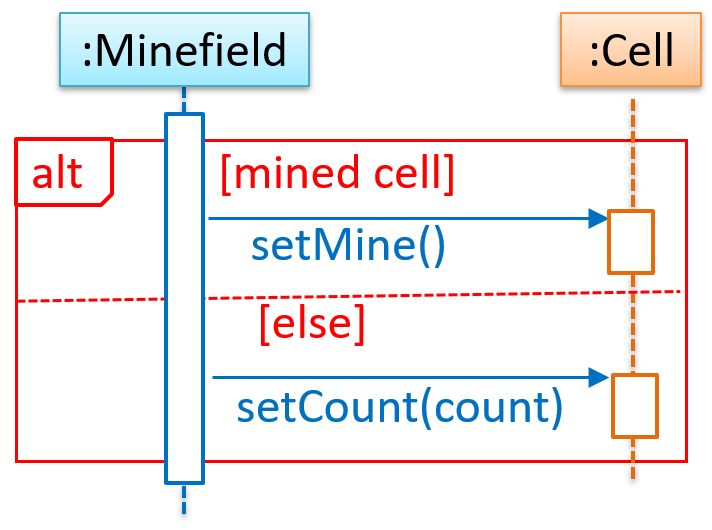
No more than one alternative partitions be executed in an alt frame. That is, it is acceptable for none of the alternative partitions to be executed but it is not acceptable for multiple partitions to be executed.
Optional Paths
UML uses opt frames to indicate optional paths.
Notation:
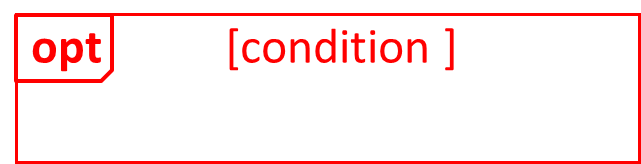
Logic#markCellAt(...) calls Timer#start() only if it is the first move of the player.
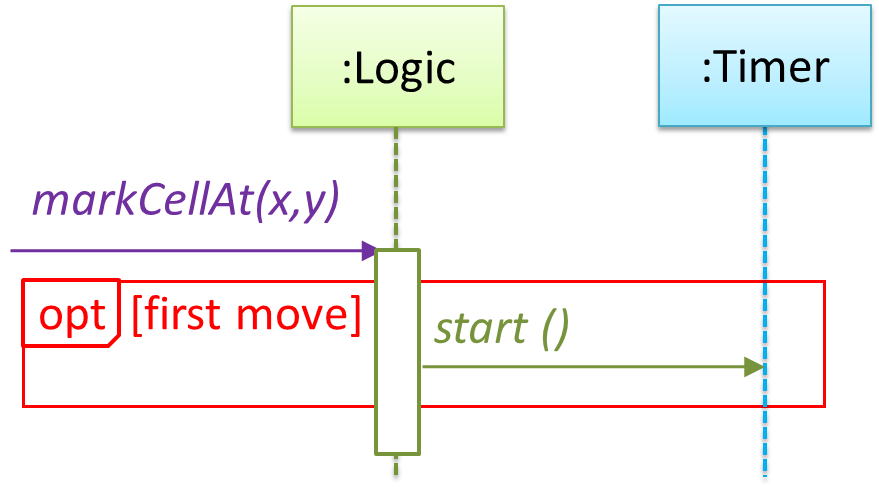
Parallel Paths
UML uses par frames to indicate parallel paths.
Notation:
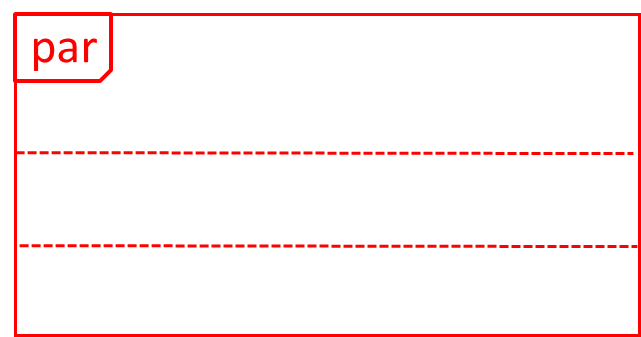
Logic is calling methods CloudServer#poll() and LocalData#poll() in parallel.
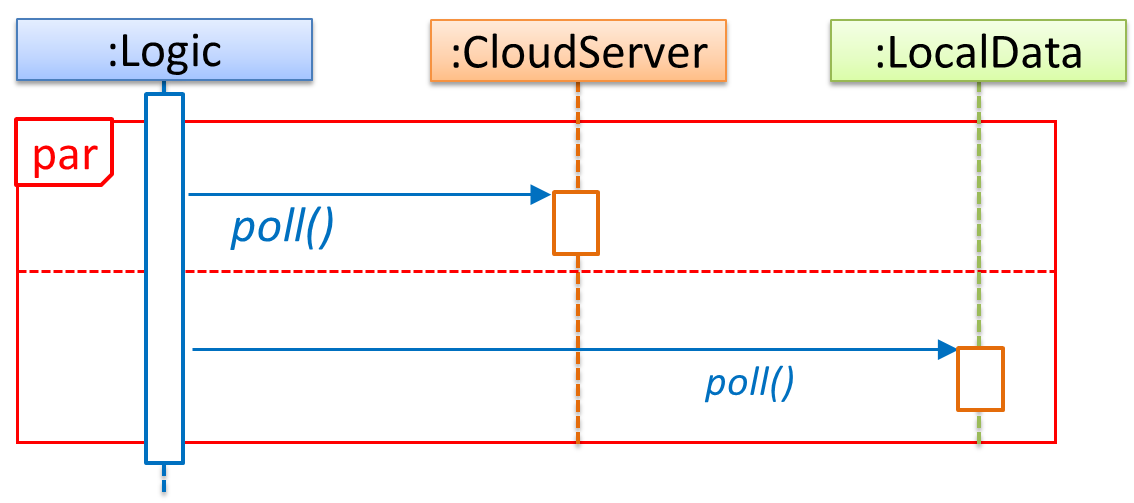
If you show parallel paths in a sequence diagram, the corresponding Java implementation is likely to be multi-threaded because a normal Java program cannot do multiple things at the same time.
Reference Frames
UML uses ref frame to allow a segment of the interaction to be omitted and shown as a separate sequence diagram. Reference frames help you to break complicated sequence diagrams into multiple parts or simply to omit details you are not interested in showing.
Notation:
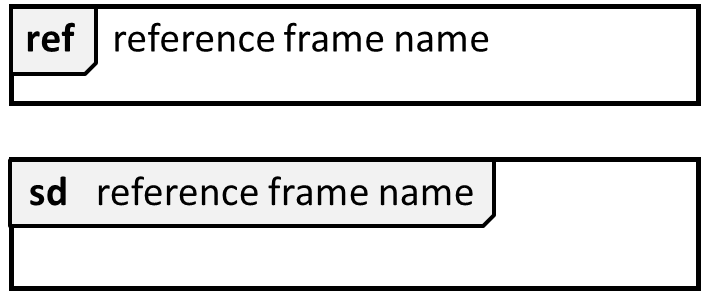
The details of the get minefield appearance interactions have been omitted from the diagram.
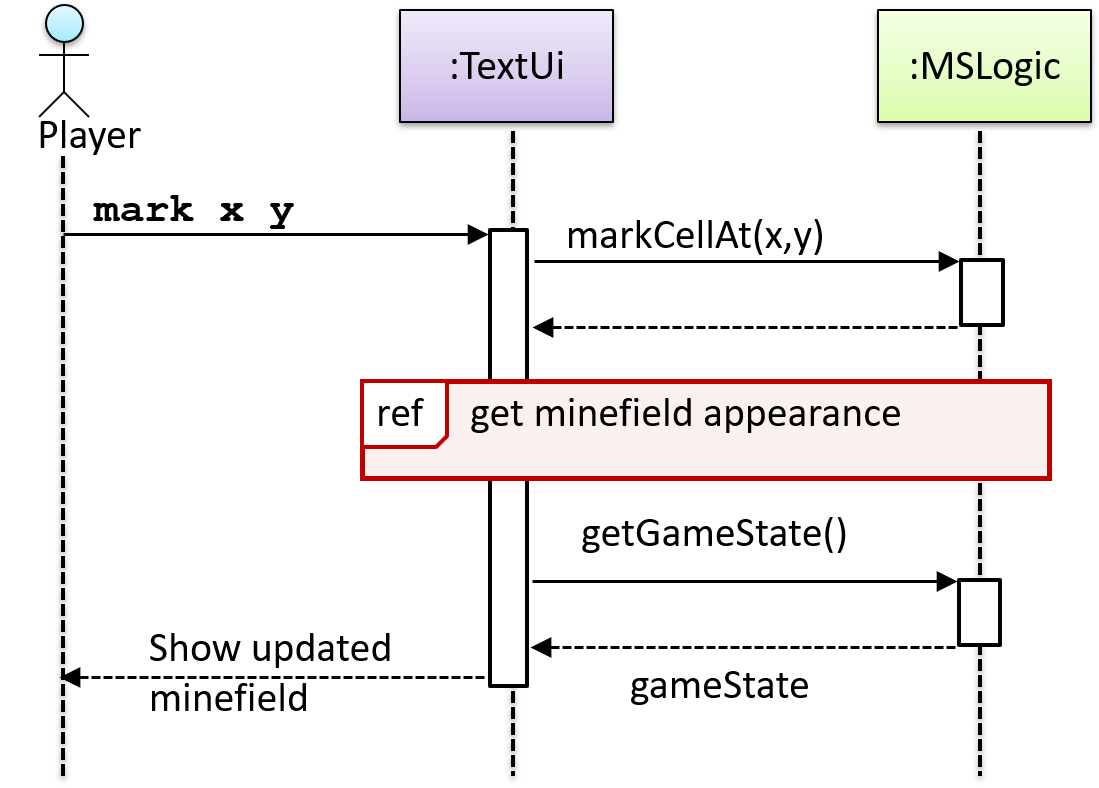
Those details are shown in a separate sequence diagram given below.
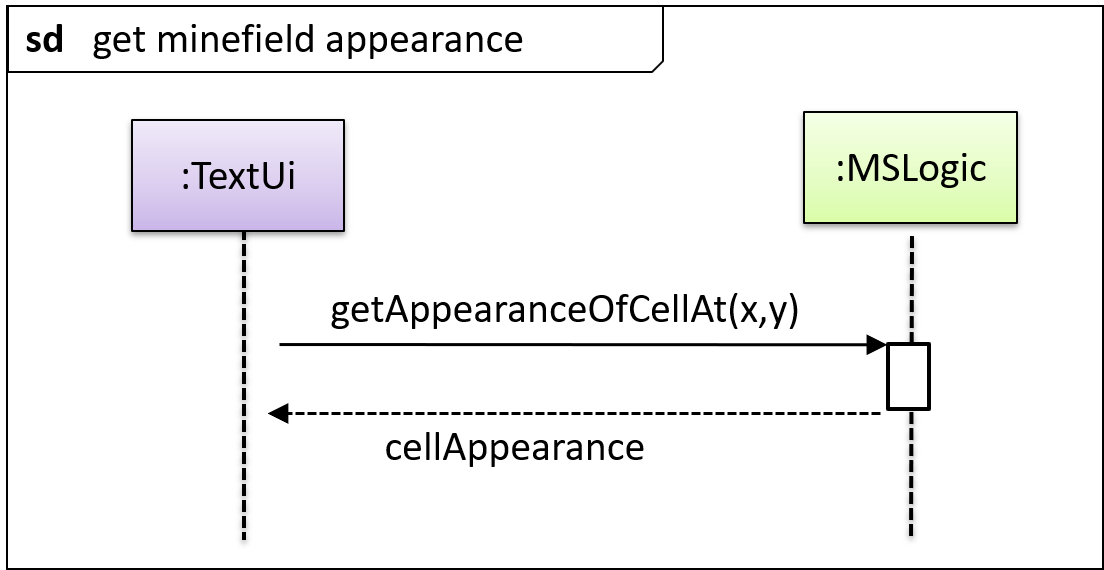
Calls to Static Methods
Method calls to static (i.e., class-level) methods are received by the class itself, not an instance of that class. You can use <<class>> to show that a participant is the class itself.
In this example, m calls the static method Person.getMaxAge() and also the setAge() method of a Person object p.
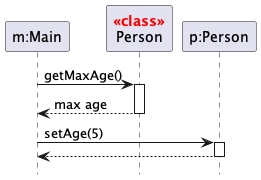
Here is the Person class, for reference:
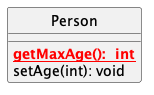
Minimal Notation
To reduce clutter, optional elements (e.g, activation bars, return arrows) may be omitted if the omission does not result in ambiguities or loss of . Informal operation descriptions such as those given in the example below can be used, if more precise details are not required for the task at hand.
A minimal sequence diagram
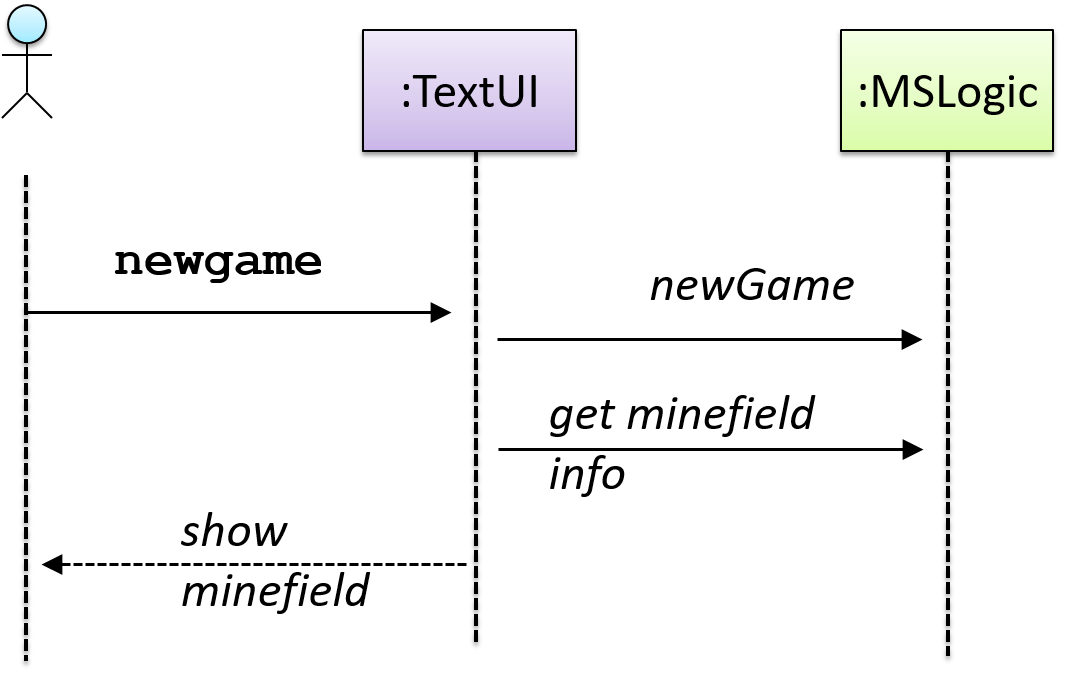
If method parameters don't matter to the purpose of the sequence diagram, you can omit them using ... e.g., use foo(...) instead of foo(int size, double weight).
Introduction
An object diagram shows an object structure at a given point of time.
An example object diagram:
Objects
Notation:
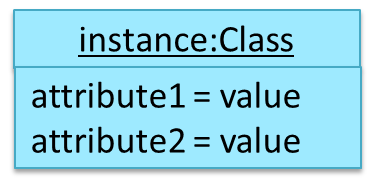
Notes:
- The class name and object name are underlined e.g.,
car1:Car. objectName:ClassNameis meant to say 'an instance ofClassNameidentified asobjectName'.- Unlike classes, there is no compartment for methods.
- Attributes compartment can be omitted if it is not relevant to the purpose of the diagram.
- Object name can be omitted too e.g.,
:Carwhich is meant to say 'an unnamed instance of aCarobject'.
Some example objects:


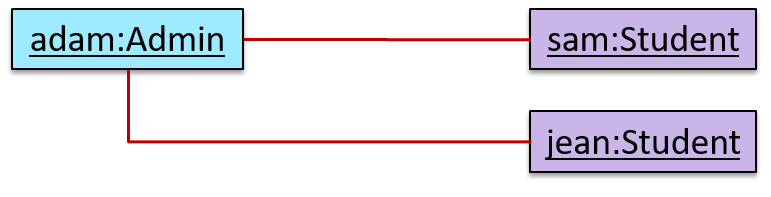
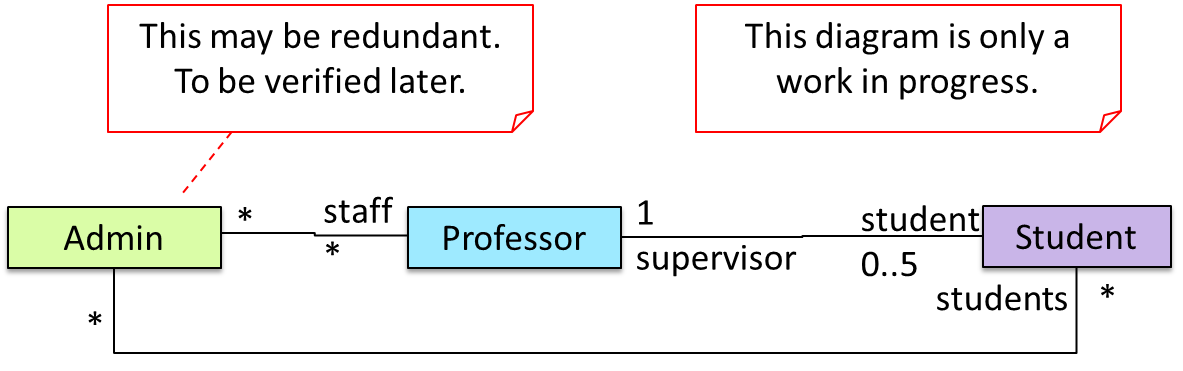

Object vs Class Diagrams
Compared to the notation for class diagrams, object diagrams differ in the following ways:
- Show objects instead of classes:
- Instance name may be shown
- There is a
:before the class name - Instance and class names are underlined
- Methods are omitted
- Multiplicities are omitted. Reason: an association line in an object diagram represents a connection to exactly one object (i.e., the multiplicity is always 1).
Furthermore, multiple object diagrams can correspond to a single class diagram.
Both object diagrams are derived from the same class diagram shown earlier. In other words, each of these object diagrams shows ‘an instance of’ the same class diagram.
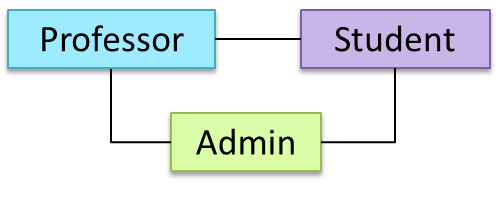
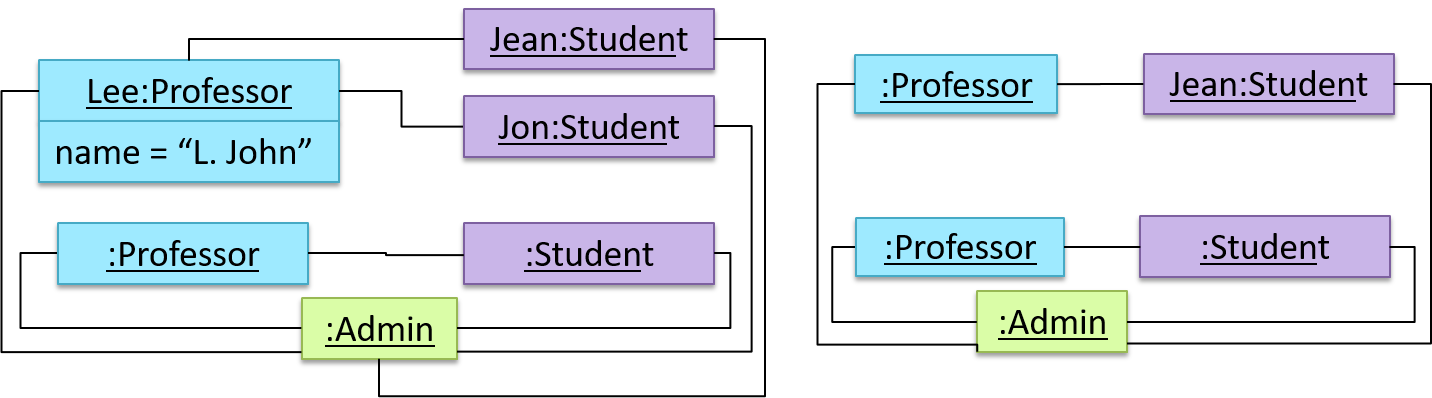
When the class diagram has an inheritance relationship, the object diagram should show either an object of the parent class or the child class, but not both.
Suppose Employee is a child class of the Person class. The class diagram will be as follows:
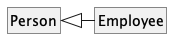
Now, how do you show an Employee object named jake?
 This is not correct, as there should be only one object.
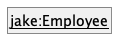 This is OK.
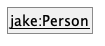 This is OK, as
 jakeis aPersontoo. That is, we can show the parent class instead of the child class if the child class doesn't matter to the purpose of the diagram (i.e., the reader of this diagram will not need to know thatjakeis in fact anEmployee).
Association labels/roles can be omitted unless they add value (e.g., showing them is useful if there are multiple associations between the two classes in concern -- otherwise you wouldn't know which association the object diagram is showing)
Consider this class diagram and the object diagram:
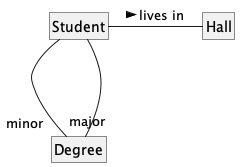
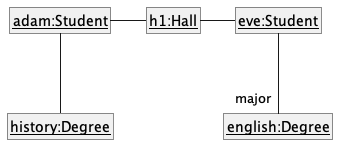
We can clearly see that both Adam and Eve lives in hall h1 (i.e., OK to omit the association label lives in) but we can't see if History is Adam's major or his minor (i.e., the diagram should have included either an association label or a role there). In contrast, we can see Eve is an English major.