Week 3 [Mon, Aug 25th] - Topics
Guidance for the item(s) below:
While you can (and will be) defining your own classes, Java comes with a whole bunch of built-in classes that you can use right-away. Let's learn about some of the most useful such built-in classes next.
Guidance for the item(s) below:
Last week, you learned how to create a local repo, and back it up in the cloud as a remote repo. This week, you will learn how to make use of repositories more.
Target Usage: To work with an existing remote repository.
Motivation: Often, you will need to start with an existing remote repository. In such cases, you may have to create your own copies of that repository, and keep those copies updated when more changes appear in the remote repository.
Lesson plan:
T3L1. Duplicating a Remote Repo on the Cloud covers that part.
T3L2. Creating a Local Copy of a Repo covers that part.
T3L3. Downloading Data Into a Local Repo covers that part.
GitHub allows you to create a remote copy of another remote repo, called forking.
A fork is a copy of a remote repository created on the same hosting service such as GitHub, GitLab, or Bitbucket. On GitHub, you can fork a repository from another user or organisation into your own space (i.e., your user account or an organisation you have sufficient access to). Forking is particularly useful if you want to experiment with a repo but don’t have write permissions to the original -- you can fork it and work on your own remote copy without affecting the original repository.
Preparation Create a GitHub account if you don't have one yet.
1 Go to the GitHub repo you want to fork e.g., samplerepo-things
2 Click on the  button in the top-right corner. In the next step,
- choose to fork to your own account or to another GitHub organization that you are an admin of.
- un-tick the
[ ] Copy the master branch onlyoption, so that you get copies of other branches (if any) in the repo.
done!
Forking is not a Git feature, but a feature provided by hosted Git services like GitHub, GitLab, or Bitbucket.
GitHub does not allow you to fork the same repo more than once to the same destination. If you want to re-fork, you need to delete the previous fork.
The next step is to create a local copy of the remote repo, by cloning the remote repo.
You can clone a repository to create a full copy of it on your computer. This copy includes the entire revision history, branches, and files of the original, so it behaves just like the original repository. For example, you can clone a repository from a hosting service like GitHub to your computer, giving you a complete local version to work with.
Cloning a repo automatically creates a remote named origin which points to the repo you cloned from.
The repo you cloned from is often referred to as the upstream repo.
1 Clone the remote repo to your computer. For example, you can clone the samplerepo-things repo, or the fork you created from it in a previous lesson.
Note that the URL of the GitHub project is different from the URL you need to clone a repo in that GitHub project. e.g.
https://github.com/se-edu/samplerepo-things # GitHub project URL
https://github.com/se-edu/samplerepo-things.git # the repo URL
You can use the git clone <repository-url> [directory-name] command to clone a repo.
<repository-url>: The URL of the remote repository you want to copy.[directory-name](optional): The name of the folder where you want the repository to be cloned. If you omit this, Git will create a folder with the same name as the repository.
git clone https://github.com/se-edu/samplerepo-things.git # if using HTTPS
git clone git@github.com:se-edu/samplerepo-things.git # if using SSH
git clone https://github.com/foo/bar.git my-bar-copy # also specifies a dir to use
For exact steps for cloning a repo from GitHub, refer to this GitHub document.
File → Clone / New ... and provide the URL of the repo and the destination directory.
File → New ... → Choose as shown below → Provide the URL of the repo and the destination directory in the next dialog.
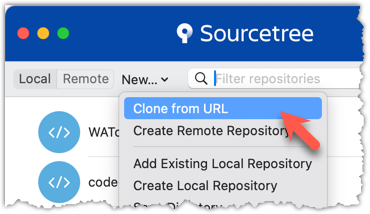
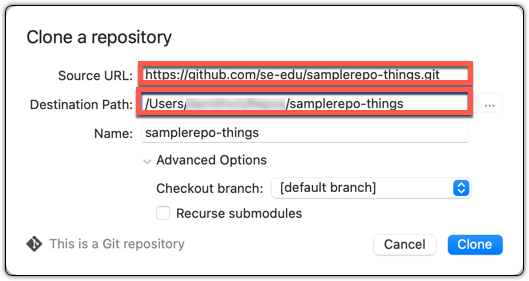
2 Verify the clone has a remote named origin pointing to the upstream repo.
Use the git remote -v command that you learned earlier.
Choose Repository → Repository Settings menu option.
done!
When there are new changes in the remote, you need to pull those changes down to your local repo.
There are two steps to bringing over changes from a remote repository into a local repository: fetch and merge.
- Fetch is the act of downloading the latest changes from the remote repository, but without applying them to your current branch yet. It updates metadata in your repo so that it knows what has changed in the remote repo, but your own local branch remains untouched.
- Merge is what you do after fetching, to actually incorporate the fetched changes into your local branch. It combines your local branch with the changes from the corresponding branch from the remote repo.
1 Clone the repo se-edu/samplerepo-finances. It has 3 commits. Your clone now has a remote origin pointing to the remote repo you cloned from.
2 Change the remote origin to point to samplerepo-finances-2. This remote repo is a copy of the one you cloned, but it has two extra commits.
git remote set-url origin https://github.com/se-edu/samplerepo-finances-2.git
Go to Repository → Repository settings ... to update remotes.
3 Verify the local repo is unaware of the extra commits in the remote.
git status
On branch master
Your branch is up to date with 'origin/master'.
nothing to commit, working tree clean
The revision graph should look like the below:
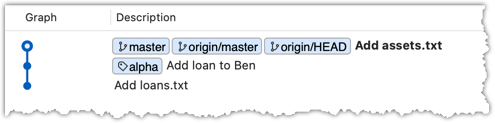
If it looks like the below, it is possible that Sourcetree is auto-fetching data from the repo periodically.
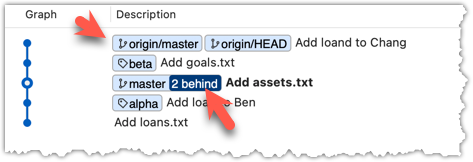
4 Fetch from the new remote.
Use the git fetch <remote> command to fetch changes from a remote. If the <remote> is not specified, the default remote origin will be used.
git fetch origin
remote: Enumerating objects: 8, done.
... # more output ...
afbe966..cc6a151 master -> origin/master
* [new tag] beta -> beta
Click on the Fetch button on the top menu:

5 Verify the fetch worked i.e., the local repo is now aware of the two missing commits. Also observe how the local branch ref of the master branch, the staging area, and the working directory remain unchanged after the fetch.
Use the git status command to confirm the repo now knows that it is behind the remote repo.
git status
On branch master
Your branch is behind 'origin/master' by 2 commits, and can be fast-forwarded.
(use "git pull" to update your local branch)
nothing to commit, working tree clean
Now, the revision graph should look something like the below. Note how the origin/master ref is now two commits ahead of the master ref.
6 Merge the fetched changes.
Use the git merge <remote-tracking-branch> command to merge the fetched changes. Check the status and the revision graph to verify that the branch tip has now moved by two more commits.
git merge origin/master
git status
git log --oneline --decorate
To merge the fetched changes, right-click on the latest commit on origin/remote branch and choose Merge.
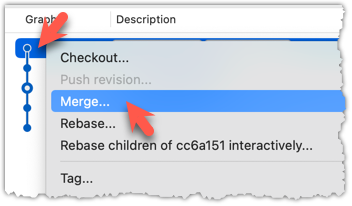
In the next dialog, choose as follows:
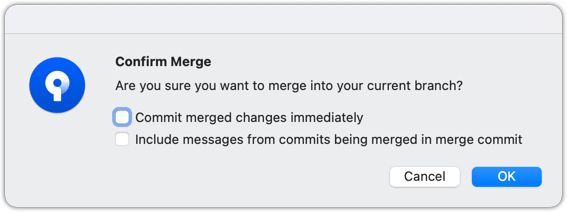
The final result should be something like the below (same as the repo state before we started this hands-on practical):
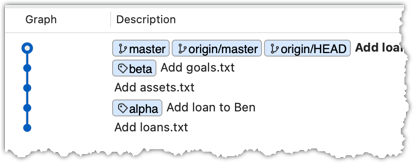
Note that merging the fetched changes can get complicated if there are multiple branches or the commits in the local repo conflict with commits in the remote repo. We will address them when we learn more about Git branches, in a later lesson.
done!
Pull is a shortcut that combines fetch and merge — it fetches the latest changes from the remote and immediately merges them into your current branch. In practice, Git users typically use the pull instead of the fetch-then-merge.
pull = fetch + merge
1 Similar to the previous hands-on practical, clone the repo se-edu/samplerepo-finances (to a new location).
Change the remote origin to point to samplerepo-finances-2.
2 Pull the newer commits from the remote, instead of a fetch-then-merge.
Use the git pull <remote> <branch> command to pull changes.
git pull origin master
The following works too. If the <remote> and <branch> are not specified, Git will pull to the current branch from the remote branch it is tracking.
git pull
Click on the Pull button on the top menu:
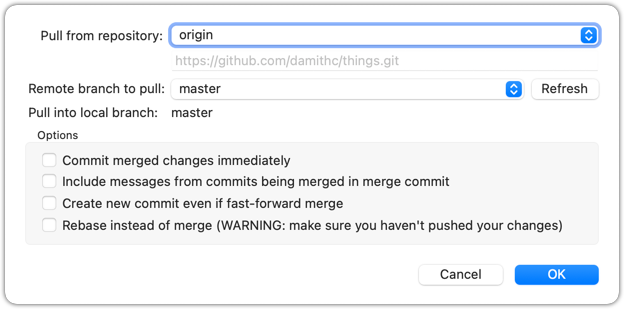
3 Verify the outcome is same as the fetch + merge steps you did in the previous hands-on practical.
done!
You can pull from any number of remote repos, provided the repos involved have a shared history. This can be useful when the upstream repo you forked from has some new commits that you wish to bring over to your copies of the repo (i.e., your fork and your local repo).
Preparation Fork se-edu/samplerepo-finances to your GitHub account.
Clone your fork to your computer.
Now, let's pretend that there are some new commits in upstream repo that you would like to bring over to your fork, and your local repo. Here are the steps:
1 Add the upstream repo se-edu/samplerepo-finances as remote named upstream in your local repo.
Adding remotes was covered in Lesson T2L4. Linking a Local Repo With a Remote Repo
2 Pull from the upstream repo. If there are new commits (in this case, there will be none), those will come over to your local repo. For example:
git pull upstream master
3 Push to your fork. Any new commits you pulled from the upstream repo will now appear in your fork as well. For example:
git push origin master
The method given above is the more 'standard' method of synchronising a fork with the upstream repo. In addition, platforms such as GitHub can provide other ways (example: GitHub's Sync fork feature).
4 For good measure, let's pull from another repo.
- Add the upstream repo se-edu/samplerepo-finances-2 as remote named
other-upstreamin your local repo. - Pull from it to your local repo; this will bring some new commits.
- Now, you can push those new commits to your fork.
git remote add other-upstream https://github.com/se-edu/samplerepo-finances-2.git
git pull other-upstream master
git push origin master
done!
At this point: Now you can create your own remote and local copies of any repo on GitHub, and update your copy when there are new changes in the upstream repo.
What's next: Tour 4: Using the Revision History of a Repo
Target Usage: To make use of the revision history stored by Git.
Motivation: Having put in effort to record the revision history of the working folder, it only makes sense that we use the revision history to our benefit. For example, to be able to answer questions such as "What did I change in this file since last Monday?"
Lesson plan:
T4L1. Examining a Commit covers that part.
T4L2. Tagging Commits covers that part.
T4L3. Comparing Points of History covers that part.
T4L4. Traversing to a Specific Commit covers that part.
T4L5. Rewriting History to Start Over covers that part.
T4L6. Reverting a Specific Commit covers that part.
It is useful to be able to see what changes were included in a specific commit.
When you examine a commit, normally what you see is the 'changes made since the previous commit'. This does not mean that a Git commit contains only the changes made since the previous commit. As you recall, a Git commit contains a full snapshot of the working directory. However, tools used to examine commits typically show only the changes, as that is the more informative part.
Git shows changes included in a commit by dynamically calculating the difference between the snapshots stored in the target commit and the parent commit. This is because Git commits store snapshots of the working directory, not changes themselves.
Although each commit represents a copy of the entire working directory, Git uses space efficiently in two main ways:
- Reuse of unchanged data: If a file hasn’t changed since a previous commit, the commit simply points to the already stored version of that file instead of making another copy. This means only new or changed files take up extra space, while unchanged files are reused.
- Compression: Git also compresses all the files and data it stores using an algorithm (zlib). So, even the objects that are stored (whether reused or new) take up less disk space because they are saved in a compressed format.
To address a specific commit, you can use its SHA (e.g., e60deaeb2964bf2ebc907b7416efc890c9d4914b). In fact, just the first few characters of the SHA is enough to uniquely address a commit (e.g., e60deae), provided the partial SHA is long enough to uniquely identify the commit (i.e., only one commit has that partial SHA).
Naturally, a commit can be addressed using any ref pointing to it too (e.g., HEAD, master).
Another related technique is to use the <ref>~<n> notation (e.g., HEAD~1) to address the commit that is n commits prior to the commit pointed by <ref> i.e., "start with the commit pointed by <ref> and go back n commits".
A related alternative notation is HEAD~, HEAD~~, HEAD~~~, ... to mean HEAD~1, HEAD~2, HEAD~3 etc.
HEAD or masterHEAD~1 or master~1 or HEAD~ or master~HEAD~2 or master~2Git uses the diff format to show file changes in a commit. The diff format was originally developed for Unix. It was later extended with headers and metadata to show changes between file versions and commits. Here is an example diff showing the changes to a file.
diff --git a/fruits.txt b/fruits.txt
index 7d0a594..f84d1c9 100644
--- a/fruits.txt
+++ b/fruits.txt
@@ -1,6 +1,6 @@
-apples
+apples, apricots
bananas
cherries
dragon fruits
-elderberries
figs
@@ -20,2 +20,3 @@
oranges
+pears
raisins
diff --git a/colours.txt b/colours.txt
new file mode 100644
index 0000000..55c8449
--- /dev/null
+++ b/colours.txt
@@ -0,0 +1 @@
+a file for colours
A Git diff can consist of multiple file diffs, one for each changed file. Each file diff can contain one or more hunk i.e., a localised group of changes within the file — including lines added, removed, or left unchanged (included for context).
Given below is how the above diff is divided into its components:
File diff for fruits.txt:
diff --git a/fruits.txt b/fruits.txt
index 7d0a594..f84d1c9 100644
--- a/fruits.txt
+++ b/fruits.txt
Hunk 1:
@@ -1,6 +1,6 @@
-apples
+apples, apricots
bananas
cherries
dragon fruits
-elderberries
figs
Hunk 2:
@@ -20,2 +20,3 @@
oranges
+pears
raisins
File diff for colours.txt:
diff --git a/colours.txt b/colours.txt
new file mode 100644
index 0000000..55c8449
--- /dev/null
+++ b/colours.txt
Hunk 1:
@@ -0,0 +1 @@
+a file for colours
Here is an explanation of the diff:
| Part of Diff | Explanation |
|---|---|
diff --git a/fruits.txt b/fruits.txt | The diff header, indicating that it is comparing the file fruits.txt between two versions: the old (a/) and new (b/). |
index 7d0a594..f84d1c9 100644 | Shows the before and after the change, and the file mode (100 means a regular file, 644 are file permission indicators). |
--- a/fruits.txt+++ b/fruits.txt | Marks the old version of the file (a/fruits.txt) and the new version of the file (b/fruits.txt). |
| This hunk header shows that lines 1-6 (i.e., starting at line 1, showing 6 lines) in the old file were compared with lines 1–6 in the new file. |
-apples+apples, apricots | Removed line apples and added line apples, apricots. |
bananascherriesdragon fruits | Unchanged lines, shown for context. |
-elderberries | Removed line: elderberries. |
figs | Unchanged line, shown for context. |
| Hunk header showing that lines 20-21 in the old file were compared with lines 20–22 in the new file. |
oranges+pearsraisins | Unchanged line. Added line: pears.Unchanged line. |
diff --git a/colours.txt b/colours.txt | The usual diff header, indicates that Git is comparing two versions of the file colours.txt: one before and one after the change. |
new file mode 100644 | This is a new file being added. 100644 means it’s a normal, non-executable file with standard read/write permissions. |
index 0000000..55c8449 | The usual SHA hashes for the two versions of the file. 0000000 indicates the file did not exist before. |
--- /dev/null+++ b/colours.txt | Refers to the "old" version of the file (/dev/null means it didn’t exist before), and the new version. |
@@ -0,0 +1 @@ | Hunk header, saying: “0 lines in the old file were replaced with 1 line in the new file, starting at line 1.” |
+a file for colours | Added line |
Points to note:
+indicates a line being added.
-indicates a line being deleted.- Editing a line is seen as deleting the original line and adding the new line.
TargetView contents of specific commits in a repo.
Preparation You can use any repo that has commits e.g., the things repo.
1 Locate the commits to view, using the revision graph.
git log --oneline --decorate
e60deae (HEAD -> master, origin/master) Update fruits list
f761ea6 Add colours.txt, shapes.txt
2bedace Add figs to fruits.txt
d5f91de Add fruits.txt
2 Use the git show command to view specific commits.
git show # shows the latest commit
commit e60deaeb2964bf2ebc907b7416efc890c9d4914b (HEAD -> master, origin/master)
Author: damithc <...@...>
Date: Sat Jun ...
Update fruits list
diff --git a/fruits.txt b/fruits.txt
index 7d0a594..6d502c3 100644
--- a/fruits.txt
+++ b/fruits.txt
@@ -1,6 +1,6 @@
-apples
+apples, apricots
bananas
+blueberries
cherries
dragon fruits
-elderberries
figs
To view the parent commit of the latest commit, you can use any of these commands:
git show HEAD~1
git show master~1
git show e60deae # first few characters of the SHA
git show e60deae..... # run git log to find the full SHA and specify the full SHA
To view the commit that is two commits before the latest commit, you can use git show HEAD~2 etc.
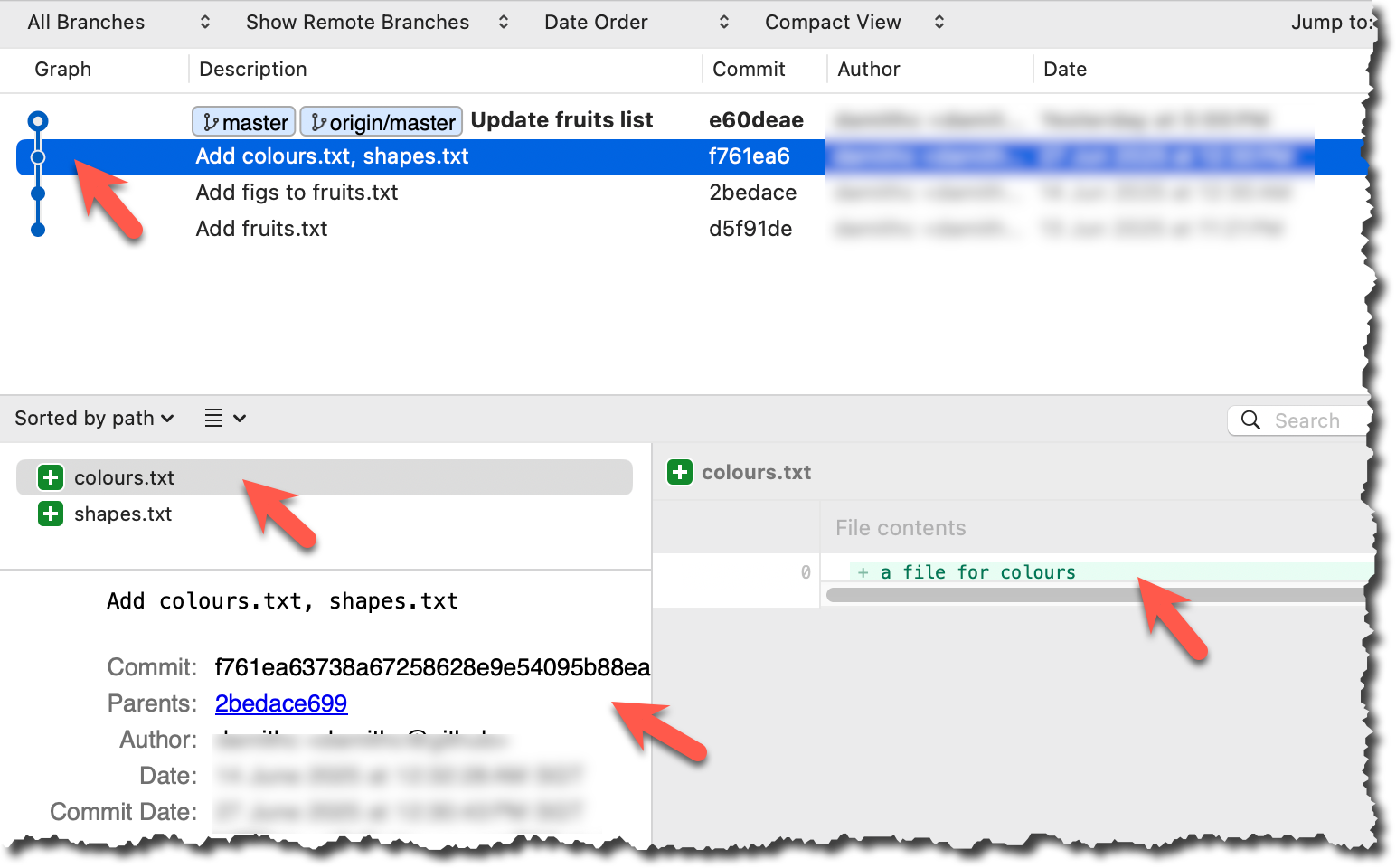
Click on the commit. The remaining panels (indicated in the image below) will be populated with the details of the commit.
done!
PRO-TIP: Use Git Aliases to Work Faster
The Git alias feature allows you to create custom shortcuts for frequently used Git commands. This saves time and reduces typing, especially for long or complex commands. Once an alias is defined, you can use the alias just like any other Git command e.g., use git lodg as an alias for git log --oneline --decorate --graph.
To define a global git alias, you can use the git config --global alias.<alias> "<command>" command. e.g.,
git config --global alias.lodg "log --oneline --graph --decorate"
You can also create shell-level aliases using your shell configuration (e.g., .bashrc, .zshrc) to make even shorter aliases. This lets you create shortcuts for any command, including Git commands, and even combine them with other tools. e.g., instead of the Git alias git lodg, you can define a shorter shell-level alias glodg.
1. Locate your .bash_profile file (likely to be in : C:\Users\<YourName>\.bash_profile -- if it doesn’t exist, create it.)
1. Locate your shell's config file e.g., .bashrc or .zshrc (likely to be in your ~ folder)
1. Locate your shell's config file e.g., .bashrc or .zshrc (likely to be in your ~ folder)
Oh-My-Zsh for Zsh terminal supports a Git plugin that adds a wide array of Git command aliases to your terminal.
2. Add aliases to that file:
alias gs='git status'
alias glod='git log --oneline --graph --decorate'
3. Apply changes by running the command source ~/.zshrc or source ~/.bash_profile or source ~/.bashrc, depending on which file you put the aliases in.
When working with many commits, it helps to tag specific commits with custom names so they’re easier to refer to later.
Git lets you tag commits with names, making them easy to reference later. This is useful when you want to mark specific commits -- such as releases or key milestones (e.g., v1.0 or v2.1). Using tags to refer to commits is much more convenient than using SHA hashes. In the diagram below, v1.0 and interim are tags.
A tag stays fixed to the commit. Unlike branch refs or HEAD, tags do not move automatically as new commits are made. As you see below, after adding a new commit, tags stay in the previous commits while master←HEAD has moved to the new commit.
Git supports two kinds of tags:
- A lightweight tag is just a ref that points directly to a commit, like a branch that doesn’t move.
- An annotated tag is a full Git object that stores a reference to a commit along with metadata such as the tagger’s name, date, and a message.
Annotated tags are generally preferred for versioning and public releases, while lightweight tags are often used for less formal purposes, such as marking a commit for your own reference.
Target Add a few tags to a repository.
Preparation Fork and clone the samplerepo-preferences. Use the cloned repo on your computer for the following steps.
1 Add a lightweight tag to the current commit as v1.0:
git tag v1.0
2 Verify the tag was added. To view tags:
git tag
v1.0
To view tags in the context of the revision graph:
git log --oneline --decorate
507bb74 (HEAD -> master, tag: v1.0, origin/master, origin/HEAD) Add donuts
de97f08 Add cake
5e6733a Add bananas
3398df7 Add food.txt
3 Use the tag to refer to the commit e.g., git show v1.0 should show the changes in the tagged commit.
4 Add an annotated tag to an earlier commit. The example below adds a tag v0.9 to the commit HEAD~2 with the message First beta release. The -a switch tells Git this is an annotated tag.
git tag -a v0.9 HEAD~2 -m "First beta release"
5 Check the new annotated tag. While both types of tags appear similarly in the revision graph, the show command on an annotated tag will show the details of the tag and the details of the commit it points to.
git show v0.9
tag v0.9
Tagger: ... <...@...>
Date: Sun Jun ...
First beta release
commit ....999087124af... (tag: v0.9)
Author: ... <...@...>
Date: Sat Jun ...
Add figs to fruits.txt
diff --git a/fruits.txt b/fruits.txt
index a8a0a01..7d0a594 100644
# rest of the diff goes here
Right-click on the commit (in the graphical revision graph) you want to tag and choose Tag….
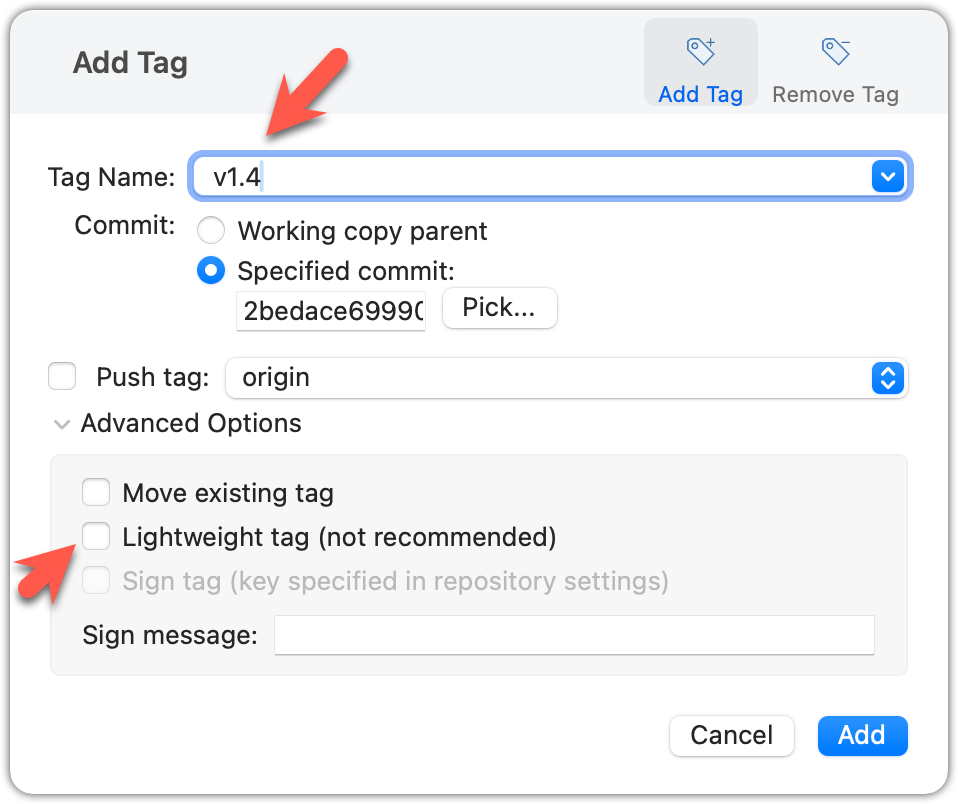
Specify the tag name e.g., v1.0 and click Add Tag.
Configure tag properties in the next dialog and press Add. For example, you can choose whether to make it a lightweight tag or an annotated tag (default).
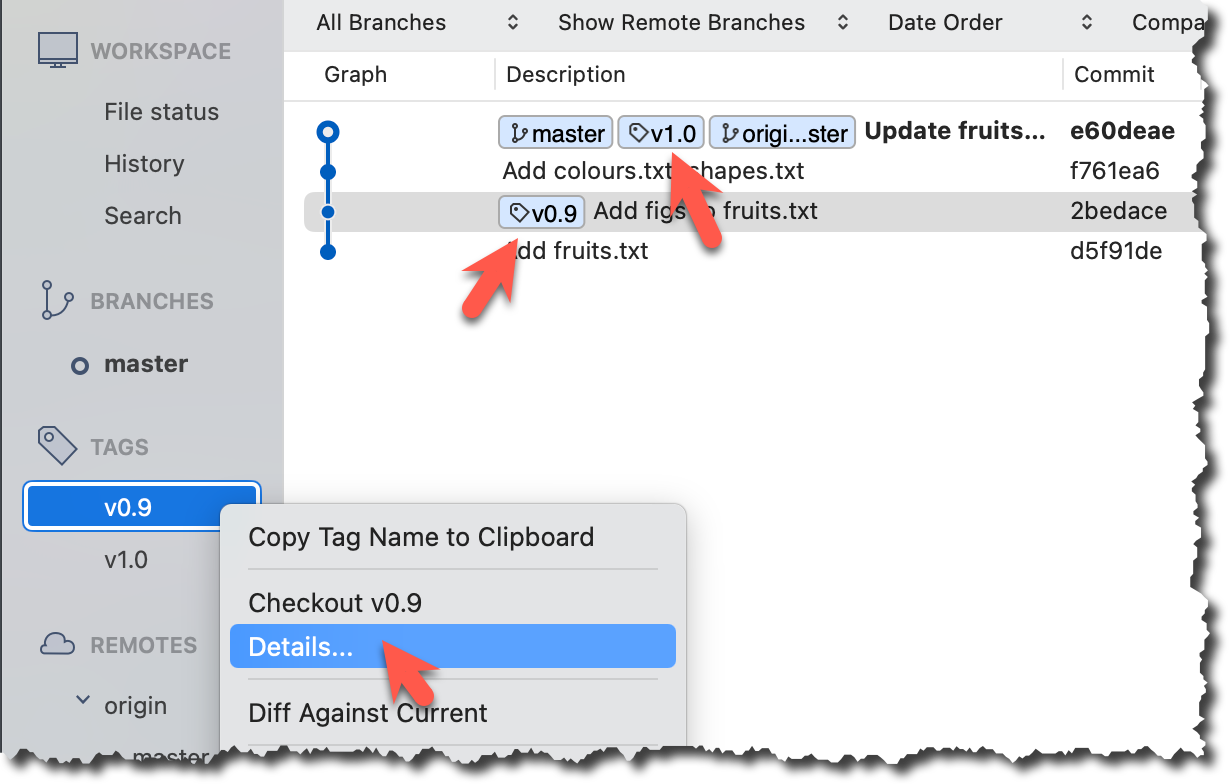
Tags will appear as labels in the revision graph, as seen below. To see the details of an annotated tag, you need to use the menu indicated in the screenshot.
done!
If you need to change what a tag points to, you must delete the old one and create a new tag with the same name. This is because tags are designed to be fixed references to a specific commit, and there is no built-in mechanism to 'move' a tag.
Preparation Continue with the same repo you used for the previous hands-on practical.
Move the v1.0 tag to the commit HEAD~1, by deleting it first and creating it again at the destination commit.
Delete the previous v1.0 tag by using the -d . Add it again to the other commit, as before.
git tag -d v1.0
git tag v1.0 HEAD~1
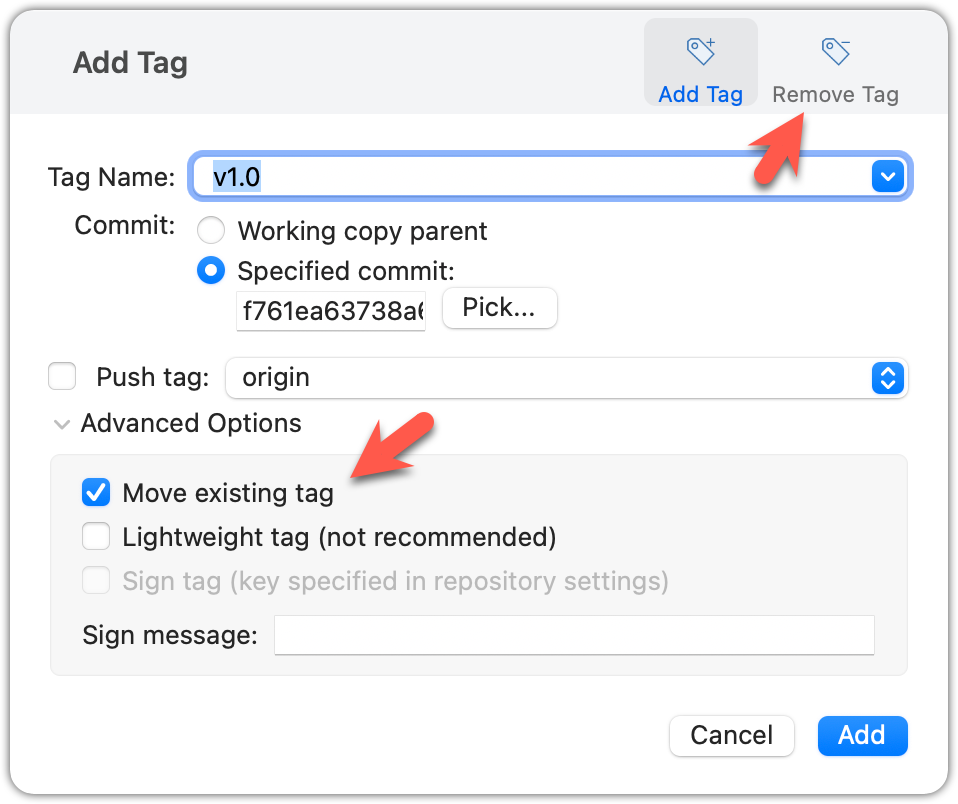
The same dialog used to add a tag can be used to delete and even move a tag. Note that the 'moving' here translates to deleting and re-adding behind the scene.
done!
Tags are different from commit messages, in purpose and in form. A commit message is a description of the commit that is part of the commit itself. A tag is a short name for a commit, which you can use to address a commit.
Pushing commits to a remote does not push tags automatically. You need to push tags specifically.
Target Push tags you created earlier to the remote.
Preparation Continue with the same repo you used for the previous hands-on practical.
You can go to your remote on GitHub link https://github.com/{USER}/{REPO}/tags (e.g., https://github.com/johndoe/samplerepo-preferences/tags) to verify the tag is present there.
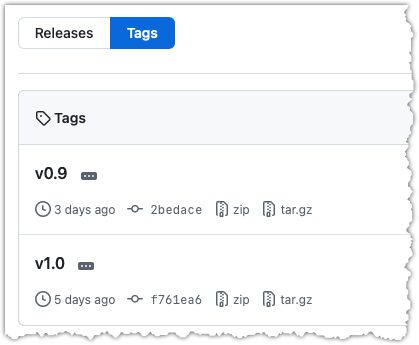
Note how GitHub assumes these tags are meant as releases, and automatically provides zip and tar.gz archives of the repo (as at that tag).
1 Push a specific tag in the local repo to the remote (e.g., v1.0) using the git push <remote> <tag-name> command.
git push origin v1.0
In addition to verifying the tag's presence via GitHub, you can also use the following command to list the tags presently in the remote.
git ls-remote --tags origin
2 Delete a tag in the remote, using the git push --delete <remote> <tag-name> command.
git push --delete origin v1.0
3 Push all tags to the remote repo, using the git push <remote> --tags command.
git push origin --tags
To push a specific tag, use the following menu:
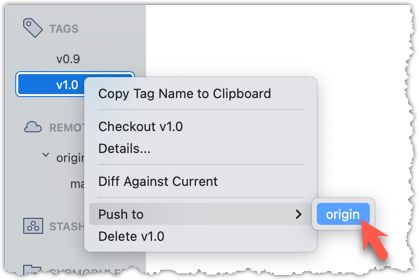
To push all tags, you can tick the Push all tags option when pushing commits:
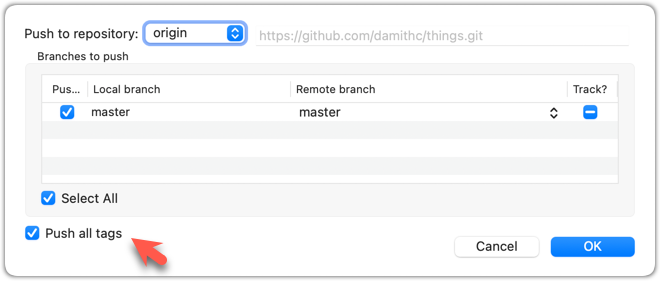
done!
Git can tell you the net effect of changes between two points of history.
Git's diff feature can show you what changed between two points in the revision history. Given below are some use cases.
Usage 1: Examining changes in the working directory
Example use case: To verify the next commit will include exactly what you intend it to include.
Preparation For this, you can use the things repo you created earlier. If you don't have it, you can clone a copy of a similar repo given here.
1 Do some changes to the working directory. Stage some (but not all) changes. For example, you can run the following commands.
echo -e "blue\nred\ngreen" >> colours.txt
git add . # a shortcut to stage all changes
echo "no shapes added yet" >> shapes.txt
2 Examine the staged and unstaged changes.
The git diff command shows unstaged changes in the working directory (tracked files only). The output of the diff command, is a diff view (introduced in this lesson).
git diff
diff --git a/shapes.txt b/shapes.txt
index 5c2644b..949c676 100644
--- a/shapes.txt
+++ b/shapes.txt
@@ -1 +1,2 @@
a file for shapes
+no shapes added yet!
The git diff --staged command shows the staged changes (same as git diff --cached).
git diff --staged
Select the two commits: Click on one commit, and Ctrl-Click (or Cmd-Click) on the second commit. The changes between the two selected commits will appear in the other panels, as shown below:
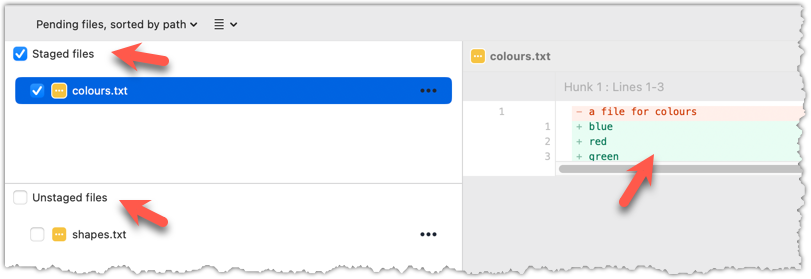
done!
Usage 2: Comparing two commits at different points of the revision graph
Example use case: Suppose you’re trying to improve the performance of a piece of software by experimenting with different code tweaks. You commit after each change (as you should). After several commits, you now want to review the overall effect of all those changes on the code.
Target Compare two commits in a repo.
Preparation You can use any repo with multiple commits e.g., the things repo.
You can use the git diff <commit1> <commit2> command for this.
- You may use any valid way to refer to commits (e.g., SHA, tag, HEAD~n etc.).
- You may also use the
..notation to specify the commit range too e.g.,0023cdd..fcd6199,HEAD~2..HEAD
git diff v0.9 HEAD
diff --git a/colours.txt b/colours.txt
new file mode 100644
index 0000000..55c8449
--- /dev/null
+++ b/colours.txt
@@ -0,0 +1 @@
+a file for colours
# rest of the diff ...
Swap the commit order in the command and see what happens.
git diff HEAD v0.9
diff --git a/colours.txt b/colours.txt
deleted file mode 100644
index 55c8449..0000000
--- a/colours.txt
+++ /dev/null
@@ -1 +0,0 @@
-a file for colours
# rest of the diff ...
As you can see, the diff is directional i.e., diff <commit1> <commit2> shows what changes you need to do to go from the <commit1> to <commit2>. If you swap <commit1> and <commit2>, the output will change accordingly e.g., lines previously shown as 'added' will now be shown as 'deleted'.
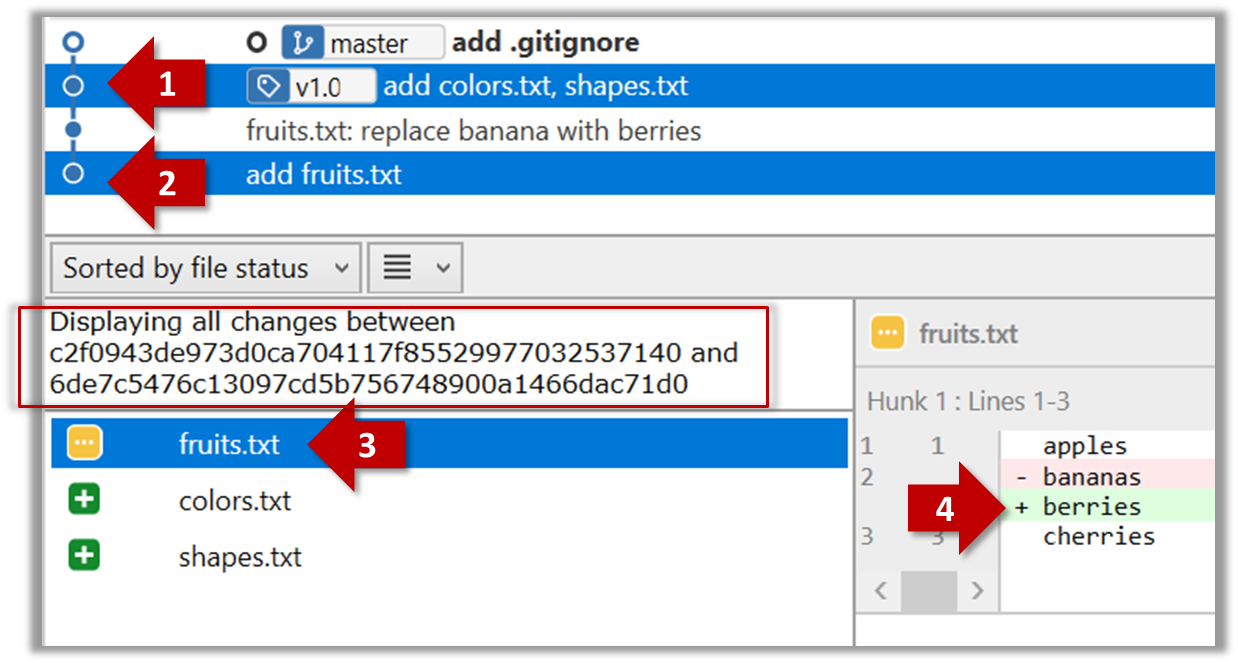
Select the two commits: Click on one commit, and Ctrl-Click (or Cmd-Click) on the second commit. The changes between the two selected commits will appear in the other panels, as shown below:
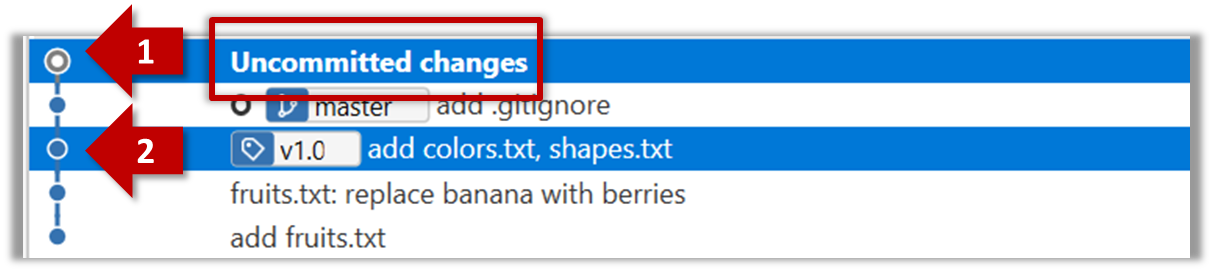
The same method can be used to compare the current state of the working directory (which might have uncommitted changes) to a point in the history.
done!
Usage 3: Examining changes to a specific file
Example use case: Similar to other use cases but when you are interested in a specific file only.
Target Examine the changes done to a file between two different points in the version history (including the working directory).
Preparation Use any repo with multiple commits e.g. the things repo.
Add the -- path/to/file to a previous diff command to narrow the output to a specific file. Some examples:
git diff -- fruits.txt # unstaged changes to fruits.txt
git diff --staged -- src/main.java # staged changes to src/main.java
git diff HEAD~2..HEAD -- fruits.txt # changes to fruits.txt between commits
Sourcetree UI shows changes to one file at a time by default; just click on the file to view changes to that file. To view changes to multiple files, Ctrl-Click (or Cmd-Click) on multiple files to select them.
done!
Another useful feature of revision control is to be able to view the working directory as it was at a specific point in history, by checking out a commit created at that point.
Suppose you added a new feature to a software product, and while testing it, you noticed that another feature added two commits ago doesn’t handle a certain edge case correctly. Now you’re wondering: did the new feature break the old one, or was it already broken? Can you go back to the moment you committed the old feature and test it in isolation, and come back to the present after you found the answer? With Git, you can.
To view the working directory at a specific point in history, you can check out a commit created at that point.
When you check out a commit, Git:
- Updates your working directory to match the snapshot in that commit, overwriting current files as needed.
- Moves the
HEADref to that commit, marking it as the current state you’re viewing.
→
[check out commit C2...]
Checking out a specific commit puts you in a "detached HEAD" state: i.e., the HEAD no longer points to a branch, but directly to a commit (see the above diagram for an example). This isn't a problem by itself, but any commits you make in this state can be lost, unless certain follow-up actions are taken. It is perfectly fine to be in a detached state if you are only examining the state of the working directory at that commit.
To get out of a "detached HEAD" state, you can simply check out a branch, which "re-attaches" HEAD to the branch you checked out.
→
[check out master...]
Target Checkout a few commits in a local repo, while examining the working directory to verify that it matches the state when you created the corresponding commit
Preparation Use any repo with commits e.g., the things repo
1 Examine the revision tree, to get your bearing first.
git log --oneline --decorate
Reminder: You can use aliases to reduce typing Git commands.
e60deae (HEAD -> master, origin/master) Update fruits list
f761ea6 (tag: v1.0) Add colours.txt, shapes.txt
2bedace (tag: v0.9) Add figs to fruits.txt
d5f91de Add fruits.txt
2 Use the checkout <commit-identifier> command to check out a commit other than the one currently pointed by HEAD. You can use any of the following methods:
git checkout v1.0: checks out the commit taggedv1.0git checkout 0023cdd: checks out the commit with the hash0023cddgit checkout HEAD~2: checks out the commit 2 commits behind the most recent commit.
git checkout HEAD~2
Note: switching to 'HEAD~2'.
You are in 'detached HEAD' state.
# rest of the warning about the detached head ...
HEAD is now at 2bedace Add figs to fruits.txt
3 Verify HEAD and the working directory have updated as expected.
HEADshould now be pointing at the target commit- The working directory should match the state it was in at that commit (e.g., files added after that commit -- such as
shapes.txtshould not be in the folder).
git log --oneline --decorate
2bedace (HEAD, tag: v0.9) Add figs to fruits.txt
d5f91de Add fruits.txt
HEAD is indeed pointing at the target commit.
But note how the output does not show commits you added after the checked-out commit.
The --all switch tells git log to show commits from all refs, not just those reachable from the current HEAD. This includes commits from other branches, tags, and remotes.
git log --oneline --decorate --all
e60deae (origin/master, master) Update fruits list
f761ea6 (tag: v1.0) Add colours.txt, shapes.txt
2bedace (HEAD, tag: v0.9) Add figs to fruits.txt
d5f91de Add fruits.txt
4 Go back to the latest commit by checking out the master branch again.
git checkout master
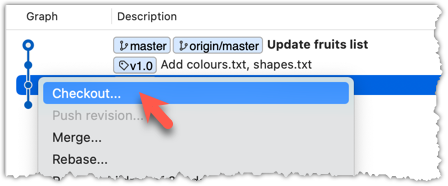
In the revision graph, double-click the commit you want to check out, or right-click on that commit and choose Checkout....
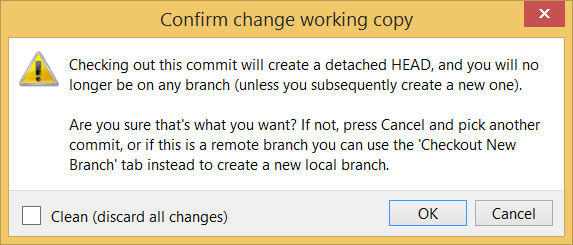
Click OK to the warning about ‘detached HEAD’ (similar to below).
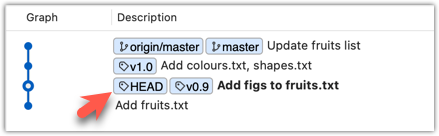
The specified commit is now loaded onto the working folder, as indicated by the HEAD label.
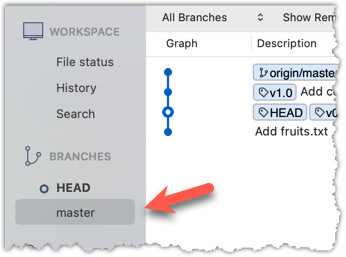
To go back to the latest commit on the master branch, double-click the master branch.
If you check out a commit that comes before the commit in which you added a certain file (e.g., temp.txt) to the .gitignore file, and if the .gitignore file is version controlled as well, Git will now show it under ‘unstaged modifications’ because at Git hasn’t been told to ignore that file yet.
done!
If there are uncommitted changes in the working directory, Git proceeds with a checkout only if it can preserve those changes.
- Example 1: There is a new file in the working directory that is not committed yet.
→ Git will proceed with the checkout and will keep the uncommitted file as well. - Example 2: There is an uncommitted change to a file that conflicts with the version of that file in the commit you wish to check out.
→ Git will abort the checkout, and the repo will remain in the current commit.
The Git stash feature temporarily sets aside uncommitted changes you’ve made (in your working directory and staging area), without committing them. This is useful when you’re in the middle of some work, but need to switch to another state (e.g., checkout a previous commit), and your current changes are not yet ready to be committed or discarded. You can later reapply the stashed changes when you’re ready to resume that work.
Git can also reset the revision history to a specific point so that you can start over from that point.
Suppose you realise your last few commits have gone in the wrong direction, and you want to go back to an earlier commit and continue from there — as if the “bad” commits never happened. Git’s reset feature can help you do that.
Git reset moves the tip of the current branch to a specific commit, optionally adjusting your staged and unstaged changes to match. This effectively rewrites the branch's history by discarding any commits that came after that point.
Resetting is different from the checkout feature:
- Reset: Lets you start over from a past state. It rewrites history by moving the branch ref to a new location.
- Checkout: Lets you explore a past state without rewriting history. It just moves the
HEADref.
→
[reset to C2...]
master branch!There are three types of resets: soft, mixed, hard. All three move the branch pointer to a new commit, but they vary based on what happens to the staging area and the working directory.
- soft reset: Moves the cumulative changes from the discarded commits into the staging area, waiting to be committed again. Any staged and unstaged changes that existed before the reset will remain untouched.
- mixed reset: Cumulative changes from the discarded commits, and any existing staged changes, are moved into the working directory.
- hard reset: All staged and unstaged changes are discarded. Both the working directory and the staging area are aligned with the target commit (as if no changes were done after that commit).
Preparation First, set the stage as follows (e.g., in the things repo):
i) Add four commits that are supposedly 'bad' commits.
ii) Do a 'bad' change to one file and stage it.
iii) Do a 'bad' change to another file, but don't stage it.
The following commands can be used to add commits B1-B4:
echo "bad colour" >> colours.txt
git add colours.txt
git commit -m "Incorrectly update colours.txt"
echo "bad shape" >> shapes.txt
git add shapes.txt
git commit -m "Incorrectly update shapes.txt"
echo "bad fruit" >> fruits.txt
git add fruits.txt
git commit -m "Incorrectly update fruits.txt"
echo "bad line" >> incorrect.txt
git add incorrect.txt
git commit -m "Add incorrect.txt"
echo "another bad colour" >> colours.txt
git add colours.txt
echo "another bad shape" >> shapes.txt
Now we have some 'bad' commits and some 'bad' changes in both the staging area and the working directory. Let's use the reset feature to get rid of all of them, but do it in three steps so that you can learn all three types of resets.
1 Do a soft reset to B2 (i.e., discard last two commits). Verify,
- the
masterbranch is now pointing atB2, and, - the changes that were in the discarded commits (i.e.,
B3andB4) are now in the staging area.
Use the git reset --soft <commit> command to do a soft reset.
git reset --soft HEAD~2
You can run the following commands to verify the current status of the repo is as expected.
git status # check overall status
git log --oneline --decorate # check the branch tip
git diff # check unstaged changes
git diff --staged # check staged changes
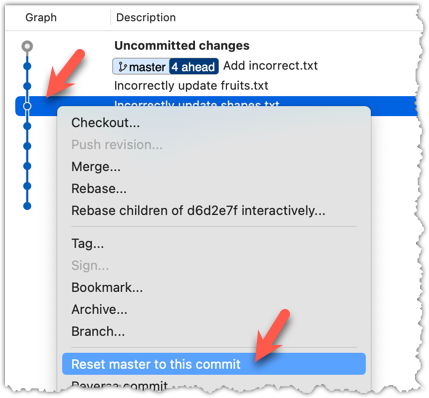
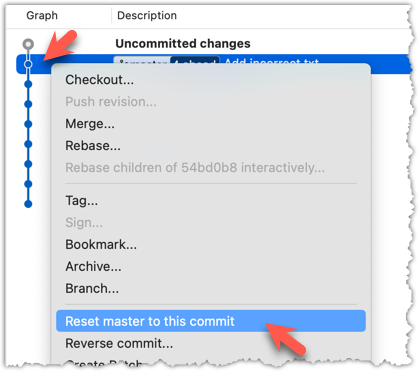
Right-click on the commit that you want to reset to, and choose Reset <branch-name> to this commit option.
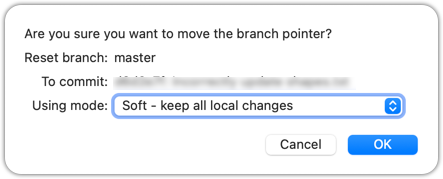
In the next dialog, choose Soft - keep all local changes.
2 Do a mixed reset to commit B1. Verify,
- the
masterbranch is now pointing atB1. - the staging area is empty.
- the accumulated changes from all three discarded commits (including those from the previous soft reset) are now appearing as unstaged changes in the working directory.
Note howincorrect.txtappears as an 'untracked' file -- this is because unstaging a change of type 'add file' results in an untracked file.
Use the git reset --mixed <commit> command to do a mixed reset. The --mixed flag is the default, and can be omitted.
git reset HEAD~1
Verify the repo status, as before.
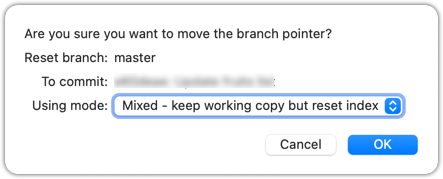
Similar to the previous reset, but choose the Mixed - keep working copy but reset index option in the reset dialog.
3 Do a hard reset to commit C4. Verify,
- the
masterbranch is now pointing atC4i.e., all 'bad' commits are gone. - the staging area is empty.
- there are no unstaged changes (except for the untracked files
incorrect.txt-- Git leaves untracked files alone, as untracked files are not meant to be under Git's control).
Use the git reset --hard <commit> command.
git reset --hard HEAD~1
Verify the repo status, as before.
Similar to the previous reset, but choose the Hard - discard all working copy changes option.
done!
Rewriting history can cause your local repo to diverge from its remote counterpart. For example, if you discard earlier commits and create new ones in their place, and you’ve already pushed the original commits to a remote repository, your local branch history will no longer match the corresponding remote branch. Git refers to this as a diverged history.
To protect the integrity of the remote, Git will reject attempts to push a diverged branch using a normal push. If you want to overwrite the remote history with your local version, you must perform a force push.
Preparation Choose a local-remote repo pair under your control e.g., the things repo from Tour 2: Backing up a Repo on the Cloud.
1 Rewrite the last commit: Reset the current branch back by one commit, and add a new commit.
For example, you can use the following commands.
git reset --hard HEAD~1
echo "water" >> drinks.txt
git add .
git commit -m "Add drinks.txt"
2 Observe how the local branch is diverged.
git log --oneline --graph --all
* fc1d04e (HEAD -> master) Add drinks.txt
| * e60deae (upstream/master, origin/master) Update fruits list
|/
* f761ea6 (tag: v1.0) Add colours.txt, shapes.txt
* 2bedace (tag: v0.9) Add figs to fruits.txt
* d5f91de Add fruits.txt
3 Attempt to push to the remote. Observe Git rejects the push.
git push origin master
To https://github.com/.../things.git
! [rejected] master -> master (non-fast-forward)
error: failed to push some refs to 'https://github.com/.../things.git'
hint: Updates were rejected because the tip of your current branch is behind
hint: its remote counterpart. If you want to integrate the remote changes,
hint: ...
4 Do a force-push.
You can use the --force (or -f) flag to force push.
git push -f origin master
A safer alternative to --force is --force-with-lease which overwrites the remote branch only if it hasn’t changed since you last fetched it (i.e., only if remote doesn't have recent changes that you are unaware of):
git push --force-with-lease origin master
done!
DETOUR: Resetting Uncommitted Changes
At times, you might need to get rid of uncommitted changes so that you have a fresh start to the next commit.
To get rid of uncommitted changes, you can reset the repo to the last commit (i.e., HEAD):
The command git reset (without specifying a commit) defaults to git reset HEAD.
git reset: moves any staged changes to working directory (i.e., unstage).git reset --hard: get rid of any staged and unstaged changes.
At this point: You should now be able to use a repository’s revision history to understand how the working directory evolved over time -- and use that insight to inform your work.
How useful this history is depends greatly on how well it was constructed -- for example, how frequently and meaningfully commits were made -- we’ll explore that in a later tour.
What's next: Tour 5: Fine-Tuning the Revision History
Target Usage: To maintain a clean and meaningful revision history.
Motivation: The usefulness of the revision history increases if it consists of well-crafted and well-documented commits.
Lesson plan:
T5L1. Controlling What Goes Into a Commit covers that part.
T5L2. Writing Good Commit Messages covers that part.
T5L3. Reorganising Commits covers that part.
To create well-crafted commits, you need to know how to control which precise changes go into a commit.
Crafting a commit involves two aspects:
- What changes to include in it: deciding what changes belong together in a single commit — this is about commit granularity, ensuring each commit represents a meaningful, self-contained change.
- How to include those changes: carefully staging just those changes — this is about using Git’s tools to precisely control what ends up in the commit.
SIDEBAR: Guidelines on what to include in a commit
A good commit represents a single, logical unit of change — something that can be described clearly in one sentence. For example, fixing a specific bug, adding a specific feature, or refactoring a specific function. If each commit tells a clear story about why the change was made and what it achieves, your repository history becomes a valuable narrative of the project’s development. Here are some (non-exhaustive) guidelines:
- No more than one change per commit: Avoid lumping unrelated changes into one commit, as this makes the history harder to understand, review, or revert (if each commit contains one standalone change, to reverse that change can be done by deleting or reverting that specific commit entirely, without affecting any other changes).
- Make the commit standalone: Don’t split a single logical change across multiple commits unnecessarily, as this can clutter the history and make it harder to follow the evolution of an idea or feature.
- Small enough to review easily, but large enough to stand on its own: For example, fixing the same typo in five files can be one commit — splitting it into five separate commits is excessive. Conversely, implementing a big feature may be too much for one commit — instead, break it down into a series of commits, each containing a meaningful yet standalone step towards the final goal.
Git can let you choose not just which files, but which specific changes within those files, to include in a commit. Most Git tools — including the command line and many GUIs — let you interactively select which "hunks" or even individual lines of a file to stage. This allows you to separate unrelated changes and avoid committing unnecessary edits. If you make multiple changes in the same file, you can selectively stage only the parts that belong to the current logical change.
This level of control is particularly useful when:
- You noticed and fixed a small, unrelated issue while working on something else.
- You experimented with multiple approaches in the same file and now want to commit only the final, clean solution.
- You want your commit history to clearly separate concerns, even when the edits touch the same files.
Preparation You can use any repo for this.
1 Do several changes to some tracked files. Change multiple files. Also change multiple locations in the same file.
2 Stage some changes in some files while keeping other changes in the same files unstaged.
As you know, you can use git add <filename> to stage changes to an entire file.
To select which hunks to stage, you can use the git add -p command instead (-p stands for 'by patch'):
git add -p
This command will take you to an interactive mode in which you can go through each hunk and decide if you want to stage it. The video below contains a demonstration of how this feature works:
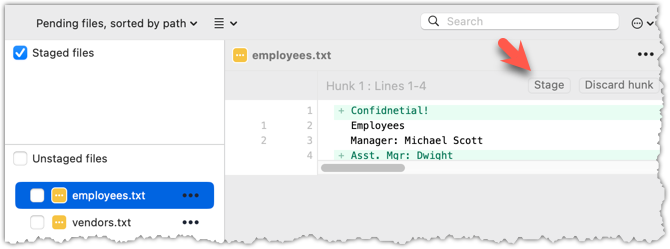
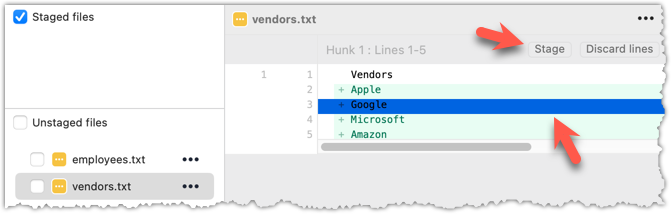
To stage a hunk, you can click the Stage button above the hunk in question:
 Unstaging can be done similarly:
Most git operations can be done faster through the CLI than equivalent Git GUI clients, once you are familiar enough with the CLI commands.
However, selective staging is one exception where a good GUI can do better than the CLI, if you need to do many fine-grained staging operations (e.g., frequently staging only parts of hunks).
done!
Detailed and well-written commit messages can increase the value of Git revision history.
Every commit you make in Git also includes a commit message that explains the change. While one-line messages are fine for small or obvious changes, as your revision history grows, good commit messages become an important source of information — for example, to understand the rationale behind a specific change made in the past.
A commit message is meant to explain the intent behind the changes, not just what was changed. The code (or diff) already shows what changed. Well-written commit messages make collaboration, code reviews, debugging, and future maintenance easier by helping you and others quickly understand the project’s history without digging into the code of every commit.
A complete commit message can include a short summary line (the subject) followed by a more detailed body if needed. The subject line should be a concise description of the change, while the body can elaborate on the context, rationale, side effects, or other details if the change is more complex.
A commit message has the following structure (note how the subject and the body are separated by a blank line):
Subject line
<blank line>
Body
# lines starting with '#' are ignored (they will not be included in the commit message)
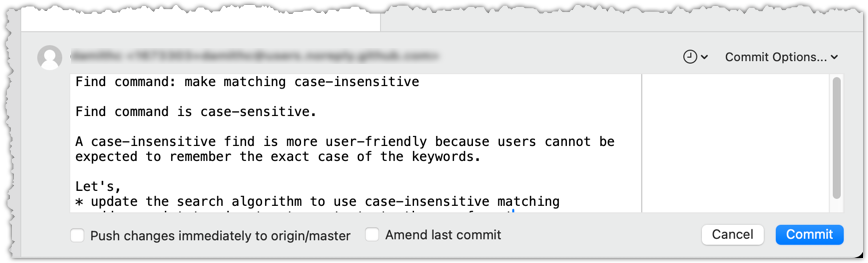
Here is an example commit message:
Find command: make matching case-insensitive
Find command is case-sensitive.
A case-insensitive find is more user-friendly because users cannot be
expected to remember the exact case of the keywords.
Let's,
* update the search algorithm to use case-insensitive matching
* add a script to migrate stress tests to the new format
Do some changes to a repo you have.
Commit the changes while writing a full commit message (i.e., subject + body).
When you are ready to commit, use the git commit command (without specifying a commit message).
git commit
This will open your default text editor (like Vim, Nano, or VS Code). Write the commit message inside the editor.
Save and close the editor to create the commit.
You can write your full commit message in the textbox you have been using to write commit messages already.
done!
Following a style guide makes your commit messages more consistent and fit-for-purpose. Many teams adopt established guidelines. These style guides typically contain common conventions that Git users follow when writing commit messages. For example:
- Keep the subject line (the first line) under 50–72 characters.
- Write the subject in the imperative mood (e.g.,
Fix typo in READMErather thanFixed typoorFixes typo). - Leave a blank line between the subject and the body, if you include a body.
- Wrap the body at around 72 characters per line for readability.
PRO-TIP: Configure Git to use your preferred text editor
Git will use the default text editor when it needs you to write a commit message. However, Git can be configured to use a different text editor of your choice.
You can use the following command to set the Git's default text editor:
git config --global core.editor "<editor command>"
Some examples for <editor command>
| Editor | Command to use |
|---|---|
| Vim (default) | vim |
| Nano | nano |
| VS Code | code --wait e.g., git config --global core.editor "code --wait"For this to work, your computer should already be configured to launch VS Code using the code command. See here to find how (refer the 'Launching from command line' section). |
| Sublime Text | subl -n -w |
| Atom | atom --wait |
| Notepad++ | notepad++.exe (Windows only) |
| Notepad | notepad (Windows built-in) |
Why use --wait or -w? Graphical editors (like VS Code or Sublime) start a separate process, which can take a few seconds. Without --wait, Git may think editing is done before you actually write the message. --wait makes Git pause until the editor window is closed.
When the revision history gets 'messy', Git has a way to 'tidy up' the recent commits.
Git has a powerful tool called interactive rebasing which lets you review and reorganise your recent commits. With it, you can reword commit messages, change their order, delete commits, combine several commits into one (squash), or split a commit into smaller pieces. This feature is useful for tidying up a commit history that has become messy — for example, when some commits are out of order, poorly described, or include changes that would be clearer if split up or combined.
Preparation Run the following commands to create a sample repo that we'll be using for this hands-on practical:
mkdir samplerepo-sitcom
cd samplerepo-sitcom
git init
echo "Aspiring actress" >> Penny.txt
git add .
git commit -m "C1: Add Penny.txt"
echo "Scientist" >> Sheldon.txt
git add .
git commit -m "C3: Add Sheldon.txt"
echo "Comic book store owner" >> Stuart.txt
git add .
git commit -m "C2: Add Stuart.txt"
echo "Engineer" >> Stuart.txt
git commit -am "X: Incorrectly update Stuart.txt"
echo "Engineer" >> Howard.txt
git add .
git commit -m "C4: Adddd Howard.txt"
Target Here are the commits that should be in the created repo, and how each commit needs to be 'tidied up'.
C4: Adddd Howard.txt-- Fix typo in the commit messageAdddd→Add.X: Incorrectly update Stuart.txt-- Drop this commit.C2: Add Stuart.txt-- Swap this commit with the one below.C3: Add Sheldon.txt-- Swap this commit with the one above.C1: Add Penny.txt-- No change required.
1 Start the interactive rebasing.
To start the interactive rebase, use the git rebase -i <start-commit> command. -i stands for 'interactive'. In this case, we want to modify the last four commits (hence, HEAD~4).
git rebase -i HEAD~4
pick 97a8c4a C3: Add Sheldon.txt
pick 60bd28d C2: Add Stuart.txt
pick 8b9a36f X: Incorrectly update Stuart.txt
pick 8ab6941 C4: Adddd Howard.txt
# Rebase ee04afe..8ab6941 onto ee04afe (4 commands)
#
# Commands:
# p, pick <commit> = use commit
# r, reword <commit> = use commit, but edit the commit message
# e, edit <commit> = use commit, but stop for amending
# s, squash <commit> = use commit, but meld into previous commit
# f, fixup [-C | -c] <commit> = like "squash" but keep only the previous
# commit's log message, unless -C is used, in which case
# keep only this commit's message; -c is same as -C but
# opens the editor
# x, exec <command> = run command (the rest of the line) using shell
# b, break = stop here (continue rebase later with 'git rebase --continue')
# d, drop <commit> = remove commit
# l, label <label> = label current HEAD with a name
# t, reset <label> = reset HEAD to a label
# m, merge [-C <commit> | -c <commit>] <label> [# <oneline>]
# create a merge commit using the original merge commit's
# message (or the oneline, if no original merge commit was
# specified); use -c <commit> to reword the commit message
# u, update-ref <ref> = track a placeholder for the <ref> to be updated
# to this position in the new commits. The <ref> is
# updated at the end of the rebase
#
# These lines can be re-ordered; they are executed from top to bottom.
#
# If you remove a line here THAT COMMIT WILL BE LOST.
#
# However, if you remove everything, the rebase will be aborted.
#
The command will take you to the text editor, which will present you with a wall of text similar to the above. It has two parts:
- At the top, the list of commits and the action to take on each, oldest commit first, with the action
pickindicated by default (pickmeans 'use this commit in the result') for each. - At the bottom, instructions on how to edit those lines.
2 Edit the commit list to specify the rebase actions, as follows:
pick 60bd28d C2: Add Stuart.txt
pick 97a8c4a C3: Add Sheldon.txt
drop 8b9a36f X: Incorrectly update Stuart.txt
reword 8ab6941 C4: Addddd Howard.txt
4 Once you save edits and exit the text editor, Git will perform the rebase based on the actions you specified, from top to bottom.
At some steps, Git will pause the rebase and ask for your inputs. In this case, it will ask you to specify the new commit message when it is processing the following line.
reword 8ab6941 C4: Addddd Howard.txt
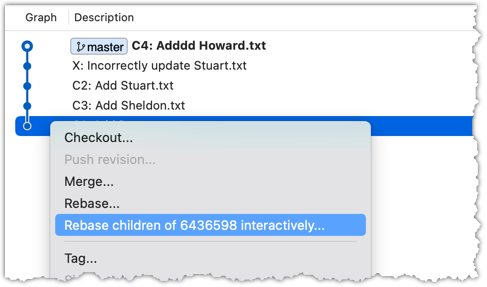
To go to the interactive rebase mode, right-click the parent commit of the earliest commit you want to reorganise (in this case, it is C1: Add Penny.txt) and choose Rebase children of <SHA> interactively...
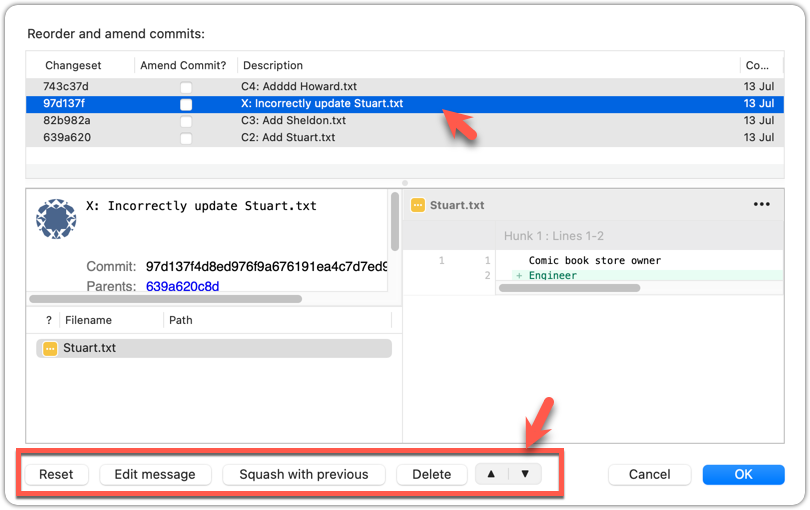
2 To indicate what action you want to perform on each commit, select the commit in the list and click on the button for the action you want to do on it:
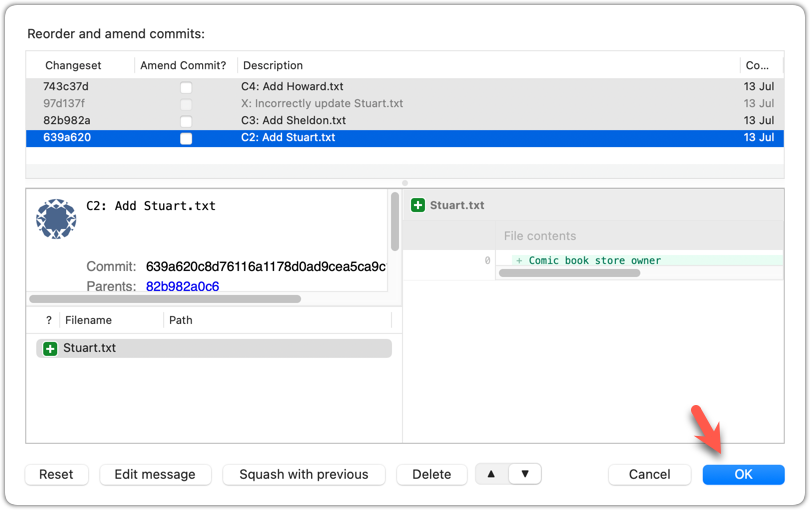
3 To execute the rebase, after indicating the action for all commits (the dialog will look like the below), click OK.
The final result should be something like the following, 'tidied up' exactly as we wanted:
* 727d877 C4: Add Howard.txt
* 764fc29 C3: Add Sheldon.txt
* 08a965a C2: Add Stuart.txt
* 6436598 C1: Add Penny.txt
done!
Rebasing rewrites history. It is not recommended to rebase commits you have already shared with others.
DETOUR: Updating the Last Commit
Git allows you to amend the most recent commit. This is useful when you realise there’s something you’d like to change — e.g., fix a typo in the commit message, or to exclude some unintended change from the commit.
Updating the commit message
To change the commit message subject only, use the git commit --amend -m "<new commit message>" command.
git commit --amend -m "Fix bug that froze the GUI"
To change the entire commit message (not just the subject), run the git commit --amend command, which will open the text editor for you to edit the commit message. The commit will be updated when you close the text editor.
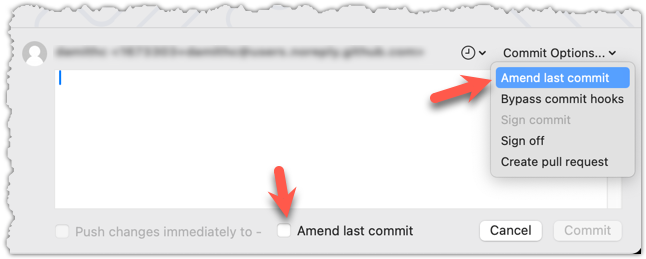
Click on the Commit button on the top menu. In the region that you use to enter the commit message, use one of the two methods given below to go into the 'Amend last commit' mode.
Updating changes in the commit
While there are multiple ways to do this, one method that will work universally is to do a 'soft reset' of the last commit, update the staging area as you wish, and commit again.
'Updating' a commit does not really update that commit -- it simply creates a new commit with the new data. The original commit remains and is 'left behind' in the repo, and will be garbage-collected after a while if it is not referenced by anything else.
At this point: You should now be able to create more meaningful commits from the start, and also refine them further after they’ve been created.
What's next: Tour 6: Branching Locally
Guidance for the item(s) below:
As you are likely to be using an IDE for the project, let's learn at least enough about IDEs to get you started using one.