Week 8 [Mon, Oct 6th] - Topics
Last week, you learned intermediate-level class diagram notation. But the quiz only focused on interpreting such diagrams. This week, we cover the aspect of drawing intermediate-level class diagrams to match code. Here are what you can do:
1. Do Part 1 of this week's quiz (which covers the same area).
2. Watch the worked examples in the following videos to learn the process of drawing intermediate-level class diagrams to match code.
Guidance for the item(s) below:
This week, we learn a few design principles that you can try to apply in your project.
These principles build on top of the design fundamentals you learned earlier (i.e., abstraction, coupling, cohesion).
Guidance for the item(s) below:
As you add more and more Java classes to your project, keeping all those classes in the same directory becomes untenable. The solution is covered in the next topic.
Guidance for the item(s) below:
As the size of your Java codebase grows, every class being able to access every member of every other class can be problematic. Hence, there should be a way to control the access to our Java classes and their members. The solution is given in the topic below.
Guidance for the item(s) below:
As you know, adding comments to the code is a good practice. Let's learn about a specific type of comments that you can use in Java code that can do even more than just explain the code.
JavaDoc is a tool for generating API documentation in HTML format from comments in the source code. In addition, modern IDEs use JavaDoc comments to generate explanatory tooltips.
An example method header comment in JavaDoc format:
/**
* Returns an Image object that can then be painted on the screen.
* The url argument must specify an absolute {@link URL}. The name
* argument is a specifier that is relative to the url argument.
* <p>
* This method always returns immediately, whether or not the
* image exists. When this applet attempts to draw the image on
* the screen, the data will be loaded. The graphics primitives
* that draw the image will incrementally paint on the screen.
*
* @param url An absolute URL giving the base location of the image.
* @param name The location of the image, relative to the url argument.
* @return The Image at the specified URL.
* @see Image
*/
public Image getImage(URL url, String name) {
try {
return getImage(new URL(url, name));
} catch (MalformedURLException e) {
return null;
}
}
Generated HTML documentation:
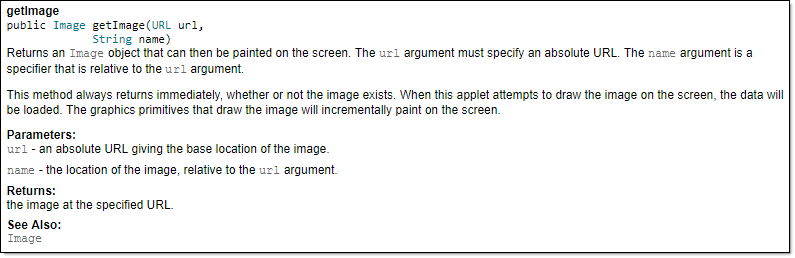
Tooltip generated by IntelliJ IDE:
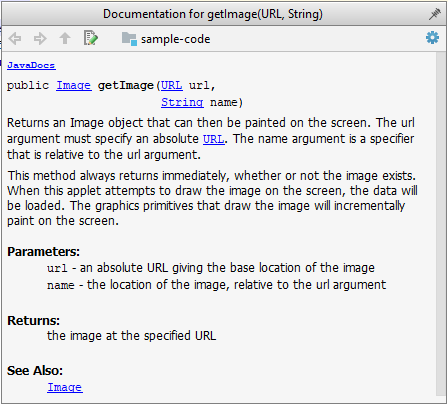
Guidance for the item(s) below:
Let's learn about a few more Git techniques, starting with branching. Although these techniques are not really needed for the iP, we require you to use them in the iP so that you have more time to practice them before they are really needed in the tP.
Target Usage: To make use of multiple timelines of work in a local repository.
Motivation: At times, you need to do multiple parallel changes to files (e.g., to try two alternative implementations of the same feature).
Lesson plan:
T6L1. Creating Branches covers that part.
T6L2. Merging Branches covers that part.
T6L3. Resolving Merge Conflicts covers that part.
T6L4. Renaming Branches covers that part.
T6L5. Deleting Branches covers that part.
To work in parallel timelines, you can use Git branches.
Git branches let you develop multiple versions of your work in parallel — effectively creating diverged timelines of your repository’s history. For example, one team member can create a new branch to experiment with a change, while the rest of the team continues working on another branch. Branches can have meaningful names, such as master, release, or draft.
A Git branch is simply a ref (a named label) that points to a commit and automatically moves forward as you add new commits to that branch. As you’ve seen before, the HEAD ref indicates which branch you’re currently working on, by pointing to the corresponding branch ref.
When you add a commit, it goes into the branch you are currently on, and the branch ref (together with the HEAD ref) moves to the new commit.
Git creates a branch named master by default (Git can be configured to use a different name e.g., main).
Given below is an illustration of how branch refs move as branches evolve. Refer to the text below it for explanations of each stage.
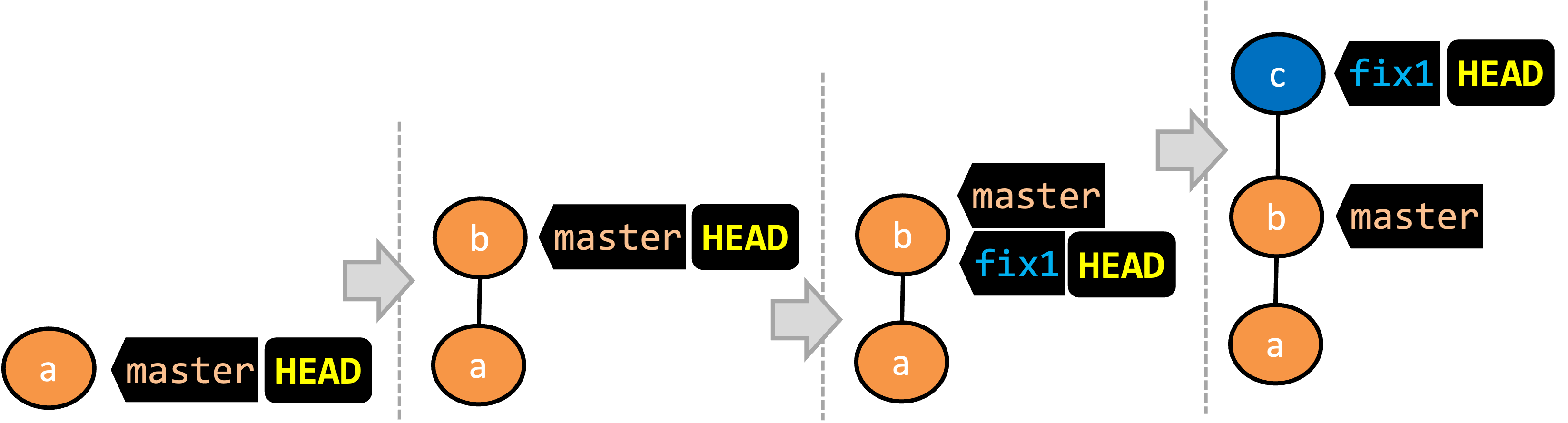
- There is only one branch (i.e.,
master) and there is only one commit on it. TheHEADref is pointing to themasterbranch (as we are currently on that branch). - A new commit has been added. The
masterand theHEADrefs have moved to the new commit. - A new branch
fix1has been added. The repo has switched to the new branch too (hence, theHEADref is attached to thefix1branch). - A new commit (
c) has been added. The current branch reffix1moves to the new commit, together with theHEADref. At this point, the repo's working directory reflects the code at commitb(notc).
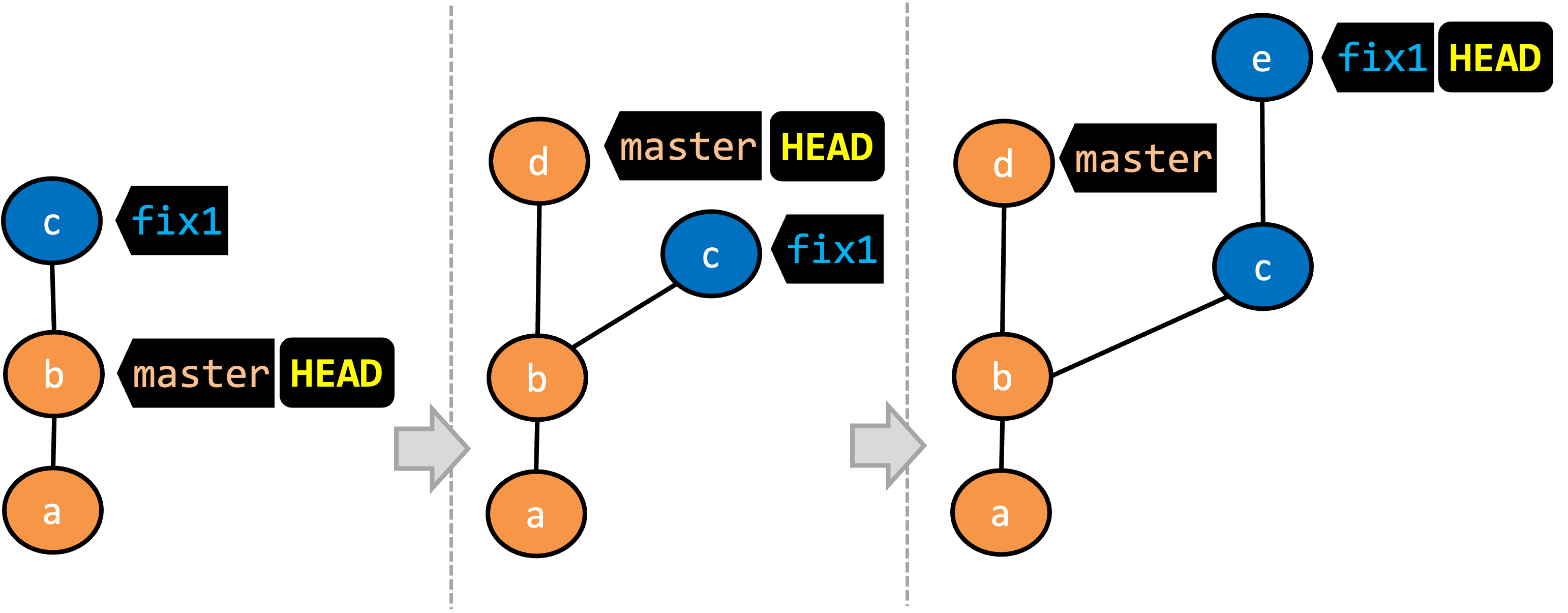
- A new commit (
d) has been added. Themasterand theHEADrefs have moved to that commit. - The repo has switched back to the
fix1branch and added a new commiteto it. Note how the branch reffix1(together withHEAD) has moved to the new commitewhile the branch refmasterstill points tod. - The repo has switched back to the
masterbranch. Hence, theHEADhas moved back tomasterbranch's .
Note that appearance of the revision graph (colors, positioning, orientation etc.) varies based on the Git client you use, and might not match the exact diagrams given above.
Preparation Fork the samplerepo-things repo, and clone it onto your computer.
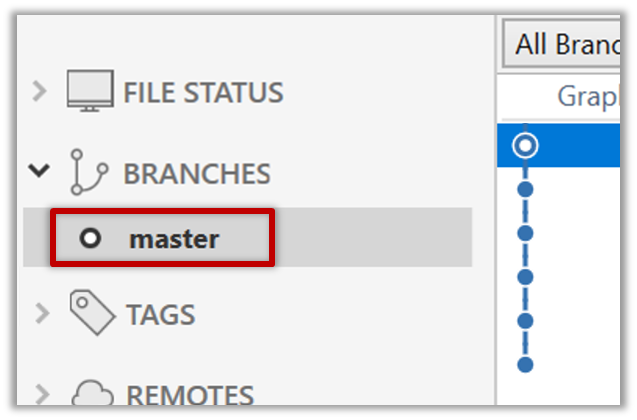
1 Observe that you are on the branch called master.
$ git status
on branch master
2 Start a branch named feature1 and switch to the new branch.
You can use the branch command to create a new branch and the checkout command to switch to a specific branch.
$ git branch feature1
$ git checkout feature1
One-step shortcut to create a branch and switch to it at the same time:
$ git checkout –b feature1
The new switch command
Git recently introduced a switch command that you can use instead of the checkout command given above.
To create a new branch and switch to it:
$ git branch feature1
$ git switch feature1
One-step shortcut (by using -c or --create flag):
$ git switch –c feature1
Click on the Branch button on the main menu. In the next dialog, enter the branch name and click Create Branch.
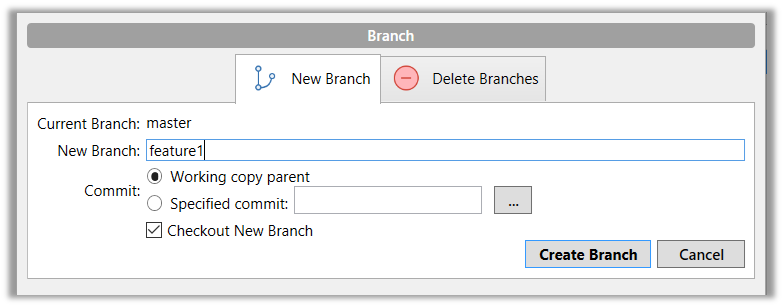
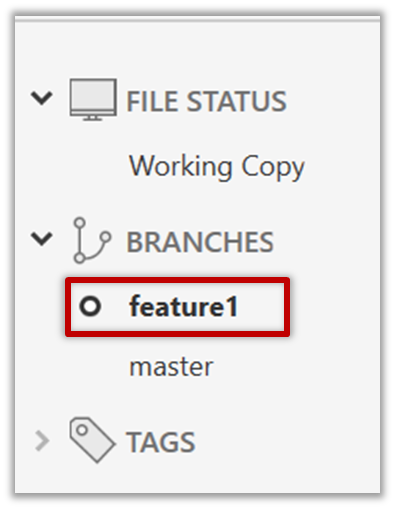
Note how the feature1 is indicated as the current branch (reason: Sourcetree automatically switches to the new branch when you create a new branch, if the Checkout New Branch was selected in the previous dialog).
3 Create some commits in the new branch, as follows.
- Add a file named
numbers.txt, stage it, commit it. - Observe how commits you add while on
feature1branch will becomes part of that branch.
Observe how themasterref and theHEADref move to the new commit.
As before, you can use the git log --oneline --decorate command for this.
At times, the
HEADref of the local repo is represented as in Sourcetree, as illustrated in the screenshot below .
.The
HEADref is not shown in the UI if it is already pointing at the active branch.
- Add some texts to
numbers.txt, stage the changes, and commit it. This commit too will be added to thefeature1branch.
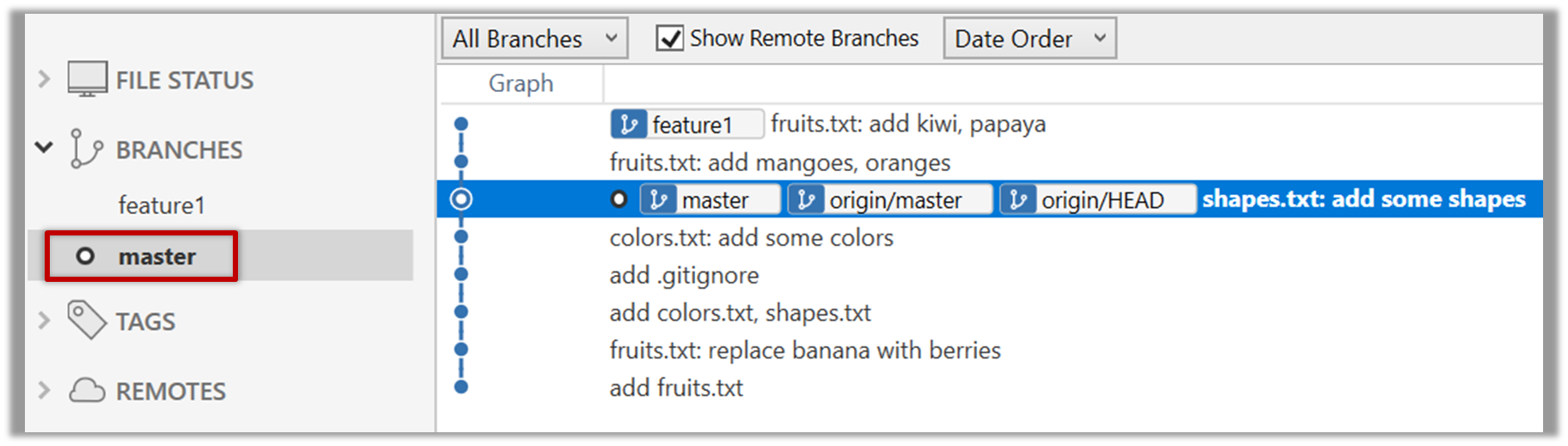
4 Switch to the master branch. Note how the changes you made in the feature1 branch are no longer in the working directory.
$ git switch master
Double-click the master branch.
Revisiting master vs origin/master
In the screenshot above, you see a master ref and a origin/master ref for the same commit. The former identifies the of the local master branch while the latter identifies the tip of the master branch at the remote repo named origin. The fact that both refs point to the same commit means the local master branch and its remote counterpart are with each other.
Similarly, origin/HEAD ref appearing against the same commit indicates that of the remote repo is pointing to this commit as well.
5 Add a commit to the master branch. Let’s imagine it’s a bug fix.
To keep things simple for the time being, this commit should not involve the numbers.txt file that you changed in the feature1 branch. Of course, this is easily done, as the numbers.txt file you added in the feature1 branch is not even visible when you are in the master branch.
gitGraph BT:
    %%{init: { 'theme': 'default', 'gitGraph': {'mainBranchName': 'master'}} }%%
    commit id: "m1"
    commit id: "m2"
    branch feature1
    commit id: "f1"
    commit id: "[feature1] f2"
    checkout master
    commit id: "[HEAD → master] m3"
    checkout feature1
6 Switch between the two branches and see how the working directory changes accordingly. That is, now you have two parallel timelines that you can freely switch between.
done!
You can also start a branch from an earlier commit, instead of the latest commit in the current branch. For that, simply check out the commit you wish to start from.
In the samplerepo-things repo that you used above, let's create a new branch that starts from the same commit the feature1 branch started from. Let's pretend this branch will contain an alternative version of the content we added in the feature1 branch.
gitGraph BT:
    %%{init: { 'theme': 'default', 'gitGraph': {'mainBranchName': 'master'}} }%%
    commit id: "m1"
    commit id: "m2"
    branch feature1
    branch feature1-alt
    checkout feature1
    commit id: "f1"
    commit id: "[feature1] f2"
    checkout master
    commit id: "[HEAD → master] m3"
    checkout feature1-alt
    commit id: "[HEAD → feature1-alt] a1"
Avoid this rookie mistake!
Always remember to switch back to the master branch before creating a new branch. If not, your new branch will be created on top of the current branch.
- Switch to the
masterbranch. - Checkout the commit that is at which the
feature1branch diverged from themasterbranch (e.g.git checkout HEAD~1). This will create a detachedHEAD. - Create a new branch called
feature1-alt. TheHEADwill now point to this new branch (i.e., no longer 'detached'). - Add a commit on the new branch.
PRO-TIP: Creating a branch based on another branch in one shot
Suppose you are currently on branch b2 and you want to create a new branch b3 that starts from b1. Normally, you can do that in two steps:
git switch b1 # switch to the intended base branch first
git switch -c b3 # create the new branch and switch to it
This can be done in one shot using the git switch -c <new-branch> <base-branch> command:
git switch -c b3 b1
done!
Most work done in branches eventually gets merged together.
Merging combines the changes from one branch into another, bringing their diverged timelines back together.
When you merge, Git looks at the two branches and figures out how their histories have diverged since their merge base (i.e., the most recent common ancestor commit of two branches). It then applies the changes from the other branch onto your current branch, creating a new commit. The new commit created when merging is called a merge commit — it records the result of combining both sets of changes.
Given below is an illustration of how such a merge looks like in the revision graph:
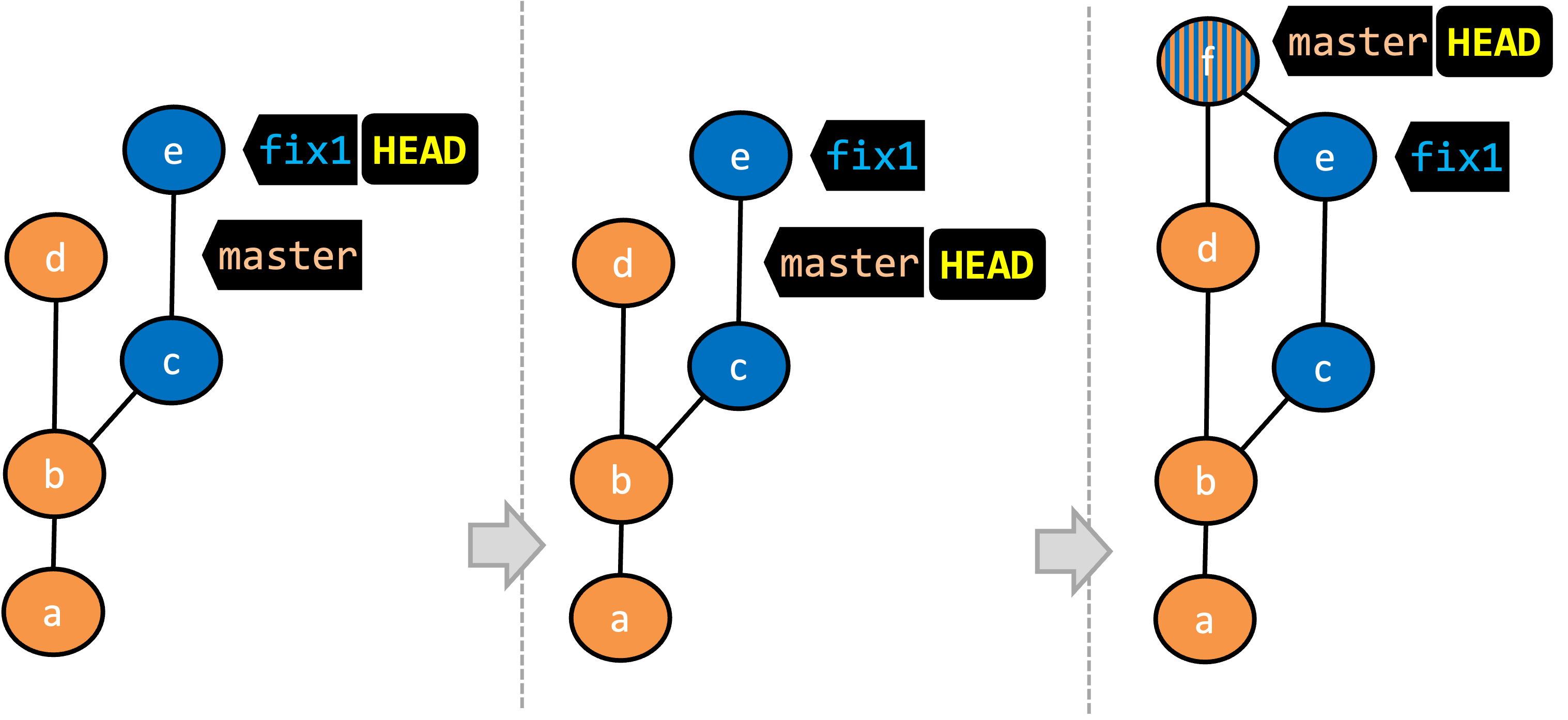
- We are on the
fix1branch (as indicated byHEAD). - We have switched to the
masterbranch (thus,HEADis now pointing tomasterref). - The
fix1branch has been merged into themasterbranch, creating a merge commitf. The repo is still on themasterbranch.
The branch you are merging into called the destination branch (other terms: receiving branch, target branch)
The branch you are merging is referred to as the source branch (other terms: incoming branch, merge branch).
In the above example, master is the destination branch and fix1 is the source branch.
A merge commit has two parent commits e.g., in the above example, the merge commit f has both d and e as parent commits. The parent commit on the destination branch is considered the first parent and the parent commit on the source branch is considered the second parent e.g., in the example above, fix1 branch is the source branch that is being merged into the destination branch master -- accordingly, d is the first parent and e is the second parent.
Preparation We continue with the samplerepo-things repo from earlier, which should look like the following. Note that we are ignoring the feature1-alt branch, for simplicity.
gitGraph BT:
    %%{init: { 'theme': 'default', 'gitGraph': {'mainBranchName': 'master'}} }%%
    commit id: "m1"
    commit id: "m2"
    branch feature1
    commit id: "f1"
    commit id: "[feature1] f2"
    checkout master
    commit id: "[HEAD → master] m3"
    checkout feature1
1 Switch back to the feature1 branch.
gitGraph BT:
    %%{init: { 'theme': 'default', 'gitGraph': {'mainBranchName': 'master'}} }%%
    commit id: "m1"
    commit id: "m2"
    branch feature1
    commit id: "f1"
    commit id: "[HEAD → feature1] f2"
    checkout master
    commit id: "[master] m3"
    checkout feature1
2 Merge the master branch to the feature1 branch, giving an end-result like the following. Also note how Git has created a merge commit (shown as mc1 in the diagram below).
gitGraph BT:
    %%{init: { 'theme': 'default', 'gitGraph': {'mainBranchName': 'master'}} }%%
    commit id: "m1"
    commit id: "m2"
    branch feature1
    commit id: "f1"
    commit id: "f2"
    checkout master
    commit id: "[master] m3"
    checkout feature1
    merge master id: "[HEAD → feature1] mc1"
$ git merge master
Right-click on the master branch and choose merge master into the current branch. Click OK in the next dialog.
The revision graph should look like this now (colours and line alignment might vary but the graph structure should be the same):
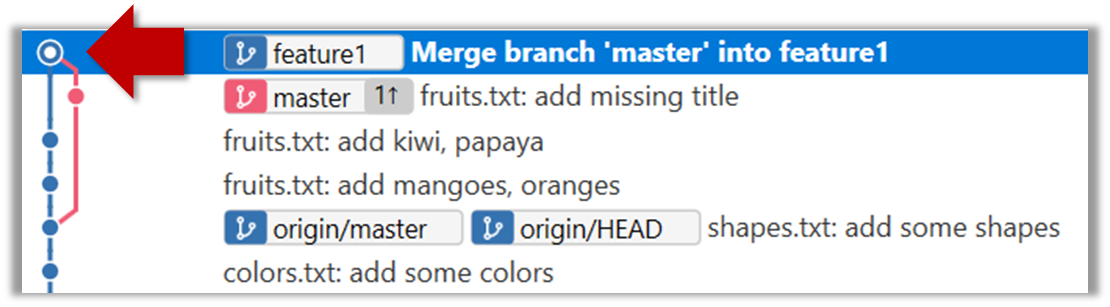
Observe how the changes you made in the master branch (i.e., the imaginary bug fix in m3) is now available even when you are in the feature1 branch.
Furthermore, observe (e.g., git show HEAD) how the merge commit contains the sum of changes done in commits m3, f1, and f2.
3 Add another commit to the feature1 branch, in which you do some further changes to the numbers.txt.
Switch to the master branch and add one more commit.
gitGraph BT:
    %%{init: { 'theme': 'default', 'gitGraph': {'mainBranchName': 'master'}} }%%
    commit id: "m1"
    commit id: "m2"
    branch feature1
    commit id: "f1"
    commit id: "f2"
    checkout master
    commit id: "m3"
    checkout feature1
    merge master id: "mc1"
    commit id: "[feature1] f3"
    checkout master
    commit id: "[HEAD → master] m4"
4 Merge feature1 to the master branch, giving an end-result like this:
gitGraph BT:
    %%{init: { 'theme': 'default', 'gitGraph': {'mainBranchName': 'master'}} }%%
    commit id: "m1"
    commit id: "m2"
    branch feature1
    commit id: "f1"
    commit id: "f2"
    checkout master
    commit id: "m3"
    checkout feature1
    merge master id: "mc1"
    commit id: "[feature1] f3"
    checkout master
    commit id: "m4"
    merge feature1 id: "[HEAD → master] mc2"
git merge feature1
Right-click on the feature1 branch and choose Merge.... The resulting revision graph should look like this:
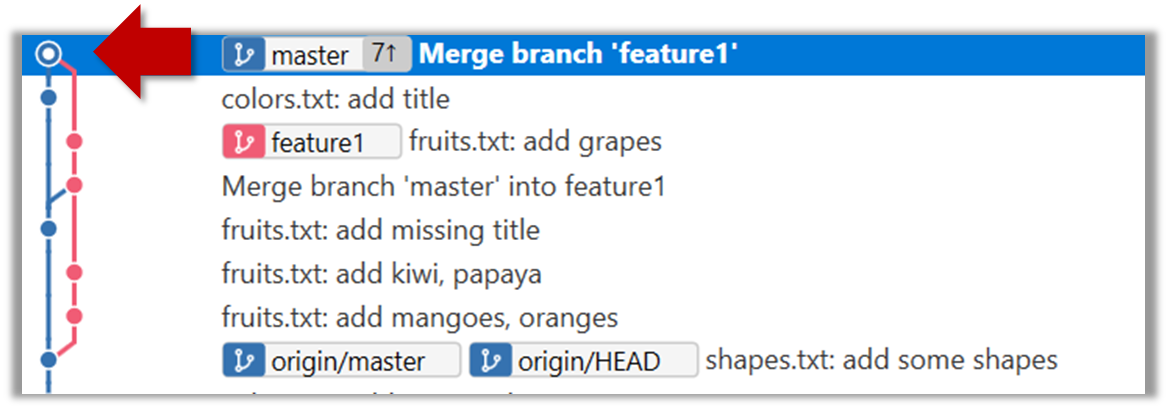
Now, any changes you made in feature1 branch are available in the master branch.
done!
When the destination branch hasn't diverged — meaning it hasn't had any new commits since the merge base — Git simply moves the branch pointer forward to include all the new commits in the source branch, keeping the history clean and linear. This is called a fast-forward merge because Git simply "fast-forwards" the branch pointer to the tip of the other branch. The result looks as if all the changes had been made directly on one branch, without any branching at all.
gitGraph BT:
    %%{init: { 'theme': 'default', 'gitGraph': {'mainBranchName': 'master'}} }%%
    commit id: "m1"
    commit id: "[HEAD → master] m2"
    branch bug-fix
    commit id: "b1"
    commit id: "[bug-fix] b2"
    checkout master
→
[merge bug-fix]
gitGraph BT:
    %%{init: { 'theme': 'default', 'gitGraph': {'mainBranchName': 'master'}} }%%
    commit id: "m1"
    commit id: "m2"
    commit id: "b1"
    commit id: "[HEAD → master][bug-fix] b2"
    checkout master
In the example above, the master branch has not changed since the merge base (i.e., m2). Hence, merging the branch bug-fix onto master can be done by fast-forwarding the master branch ref to the tip of the bug-fix branch (i.e., b2).
Preparation Let's continue with the same samplerepo-things repo we used above, and do a fast-forward merge this time.
1 Create a new branch called add-countries, and some commits to it as follows:
Switch to the new branch, add a file named countries.txt, stage it, and commit it.
Do some changes to countries.txt, and commit those changes.
You should have something like this now:
gitGraph BT:
    %%{init: { 'theme': 'default', 'gitGraph': {'mainBranchName': 'master'}} }%%
    commit id: "[master] mc2"
    branch add-countries
    commit id: "a1"
    commit id: "[HEAD → add-countries] a2"
2 Go back to the master branch.
gitGraph BT:
    %%{init: { 'theme': 'default', 'gitGraph': {'mainBranchName': 'master'}} }%%
    commit id: "[HEAD → master] mc2"
    branch add-countries
    commit id: "a1"
    commit id: "add-countries] a2"
3 Merge the add-countries branch onto the master branch. Observe that there is no merge commit. The master branch ref (and the HEAD ref along with it) moved to the tip of the add-countries branch (i.e., a2) and both branches now point to a2.
gitGraph BT:
    %%{init: { 'theme': 'default', 'gitGraph': {'mainBranchName': 'master (and add-countries)'}} }%%
    commit id: "mc2"
    commit id: "a1"
    commit id: "[HEAD → master][add-countries] a2"
done!
It is possible to force Git to create a merge commit even if fast forwarding is possible. This is useful if you prefer the revision graph to visually show when each branch was merged to the main timeline.
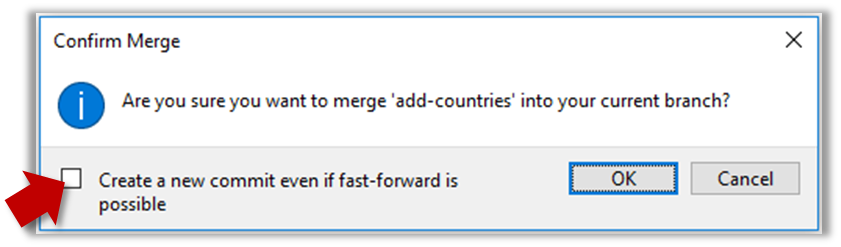
To prevent Git from fast-forwarding, use the --no-ff switch when merging. Example:
git merge --no-ff add-countries
Windows: Tick the box shown below when you merge a branch:
Mac:
Trigger the branch operation using the following menu button:

In the next dialog, tick the following option:
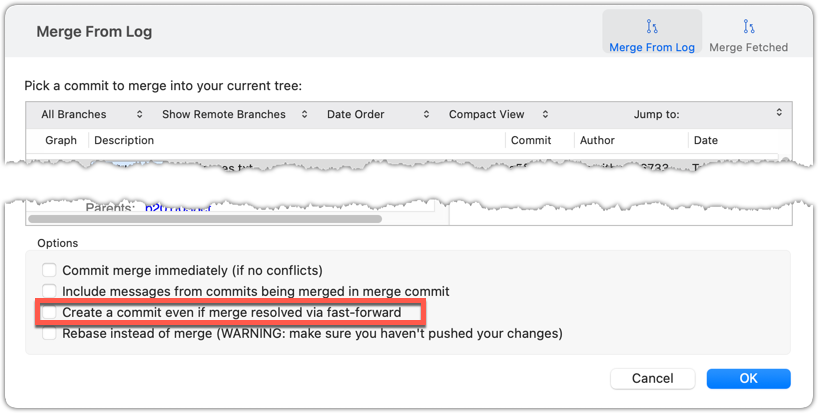
To permanently prevent fast-forwarding:
- Go to Sourcetree
Settings. - Navigate to the
Gitsection. - Tick the box
Do not fast-forward when merging, always create commit.
A squash merge takes all the changes from the source branch and combines them into a single commit on the destination branch. It is especially useful when the source branch has many small or experimental commits that would otherwise clutter history.
gitGraph BT:
    %%{init: { 'theme': 'default', 'gitGraph': {'mainBranchName': 'master'}} }%%
    commit id: "[HEAD → master] m1"
    branch feature
    checkout feature
    commit id: "f1"
    commit id: "[feature] f2"
→
[squash merge...]
gitGraph BT:
    %%{init: { 'theme': 'default', 'gitGraph': {'mainBranchName': 'master'}} }%%
    commit id: "m1"
    branch feature
    checkout feature
    commit id: "f1"
    commit id: "[feature] f2"
    checkout master
    commit id: "[HEAD → master] s1 (same as f1+f2)"
In the example above, the branch feature has been squash merged onto the master branch, creating a single 'squashed' commit s1 that combines all the commits in feature branch.
After a squash merge, you typically delete the source branch, so its individual commits are no longer kept. The destination branch's history stays linear, as the work done in the source branch is replaced by one commit on the destination branch. As a result, a squash merge commit is just a normal commit, and does not have a 'parent' reference to the source branch.
gitGraph BT:
    %%{init: { 'theme': 'default', 'gitGraph': {'mainBranchName': 'master'}} }%%
    commit id: "[HEAD → master] m1"
    branch feature
    checkout feature
    commit id: "f1"
    commit id: "[feature] f2"
    checkout master
    merge feature
with a merge commit]
gitGraph BT:
    %%{init: { 'theme': 'default', 'gitGraph': {'mainBranchName': 'master'}} }%%
    commit id: "m1"
    commit id: "f1"
    commit id: "[HEAD → master][feature] f2"
gitGraph BT:
    %%{init: { 'theme': 'default', 'gitGraph': {'mainBranchName': 'master'}} }%%
    commit id: "m1"
    commit id: "[HEAD → master] s1 (same as f1+f2)"
deleting the source branch thereafter]
The mechanics of doing a squash merge is covered in a separate detour.
DETOUR: Undoing a Merge
- Ensure you are in the .
- Do a hard reset of that branch to the commit that would be the tip of that branch had you not done the offending merge i.e., rewind that branch to the state it was in before the merge.
In the example below, you merged master to feature1.
If you want to undo that merge,
- Ensure you are in the
feature1branch (because that's the destination branch). - Reset the
feature1branch to the commit spotlighted in the screenshot above (because that was the tip of thefeature1branch before you merged themasterbranch to it).
When merging branches, you need to guide Git on how to resolve conflicting changes in different branches.
A merge conflict happens when Git can't automatically combine changes from two branches because the same parts of a file were modified differently in each branch. When this happens, Git pauses the merge and marks the conflicting sections in the affected files so you can resolve them yourself. Once you've reviewed and fixed the conflicts, you can tell Git they're resolved and complete the merge.
More generally, a conflict occurs when Git cannot automatically reconcile different changes made to the same part of a file -- branch merge conflicts is just one example.
Target To simulate a merge conflict and use it to learn how to resolve merge conflicts.
Preparation You can use any repo with at least one commit in the master branch.
1 Start a branch named fix1 in the repo. Create a commit that adds a line with some text to one of the files.
2 Switch back to master branch. Create a commit with a conflicting change i.e., it adds a line with some different text in the exact location the previous line was added.
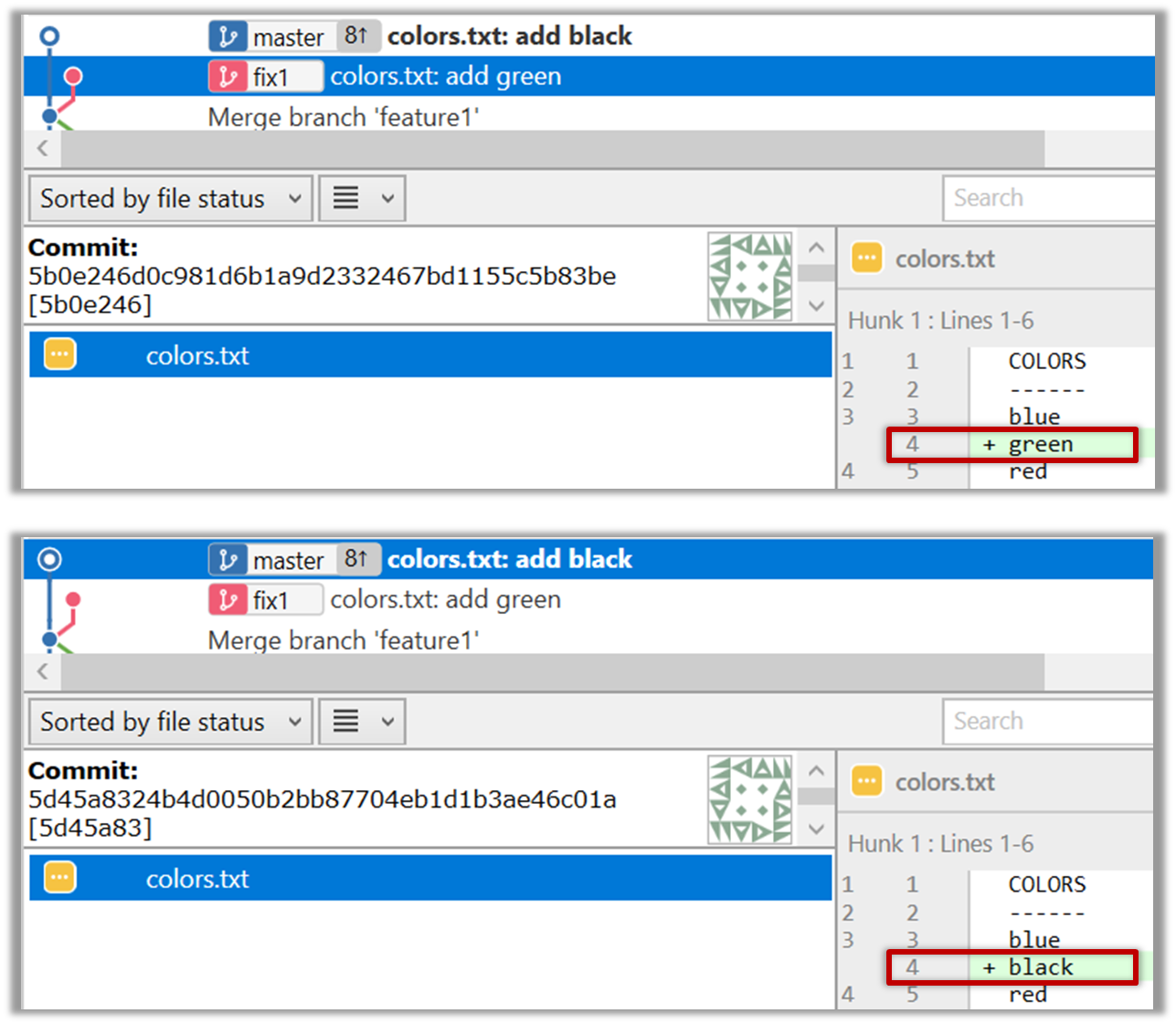
3 Try to merge the fix1 branch onto the master branch. Git will pause mid-way during the merge and report a merge conflict. If you open the conflicted file, you will see something like this:
COLORS
------
blue
<<<<<< HEAD
black
=======
green
>>>>>> fix1
red
white
4 Observe how the conflicted part is marked between a line starting with <<<<<< and a line starting with >>>>>>, separated by another line starting with =======.
Highlighted below is the conflicting part that is coming from the master branch:
blue
<<<<<< HEAD
black
=======
green
>>>>>> fix1
red
This is the conflicting part that is coming from the fix1 branch:
blue
<<<<<< HEAD
black
=======
green
>>>>>> fix1
red
5 Resolve the conflict by editing the file. Let us assume you want to keep both lines in the merged version. You can modify the file to be like this:
COLORS
------
blue
black
green
red
white
6 Stage the changes, and commit. You have now successfully resolved the merge conflict.
done!
Branches can be renamed, for example, to fix a mistake in the branch name.
Local branches can be renamed easily. Renaming a branch simply changes the branch reference (i.e., the name used to identify the branch) — it is just a cosmetic change.
Preparation First, create the repo samplerepo-books for this hands-on practical, by running the following commands in your terminal.
mkdir samplerepo-books
cd samplerepo-books
git init
echo "Horror Stories" >> horror.txt
git add .
git commit -m "Add horror.txt"
git switch -c textbooks
echo "Textbooks" >> textbooks.txt
git add .
git commit -m "Add textbooks.txt"
git switch master
git switch -c fantasy
echo "Fantasy Books" >> fantasy.txt
git add .
git commit -m "Add fantasy.txt"
git switch master
git merge --no-ff -m "Merge branch textbooks" textbooks
The above should give you a repo similar to the revision graph given below, on the left.
gitGraph BT:
    %%{init: { 'theme': 'default', 'gitGraph': {'mainBranchName': 'master'}} }%%
    commit id: "m1"
    branch textbooks
    checkout textbooks
    commit id: "[textbooks] t1"
    checkout master
    branch fantasy
    checkout fantasy
    commit id: "[fantasy] f1"
    checkout master
    merge textbooks id: "[HEAD → master] mc1"
→
[rename branches]
gitGraph BT:
    %%{init: { 'theme': 'default', 'gitGraph': {'mainBranchName': 'master'}} }%%
    commit id: "m1"
    branch study-books
    checkout study-books
    commit id: "[study-books] t1"
    checkout master
    branch fantasy-books
    checkout fantasy-books
    commit id: "[fantasy-books] f1"
    checkout master
    merge study-books id: "[HEAD → master] mc1"
Target Rename the fantasy branch to fantasy-books. Similarly, rename textbooks branch to study-books. The outcome should be similar to the revision graph above, on the right.
steps:
To rename a branch, use the git branch -m <current-name> <new-name> command (-m stands for 'move'):
git branch -m fantasy fantasy-books
git branch -m textbooks study-books
git log --oneline --decorate --graph --all # verify the changes
* 443132a (HEAD -> master) Merge branch textbooks
|\
| * 4969163 (study-books) Add textbooks.txt
|/
| * 0586ee1 (fantasy-books) Add fantasy.txt
|/
* 7f28f0e Add horror.txt
Note these additional switches to the log command:
--all: Shows all branches, not just the current branch.--graph: Shows a graph-like visualisation (notice how*is used to indicate a commit, and branches are indicated using vertical lines).
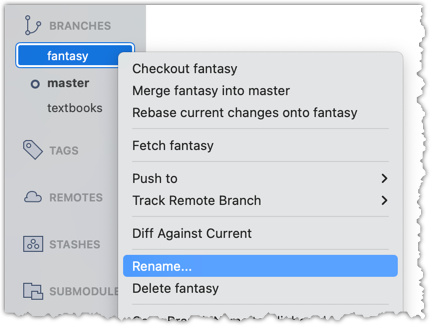
Right-click on the branch name and choose Rename.... Provide the new branch name in the next dialog.
done!
SIDEBAR: Branch naming conventions
Branch names can contain lowercase letters, numbers, /, dashes (-), underscores (_), and dots (.).
You can use uppercase letters too, but many teams avoid them for consistency.
A common branch naming convention is to prefix it with <category>/. Some examples:
feature/login-form— for new features (origin/feature/login-formcould be the matching remote-tracking branch)bugfix/profile-photo— for fixing bugshotfix/payment-crash— for urgent production fixesrelease/2.0— for prepping a releaseexperiment/ai-chatbot— for “just trying stuff”
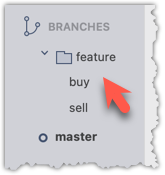
Although forward-slash (/) in the prefix doesn't mean folders, some tools treat it kind of like a path so you can group related branches when you run git branch. Shown below is an example of how Sourcetree groups branches with the same prefix.
Branches can be deleted to get rid of them when they are no longer needed.
Deleting a branch deletes the corresponding branch ref from the revision history (it does not delete any commits). The impact of the loss of the branch ref depends on whether the branch has been merged.
When you delete a branch that has been merged, the commits of the branch will still exist in the history and will be safe. Only the branch ref is lost.
gitGraph BT:
    %%{init: { 'theme': 'default', 'gitGraph': {'mainBranchName': 'master'}} }%%
    commit id: "m1"
    branch bug-fix
    checkout bug-fix
    commit id: "[bug-fix] b1"
    checkout master
    merge bug-fix id: "[HEAD → master] mc1"
→
[delete branch bug-fix]
gitGraph BT:
    %%{init: { 'theme': 'default', 'gitGraph': {'mainBranchName': 'master'}} }%%
    commit id: "m1"
    branch _
    checkout _
    commit id: "b1"
    checkout master
    merge _ id: "[HEAD → master] mc1"
In the above example, the only impact of the deletion is the loss of the branch ref bug-fix. All commits remain reachable (via the master branch), and there is no other impact on the revision history.
In fact, some prefer to delete the branch soon after merging it, to reduce branch references cluttering up the revision history.
When you delete a branch that has not been merged, the loss of the branch ref can render some commits unreachable (unless you know their commit IDs or they are reachable through other refs), putting them at risk of being lost eventually.
gitGraph BT:
    %%{init: { 'theme': 'default', 'gitGraph': {'mainBranchName': 'master'}} }%%
    commit id: "[HEAD → master] m1"
    branch bug-fix
    checkout bug-fix
    commit id: "[bug-fix] b1"
    checkout master
→
[delete branch bug-fix]
gitGraph BT:
    %%{init: { 'theme': 'default', 'gitGraph': {'mainBranchName': 'master'}} }%%
    commit id: "[HEAD → master] m1"
    branch _
    checkout _
    commit id: "b1"
    checkout master
In the above example, the commit b1 is no longer reachable, unless we know its commit ID (i.e., the SHA).
SIDEBAR: What makes a commit 'unreachable'?
Recall that a commit only has a pointer to its parent commit (not its descendent commits).
A commit is considered reachable if you can get to it by starting at a branch, tag, or other ref and walking backward through its parent commits. This is the normal state for commits — they are part of the visible history of a branch or tag.
When no branch, tag, or ref points to a commit (directly or indirectly), it becomes unreachable. This often happens when you delete a branch or rewrite history (e.g., with reset or rebase), leaving some commits "orphaned" (or "dangling") without a ref pointing to them.
In the example below, C4 is unreachable (i.e., cannot be reached by starting at any of the three refs: v1.0 or master or ←HEAD), but the other three are all reachable.
Unreachable commits are not deleted immediately — Git keeps them for a while before cleaning them up. By default, Git retains unreachable commits for at least 30 days, during which they can still be recovered if you know their SHA. After that, they will be garbage-collected, and will be lost for good.
Preparation First, create the repo samplerepo-books-2 for this hands-on practical, by running the following commands in your terminal.
mkdir samplerepo-books-2
cd samplerepo-books-2
git init
echo "Horror Stories" >> horror.txt
git add .
git commit -m "Add horror.txt"
git switch -c textbooks
echo "Textbooks" >> textbooks.txt
git add .
git commit -m "Add textbooks.txt"
git switch master
git switch -c fantasy
echo "Fantasy Books" >> fantasy.txt
git add .
git commit -m "Add fantasy.txt"
git switch master
git merge --no-ff -m "Merge branch textbooks" textbooks
The result should be something like this:
gitGraph BT:
    %%{init: { 'theme': 'default', 'gitGraph': {'mainBranchName': 'master'}} }%%
    commit id: "m1"
    branch textbooks
    checkout textbooks
    commit id: "[textbooks] t1"
    checkout master
    branch fantasy
    checkout fantasy
    commit id: "[fantasy] f1"
    checkout master
    merge textbooks id: "[HEAD → master] mc1"
1 Delete the (the merged) textbooks branch.
Use the git branch -d <branch> command to delete a local branch 'safely' -- this command will fail if the branch has unmerged changes.
git branch -d textbooks
git log --oneline --decorate --graph --all # check the current revision graph
* 443132a (HEAD -> master) Merge branch textbooks
|\
| * 4969163 Add textbooks.txt
|/
| * 0586ee1 (fantasy) Add fantasy.txt
|/
* 7f28f0e Add horror.txt
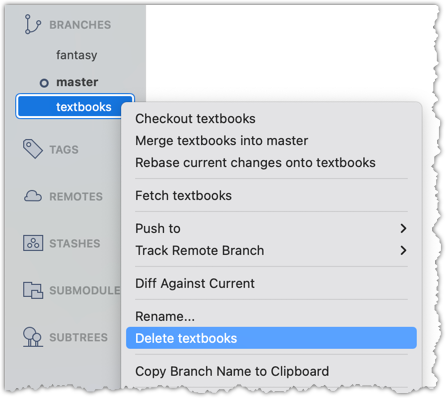
Right-click on the branch name and choose Delete <branch>:
In the next dialog, click OK:
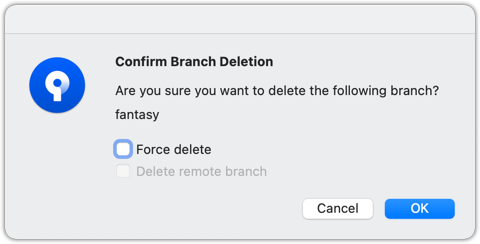
Observe that all commits remain. The only missing thing is the textbook ref.
2 Make a copy of the SHA of the tip of the (unmerged) fantasy branch.
3 Delete the fantasy branch.
Attempt to delete the branch. It should fail, as shown below:
git branch -d fantasy
error: the branch 'fantasy' is not fully merged
hint: If you are sure you want to delete it, run 'git branch -D fantasy'
As also hinted by the error message, you can replace the -d with -D to 'force' the deletion.
git branch -D fantasy
Now, check the revision graph:
git log --oneline --decorate --graph --all
* 443132a (HEAD -> master) Merge branch textbooks
|\
| * 4969163 Add textbooks.txt
|/
* 7f28f0e Add horror.txt
Attempt to delete the branch as you did before. It will fail because the branch has unmerged commits.
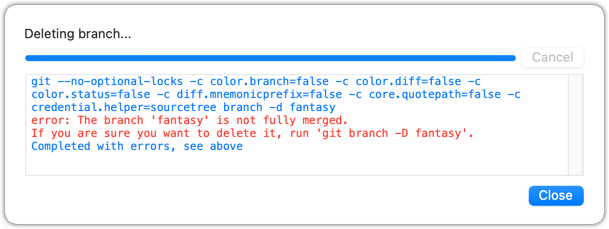
Try again but this time, tick the Force delete option, which will force Git to delete the unmerged branch:
Observe how the branch ref fantasy is gone, together with any unmerged commits on it.
4 Attempt to view the 'unreachable' commit whose SHA you noted in step 2.
e.g., git show 32b34fb (use the SHA you copied earlier)
Observe how the commit still exists and still is reachable using the commit ID, although it is not reachable by other means, and not visible in the revision graph.
done!
At this point: Now you can create, maintain, and merge multiple parallel branches in a local repo. This tour covered only the basic use of Git branches. More advanced usage will be covered in other tours.
What's next: Tour 7: Keeping Branches in Sync
Guidance for the item(s) below:
Given below are some very basic tools and techniques that are often used in planning, scheduling, and tracking projects.
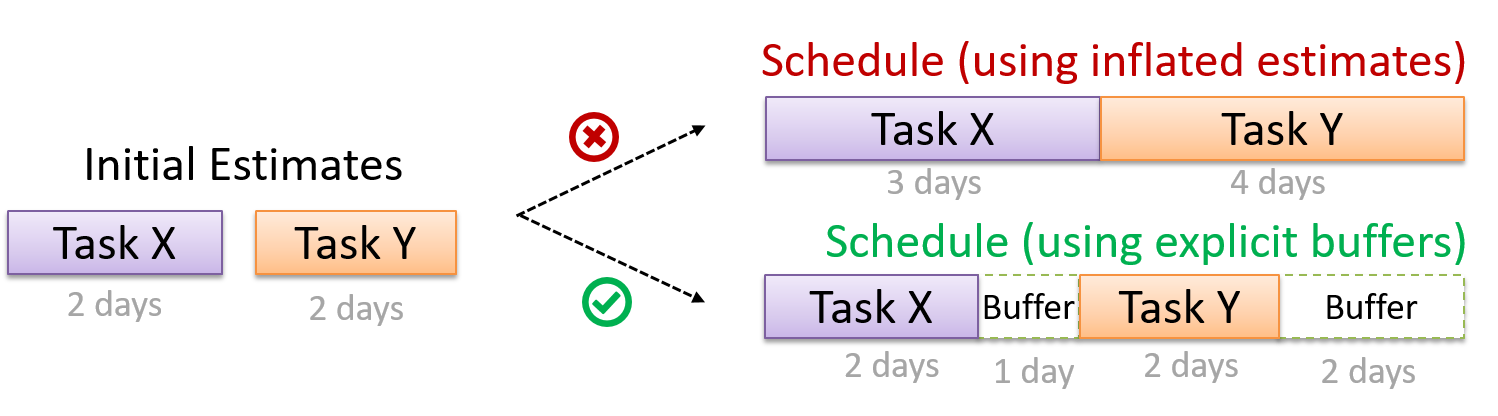
A buffer is time set aside to absorb any unforeseen delays. It is very important to include buffers in a software project schedule because effort/time estimations for software development are notoriously hard. However, do not inflate task estimates to create hidden buffers; have explicit buffers instead. Reason: With explicit buffers, it is easier to detect incorrect effort estimates which can serve as feedback to improve future effort estimates.
Keeping track of project tasks (who is doing what, which tasks are ongoing, which tasks are done etc.) is an essential part of project management. In small projects, it may be possible to keep track of tasks using simple tools such as online spreadsheets or general-purpose/light-weight task tracking tools such as Trello. Bigger projects need more sophisticated task tracking tools.
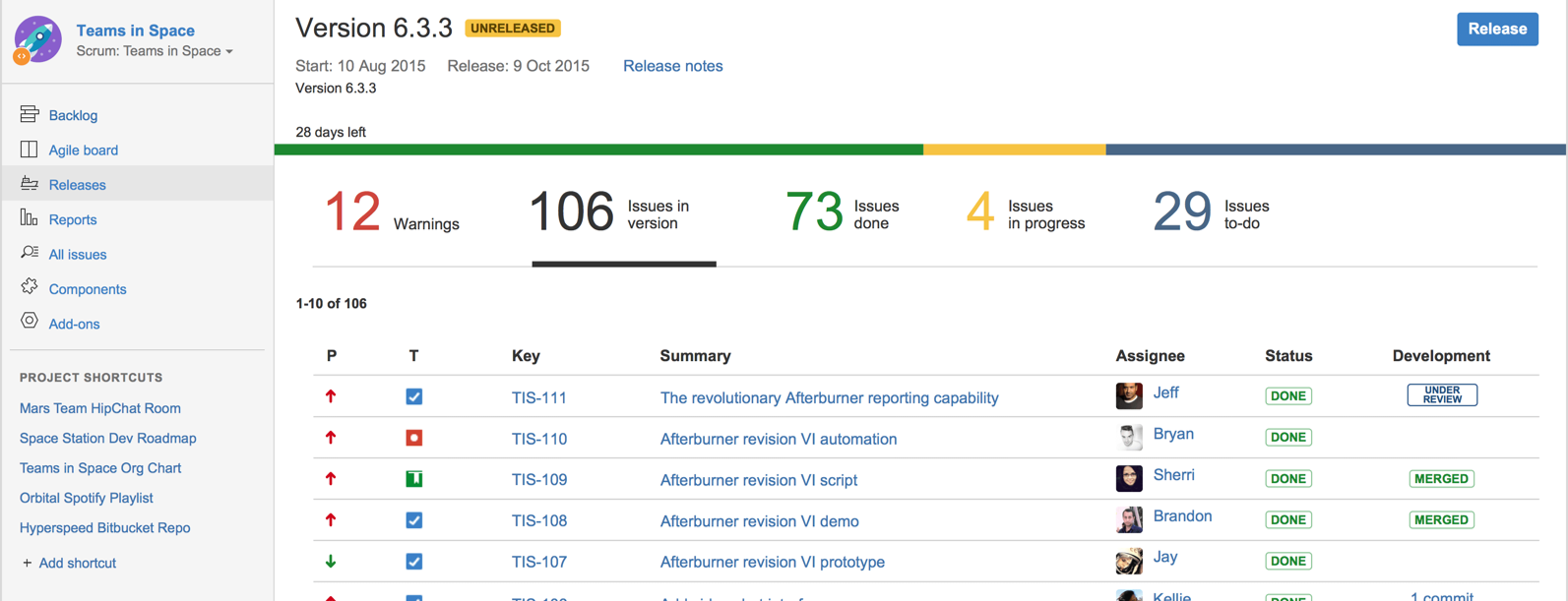
Issue trackers (sometimes called bug trackers) are commonly used to track task assignment and progress. Most online project management software such as GitHub, SourceForge, and BitBucket come with an integrated issue tracker.
A screenshot from the Jira Issue tracker software (Jira is part of the BitBucket project management tool suite):
Last week, you learned intermediate-level class diagram notation. But the quiz only focused on interpreting such diagrams. This week, we cover the aspect of drawing intermediate-level class diagrams to match code. Here are what you can do:
1. Do Part 1 of this week's quiz (which covers the same area).
2. Watch the worked examples in the following videos to learn the process of drawing intermediate-level class diagrams to match code.